---
title: "Configure triPOS.config file"
slug: "configure-tripos-config-file"
description: "Learn to configure triPOS for Vx805 and Lane 3000 terminals, ensuring proper settings and driver installation for seamless payment processing."
tags: ["Setup"]
updated: 2026-06-16T13:00:29Z
published: 2026-06-16T18:09:31Z
canonical: "mysupport.roller.software/configure-tripos-config-file"
---
> ## Documentation Index
> Fetch the complete documentation index at: https://mysupport.roller.software/llms.txt
> Use this file to discover all available pages before exploring further.
# Configure triPOS.config file
In this guide, you will learn how to configure triPOS for Vx805 card terminals & Lane 3000 direct USB card terminals.
> [!WARNING]
> In triPOS Direct v5.21, Verifone has deprecated support for Verifone Vx805 and Verifone Vx690. To upgrade to other options, reach out to our [support team.](/v1/docs/contact-roller-support)
## Configure triPOS
> [!NOTE]
> You will need to ensure you have downloaded triPOS and installed drivers prior to configuring triPOS.
1. From your POS device, open the Windows **Start** menu. [Learn how](https://support.microsoft.com/en-us/windows/open-the-start-menu-4ed57ad7-ed1f-3cc9-c9e4-f329822f5aeb)
2. Search for **Notepad**
3. Right-click **Notepad**, then select **Run as Administrator**
4. In **Notepad,** select **File** > **Open**
5. Select the drop-down list at the bottom right of the window and select **All Files** 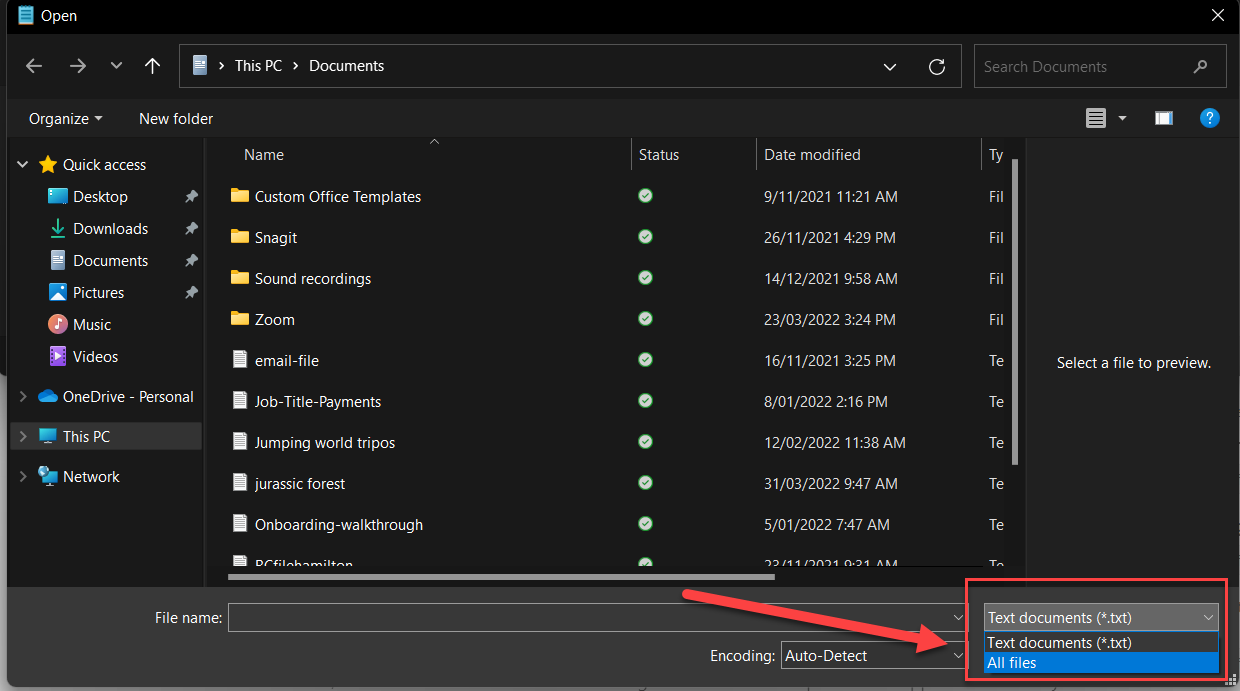
6. Copy **C:\Program Files (x86)\Vantiv\triPOS Service\** and paste it into the search area & press Enter 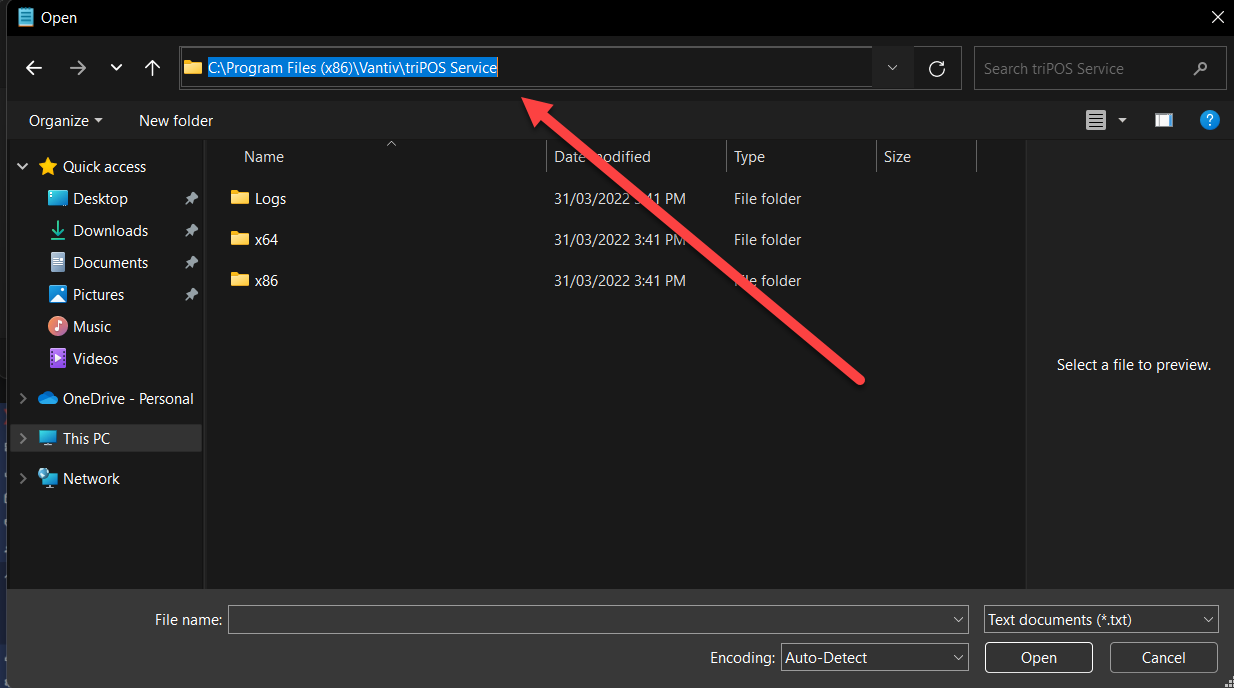
7. Select **triPOS.config** and double-click to open (If you need to select an app to open this file use Notepad)
8. Place the mouse cursor at the top of the document & select **Ctrl + F** on your keyboard (make sure the search direction is set to downwards)
- Search **YourCompany**
- Replace found text with your Venue Name
9. Place the mouse cursor at the top of the document & select **Ctrl + F** on your keyboard (make sure the search direction is set to downwards)
- Search **Welcome!**
- Replace found text with your Venue Name
10. Place the mouse cursor at the top of the document & select **Ctrl + F** on your keyboard (make sure the search direction is set to downwards)
- Search **defaultreboot**
- Change Default Reboot time to 1:00
11. Place the mouse cursor at the top of the document & select **Ctrl + F** on your keyboard (make sure the search direction is set to downwards)
- Search **testMode**
- Ensure the value between the tags is the following: **false**
12. Place the mouse cursor at the top of the document & select **Ctrl + F** on your keyboard (make sure the search direction is set to downwards)
- Search **true**
13. Place the mouse cursor at the top of the document & select Ctrl + F on your keyboard (make sure the search direction is set to downwards)
- Search **true**
14. Place the mouse cursor at the top of the document & select **Ctrl + F** on your keyboard (make sure the search direction is set to downwards)
- Search **false**
15. Place the mouse cursor at the top of the document & click **Ctrl + F** on your keyboard (make sure the search direction is set to downwards)
- Search ****
16. Place the mouse cursor at the top of the document & click **Ctrl + F** on your keyboard (make sure the search direction is set to downwards)
- Search **The ID of the terminal**
- Ensure for the line below that the value between the tags is: **0001**
17. Place the mouse cursor at the top of the document & click **Ctrl + F** on your keyboard (make sure the search direction is set to downwards)
- Search **Null**
- Ensure the value between the tags is:
- For newer Vx805 terminals: **VeriFoneCXpi**
- For old Vx805 terminals: **VeriFoneXpi**
- For Lane 3000 Terminals: **IngenicoUpp**
18. Place the mouse cursor at the top of the document & click **Ctrl + F** on your keyboard (make sure the search direction is set to downwards)
- Search **COM9999**
- Ensure the value between the tags is: **COM9**
- For Lane 3000 devices- use the ComPort shown under Device Manager
- To find this information open the Windows Start menu
- Search **Device Manager**
- Find **Ports (COM & LPT)** It should show the Lane 3000 device & which Com Port it's connected to 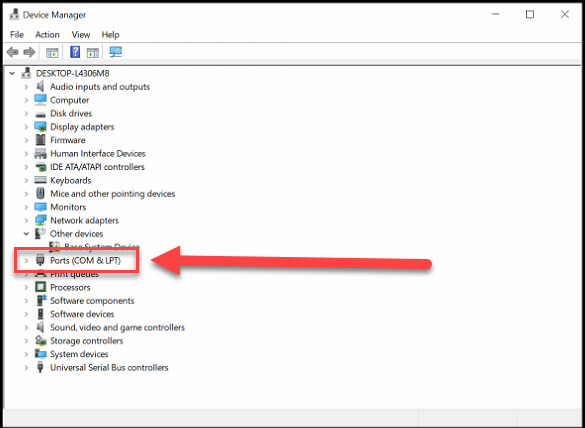
19. Place the mouse cursor at the top of the document & select **Ctrl + F** on your keyboard (make sure the search direction is set to downwards)
- Search for the first instance of **transactionAmountLimit**
- Ensure the value between the tags is: **10000**
20. Select **File** > **Save**
Here is a quick video demonstration of how to configure triPOS. Driver details for Vx805 were used; however, this will need to be configured differently if you're configuring triPOS.config for a Lane 3000 direct USB devices.
[Embedded content](https://fast.wistia.com/embed/iframe/qzjza58er2)
## Related
- [Install drivers for Worldpay (Vantiv) Vx805 card terminals](/install-drivers-for-worldpay-vantiv-vx805-card-terminals.md)
- [Install drivers for Worldpay (Vantiv) Lane 3000 USB card terminals](/install-drivers-for-worldpay-vantiv-lane-3000-usb-card-terminals.md)
- [Install ROLLER Connect](/install-roller-connect.md)