This article explains the delivery process for email and demonstrates how staff can track the delivery status of an email and resolve any issues reported by guests.
Overview
Email generally just works but sometimes errors can occur that delay or prevent delivery as emails are routed to user accounts.
However, there are many factors that can delay delivery or cause it to fail and to help staff manage these issues we display the delivery status of emails in the booking activity view.
Email delivery statuses
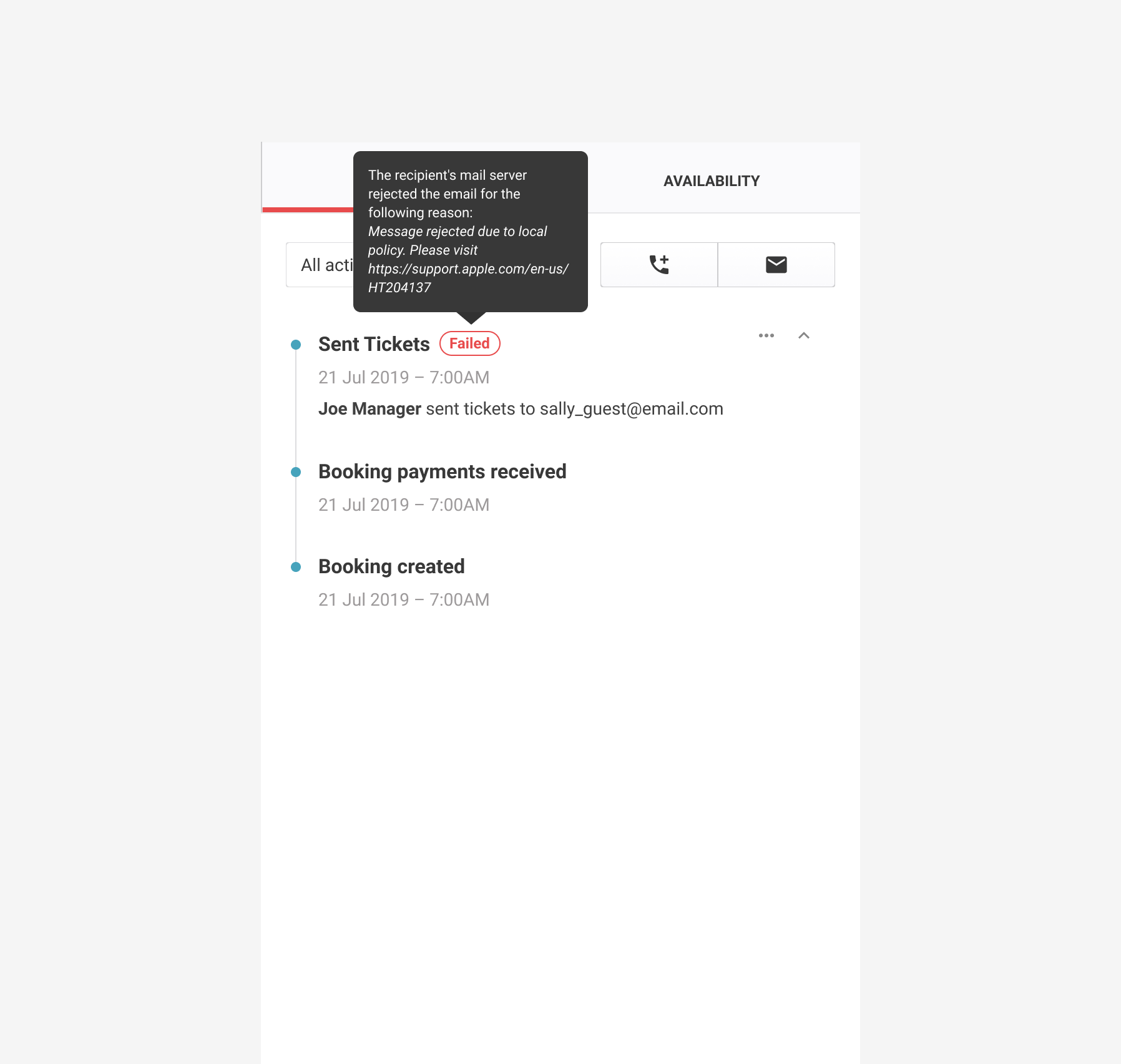
During the booking process, booking confirmation and invoice emails are generated in ROLLER and sent to the guest. The booking activity stream displays the delivery status similar to the screenshot below.
Hover on an email status to display a detail explanation of the delivery status and reason.
The email delivery process and statuses are:
Status | Description |
|---|---|
Sending | Delivery is being attempted & delivery delays can occur, for example, when the recipient's inbox is full, or when the receiving email server experiences a transient issue. |
Delivered | The recipient's mail server has confirmed delivery. |
Failed | The recipient's mail server rejected the email and a reason will be provided such as incorrect email address. |
Marked as Spam | The email was successfully delivered and the recipient marked the email as spam. |
Recipient blocked | The email was not sent because previous emails to this recipient have failed and thus this email address was added to the blocked recipient's list. |
Failure reasons
Below are the common failure codes/messages reasons an email might be rejected by the recipient's mail server.
Failure messages | Explanation | Solution |
|---|---|---|
Undetermined | The recipient's email provider sent a bounce message without a specific reason. | Resend email to an alternative email address. |
General | The recipient's email provider sent a bounce message without a specific reason. | Resend email or send to alternative email address. |
No Email | The email bounced because the email address doesn't exist. | Confirm email address and resend. |
Suppressed | The recipient's email address is on a suppression list due to a history of hard bounces. | Resend to an alternative email address. |
On Account Suppression List | The recipient's email address is on a suppression list due to a history of hard bounces. | Resend to an alternative email address. |
Mailbox Full | The email bounced because the recipient's inbox is full. | Notify guest of reason or send to alternative email address. |
Message Too Large | The email bounced because the message was too large. | Generally caused by booking with a large number of tickets or too much content has been added to an email template. Download email PDF and ticket PDF and email to the guest manually. |
Content Rejected | The email bounced because the message contained content the recipient's email provider does not allow. | Notify guest of reason and resend to an alternative address. |
Blocked recipients
When ROLLER receives a "hard bounce" response an email provider we add this email address to a blocked recipient list to protect our sending reputation and ensure that email providers don't block our IP addresses as suspected a SPAM source. A "hard bounce" generally occurs in cases such as the email address or domain doesn’t exist.
You will see the following status in the bookings activity stream which provides the option to unblock the email address and resend the email if you're confident the guest's email account has been fixed.
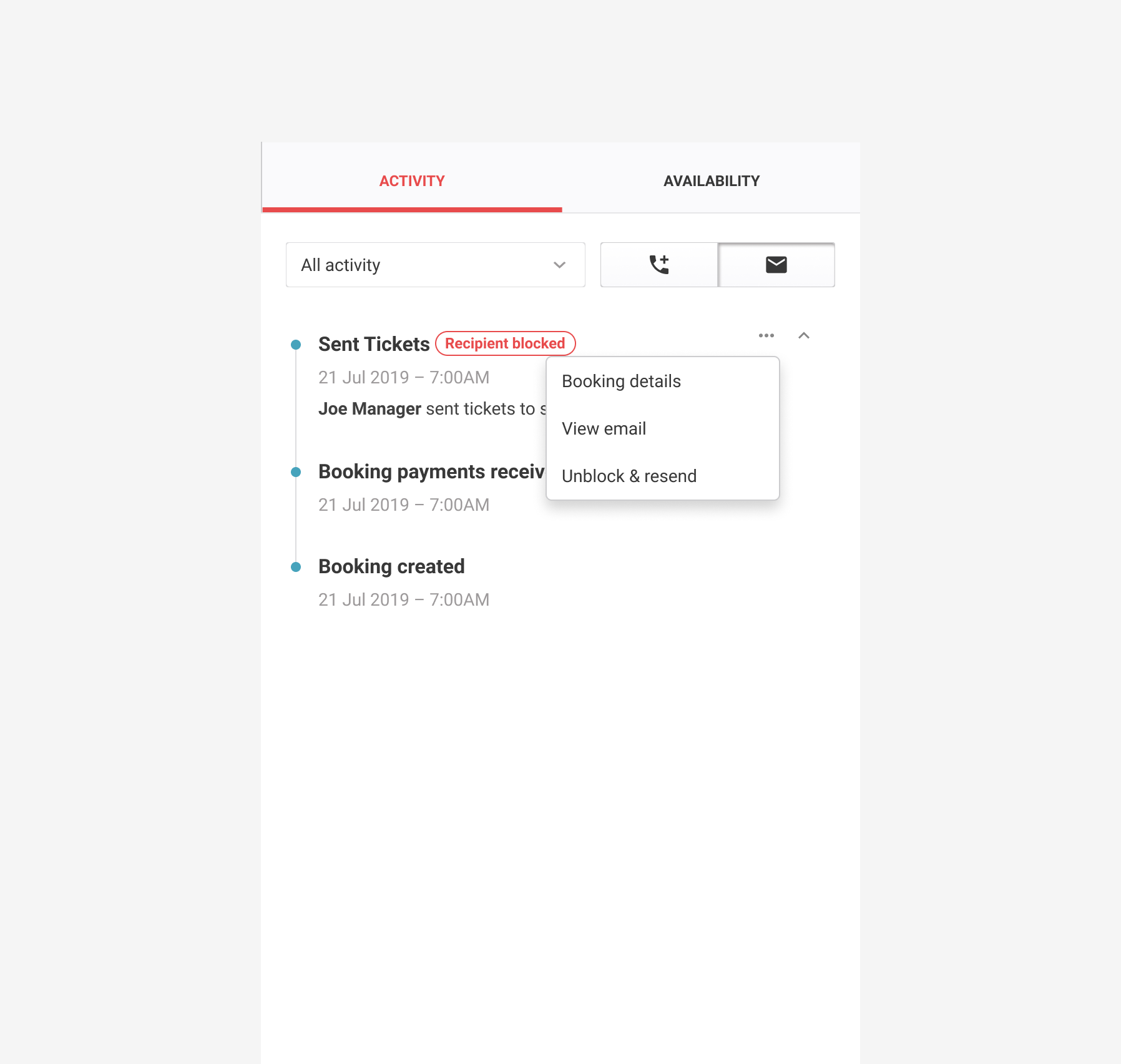
Staff can unblock and resend the email to the guest by:
In Venue Manager, locate and open the relevant booking
In the activity stream, locate the email and click more options (3 dots) on the right-hand side.
Select Unblock & Resend