Let ROLLER drive your membership sales, upgrades and renewals, and increase your recurring revenue, with membership management.
Using membership management, you can enable your guests to self-manage their memberships, with the ability to upgrade at any time. ROLLER will also encourage guests to renew expired memberships and win-back canceled ones, eliminating the need for staff intervention.
This guide walks through how guests can self-manage their memberships via online accounts.
Only recurring memberships can be upgraded, renewed and canceled online. To learn more about how to configure membership upgrades, renewals and cancellations, read the guide Create a membership product.
Requirements
Before guests can self-serve their membership upgrades, renewals and cancellations, there's some configuration work required from venues in Venue Manager.
Venues must be using progressive checkouts with online accounts enabled.
Venues must be using ROLLER Payments.
Venues must have configured membership upgrades, renewals and cancellations at the membership product level. To learn more, read the guide Create a membership product.
Pro feature
Save time and reduce operating costs by encouraging guests to create an online account with your venue. To unlock this feature with a Pro plan and above, contact your customer success manager or the support team.
How guests upgrade a membership
If a guest would like to upgrade their memberships, they can do so from their online account.
To learn more about the guest login experience for online accounts, see the guide Sign in and use online accounts.
Once logged in, guests can follow the steps below.
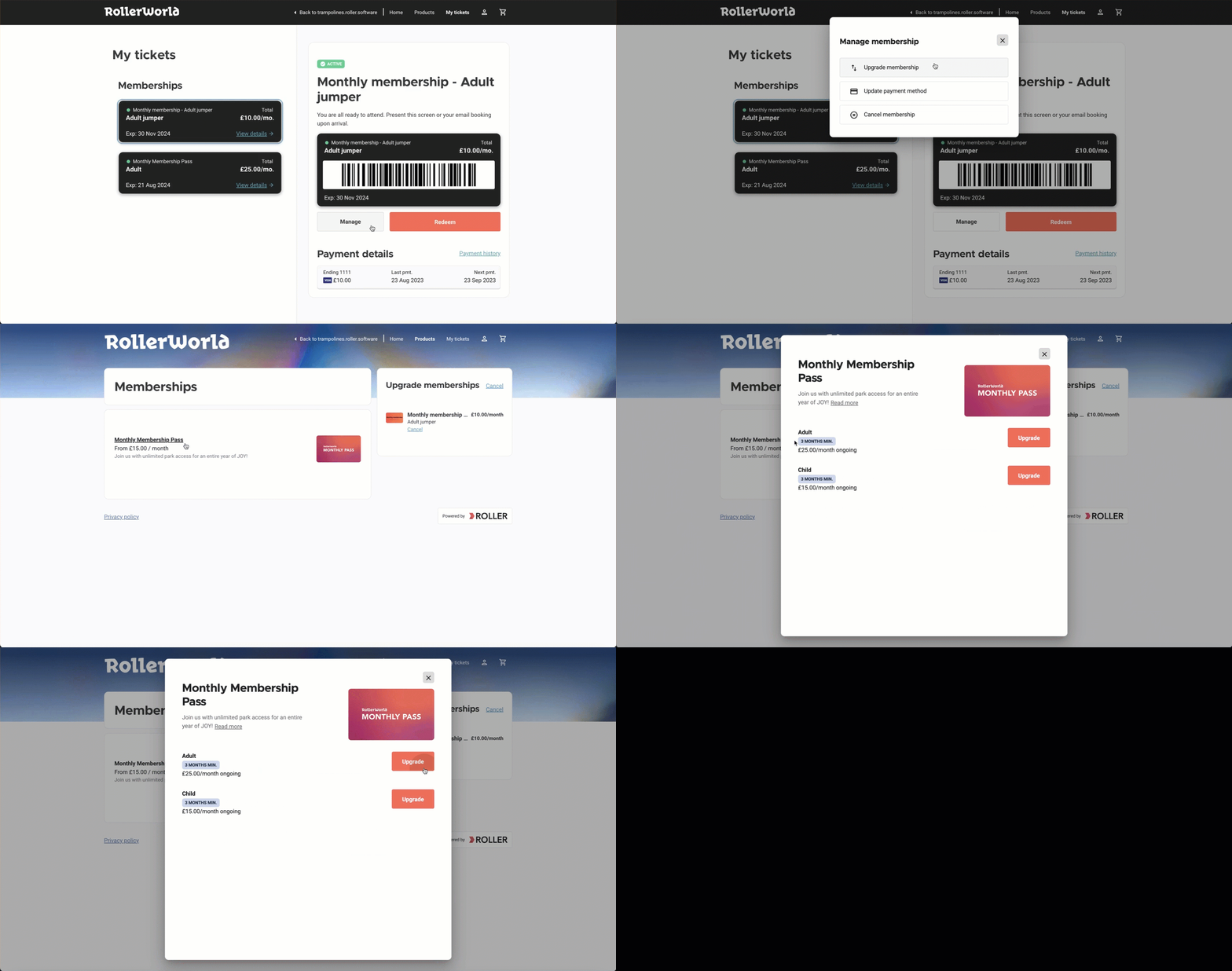
From My tickets, guests select the memberships they want to upgrade.
They select Manage / Cancel and then select Upgrade membership.
A new webpage will open. This page has been configured to only show memberships equal to or greater than the dollar value of their current membership.
Your guests then select the memberships of a higher value they wish to upgrade to and then select Upgrade.
Guests pay any differences in membership fees, as the upgrade will incur an extra cost. Once payment has been made, the memberships will be updated in their online account.
How guests renew a membership from an automated win-back email
Automating membership win-back emails is configured in Venue Manager at the product level. To learn more about how to configure membership renewals, see the guide Create a membership product.
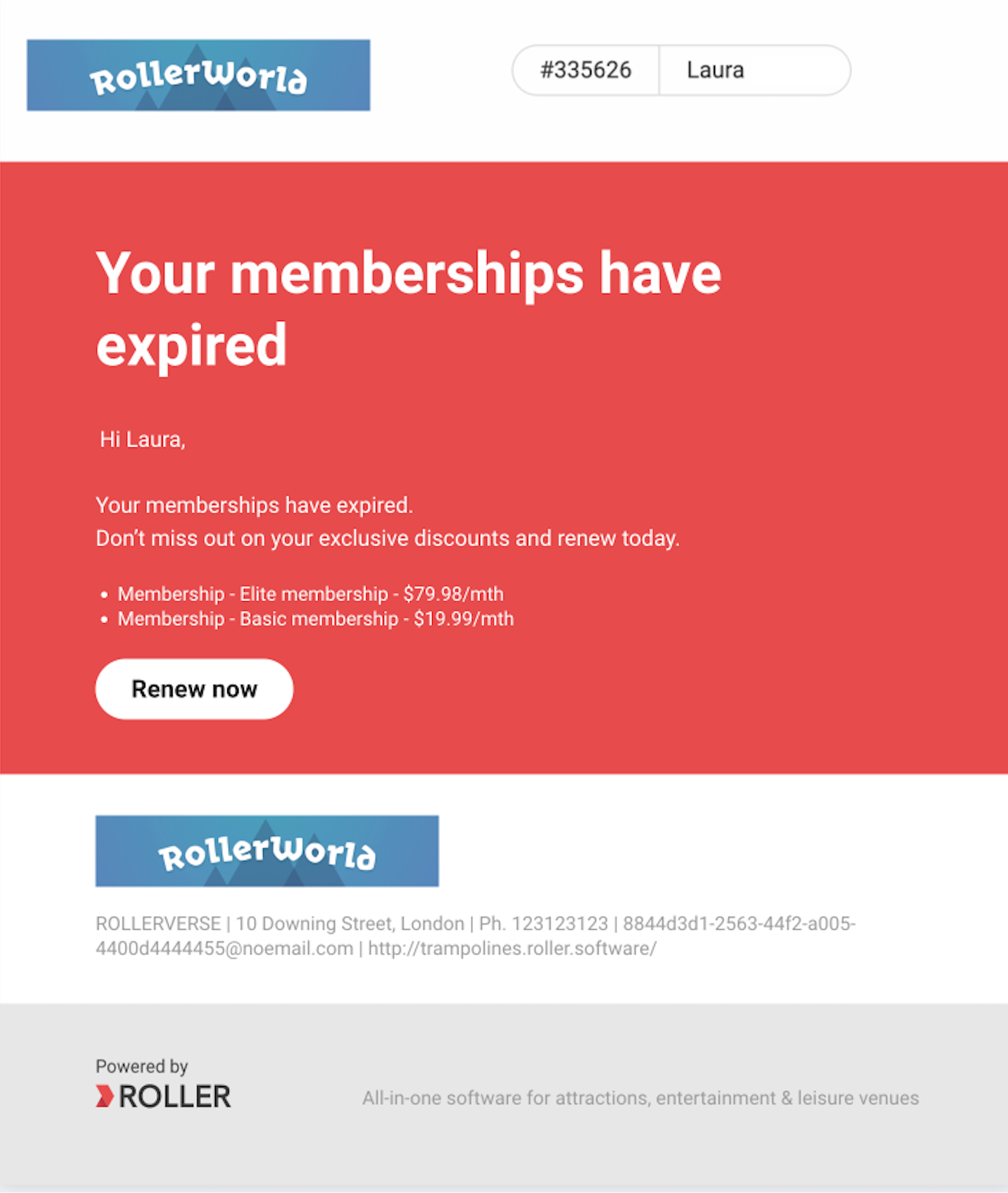
When your guests’ memberships expire, or have been canceled, ROLLER will automatically send an email to your guests, with the option to renew. This can be configured by venues in Venue Manager. ROLLER will also send a reminder email 30 and 60 days after expiry or cancellation.
To learn more about email templates, see the guide Guest email templates.
Once your guests receive their expiry or cancellation email, they can follow the steps below if they want to renew.
From the email, guests select Renew now.
If their original membership product is available to purchase, then they’ll be taken to the Product details page with their cart already populated, and they can checkout quickly and seamlessly.
If their original membership product isn’t available, then they’ll be taken to a membership products page where they can select new memberships to purchase.
Once payment is confirmed, the new memberships are confirmed and will be active and available to use.
How guests renew a membership from an online account
Guests can also renew their expired or canceled memberships from within their online account by following the steps below.
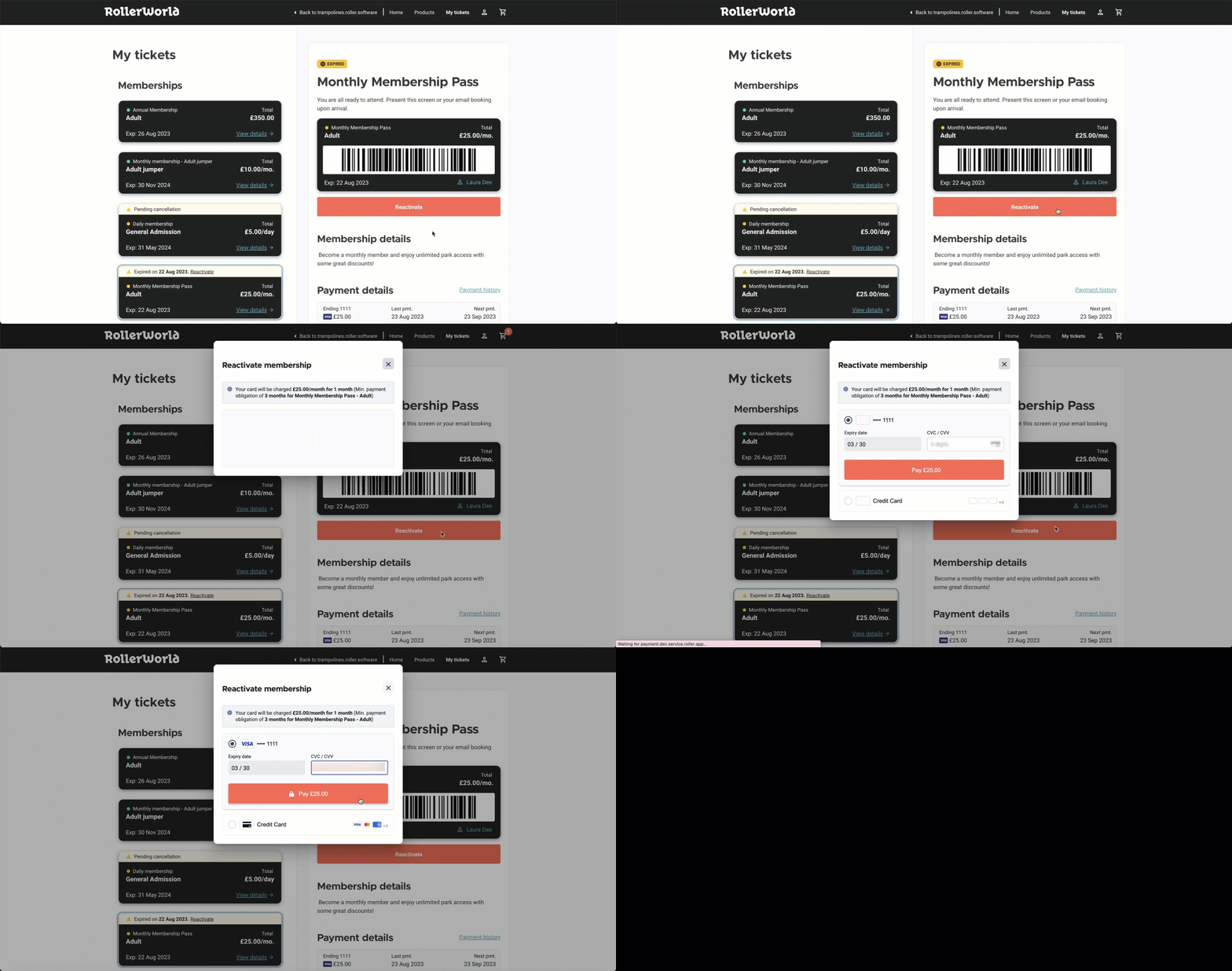
Guests log into their online account and select My tickets.
They select Reactivate on the memberships they wish to renew.
Guests then confirm their payment details and the memberships are active once payment has been confirmed.
How guests cancel a membership
Guests are able to cancel their membership from their online account by following the steps below.
Guests log into their online account and select My tickets.
They select the membership they would like to cancel and then select Manage / Cancel.
Select Cancel membership.
For venues in the US, it's a requirement that all subscriptions, like memberships, that can be started online must also be cancelable online. To learn more, read the guide US-based venues: Membership requirements.
How guests reactivate a membership pending cancellation
ROLLER also gives guests the option to reactivate memberships pending cancellation. To do so, they can follow the steps below.
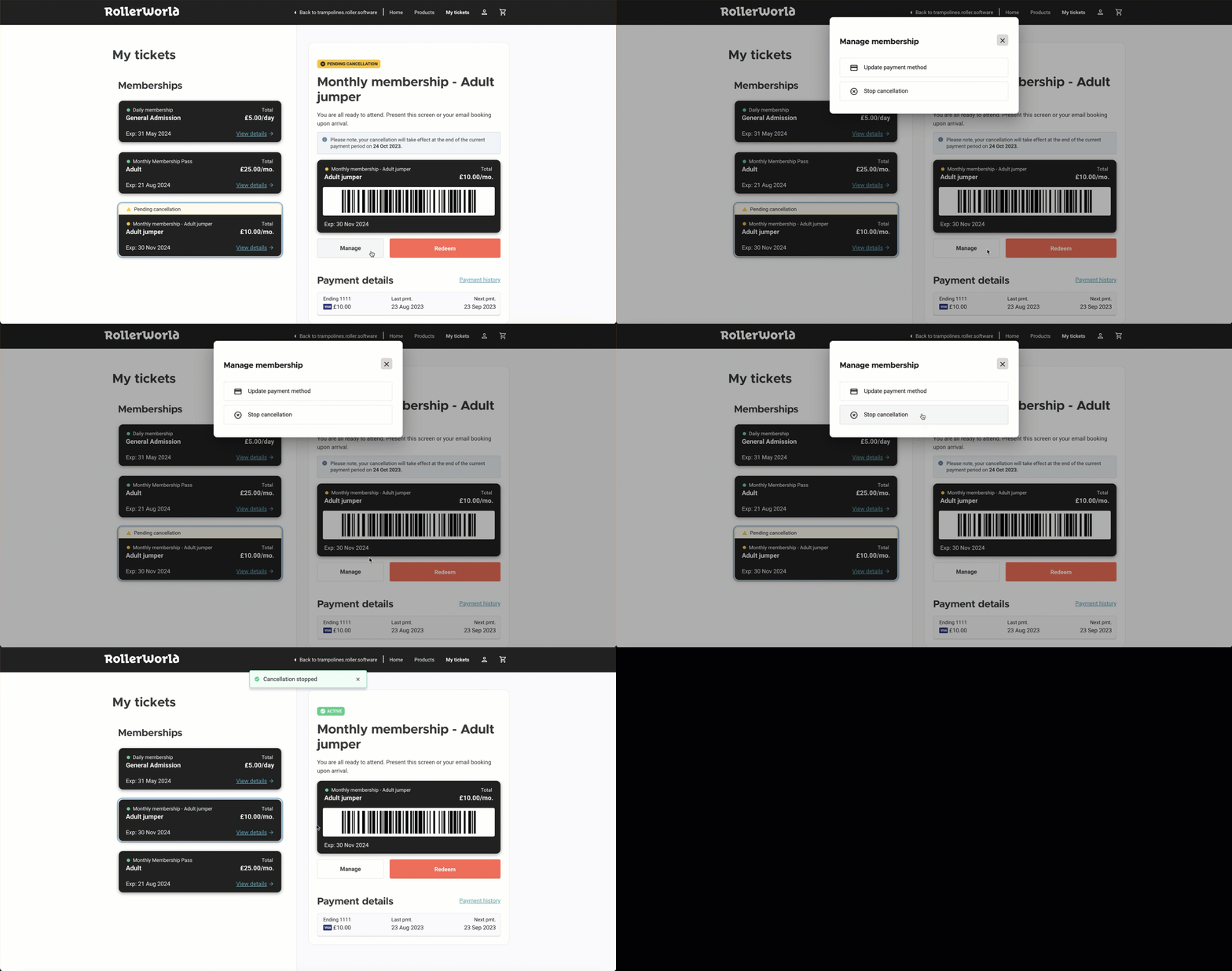
Guests log into their online account and select My tickets.
They select the memberships they would like to reactivate, and then select Manage / Cancel.
Select Stop cancellation.
Guests will also be sent an email confirming that they have memberships pending cancellation. This email gives them the option to stop the cancellation. To customize this email template, read the guide Guest email templates.
To find out how you can reactivate recurring payment memberships from Venue Manager, check out the guide Reactivate recurring payment memberships.
FAQs
Can I upgrade all products online?
You can upgrade memberships online anytime. Session Passes and Standard Passes can only be upgraded in-venue at POS.
If I upgrade from Membership A to Membership B, will I get a new membership ID?
Yes. When you upgrade, a new membership ID is created.
If I reactivate my membership online, will I keep my old pricing?
It depends on the status of your cancellation:
If your membership was fully canceled and then reactivated, it updates to the current pricing.
If you stopped the cancellation before it was completed, you’ll keep your original pricing.
Can I pause my membership online?
Venues can set up membership products to allow guests to put their membership billing on hold. To learn more about how to enable guests to pause their memberships see the guide Pause memberships in Venue Manager and online accounts.