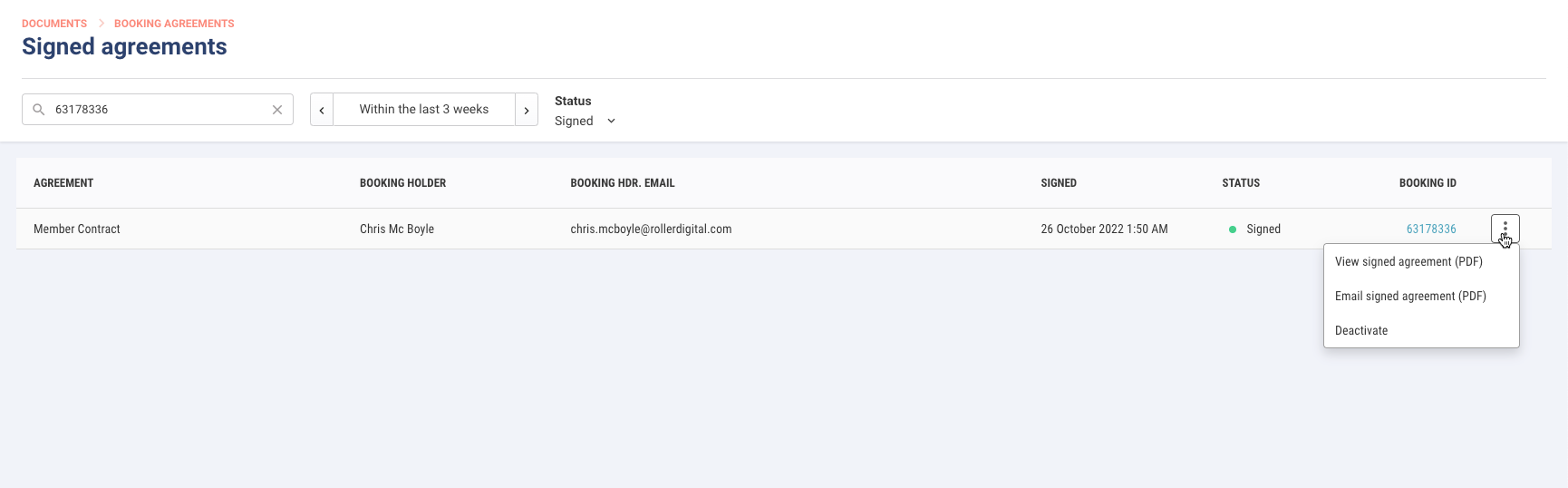
When a guest requests a copy of their agreement or a membership dispute arises, you can quickly find the signed booking agreement in Venue Manager.
You and your staff can view the booking agreement as a PDF or email a copy to the guest.
Premium feature
Quickly resolve disputes and confidently manage memberships. Available on Premium plans. To enable this feature, contact your customer success manager or our support team.
To learn how to create a booking agreement, see the guide Create a booking agreement.
Find a signed booking agreement
You can find a signed booking agreement in Venue Manager in three ways.
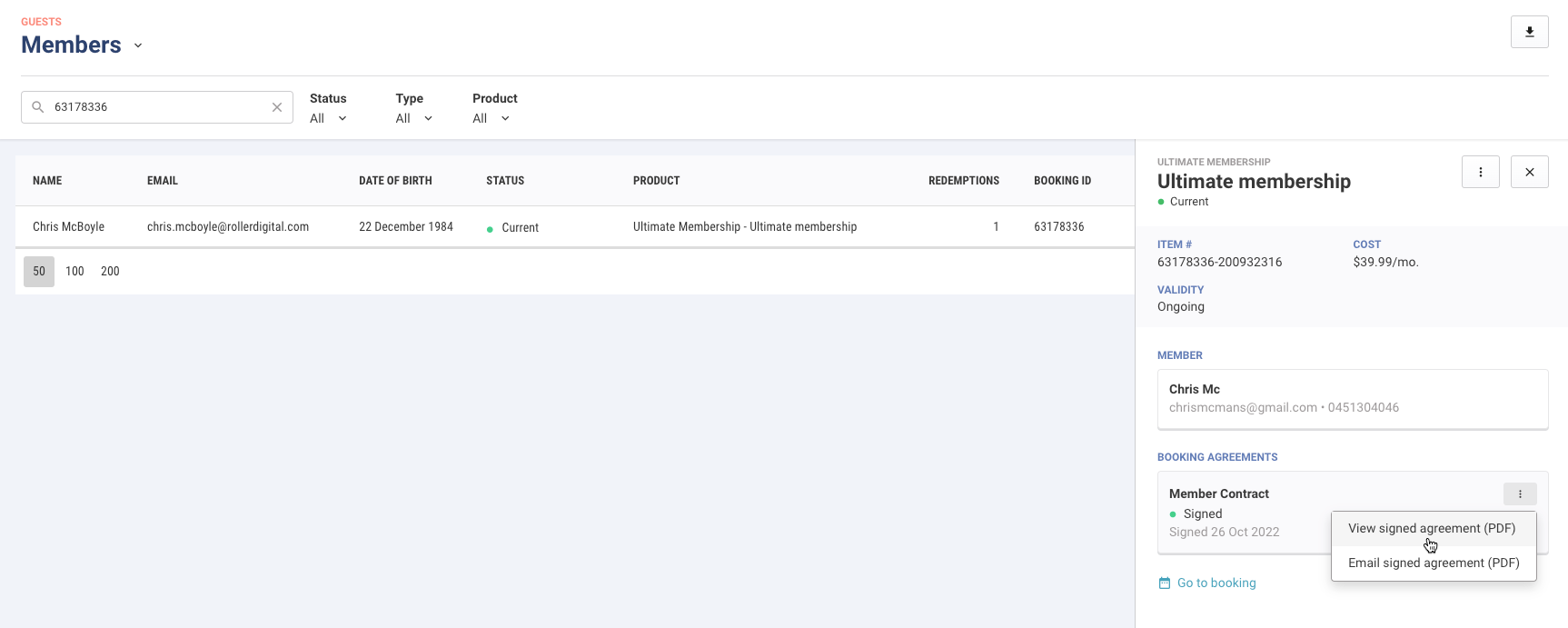
Search for a member record under Guests
From Venue Manager, go to Guests > Members.
Search for or use the filters at the top of the page to find the member.
Select the member to open a right-side panel with further details.
Under Booking agreements, select the options menu
 to the right of the agreement to view the agreement or email a copy to the guest as a PDF.
Search for a membership booking
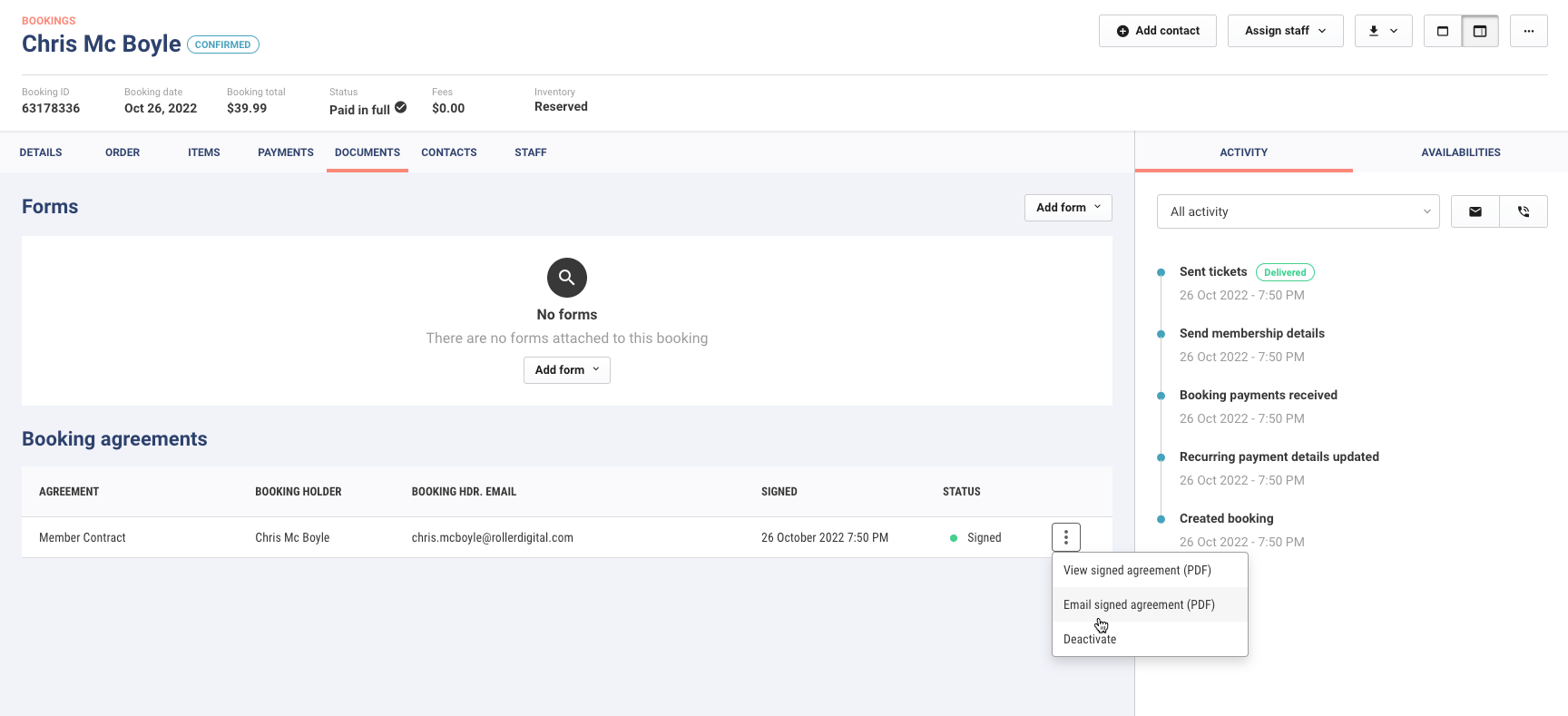
From Venue Manager, go to Bookings > All bookings.
Use the search and filters at the top of the page to find the booking.
Select the booking to open the booking's details.
Select the Documents tab.
Under Booking agreements, select the options menu
to view or email a copy to the guest as a PDF.
Search on the Signed agreements page
From Venue Manager, go to Documents > Booking agreements > Signed agreements.
Use the search and filters at the top of the page to find the agreement. You can search by member name, booking holder name, email or booking ID.
Select the options menu
to view or email the agreement to the guest as a PDF.