It can be frustrating to lose booking details at POS when a customer needs to step away before paying. The Park feature lets you store booking details on a POS device to quickly access them later. When you park a booking, it frees up the POS device to serve other customers.
This guide walks you through how to hold capacity on parked bookings, park a booking and unpark it.
When to use
When a staff member has entered most of the details for a booking, but the guest needs to step out of the queue - maybe to sign a waiver, wait for a late guest or grab their wallet from the car.
Staff know a party is coming in shortly, so they bring up the booking and park it so they don't have to search for it when the party arrives.
Hold venue capacity for a parked draft booking
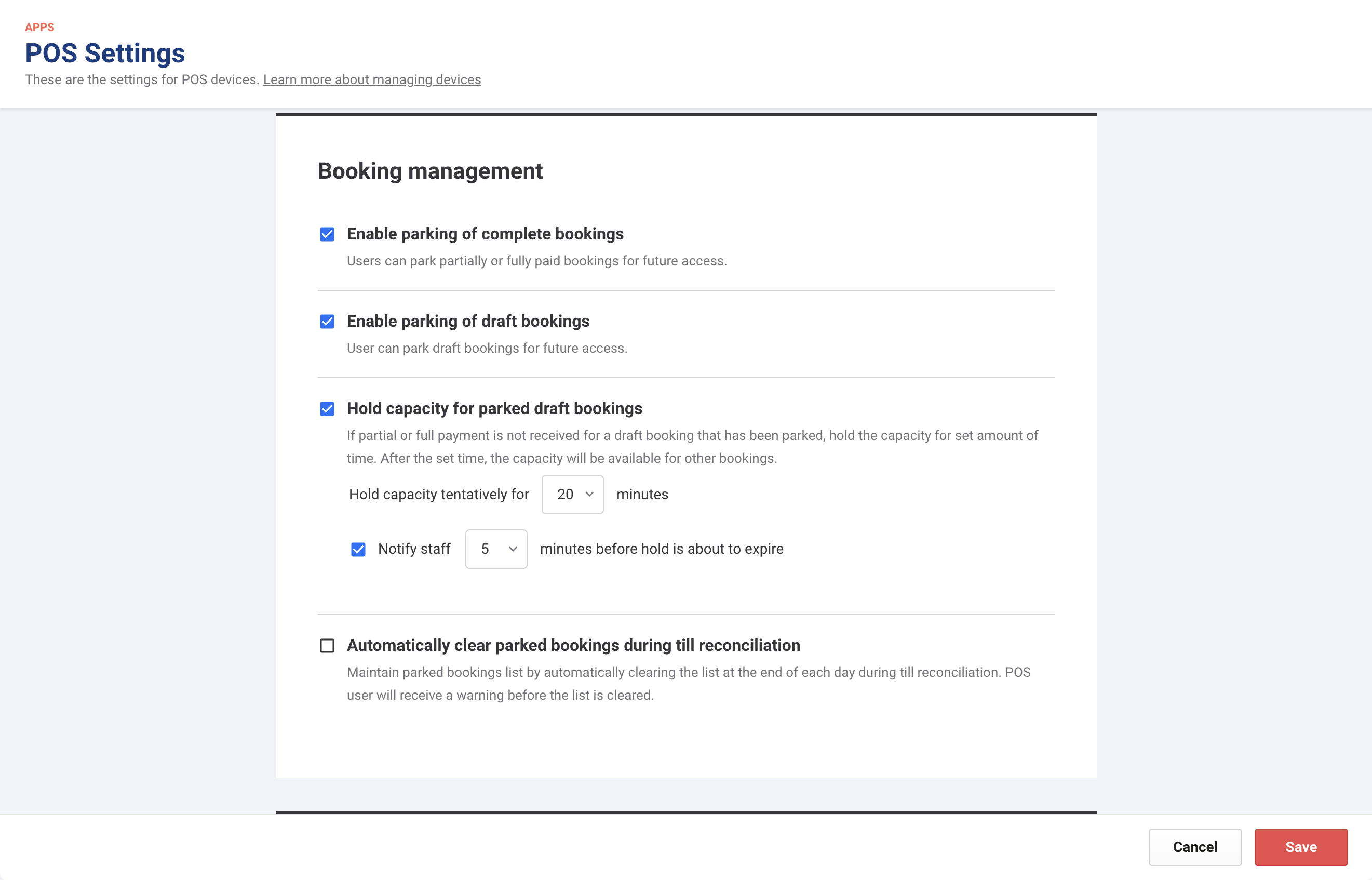
To ensure a draft booking doesn’t accidentally overbook your venue, you can enable capacity holds for parked draft bookings. You must have the Administrator or Manager role.
From Venue Manager, go to Apps > Point of Sale > Settings.
Under Booking management, select the checkbox next to Hold capacity for parked bookings. Here, you can also enable notifications to let staff know when a capacity hold is about to expire.
Select Save.
If enabled, a parked draft booking tentatively holds capacity at your venue for 20 minutes, and displays a warning across the top of the screen 5 minutes before the hold expires. You can change these times to suit your venue, if needed.
Park a draft booking at POS
With the booking open at POS, select the Park icon.
Give the parked booking a name to help easily find it in the parked bookings list later. This does not change any booking details.
Select Park draft booking to save.
The POS screen resets, ready to start a new transaction.
ROLLER stores the parked booking on the POS device you saved it on. You can only retrieve a parked booking from the device you parked it on.
Park a complete booking at POS
Search the bookings list for the guest name of the booking you want to park. You can park complete bookings without a guest added, however it will appear in the Parked tab without a name.
With the booking open, click the Park icon. ROLLER moves the booking straight to the Parked tab for easy access.
Retrieve a parked booking
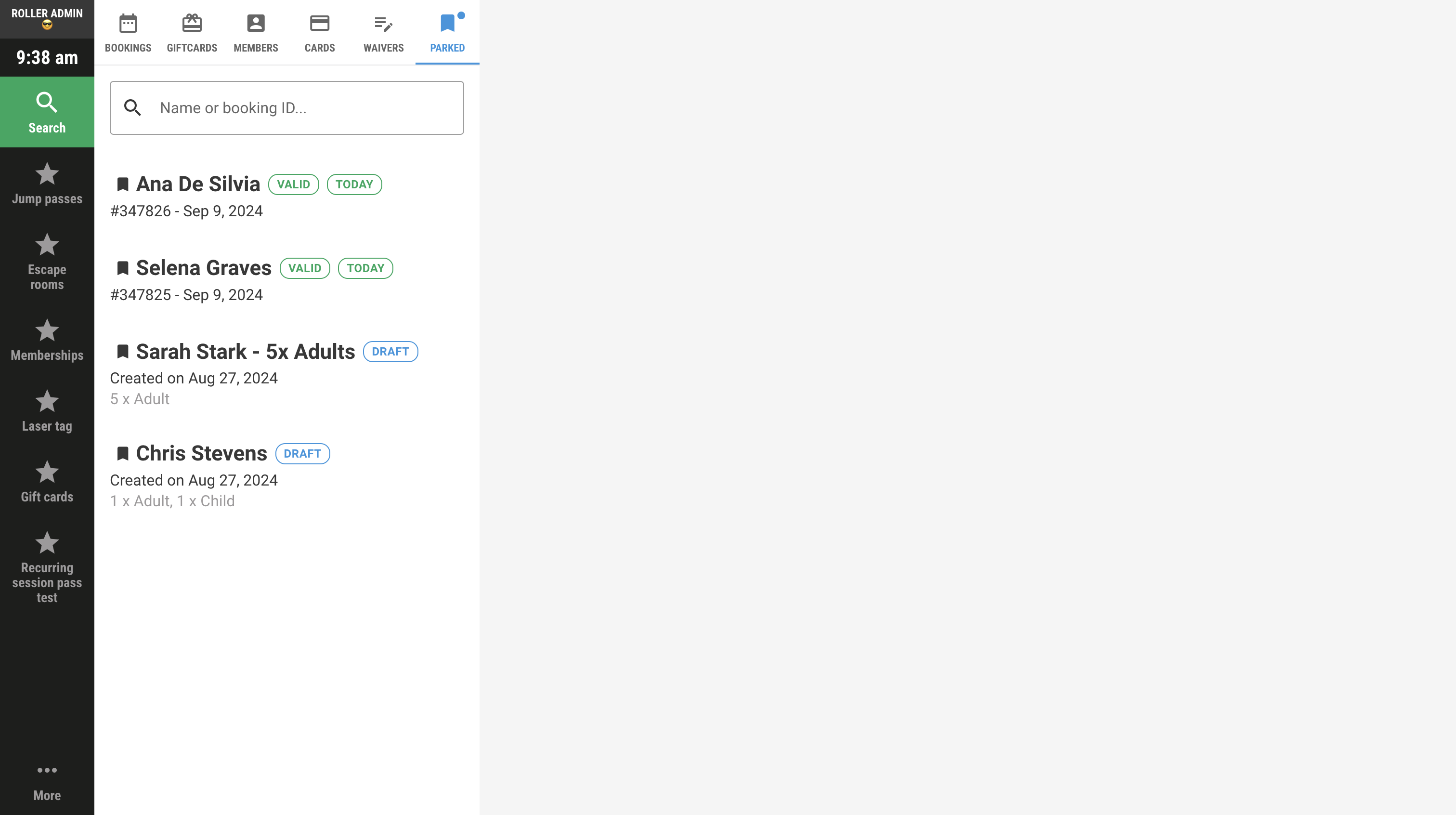
From POS, select Search, then choose Parked.
ROLLER shows all bookings parked on that device from newest to oldest.
From here, select the booking to open it.
Unpark a booking
You can remove a booking from the Parked list by deselecting its Park icon. If the booking is incomplete, this deletes it entirely from the POS device, so be sure you’re ready to unpark.
When a guest makes a payment on a draft parked booking, this unparks the booking. If you’d like to park it again for easy reference, use Search to find the now complete booking.