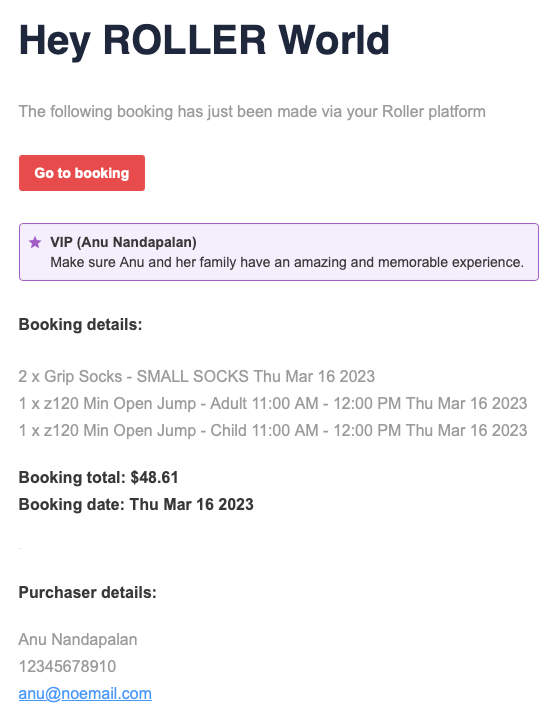
Stay on top of guest bookings by setting up email notifications sent to your team each time a guest purchases via the online checkout.
Set up the email address
These emails are sent to the booking notifications email set up in venue settings. To enter an email address:
From Venue Manager, go to Settings > Account > Venue settings.
Select Unlock to make changes.
Scroll to Bookings & inquiries and enter the booking notification email address you want to use.
Select Save.
If no email address is set, no emails will be sent. If a guest with a Ban flag books, and no email address has been configured, the email will be sent to the account owner.
The booking notification email will include the following details:
The booking details
A link to the guest booking in ROLLER
Any guest flags or bans
Purchaser details: name, contact number and email
Booking totals
Booking date