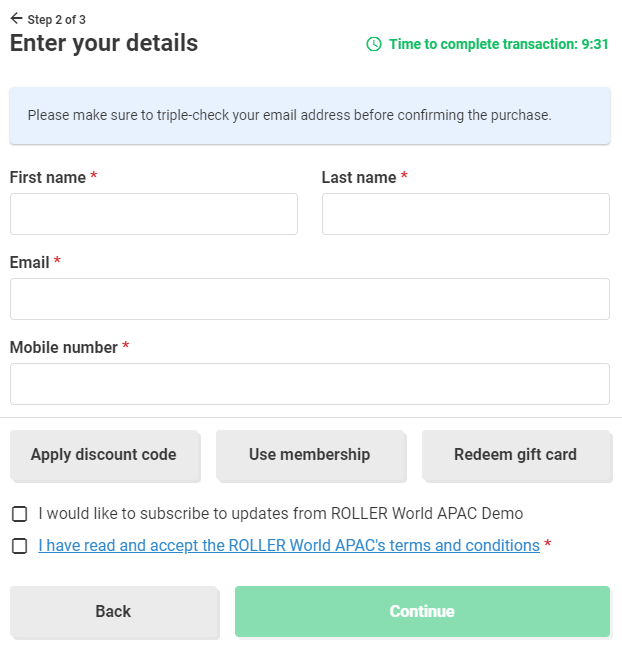
This article will show you how changing the checkout settings in Venue Manager impacts the guest experience online.
This article relates to checkout settings in ROLLER's Legacy Checkout. If you haven't yet created your legacy online checkout, go to Create your checkout.
Date selector
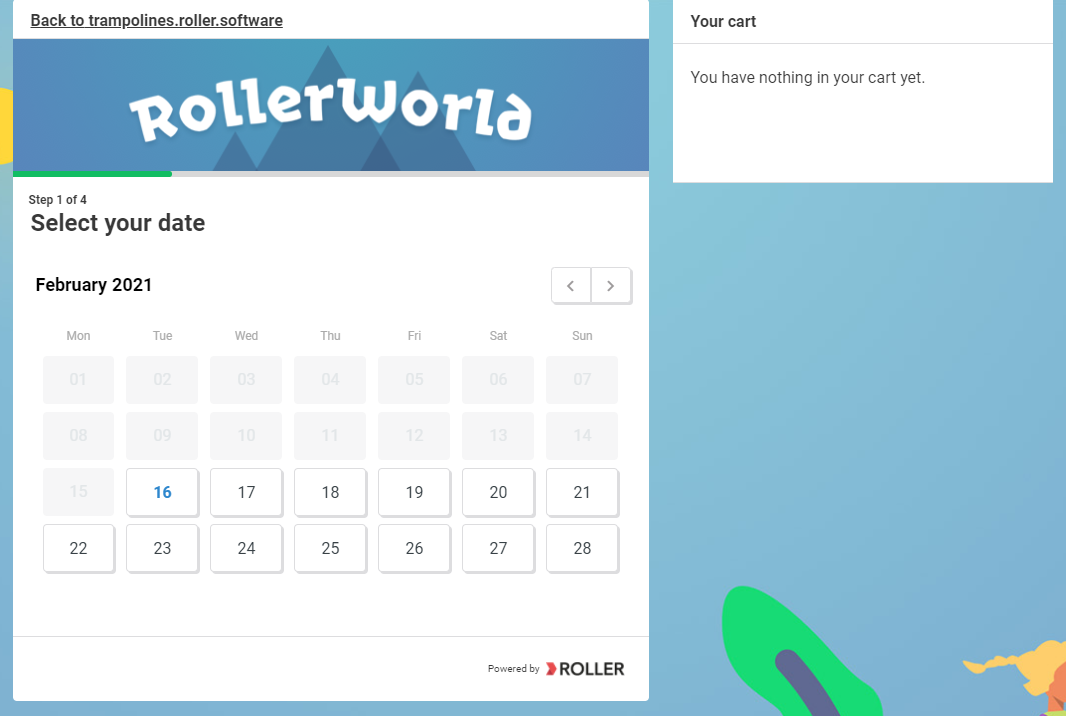
When configuring how a ROLLER checkout displays products, you have 3 different date selector options. Altering these settings will have a significant impact on the guest-facing experience.
Checkout Setting

Date-led checkout guest-facing preview (tile calendar view)
Checkout setting

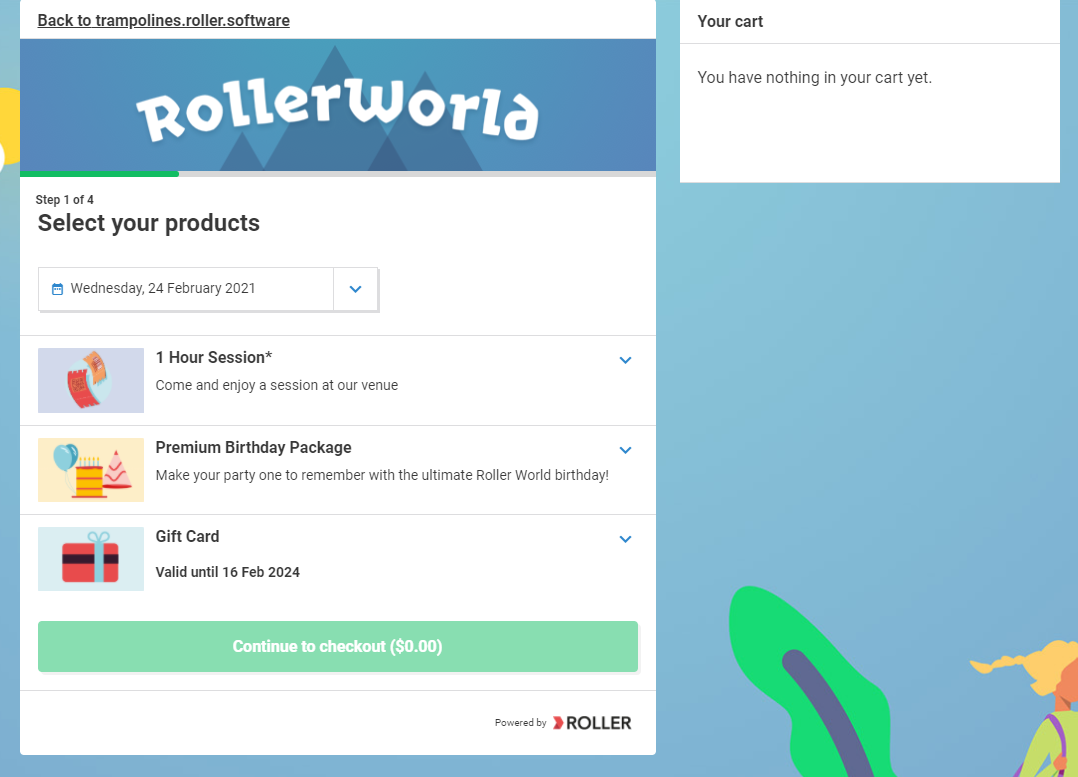
Show today's products guest-facing preview (drop-down calendar view)
Start on a set date
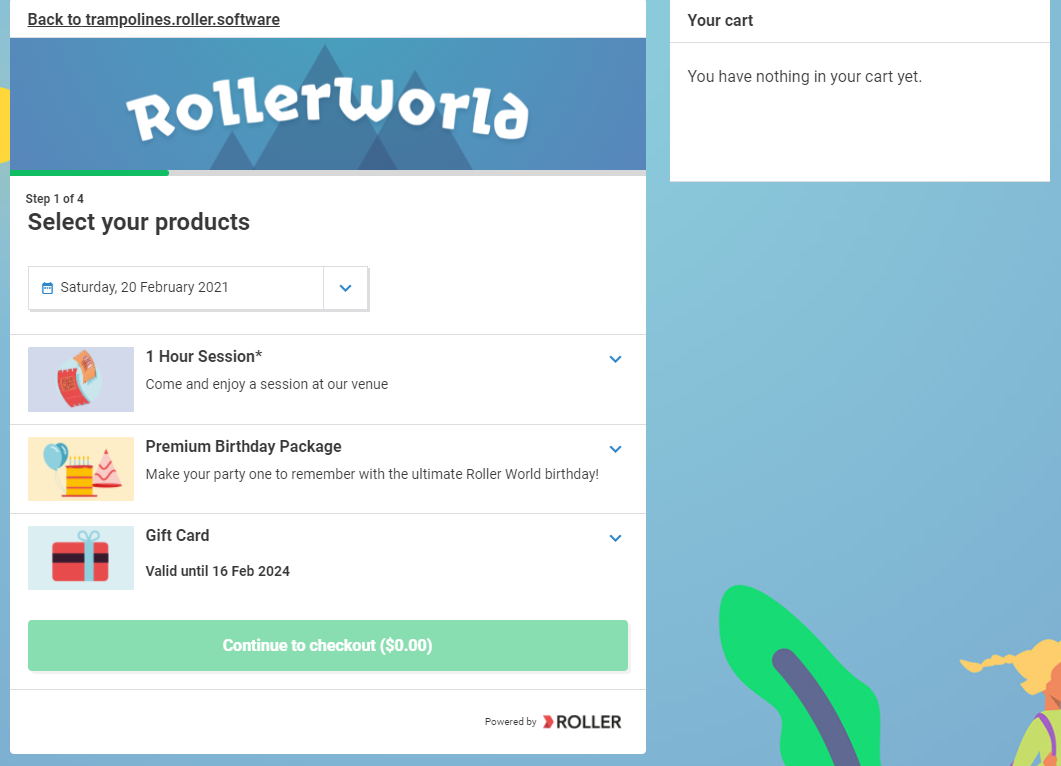
This allows for your checkout to start or be set to a specific date, if the current date is past the checkout date set, it'll default to the current date (drop-down calendar view).
Checkout setting

Guest-facing preview
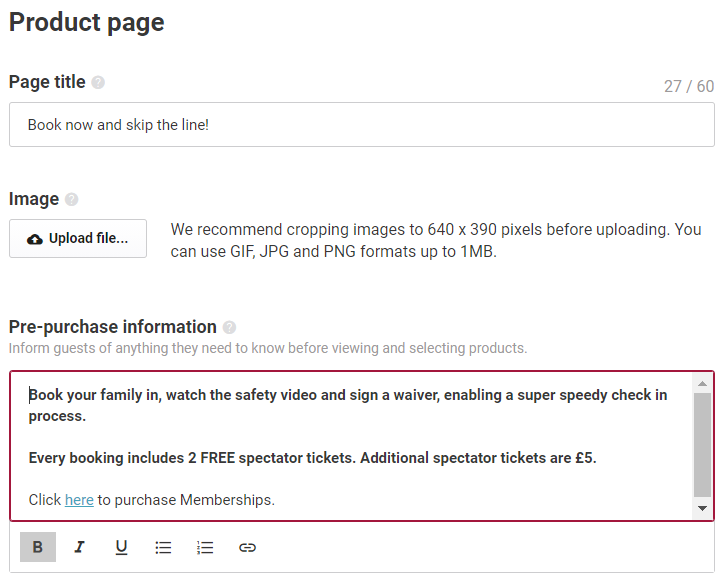
Product page details
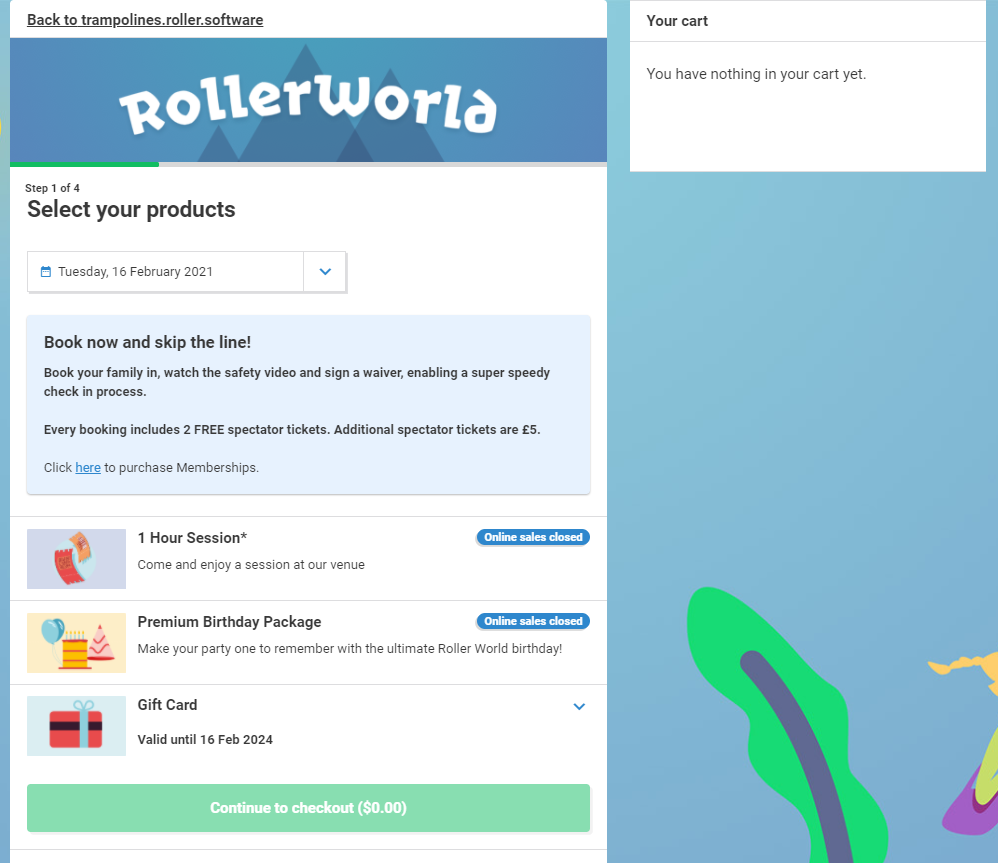
Give the page a title, image, and pre-purchase information to inform your guests of anything they need to know before viewing and selecting products.
Checkout settings
Guest-facing preview
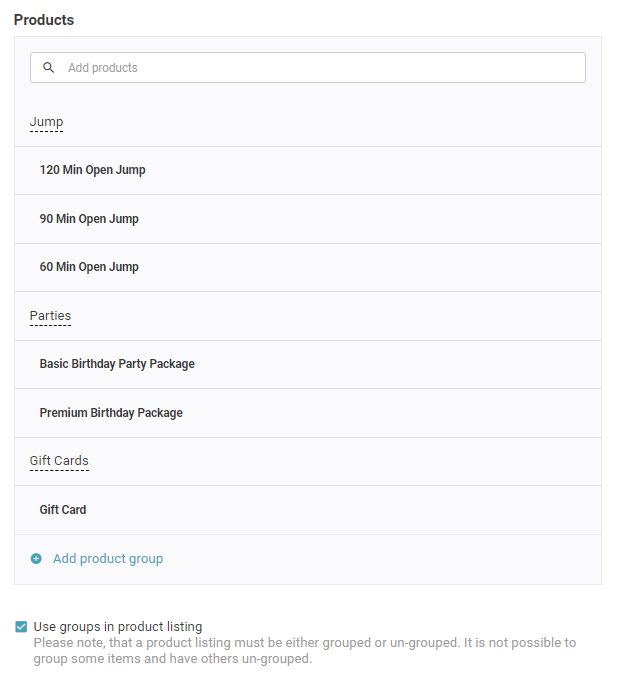
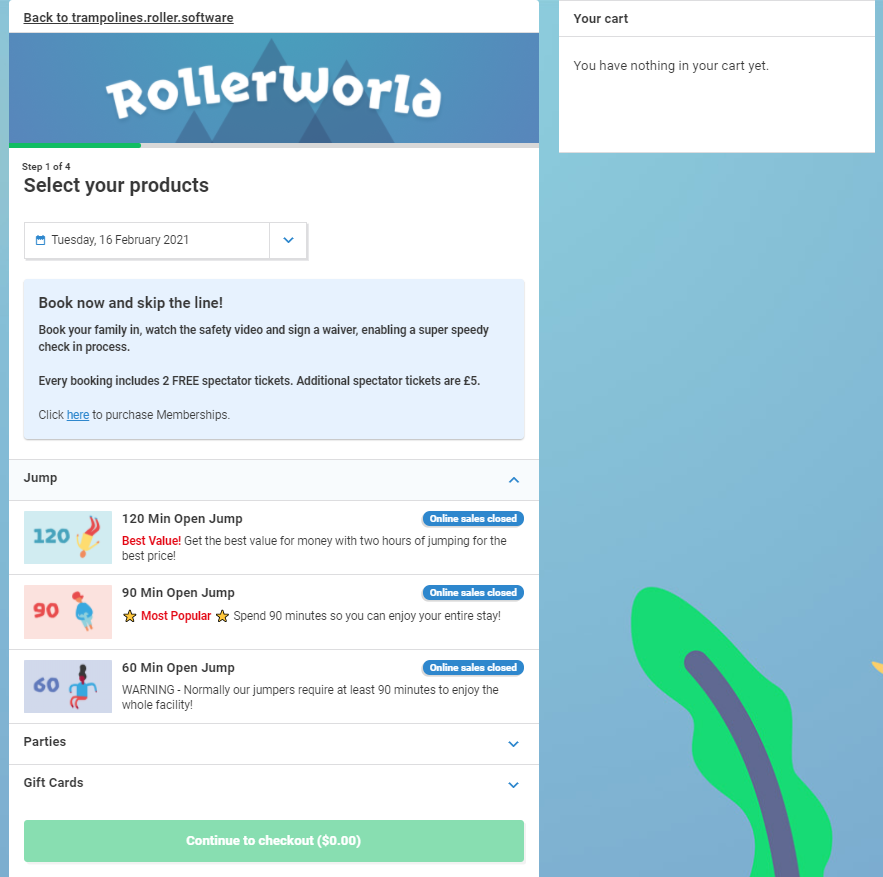
Use groups in the product listing
Group your products into accordion-style categories.
A product listing must be either grouped or ungrouped. It is not possible to group some items and have others un-grouped.
Checkout settings
Guest-facing preview
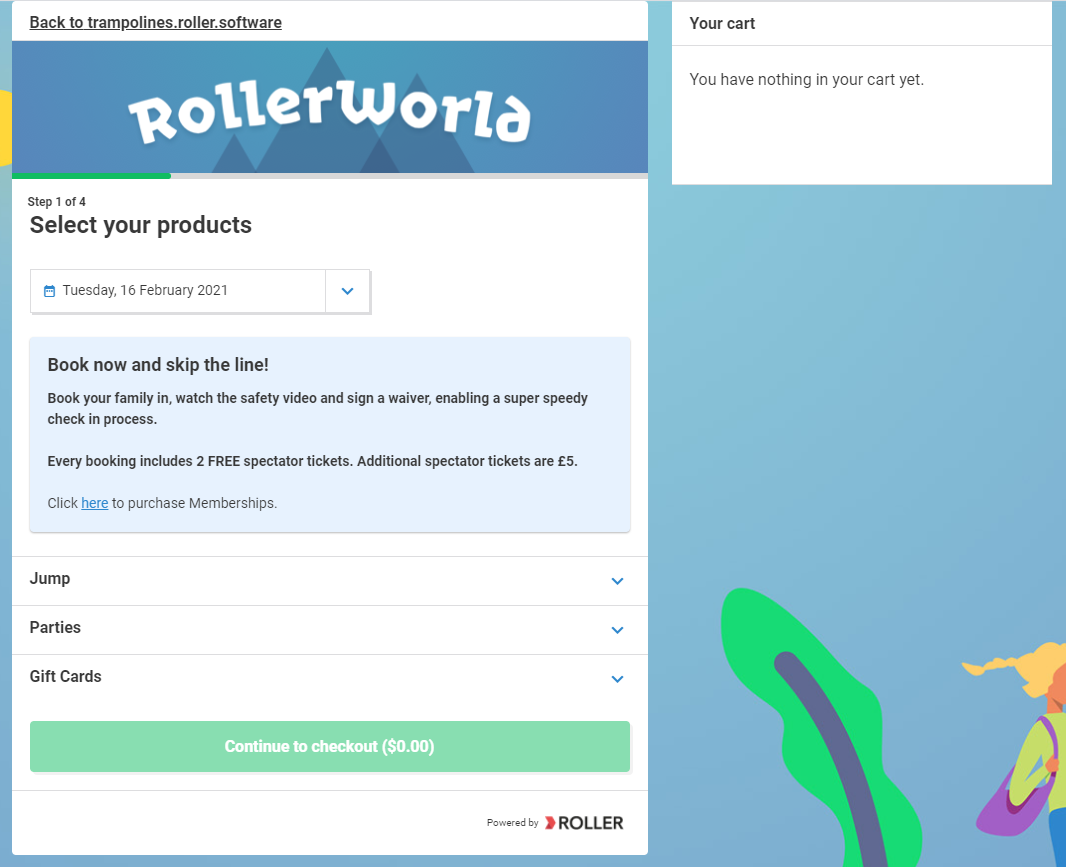 When you expand on a group:
Expand products
Expand products will automatically show the full description, all tickets & session times of all products on the checkout.
This can make your checkout flow appear very long if there are several products and ticket types.
Setting
Guest-facing preview
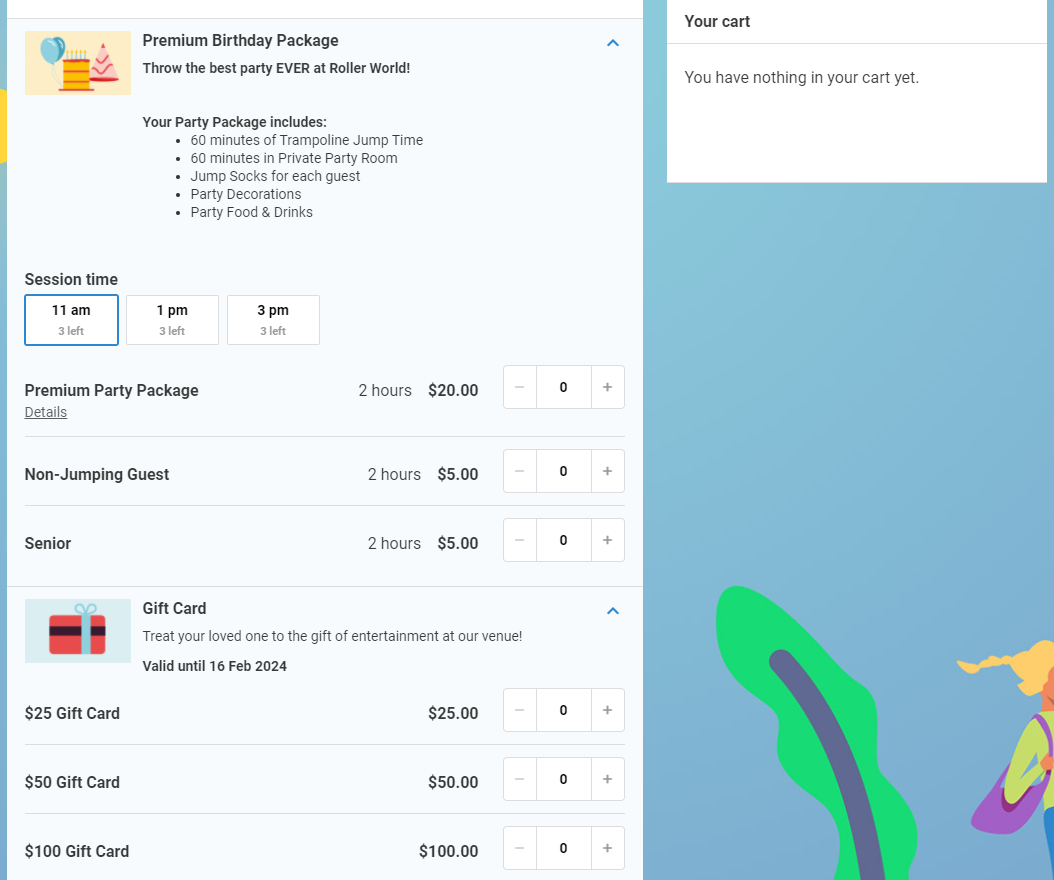
Sessions settings
Tiles & Horizontal Bars
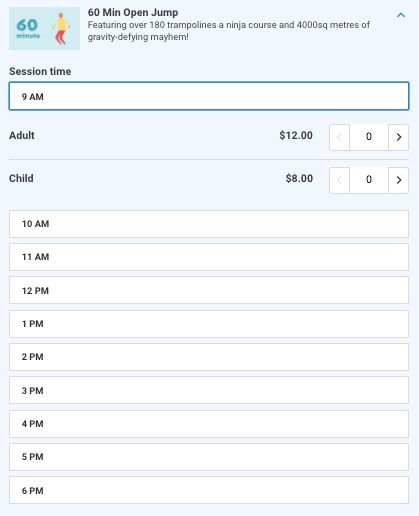
Sessions can be displayed as tiles or as rows of horizontal bars.
Bars are good for indicating the remaining capacity without giving the exact number of remaining tickets.
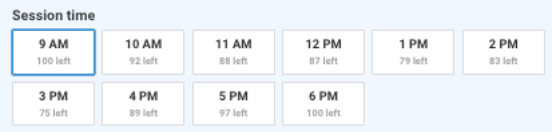
Session tiles take up less space and are good for products that have a lot of sessions.
Checkout settings
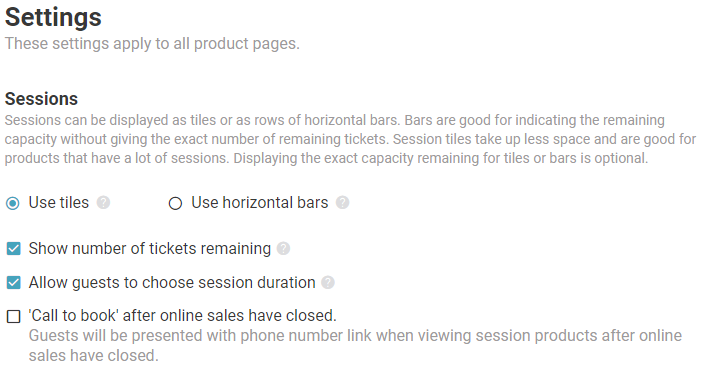
Guest-facing preview (tile view)
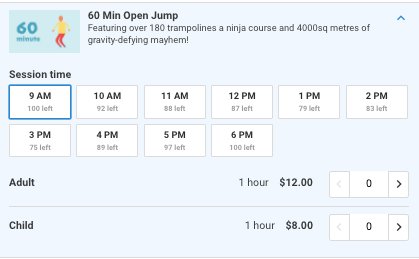
Guest-facing preview (horizontal bars view with ticket numbers disabled)
Show number of tickets remaining
Show number of tickets remaining lets your guest know how many tickets are available for a particular session. This is optional for both tiles and bar views.
Checkout setting

Guest-facing preview (ticket numbers enabled)
Call to book
When using 'Call to book', after online sales have closed your guests will be presented with a phone number link.
Checkout Setting

Call to book guest-facing preview

Allow guests to choose session duration
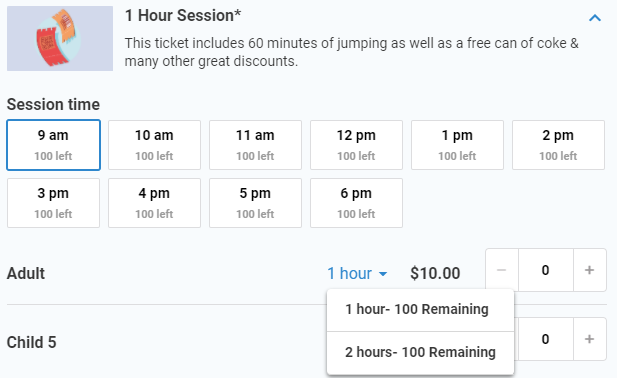
Allow guests to choose session duration allows your guest to buy consecutive sessions if these have been configured at a product level.
Checkout setting

Allow guests to choose session duration guest-facing preview
Details page and extra terms
The Extra terms checkbox will let you inform your guests of anything they need to know before submitting contact and payment details.
Checkout Setting
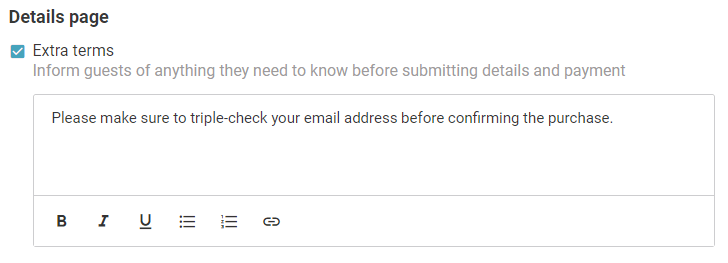
Guest-facing preview