Keeping a current card or bank mandate on your account means invoices are paid automatically and nobody loses access over an expired card.
You will continue to see an Update your subscription notification when signing into Venue Manager until you add a payment method.
Add a credit card as your payment method
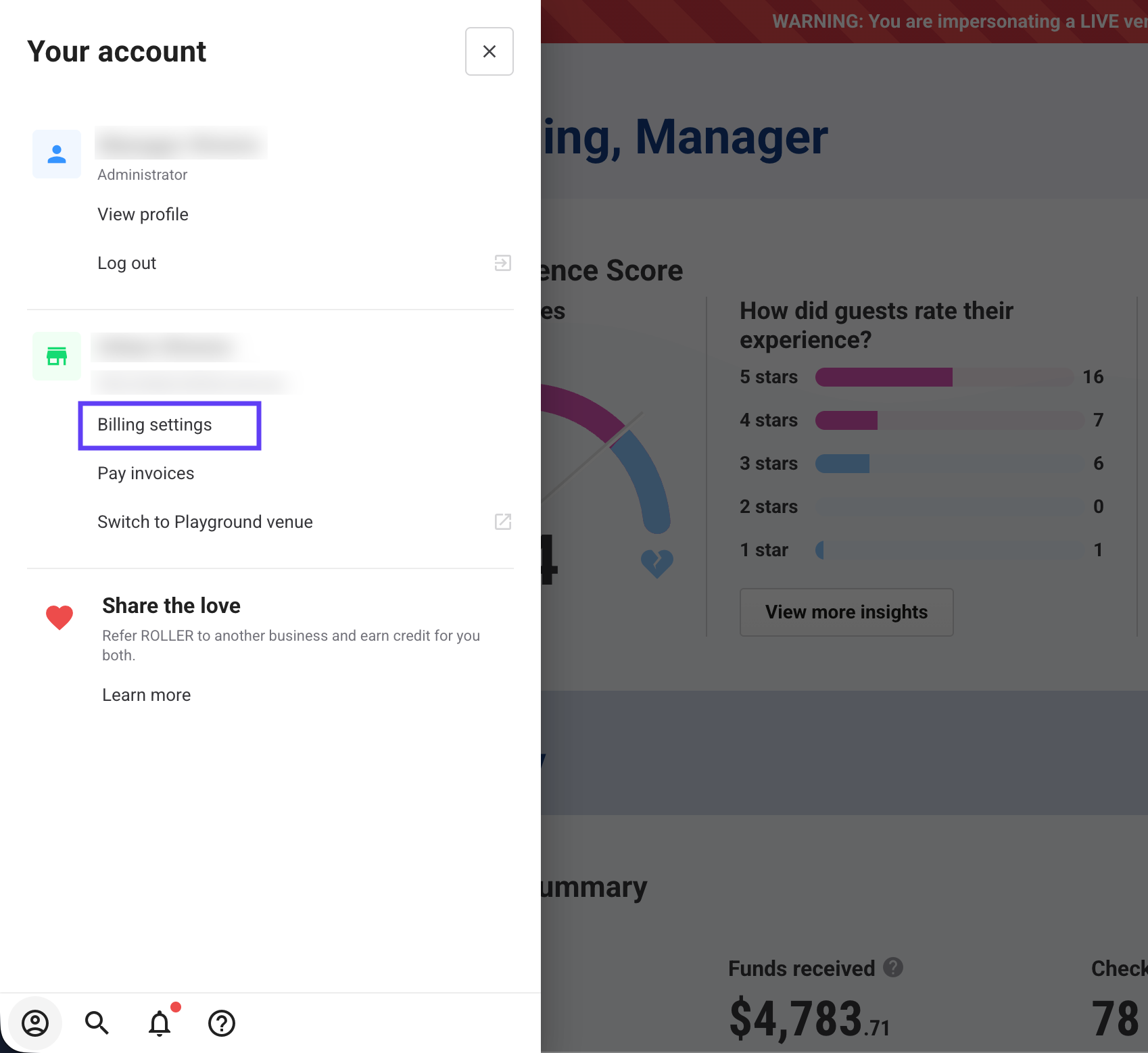
From Venue Manager, select the account icon (person) at the bottom of the main menu.
Select Billing settings.
Select Payment Methods.
Under the Credit card tab, enter your credit card information. If you're adding a new or additional payment method, select Add at the bottom of the popup.
Select Add to confirm.
Add a Direct Debit or ACH payment method
You can add a Direct Debit or ACH payment method through your ROLLER account.
From Venue Manager, select the account icon at the bottom of the main menu.
Select Billing settings.
Select Payment Methods.
Go to the Direct Debit tab. If you're adding a new or additional payment method, select Add at the bottom of the popup.
Select Pay with GoCardless.
In the new pop-up window, enter your bank account details and billing address.
Select Setup up Direct Debit/ACH to confirm.
If you require assistance adding a payment method, contact your customer success manager or the support team.