Venue Manager now supports multi-factor authentication (MFA) to help you protect your team’s accounts with an extra layer of security.
By enabling MFA for your venue, all users will be required to verify their identity using a second method (like an authenticator app or email) when they log in. This reduces the risk of unauthorized access, even if passwords are compromised.
How to enable MFA for your venue
To get started:
Log in to Venue Manager with an Administrator account.
Go to Settings > Staff.
Select Activate MFA in the purple banner.
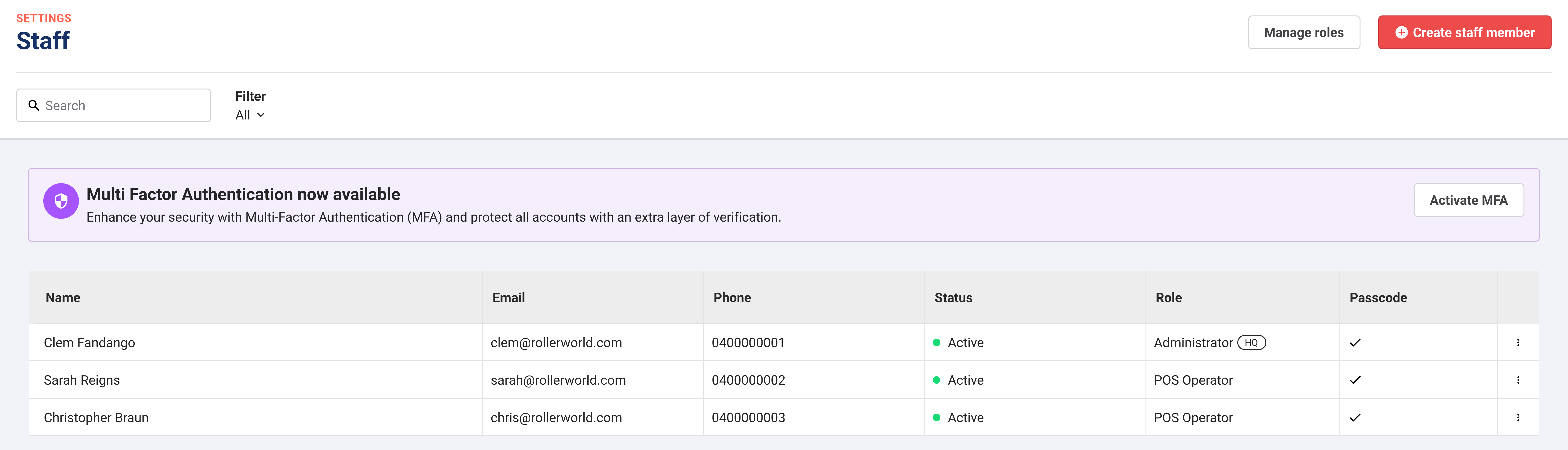
Once MFA is turned on, every active staff member will need to enroll before they can log in.
The purple banner in the Staff section will stay visible until MFA is enabled. If MFA is turned off, the banner will return.
Monitor staff MFA enrolment
After enabling MFA, you’ll see a new MFA column on the Staff page. This lets you quickly check each team member’s MFA status:
Enrolled – MFA is fully set up for that user.
Not enrolled – The user hasn’t completed MFA setup yet.
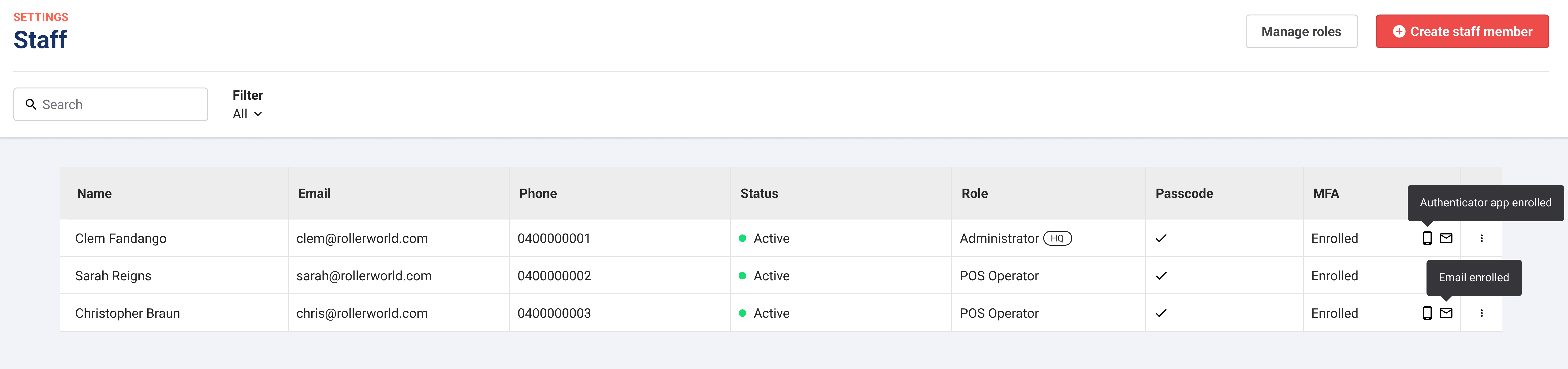
Hover over the icons in the MFA column to see how each person is enrolled, whether via an authenticator app, email or both.
Reset a staff member’s MFA
If someone loses access to their MFA method, you can reset it for them.
In Settings > Staff, find the user.
Open the menu next to their name (⋮).
Select Reset staff MFA.
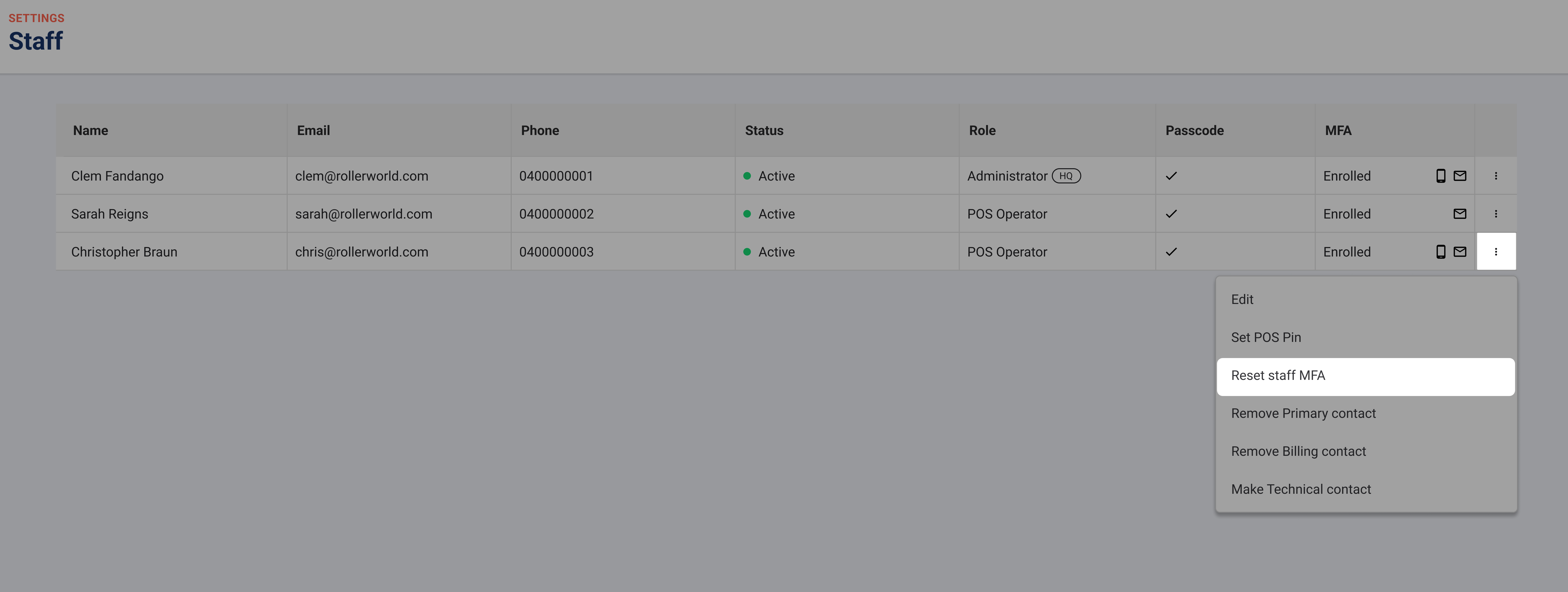
They’ll be prompted to set it up again the next time they log in.
FAQs
Can I choose how users verify with MFA?
Users can enroll with either an authenticator app (recommended) or email. They’ll choose their preferred method during setup.
Can I make MFA optional for some users?
No. Once MFA is enabled at the venue level, it applies to all users.
What happens if someone doesn’t enrol?
They won’t be able to access Venue Manager until MFA is set up.