The April release is here with updates to improve stock cost visibility, more flexible discount controls, group membership management and expanded cashless card and CashGuard cash payment support.
Preview new features and improvements in your Playground venue before they go live — see below for what's available to try out early. Not sure how to access Playground? The ROLLER Playground guide shows you how.
This page covers new and improved features with setup guidance, and goes live about a week before the full release. For the complete picture — every change, fix and behind-the-scenes improvement this month — see the release notes, published shortly after release.
We're always learning from venues like yours. Join our research panel to get early insights into new features and share your feedback to help shape what we build next.
Guest experience
Updates to help guests book, check in and enjoy smoother on-site experiences, plus new tools for managing group memberships.
Mark bookings as "Ready to start" in POS capacity view
Plan: All
Preview release (Playground): Yes
Target release date: Tuesday, 21 April 2026 (AET)
When guests are ready to start their activity, they are often sent to the resource ahead of time to wait for the active guests to finish up. However, operators are not prevented from mistakenly adjusting the booking resource or time, which can be confusing for guests.
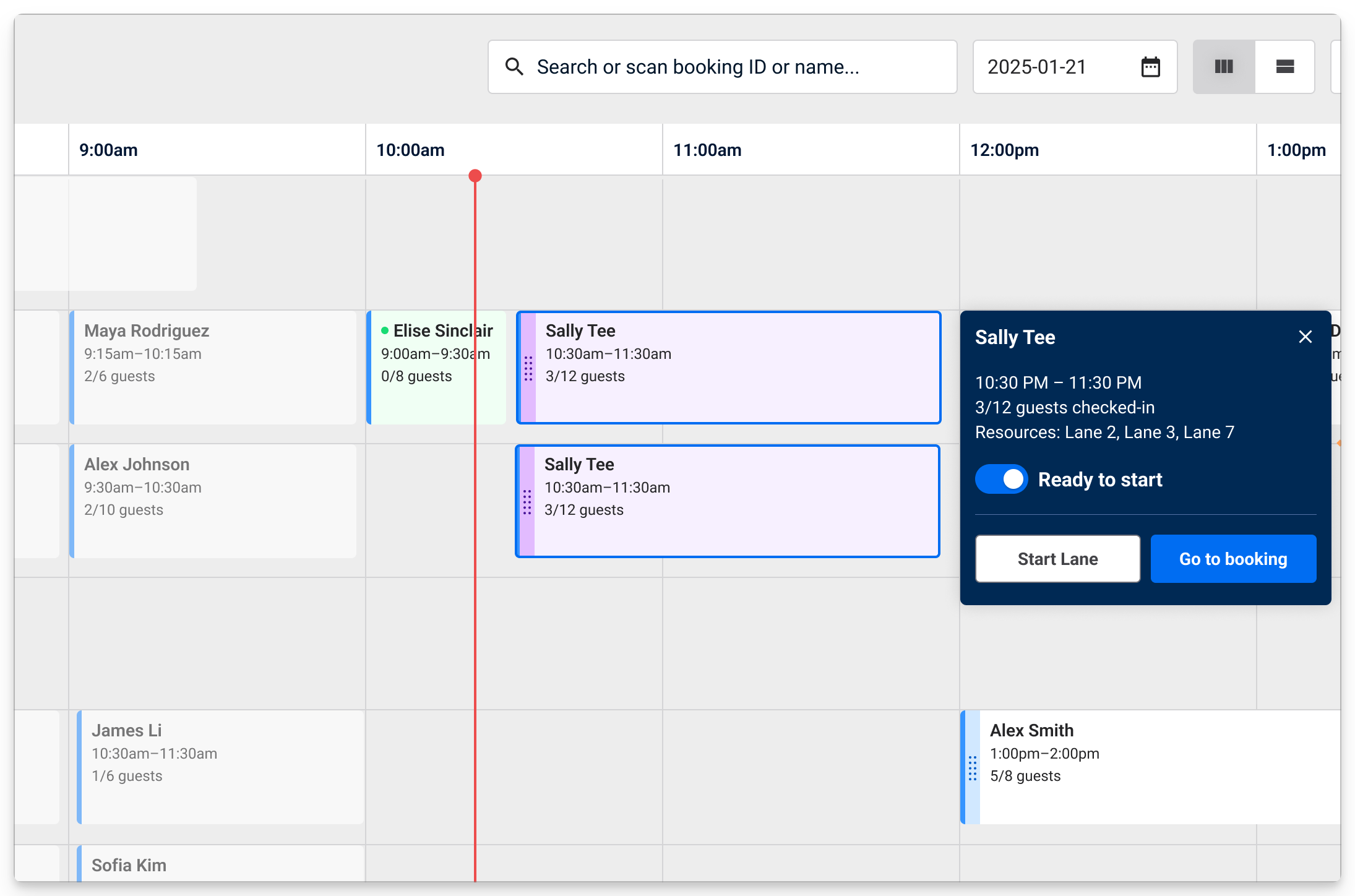
You can now use a Ready to start toggle in POS Capacity View that changes the tile colour to purple and syncs across all POS terminals to keep all venue staff on the same page.
To set a guest or group of guests as "ready to start":
From POS, go to Capacity View.
Hover over the booking and select the toggle to switch the booking to Ready to start. This changes the tile colour to purple to show the status change at a glance.
To learn more about the POS capacity view, see Get started with POS capacity view
Cost of goods sold (COGS) display update
Plan: All
Preview release (Playground): Yes
Target release date: Tuesday, 21 April 2026 (AET)
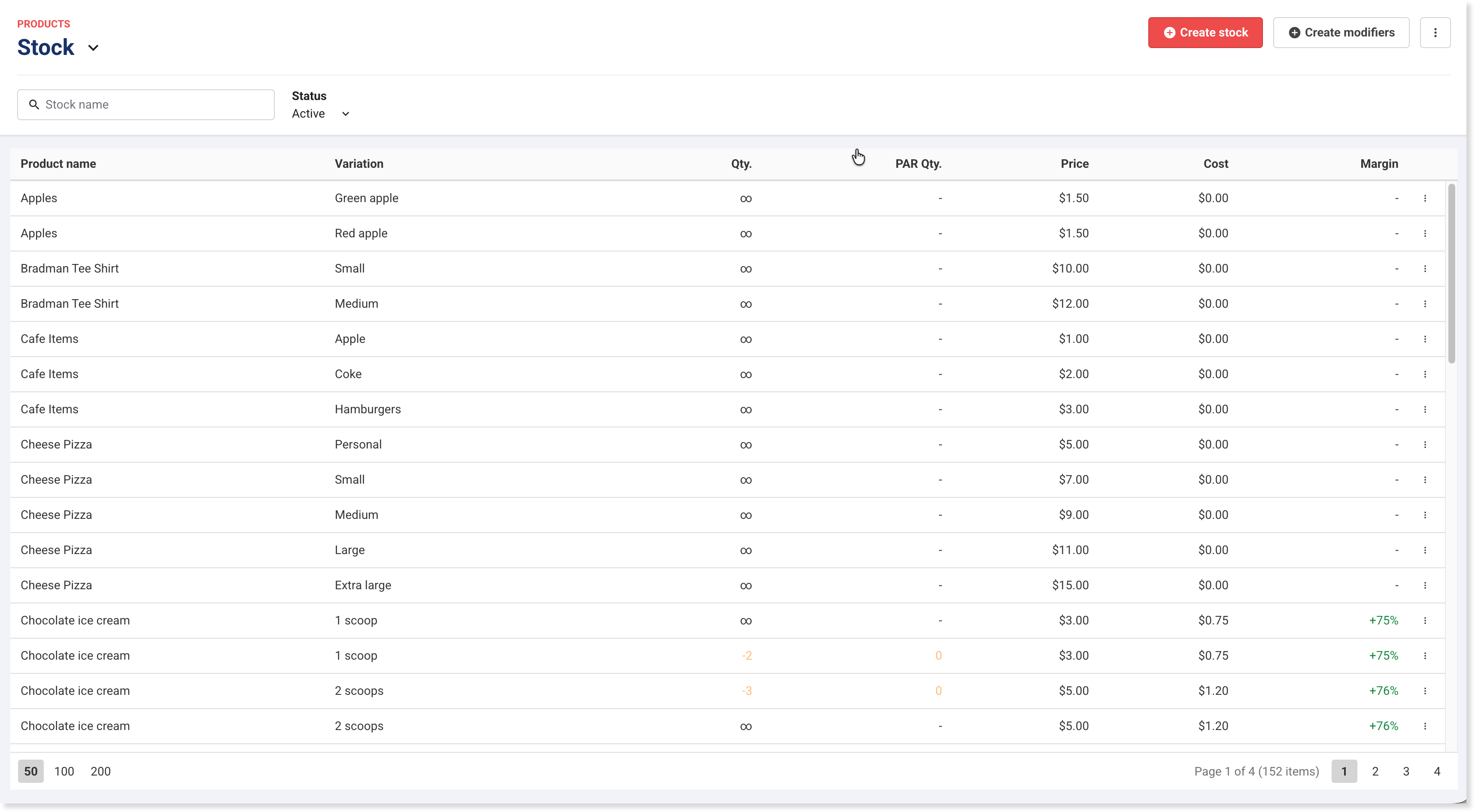
You can now clearly see the cost, selling price and margin right from the stock items page in Venue Manager. In the stock products page, there are two column updates:
The Cost column has been renamed to Price — indicating the price guests pay for the item.
A new column has been added: Cost — indicating the COGS value as set up in the stock product settings. Values default to 0 if no COGS value has been added.
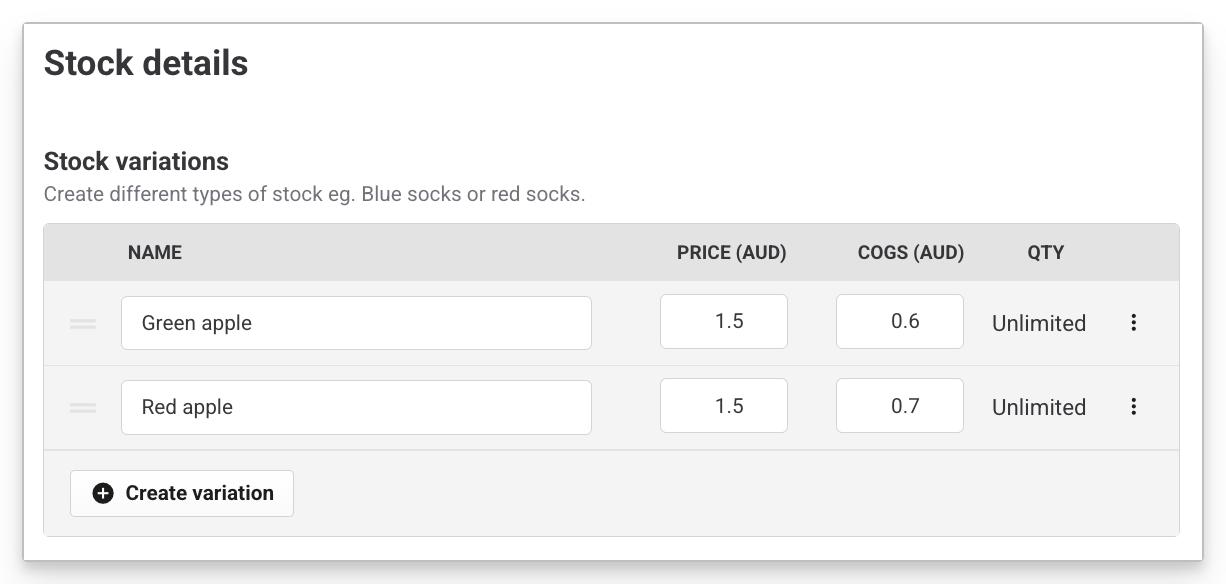
In order to track cost and margins for a stock item, make sure the stock variation has a COGS value entered:
From Venue Manager, go to Products > Stock.
Select the stock product to update.
Scroll to the Stock details section.
For a stock variation, select the options menu (3 dots), then select Edit.
Expand the Advanced options.
Enter a value into the COGS field.
Select Save.
To view the new All stock items display:
From Venue Manager, go to Products > Stock.
View a list of all stock products for the venue, including columns for sale price (Price), COGS (Cost) and margins (Margin).
To learn more about setting up stock, see Create your stock products. You can also look at COGS in a separate report. To learn more, see the guide Cost of Goods report.
Add and remove additional members in group memberships via online accounts and POS (beta)
Plan: All
Preview release (Playground): No
Target release date: Tuesday, 21 April 2026 (AET)
Venues can now enable guests to edit additional group members directly in their online account and venue staff can do this at POS. This makes it easier for families to keep their memberships up to date when members change without needing venue staff to complete this task for them.
Changes can be made by the membership account holder managing the group membership, for additional members only. The primary group members can't be changed. A change in the membership variation for a member (eg Adult to a Child) can't be updated by guests currently.
The group memberships feature is in beta. To enable group memberships for your venue, contact your customer success manager or the support team.
To enable the ability for guests to self-service group member changes:
From Venue Manager, go to Products > All products.
Select the group membership product you want to allow guests to edit.
Scroll to the Additional options section and select Configure guest ability to self-manage membership via online accounts.
(Optional) Enable Guest can cancel if you want to allow guests to cancel memberships online.
Enable Guest can edit group membership to allow guests to add or remove additional members.
Select Save to apply the changes.
Select the hotspots below to see an interactive demo.
Now guests can go to their online accounts and select Manage group members to add or remove members from their membership.
To remove additional members:
Select Manage group members to add or remove members from their membership.
To remove an additional member, select Remove members.
Use the checkbox to select the member to remove. Review the billing summary. If a member is removed, any credit is prorated and applied to the next billing cycle.
Select Remove to confirm the change.
After the change is processed, select Done. The guest will receive a confirmation email.
To add members:
Select Add member.
Choose one or more additional member options set up for the membership.
Review the billing breakdown for the changes for this and future billing cycles.
Select Checkout and complete payment for this billing cycle (if there's a charge).
Select the checkbox to accept the Terms and conditions and Privacy policy. Select Continue.
Select the hotspots below to see an interactive demo.
If guests are in venue and would like venue staff to edit additional members on their behalf, POS staff can complete the following steps:
From POS, search for the membership holder and select the member to open their profile.
Select Memberships.
Review the summary of all members within the group membership.
To add or remove add-on members, select Edit item.
Select one or more additional members using the tiles.
To remove add-on members, select Remove add-on members.
Select Remove on the add-on member you want to remove.
Once happy with the changes, select Edit item.
If there is an outstanding balance, take payment from the guest.
Select Done and the updated membership shows on the page.
Select the hotspots below to see an interactive demo.
To learn more about creating membership products, see Create a group membership product.
Venue operations
More flexible date and time controls for discount codes
Plan: All
Preview release (Playground): Yes
Target release date: Tuesday, 21 April 2026 (AET)
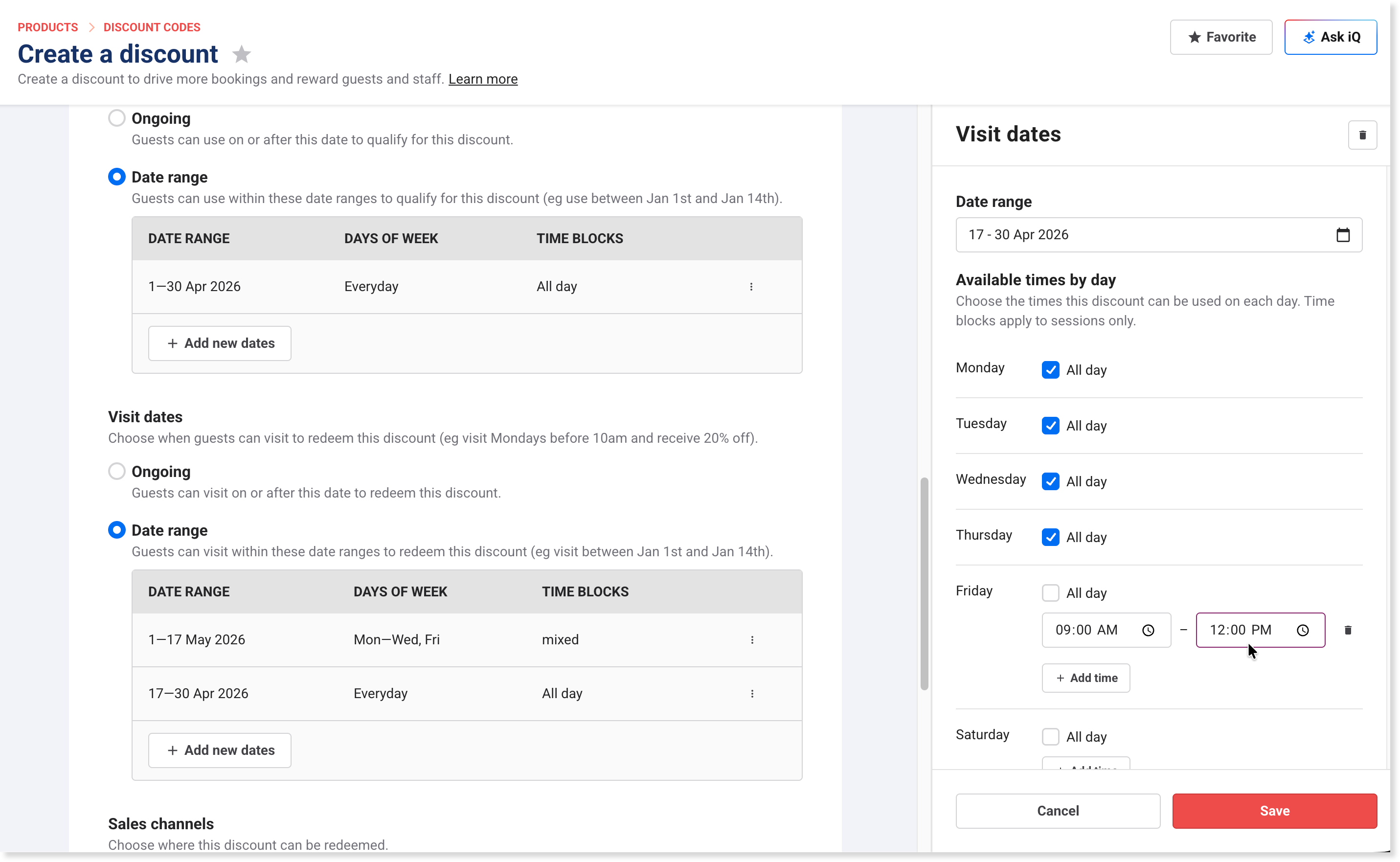
You now have more control over when discount codes are valid. When configuring a discount, you can add multiple date ranges, restrict to specific days of the week and define multiple time-of-day windows for both Discount usage and Visit dates.
Previously, discounts supported a single date range with limited day and time options. Now you can target promotions more precisely without creating separate codes for each scenario. For example, you can set a single discount code that applies to weekday morning sessions and weekend evening sessions using different time windows within the same discount code.
To get started:
From Venue Manager, go to Products > Discount codes > Create a discount code.
Create a new discount or edit an existing one.
Under Availability, choose when guests can use the discount and which visits qualify.
For Discount usage (when guests can use the code):
Ongoing: Code is active from a start date onwards with no end date (eg from May 1 onwards).
Date range: Code is only active during a specific date range (and days and time if needed). For example, September 1–30.
For Visit dates (which visit dates qualify for the discount):
Ongoing: Discount applies to visits from a start date onwards with no end date.
Date range: Discount only applies to visits during specific dates (and days and times if needed). For example, December 1–February 28, Monday to Thursday, and Fridays 9 AM to midday.
For date range, select Add new dates.
Set the date range, select the days of the week, and if needed — for sessions — set the time windows for each day.
Select Save to confirm the range.
Select Add new dates to add more dates, days and times to the same discount code.
Example
A single discount code with:
Discount usage: Ongoing from May 1 (code active May 1 onwards, no expiry)
Visit dates: Mon–Thu 12 PM–3 PM in June AND Mon–Thu 12 PM–3 PM in September
Guests can apply the code anytime from May 1, but their visit must fall on a weekday afternoon in June or September to qualify — no duplicate codes needed.
To learn more, see Discount codes in ROLLER and review the guide for the discount type you're creating (percentage, fixed amount etc).
Automatic discount code generation and shareable discount URL
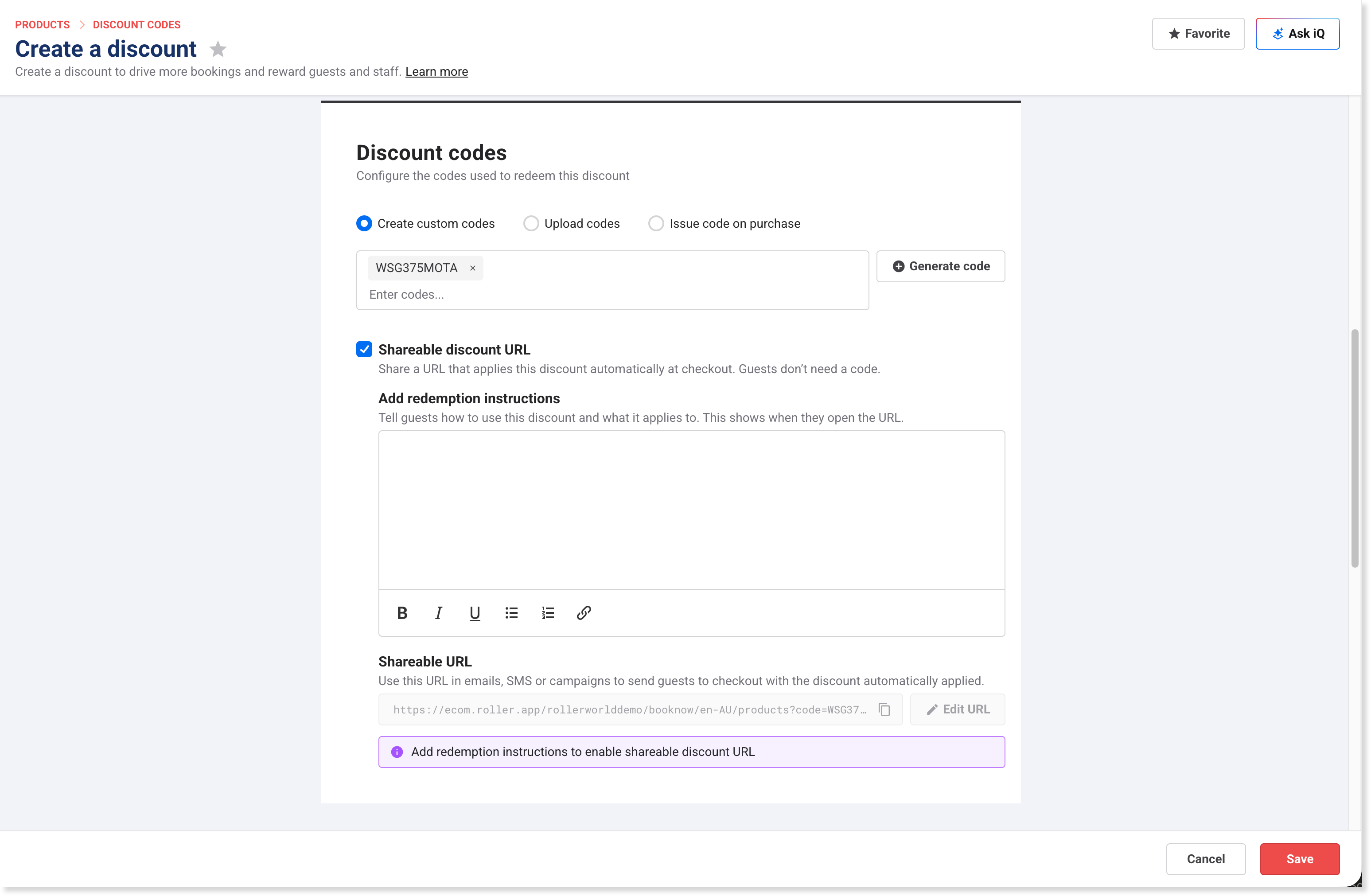
The Create discount page has also been refreshed with an updated layout for a more consistent experience and new features.
This includes the ability to randomly generate discount codes instead of manually entering them, along with a Shareable discount URL that generates a checkout link with the discount code pre-loaded, with redemption instructions that guests see when they open the link.
Choose when booking and transaction fees are recognized in revenue reporting (beta)
Plan: All
Preview release (Playground): No
Target release date: Tuesday, 21 April 2026 (AET)
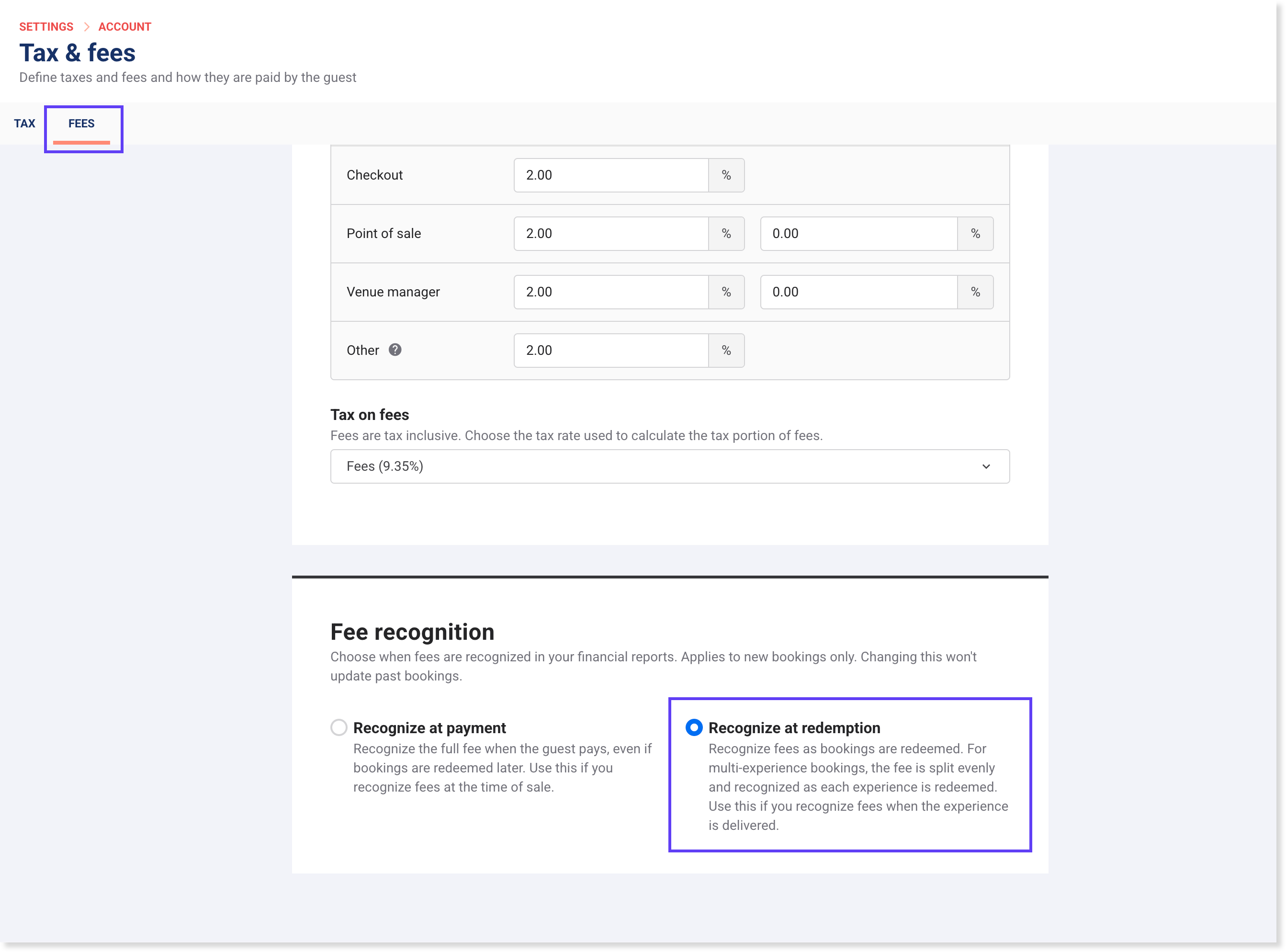
If your venue uses accrual accounting, you can now choose when booking and transaction fees are recognized in your revenue reports. A new setting on the Tax & fees page (Fees tab) lets you defer fee recognition until the booking is redeemed, so fee revenue aligns with when the service is delivered rather than when payment is received.
When enabled, fee revenue from new bookings is recorded as deferred revenue until the booking is redeemed or expires. For multi-experience bookings, the fee is split equally across experiences and recognized as each one is redeemed. This applies to new bookings only. Fees already recognized on existing bookings are not affected and won't change. Gift card fees are excluded.
The Trial Balance report now includes a separate row for deferred fee revenue, and the Revenue Recognition report includes a new Deferred fee revenue column.
This feature is currently in beta. To request access, contact your customer success manager or the support team. Once enabled, booking and transaction fees from new bookings are automatically recognized at redemption — no additional setup is required.
If you need to change the setting later, go to Settings > Account > Tax & fees > Fees tab in Venue Manager.
The staff permission Can edit fee recognition is required for staff to change fee recognition settings.
Sell activities and view card history for Sacoa cashless cards
Plan: All plans (except Legacy)
Preview release (Playground): No
Target release date: Tuesday, 21 April 2026 (AET)
You can now sell activities on Sacoa cashless cards through ROLLER, and view a card's full transaction history at POS.
Sell activities on Sacoa cashless cards
Activities are game entitlements that load onto a Sacoa card — for example, 2 axe throwing sessions or 3 go-kart races. When a guest taps their card at a game, one play is deducted.
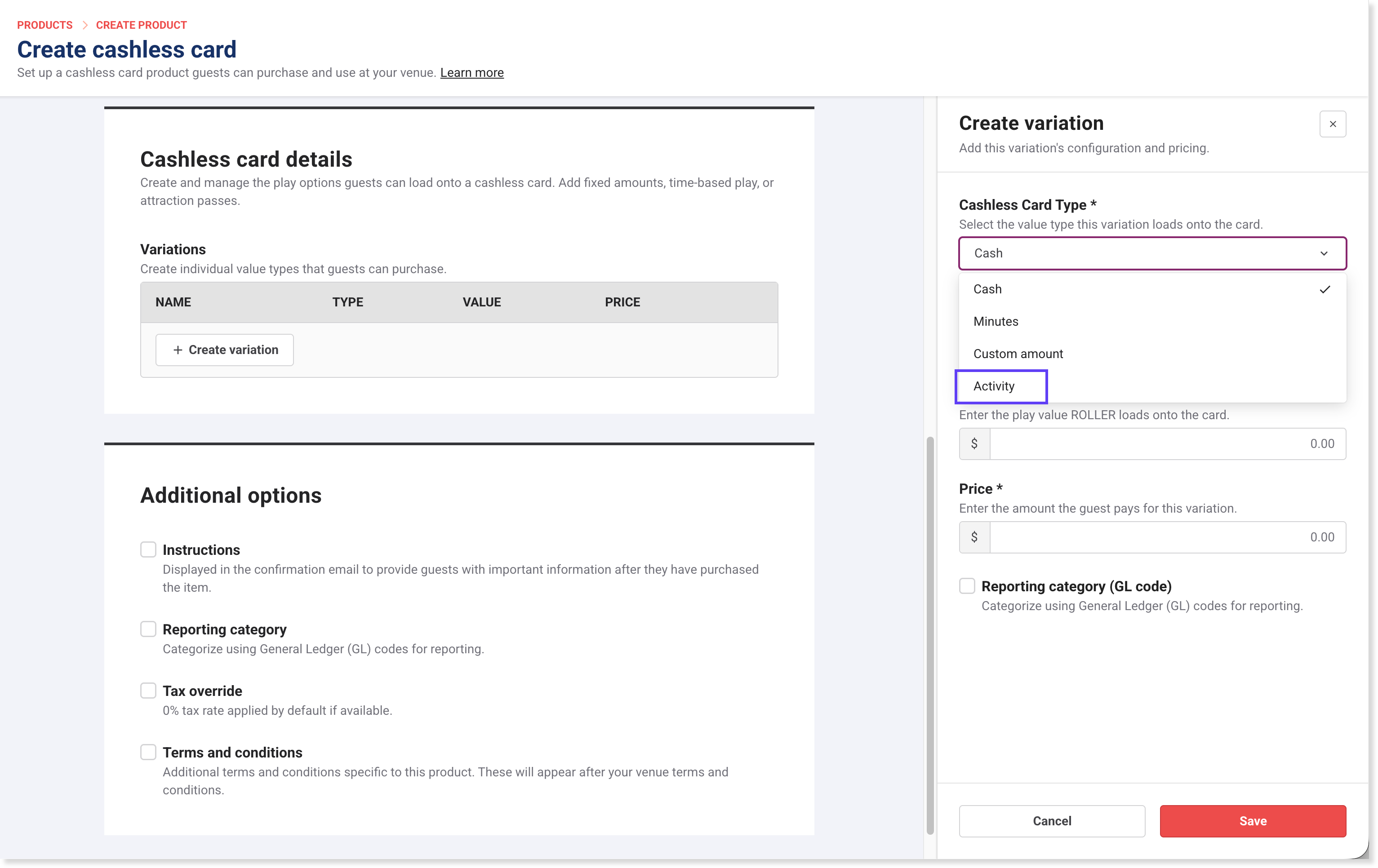
A new Activity variation type is available when creating Sacoa cashless card products in ROLLER. Each activity is linked to a product synced from Sacoa — activity setup is managed in Sacoa, not ROLLER. You can configure activity variations as single-use or multi-use with a set number of plays.
Sell activities as standalone products, bundle them in packages or party packages, or add them as add-ons. Activities are supported in progressive checkouts, at POS and from Venue Manager.
You can also set expiry rules. An activity can remain valid indefinitely, or expire at the end of a party package session.
To get started:
From Venue Manager, go to Products > Create product > Cashless card.
In the variations table, select Create variation.
For the Cashless card variation type, choose Activity.
Enter a name and price.
Select the activity synced from Sacoa from the Product drop-down.
Set the quantity — how many times guests can tap the card for the activity (single use or multi-use).
Set the expiry — how long the activity remains valid (indefinitely or until the party booking ends).
View Sacoa card history and activity balances at POS
When you look up a Sacoa card at POS, you can now see two new tables: an activity summary showing all game entitlements loaded on the card with their validity dates and a card history showing past transactions.
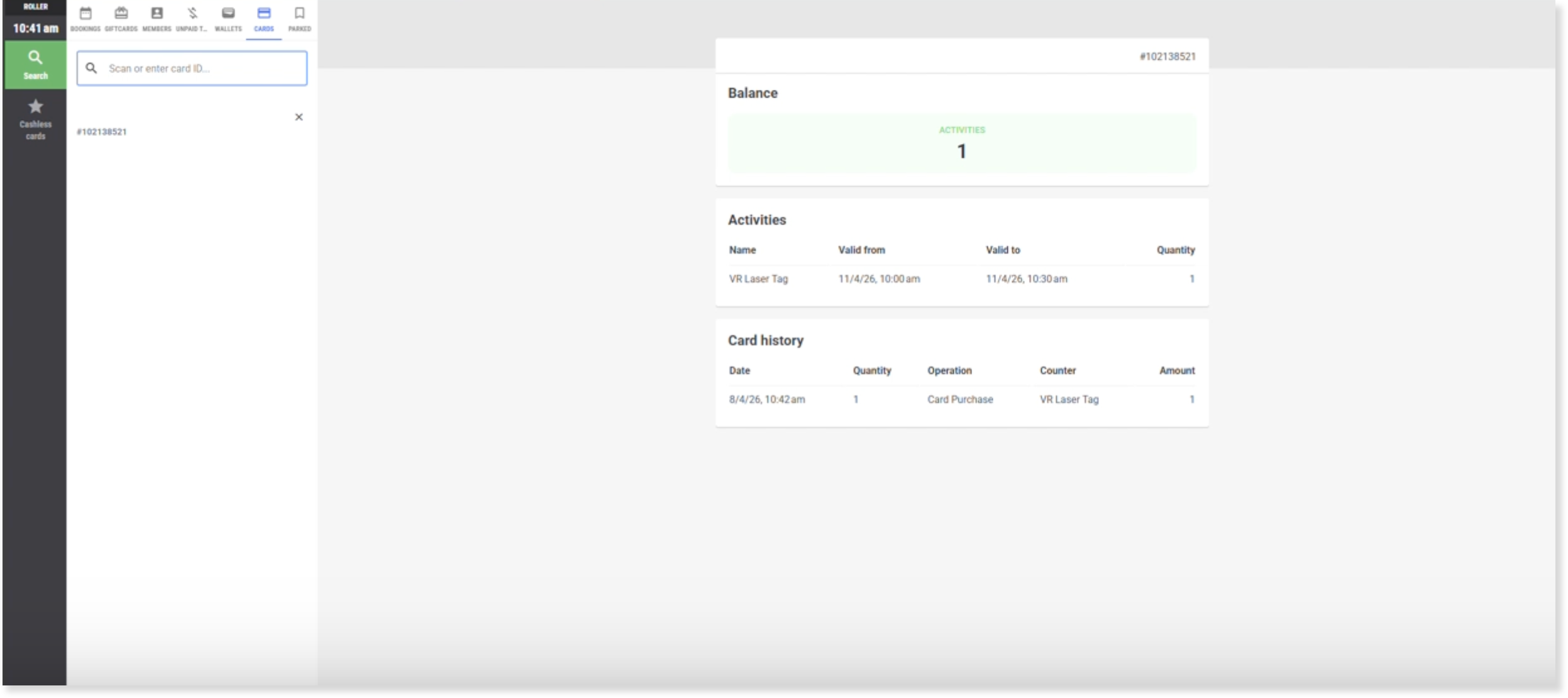
Edit cashless card variations in a new flyout panel
The cashless card Create product page for Sacoa, Amusement Connect and Intercard has also been updated with a new design.
Variations now open in a flyout panel instead of editing directly in the table, making it easier to manage products with different variation types, like cash, minutes and custom amounts (and activities, currently for our Sacoa integration only).
To learn more, see the guide ROLLER + Sacoa integration.
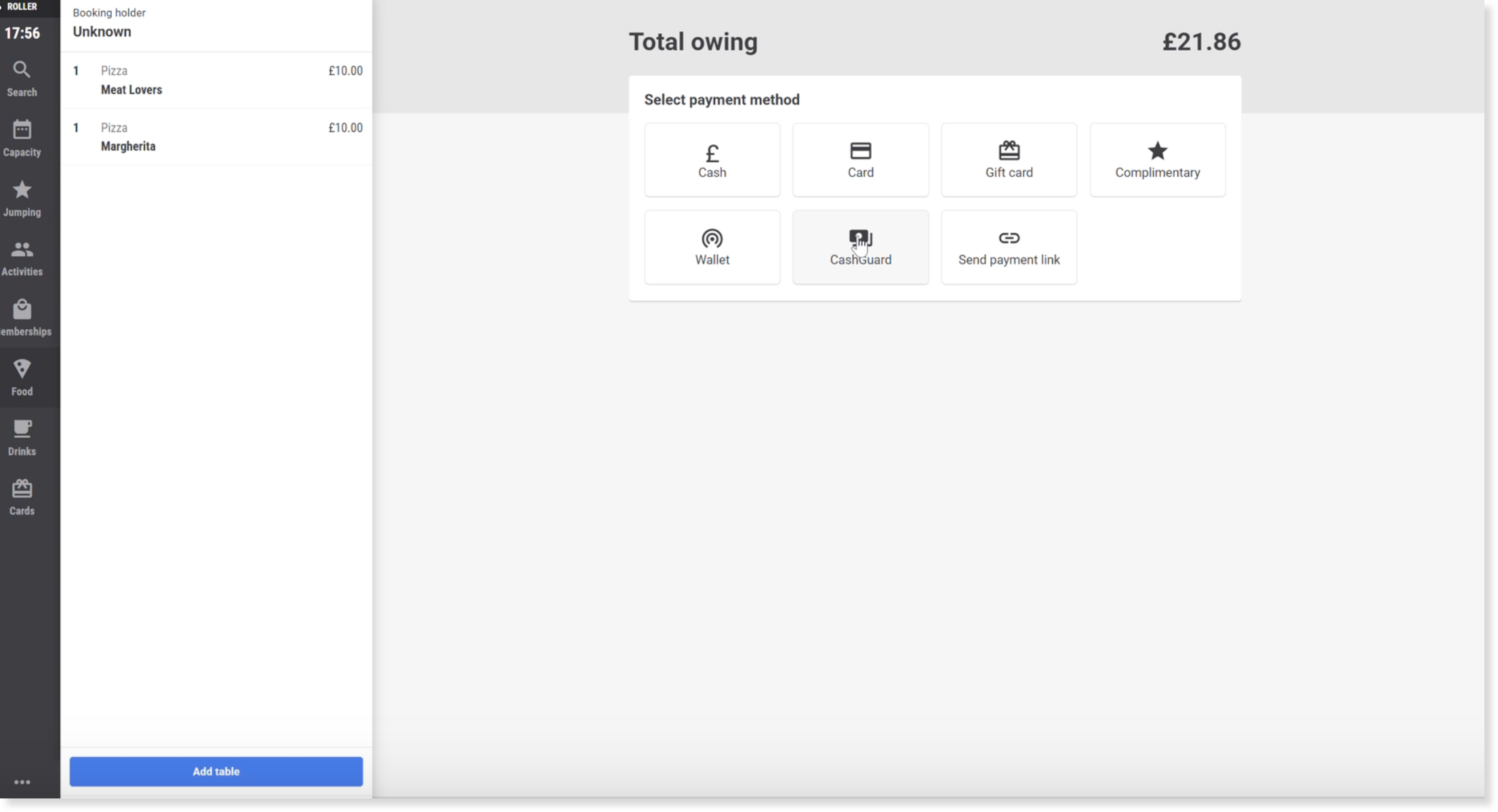
Accept cash payments at POS with CashGuard cash recycler (beta)
Plan: All
Preview release (Playground): No
Target release date: Tuesday, 21 April 2026 (AET)
You can now accept cash payments at POS using a CashGuard cash recycler machine. Guests insert cash into the recycler, POS tracks the amount in real time and change is dispensed automatically — reducing manual cash handling and improving accuracy.
If you're interested in using CashGuard cash recyclers at POS, reach out to your customer success manager or the support team.
Partial payments are also supported. If a guest doesn't have enough cash to cover the full amount, you can complete the remaining balance with another payment method such as a card.
When multiple POS terminals share one CashGuard machine, POS manages the queue automatically. If another terminal has an active CashGuard transaction, your terminal waits until it's available. A manager can cancel a stuck transaction from another terminal using a PIN override if needed.
The CashGuard integration requires a CashGuard machine (purchased from CashGuard) and ROLLER Connect to communicate with the machine on your venue's network.
To get started:
From POS, go to Settings > Hardware.
Enable Enable CashGuard.
Enable the other options if required:
Show both Cash and CashGuard payment options — controls whether both appear or just CashGuard. Turn off if the POS terminal has no cash drawer.
Can cancel foreign existing transaction with manager PIN override — allows a manager to cancel another terminal's stuck CashGuard transaction.
Enter the CashGuard API URL, Username and Password provided by your CashGuard installation team.
Select Test connection to verify the connection.
Select Save Settings.
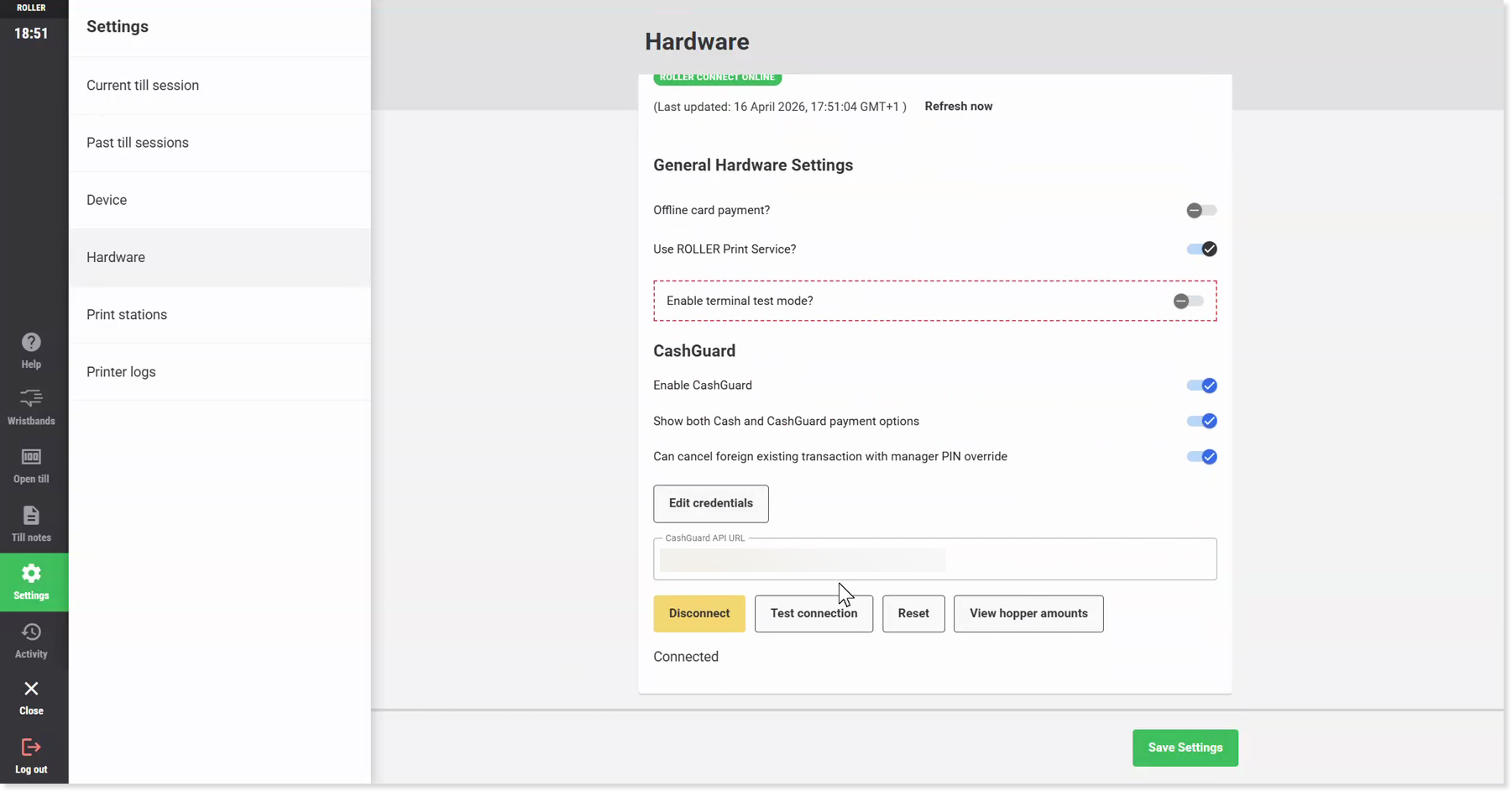
You can also select View hopper amounts to check current cash and coin levels, or Restart to restart the machine.
Once connected, the Cash (CashGuard) payment option appears when processing payments at POS.