Drive traffic to your checkout from social media and marketing campaigns with a direct link to your full-page checkout experience.
For the full-page experience, you simply add a direct link to the checkout from your website or social media sites. Guests click your Book now buttons to launch a full-screen standalone experience.
This guide walks through how to add this checkout experience to your website and social pages.
We recommend using the overlay experience on your webpages, as you get more functionality and customization options. But, if you choose not to use this experience, then you can configure a direct web link.
Add a direct link to your website or social pages
Speak to a web developer if you're not sure how to add a direct link from your webpages to the checkout.
To add a direct link to your checkout from your website, social media pages or marketing campaigns, follow the steps below.
From Venue Manager, go to Apps > Progressive checkouts > All Checkouts.
Select the checkout you want.
Select Share in the top right of the checkout setup page.
Select the direct link to copy the URL.
Add the link to your website or social Book Now buttons.
By default your online checkout runs on roller.app. If you want to set up a custom domain (your own web address) for your checkout, read the guide Set up a custom domain for your checkout.
Add a direct link that opens at a specific section of your checkout
If you'd like to direct your guests to a specific section of your checkout, follow the steps below to add a direct link to that section from your website, social media pages or marketing campaigns.
From Venue Manager, go to Apps > Progressive checkouts > All Checkouts.
Select the checkout you want.
Select View checkout in the top right of the checkout setup page to open your online checkout.
From your online checkout, select Products from the menu at the top of the page.
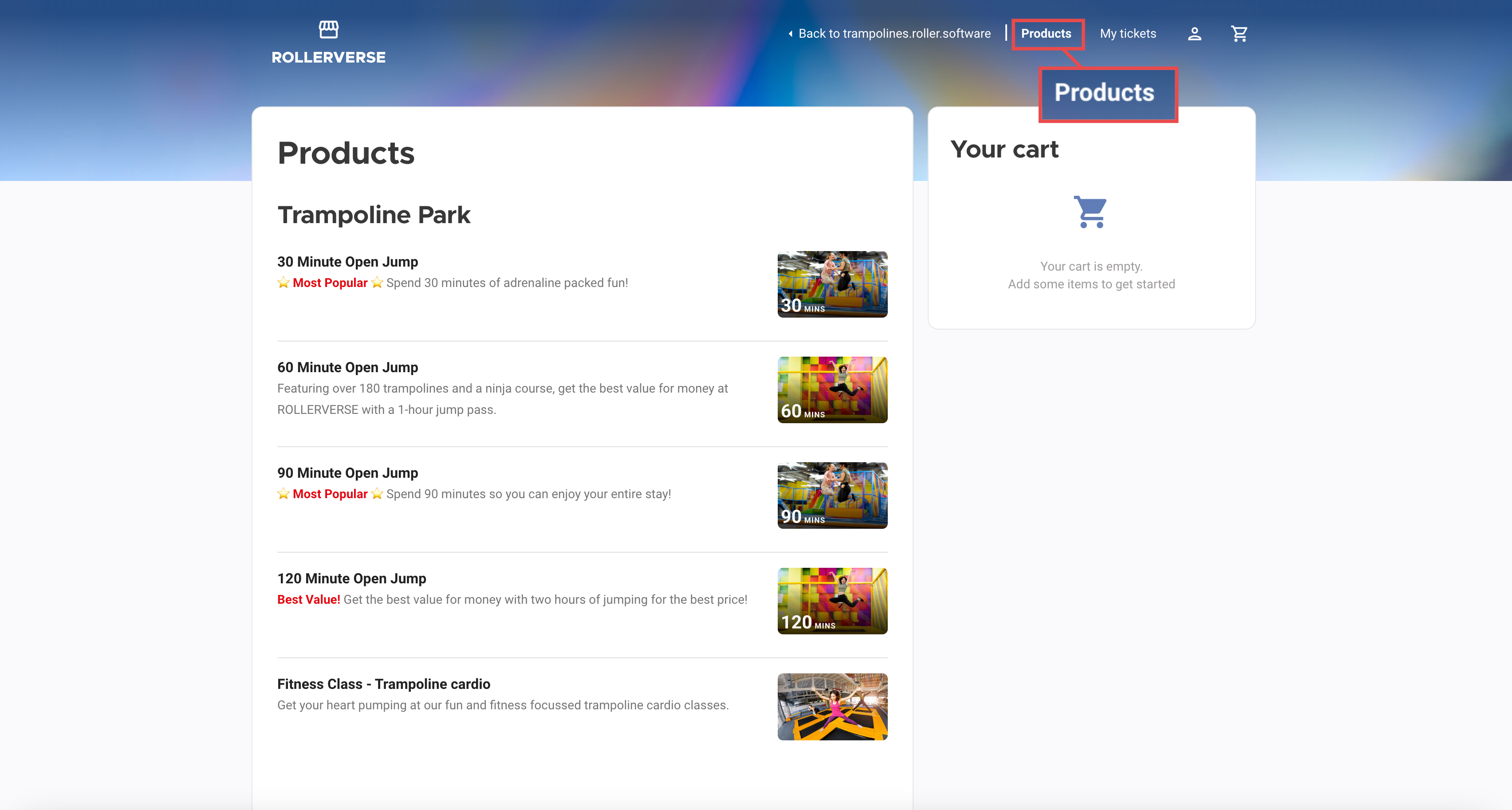
Then, take note of the URL.
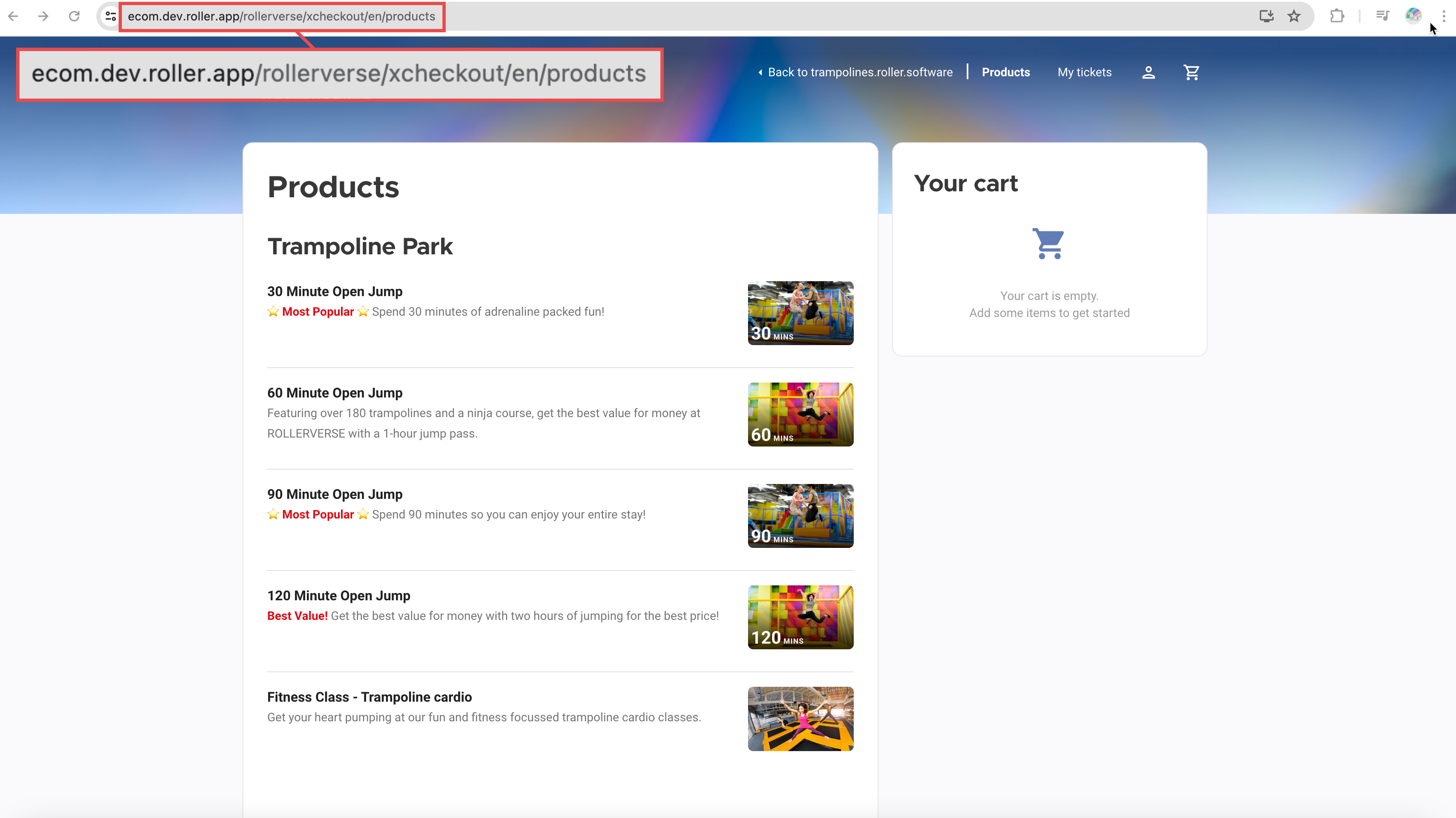
To the end of the URL, add the following: ?section=section name. Replace section name with the name of the section you'd like to direct guests to. This must match the name of the section in the checkout, including any spaces between words.
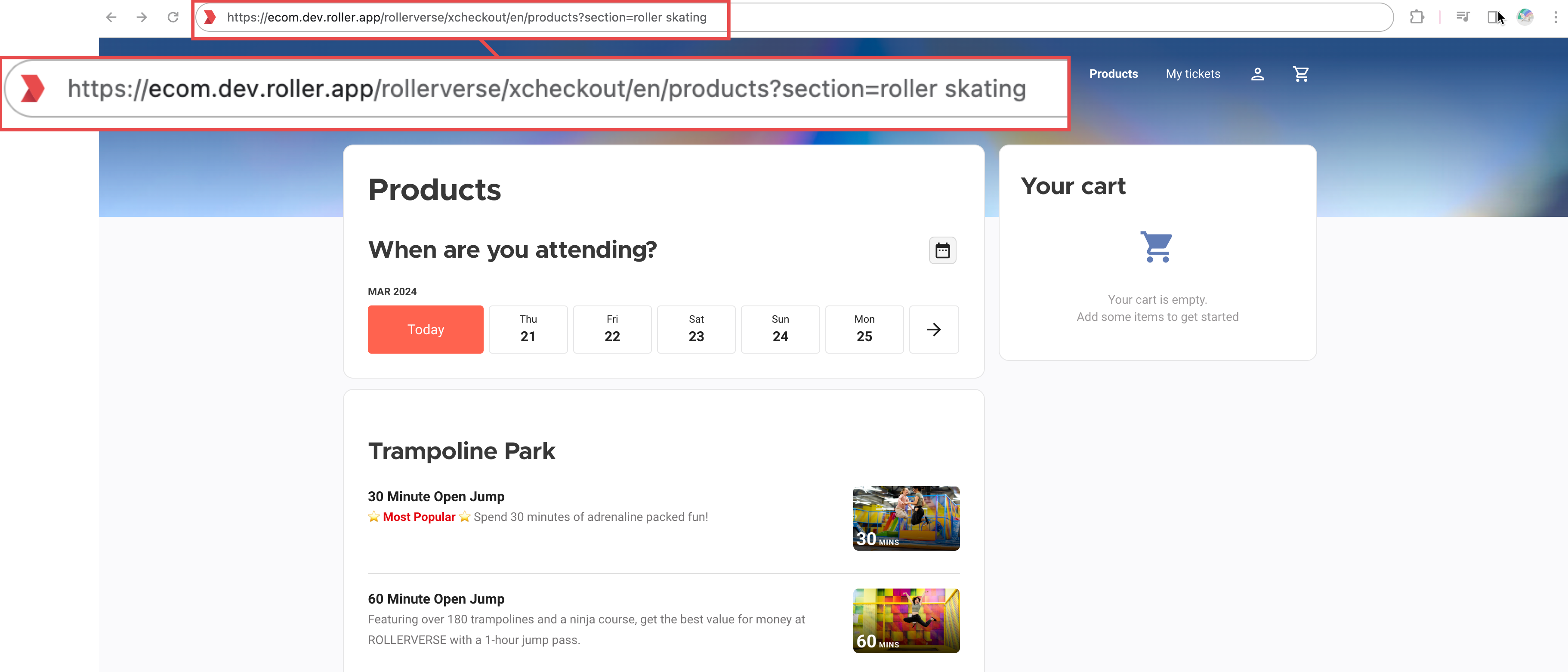
Hit Enter on your keyboard (or Return on a Mac).
Copy this new URL and add it to your website or social Book now buttons.
Add a direct link that opens at a specific product
If you'd like to send guests straight to a specific product (eg a Buy a gift card button, or an event you're promoting on social), follow the steps below to copy a direct link to that product.
From Venue Manager, go to Apps > Progressive checkouts > All Checkouts.
Select the checkout you want.
Select View checkout in the top right of the checkout setup page to open your online checkout.
Browse to the product you want and select it to open its product details.
If you want the link to open on a particular date, select that date now.
Copy the URL from your browser address bar.
Add the link to your website or social Book now buttons.
Note:
Copy the URL directly from your checkout rather than building it by hand. This makes sure your link stays accurate.
If you copy the link without selecting a date first, guests land on the product with the calendar open and may need to find their date before they can book. For event or session promotions, select the date first so guests can go straight to booking.
Test your link in a private browser window before you publish it.
Translate your checkout
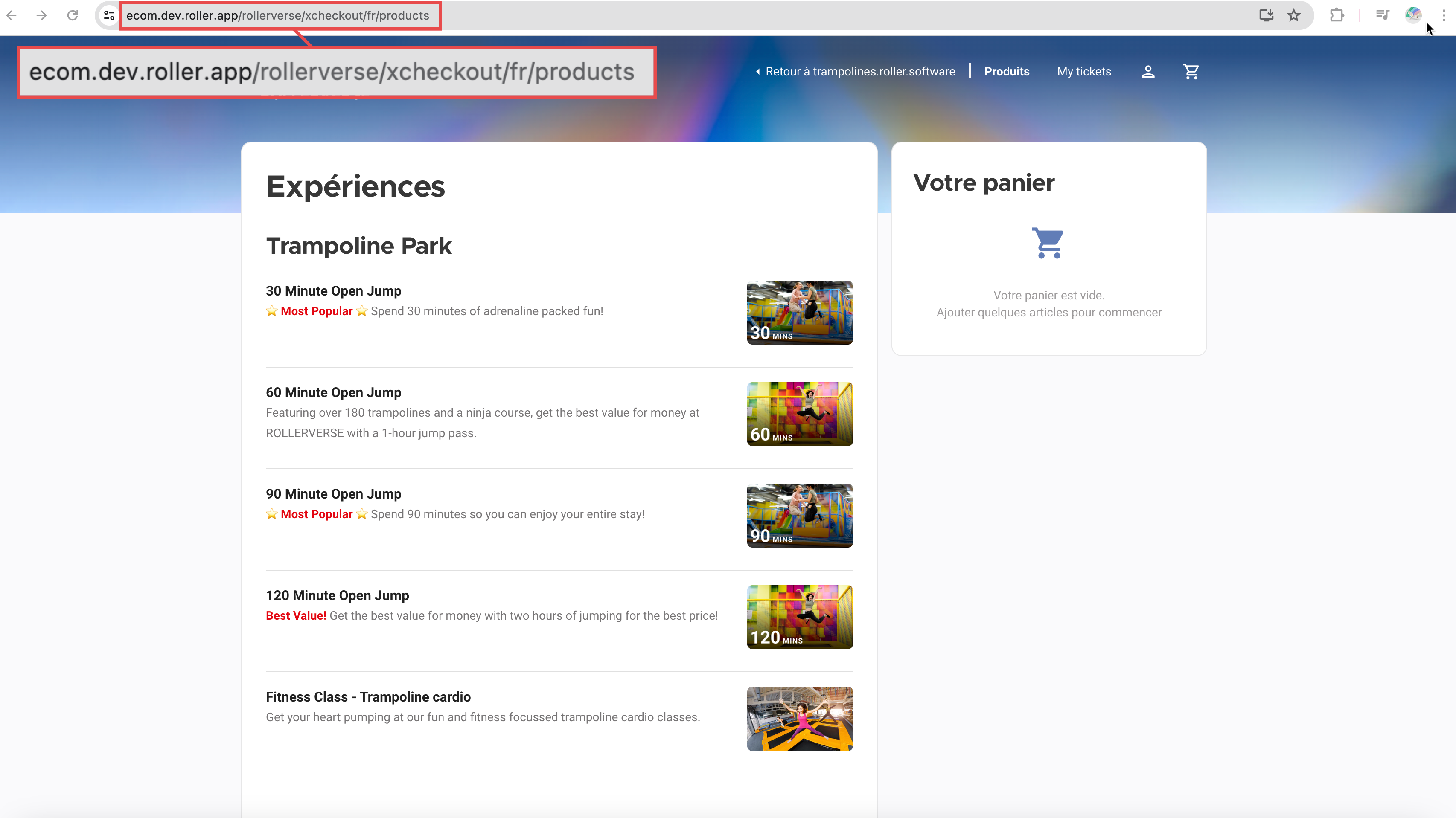
The default language for all checkouts is English. If you'd like to share your checkout in a language other than English, you can manually edit the direct link. Follow the steps below.
From Venue Manager, go to Apps > Progressive checkouts > All Checkouts.
Select the checkout you want.
Select Share in the top right of the checkout setup page.
Select the direct link to copy the checkout URL and paste it into your browser.
Replace the /en/ in the URL with your chosen language (eg /fr/ or /de/).
Add the modified link to your website or social Book Now buttons.
Our list of supported languages include: Welsh (cy), Danish (da), German (de), English—US (en-us), Spanish (es), Finish (fi), French (fr), Norwegian (nb), Dutch (nl) and Swedish (sv).
Take a look at the videos on our Academy to learn more about how to prepare for, create and share your online checkout.
This article relates to ROLLER’s progressive checkout. If you want to add a legacy checkout to your website or social pages, refer to the guide Add your checkout to your website. To use progressive checkouts, your venue must be using ROLLER Payments.