When guests search Google for things to do nearby, your tickets can show up right there, with live prices and a button that opens your ROLLER checkout. Being listed where guests are choosing what to do helps you reach new visitors. A family searching for things to do in Austin can find your day pass on Google Maps and book it straight away. Listing is free, and each booking lands in ROLLER like any other online sale.
Use this guide to connect your venue, set up products Google approves and check your listings are live.
Free to list, turned on by your account owner
Listing your tickets on Google Things to do is free for venues using ROLLER Payments. Only the account owner contact for your venue can turn on the integration. Ask them to do the first step in this guide.
How Google shows your tickets
Google lists your approved products in up to two free places, which puts your tickets in front of guests at the moment they're choosing what to do:
Admission: the ticket options on your venue's own listing in Google Search and Google Maps (eg under See tickets). Only tickets that include entry to your venue appear here.
Experiences: Google's things to do results when guests search an area or an activity (eg things to do in Austin).
Guests who select one of your tickets land on that product in your ROLLER checkout, where they can add other ticket types and add-ons. ROLLER keeps the price and details Google shows in line with your product settings.
Before you begin
Your venue uses ROLLER Payments and progressive checkouts, with the products you want to list added to a progressive checkout.
Your venue has a Google Business Profile, with its name and address up to date.
The account owner contact for your venue in ROLLER is available to turn on the integration. No other staff member can do this step, whatever their role. Each venue turns it on separately, and a venue can have more than one account owner contact.
What you'll do
Turn on Google Things to do.
Add your venue location.
Choose which products to list.
Set up each product for Google.
Check your listings on Google.
Turn on Google Things to do
Turning on the integration is a one-time step that lets ROLLER send your products to Google.
Account owner only
Only the account owner contact for your venue can turn on Google Things to do, because they accept Google's supplementary terms for the venue. Anyone else who selects Activate feature sees Admin access required. If you’re the account owner and you see it too, check that you’re signed in to Venue Manager with the staff account set as the account owner contact.
From Venue Manager, go to Settings > Channel management > Google Things to do.
Select Activate feature.
Read the supplementary terms in the Accept terms window, then select Agree and activate.
The page reloads with the Google Things to do settings, ready for your venue location.
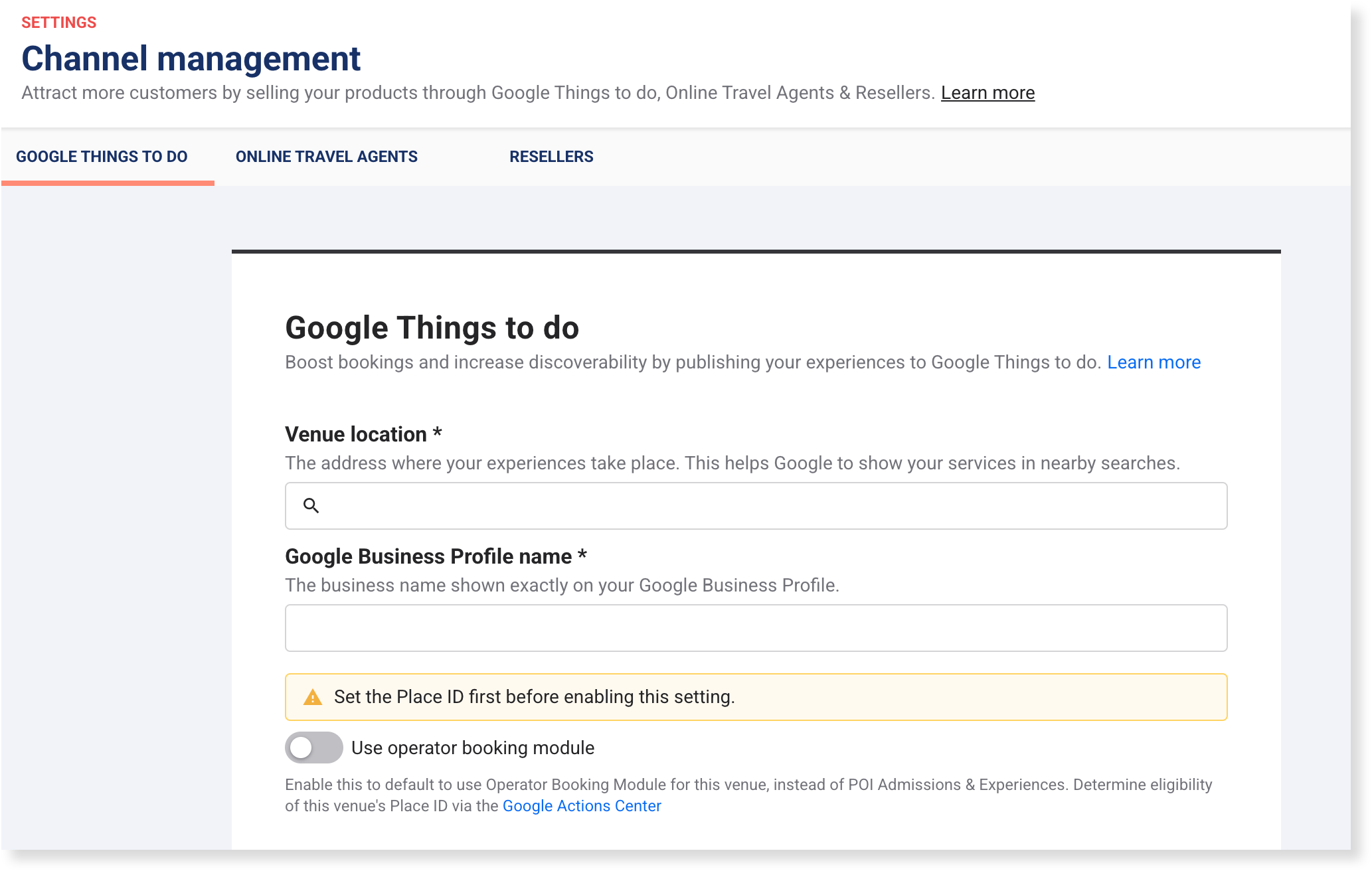
Add your venue location
Your venue location ties your tickets to your venue's place on Google Maps. Google uses it to show your tickets on your own listing and in nearby searches.
From Venue Manager, go to Settings > Channel management > Google Things to do.
In Venue location, type your venue's name as it appears on your Google Business Profile. Searching by name finds the right Google place more reliably than searching by street address.
Select your venue from the list. Choose the result with your business name, not one that shows only a street address.
In Google Business Profile name, enter your business name exactly as it appears on your Google Business Profile.
Select Save.
A card shows the Google place you selected, with its name, address and Place ID. Check the name is your venue's. To change it, search again in Venue location and select Save.
Choose which products to list
One clear product for each experience is easier for guests to choose from, and near-duplicate products can lower where Google ranks your tickets.
You can list passes and packages that guests book online, for example:
A general admission or day pass (eg Adult entry)
A session-based experience (eg Morning jump session)
An attraction linked to a landmark (eg Observation deck entry)
A package that includes admission and extras (eg Admission and lunch combo)
Memberships, party packages, gift cards and retail items can't be listed on Google Things to do.
Before you pick, check for near-duplicates:
Same experience, different lengths (eg a 60-minute and a 120-minute session): list one of them.
Same experience with extras (eg admission, and admission with a behind-the-scenes tour): list the admission product.
Different experiences at the same place (eg a day tour and a night tour): list both.
Set up each product for Google
Each product you set up becomes a listing on Google, showing the name, image, description and price guests see before they click through.
Add the product to a progressive checkout first. The Google settings only list checkouts the product is already in.
Set up each product from the venue’s account, not your HQ account. Sell via Google Things to do doesn’t show in an HQ account.
From Venue Manager, go to Products and select the product.
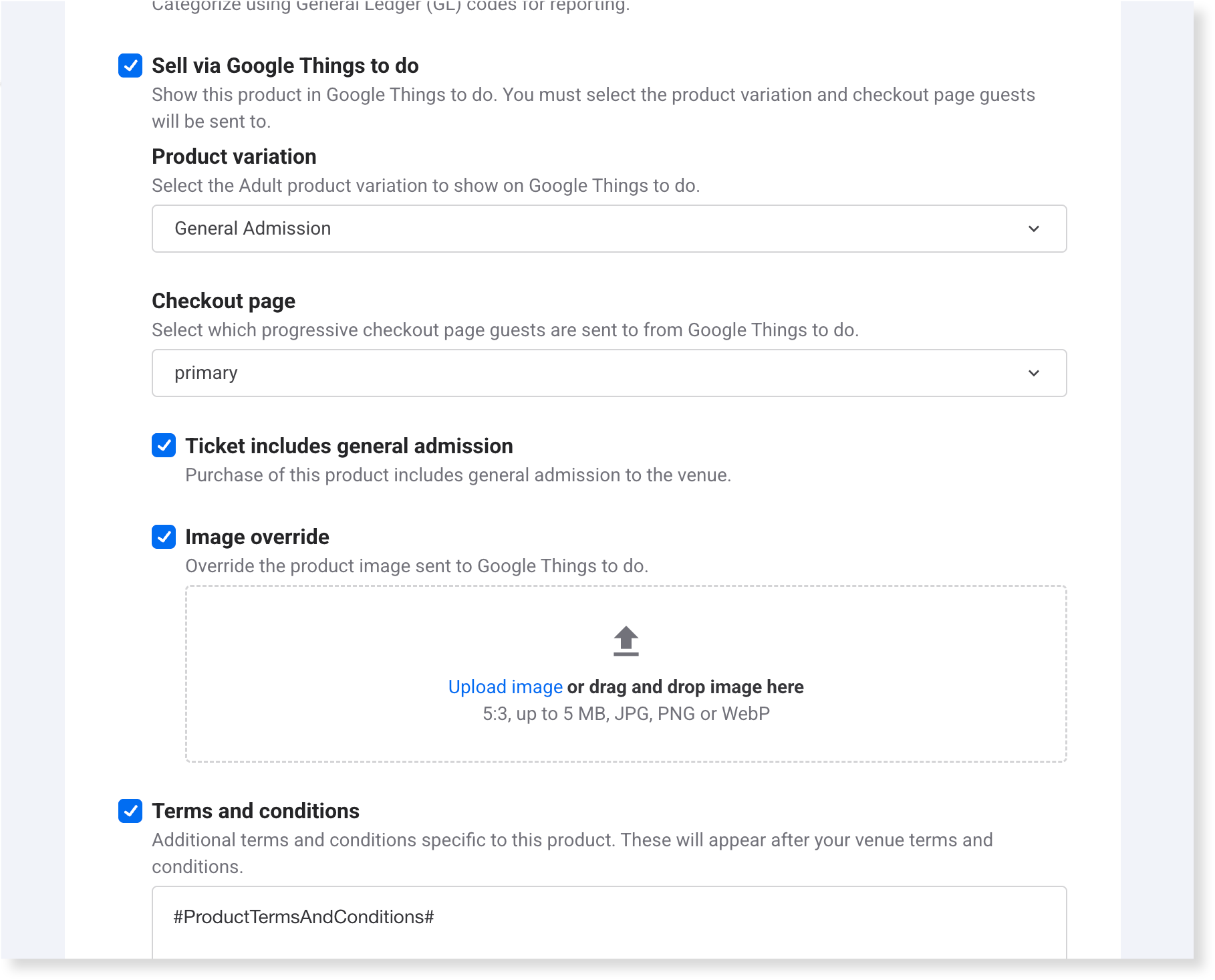
Under Additional options, select Sell via Google Things to do.
In Product variation, select your Adult or general admission variation. Google shows one ticket price for each product, and guests choose other ticket types in your checkout.
In Checkout page, select the checkout guests land on from Google. Guests go straight to this product in that checkout, not to the checkout's home page.
Select Ticket includes general admission if the ticket gets guests into your venue (eg a day pass). Leave it off for a ticket to one activity inside your venue (eg a jump session). Only tickets with it selected can appear in the admission options on your venue's Google listing.
To show Google a different image from the one in your checkout, select Image override and upload the image.
Select Save.
After you select Save, check the product is set up. From Venue Manager, go to Settings > Channel management > Google Things to do. The product is listed under Google Things to do products, with its Feed ID and Configured checkout.
If Configured checkout shows Not configured, ROLLER doesn’t send the product to Google. Select the product name to open it, then choose a checkout in Checkout page. If the checkout you want isn’t in the list, add the product to that checkout first.
ROLLER sends the product to Google within 24 hours, as long as it has a description and an image. Google then reviews it before it appears.
Check what Google needs from each product
Google approves products whose details are clear and match what guests pay. ROLLER doesn't send a product to Google until it has a Description and an image, so check these fields before you save. The product also needs to be bookable online in the next 7 days, or up to 120 days ahead for seasonal dates.
Field | What Google needs |
|---|---|
Name | Required. The product's name, not the variation name. A clear name for the experience, with no emojis, prices or sale wording (eg Jump arena 90-minute session, not Jump arena 2-for-1 today only). |
Description | Required. This is the short description under Name, up to 150 characters. One or two plain sentences about the experience, with no promo codes or sale wording. Formatting such as bold or links is removed. |
Provide a detailed description | Optional. What guests do, what's included and not included, and a line about your venue. Google checks your checkout for who runs the experience, so if your checkout doesn't already name your venue, add a line such as Operated by [venue name]. |
Variation description | Optional. The description of the variation you selected in Product variation. Google can show it with the ticket, and a clear description makes Google more likely to show your product. |
Image | Required. Your product image, or the image you upload in Image override (JPG or PNG up to 5 MB). Google's minimum is 300 x 300 pixels, but it recommends at least 1024 x 683 and ideally 2048 x 1366. Smaller images can keep a product out of Google's experience results. |
Availability | Google usually needs the product to be bookable online in the next 7 days. If your dates are further out (eg a seasonal event), Google accepts availability up to 120 days ahead, as long as the product name or description says when it runs. If the product or the variation you selected is set to Hide from online sales, it isn’t sent to Google. |
Price | Set as usual. ROLLER sends the price guests pay at the checkout you selected, with tax, product fees and any add-ons included automatically. Booking fees are added when guests pay them at that checkout. If the product has a minimum purchase quantity, Google shows the price for that many tickets. For a session pass, it’s the lowest price today, or on the next day you have sessions in the coming week, with any price rule applied. |
Google's full requirements are in its Things to do policy and image guidelines.
Check your listings on Google
A quick search once your products are live confirms guests see the right price and land in your checkout. ROLLER sends product changes to Google within 24 hours, and Google reviews new products before they appear, which can take up to five business days.
Search Google for your venue's name, or for things to do near your venue (eg things to do in Fishers), and check:
Your tickets show with the right name, image and price.
The price matches what guests pay at checkout for that day.
Selecting a ticket opens that product in your ROLLER checkout.
If a product needs changes after Google's review, your customer success manager or the support team contacts you with what to fix. When you ask about a listing, include its Feed ID from the Google Things to do products table.
Remove a product from Google Things to do
You can take a product off Google at any time, and it keeps selling in your checkout as usual.
From Venue Manager, go to Products and select the product.
Under Additional options, turn off Sell via Google Things to do.
Select Save.
Removing the product from its linked checkout also removes it from Google. ROLLER asks you to confirm first, and selecting Continue removes the listing.
To delete the variation you selected for Google, select a different variation in Product variation first. ROLLER doesn't let you remove a variation while Google uses it.
Fix, track and promote your listings
Once your tickets are live on Google, these guides help you keep them there and get more from them:
Troubleshoot Google Things to do listings that don't appear: match what you see on Google to the fix in Venue Manager, check it worked and know when to contact support.
Track and promote your Google Things to do listings: see which bookings came from Google in the Bookings report, and link Google Ads to promote your listings.
FAQs
Is there a cost to use Google Things to do?
Listing your tickets on Google Things to do is free for venues using ROLLER Payments.
How long does Google take to approve my products?
ROLLER sends new and changed products to Google within 24 hours. Google then reviews new products before they appear, which can take up to five business days.
Why does only my Adult ticket show on Google?
Google shows one ticket price for each product, and the Adult or general admission variation is the one guests compare. Guests choose child, concession and other ticket types when they reach your checkout.
Do price rules change the price guests see on Google?
For session passes, yes. Google shows the lowest price today, or on the next day you have sessions in the coming week, with any price rule applied. For standard passes and packages, Google shows the price set in the product.
Do guests pay the price shown on Google?
Guests pay your checkout price for the date and session they choose. If your prices change by day or session, the price on Google can differ from what a guest pays for another date.
Can guests buy add-ons through Google?
Guests add extras in your ROLLER checkout after they select a ticket on Google. Google lists the ticket itself, and your checkout offers add-ons such as food, lockers or merchandise.