When a member applies their own membership discount at online checkout, nobody at your venue has seen them yet. So when you open that booking at POS, a banner prompts you to check their photo, so the discount is used by the person the membership was issued to.
This is a check on the person, not on what their membership includes. To see what a member has left to use, see Check remaining membership benefits at POS.
Check the member's photo when a discount was applied online
If a guest has used a membership discount for an online booking, POS prompts you to verify that the person checking in is the correct member. This keeps the discount with the person who owns the membership.
When a qualifying booking is opened in POS, a banner appears.

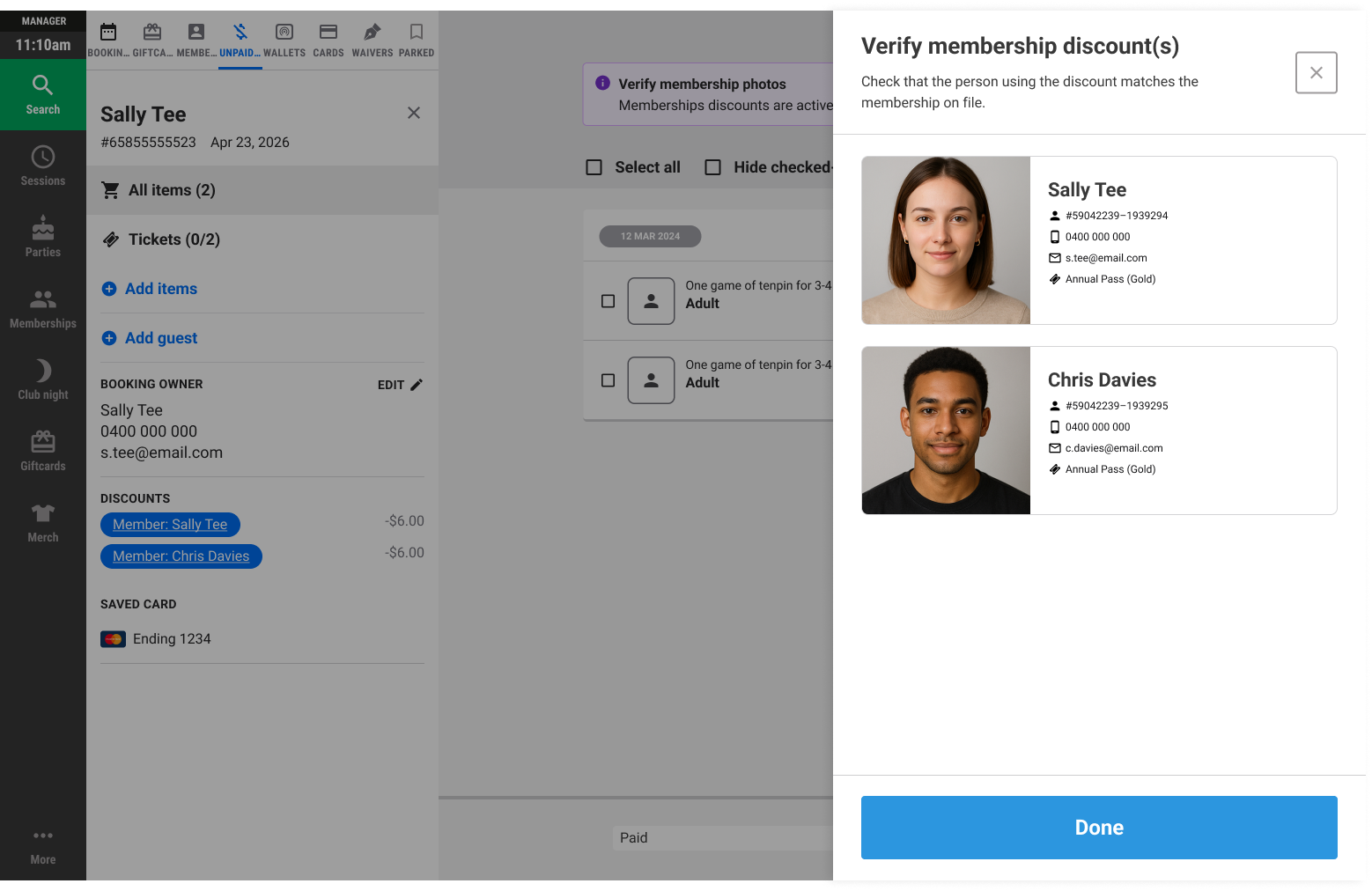
Select Verify to see all members included in the booking, along with their profile photos.
Confirm the guest matches the photo on file.
If a photo is missing or out of date, select Take photo to capture a new image using the device’s camera. It saves directly to the member’s profile for future visits.
Add photos before members arrive
You can add a member's photo at POS at any time, so the check doesn't hold anyone up at the counter. See Add member photos to a membership at POS.
If you expect the prompt and don't see it
The banner appears when a booking has used a membership discount applied online.