HQ products and stock make it easy for multi-venue businesses to share items across selected venues. To make sure products work as expected, they must be added correctly — with all required inclusions and local settings in place.
This guide shows you how to pull HQ products down into the Venue Manager of a managed venue.
If you are working in HQ and want to create products to share, see the guide Create and add HQ products to managed venues instead.
Key terms
Managed venues — venues linked to an HQ venue. Some settings may be controlled by HQ.
Venue permissions — rules set at HQ that control what fields managed venues can and can’t edit.
HQ products and stock — items created in HQ and made available to venues (individually, by group or to all venues).
HQ-managed products — centralized products created in HQ. Venues must pull them down into their product list before they can be sold.
How to work with HQ products
HQ creates the product in its HQ account.
HQ provides access to managed venues in product setup using venue tags.
Managed venues pull down the products into their product or stock list before they can sell them.
Some product settings are always configured at the managed venue, such as resources and tax overrides. Operating hours must also be set up in the managed venue.
Venue permissions set at HQ control what managed venues can edit for products — grayed-out fields are locked by HQ; editable fields depend on what HQ allows.
For bundles (packages, party packages, memberships) — make sure any products they include (eg stock, passes, gift cards) are already pulled down first, otherwise inclusions or discounted membership variations won’t work.
Add managed products and stock
Switch to the managed venue from your HQ account.
In the managed venue, from Venue Manager, go to Products > All products.
Select Add managed product (top right).
From the drop-down, choose the HQ product or stock item.
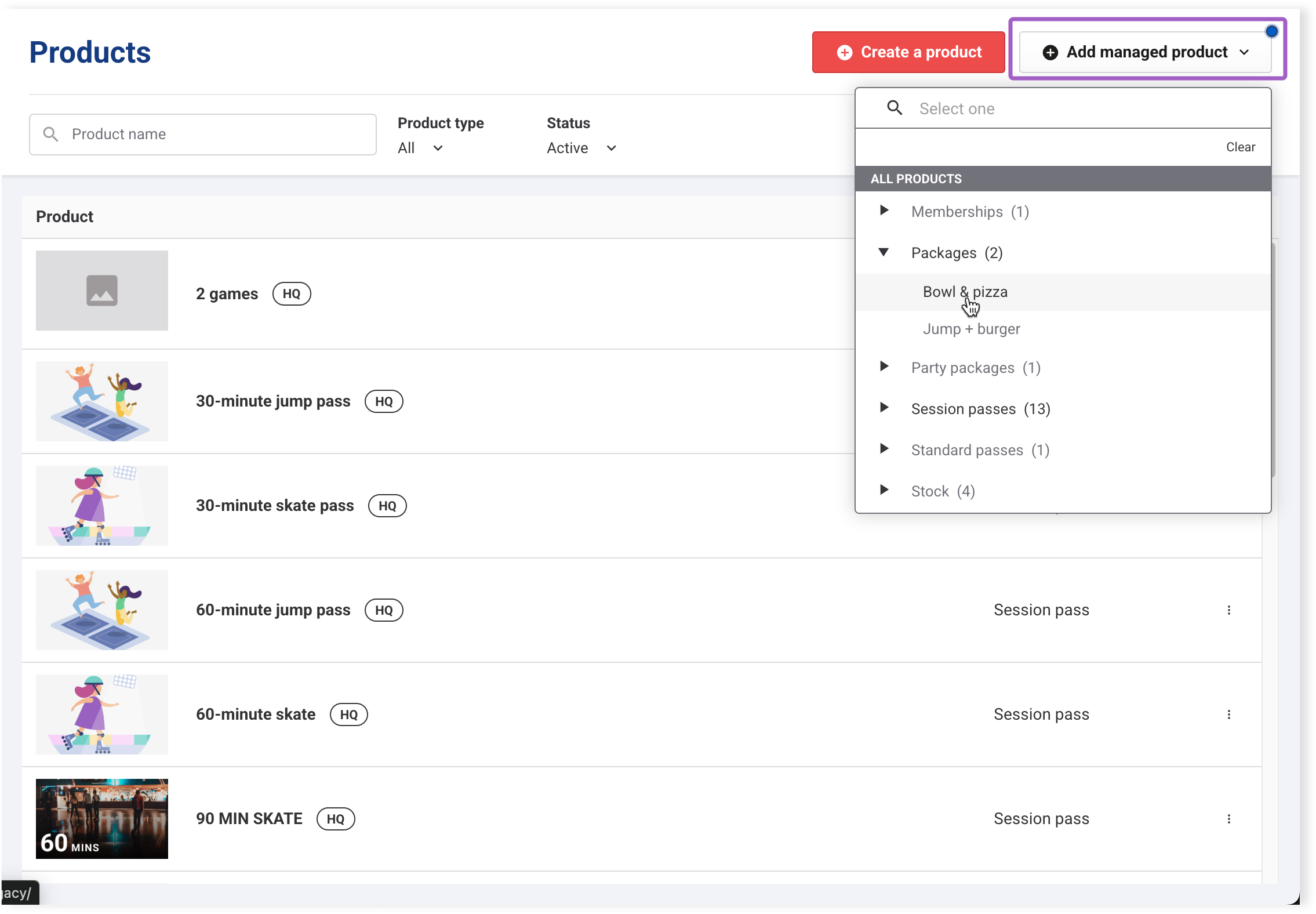
The product is added with HQ product and variation details (eg name, image, session duration, ticket types).
Fields that are grayed out are not editable at the venue.
Editable fields depend on venue permissions set at HQ.
If HQ has restricted price rule changes, the price rule option doesn’t show on the product at all rather than appearing grayed out.
Complete the venue’s own setup, such as resources and tax overrides.
Select Save to finish adding the HQ product to the managed venue.
Managed venues must set up their operating hours before they can access HQ schedules.
Before you add packages, party packages and memberships
These product types include or reference other items. They’ll only work if those items are already in the managed venue.
HQ configures the full setup, including bundled items.
From managed venues, first pull down included items (eg stock, passes, gift cards) into their product or stock list.
Then pull down the package, party package or membership.
Once added, venues can:
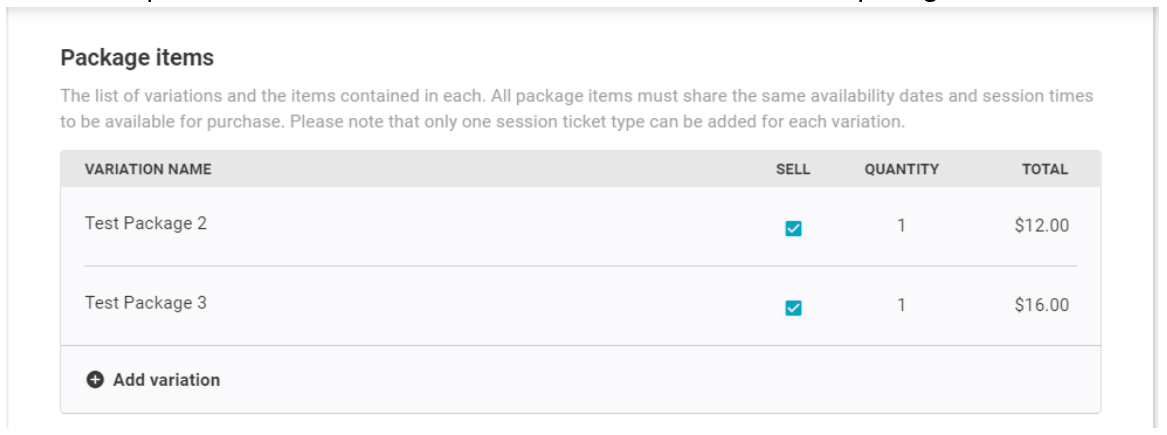
Select Sell to choose which variations to make available.
With the right permissions, select Add variation to create a new variation with its own inclusions and pricing.
Add stock products and variations
Managed venues can add HQ stock items directly from the Products > Stock page in Venue Manager:
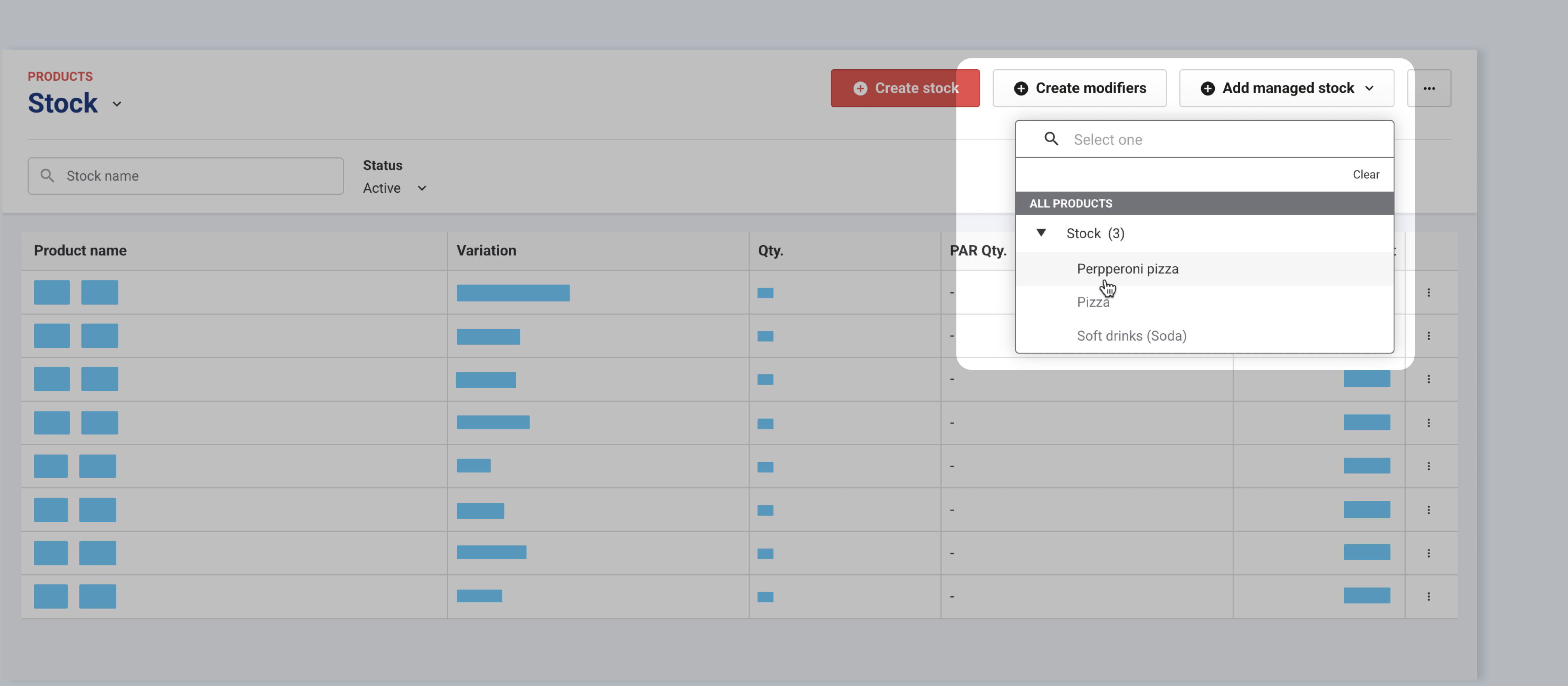
In a managed venue, from Venue Manager, go to Products > Stock.
Select Add managed stock.
Choose the HQ stock items you want to add. Only stock items not yet added will be available to select.
Select Save to add them to the managed venue’s product list.
You can still use Add managed product from the All products page, but the new Add managed stock button is a faster option for stock setup.
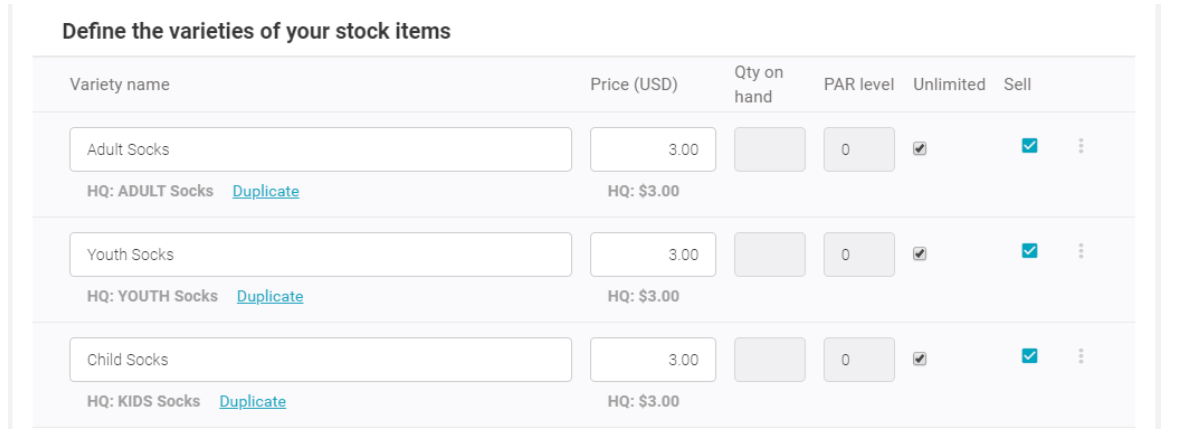
Managed venues can also use the Duplicate link to create another variation of an HQ stock product.
For example, if a venue sells multiple soda flavors that are available in their local area, they can duplicate the stock product to add and edit the variation to suit their needs.
See how to switch between the venues you have access to.
FAQs
Why can’t I create an open product in a managed venue?
Your staff permissions may restrict this. Contact your HQ administrator.
Why are some fields grayed out?
HQ venue permissions control which product fields you can edit.
What if I need to change a field I can’t edit?
Contact your HQ administrator.
Why won’t the product save?
Some required fields must be set up locally, such as resources (rooms, area, equipment).
Why can’t I find the product I need when selecting Add managed product?
It may not have been made available to your managed venue by HQ. Contact your HQ administrator.