This guide shows you how to add or remove discounts from bookings in Venue Manager, including pre-configured discount codes, on-the-fly custom dollar amounts or percentages, or a specific membership discount.
Add a discount
You can add a discount to an unpaid or partially paid booking in Venue Manager. Once a booking is marked as paid, you’ll need to process a refund before a discount can be applied.
From Venue Manager, you can apply a discount code you've previously set up (Products > Discount codes), an on-the-fly custom dollar amount or percentage off discount to a booking, or a specific membership discount.
From Venue Manager, create a new booking or search for an existing booking.
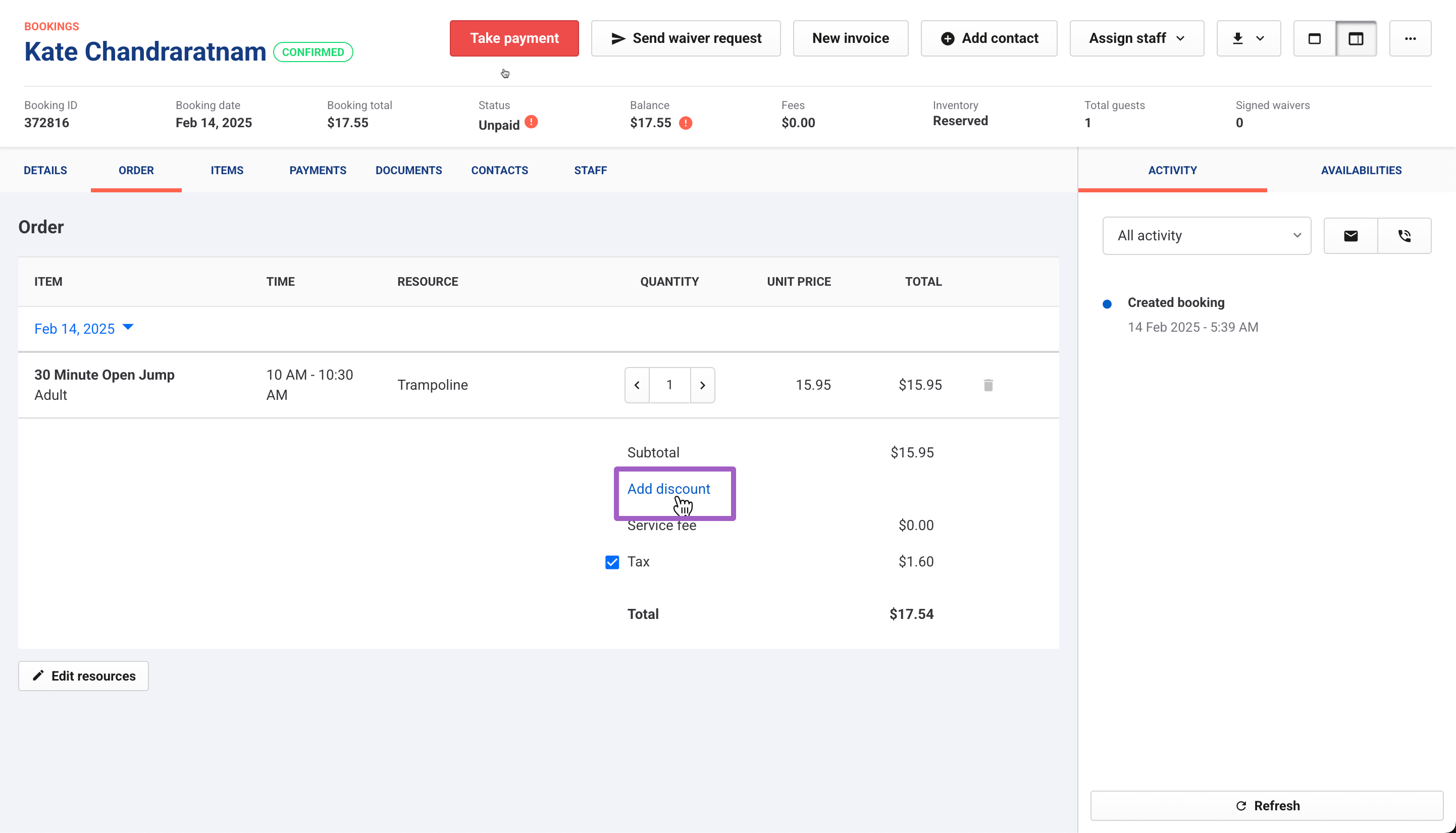
From the Order tab, select the Add discount option.
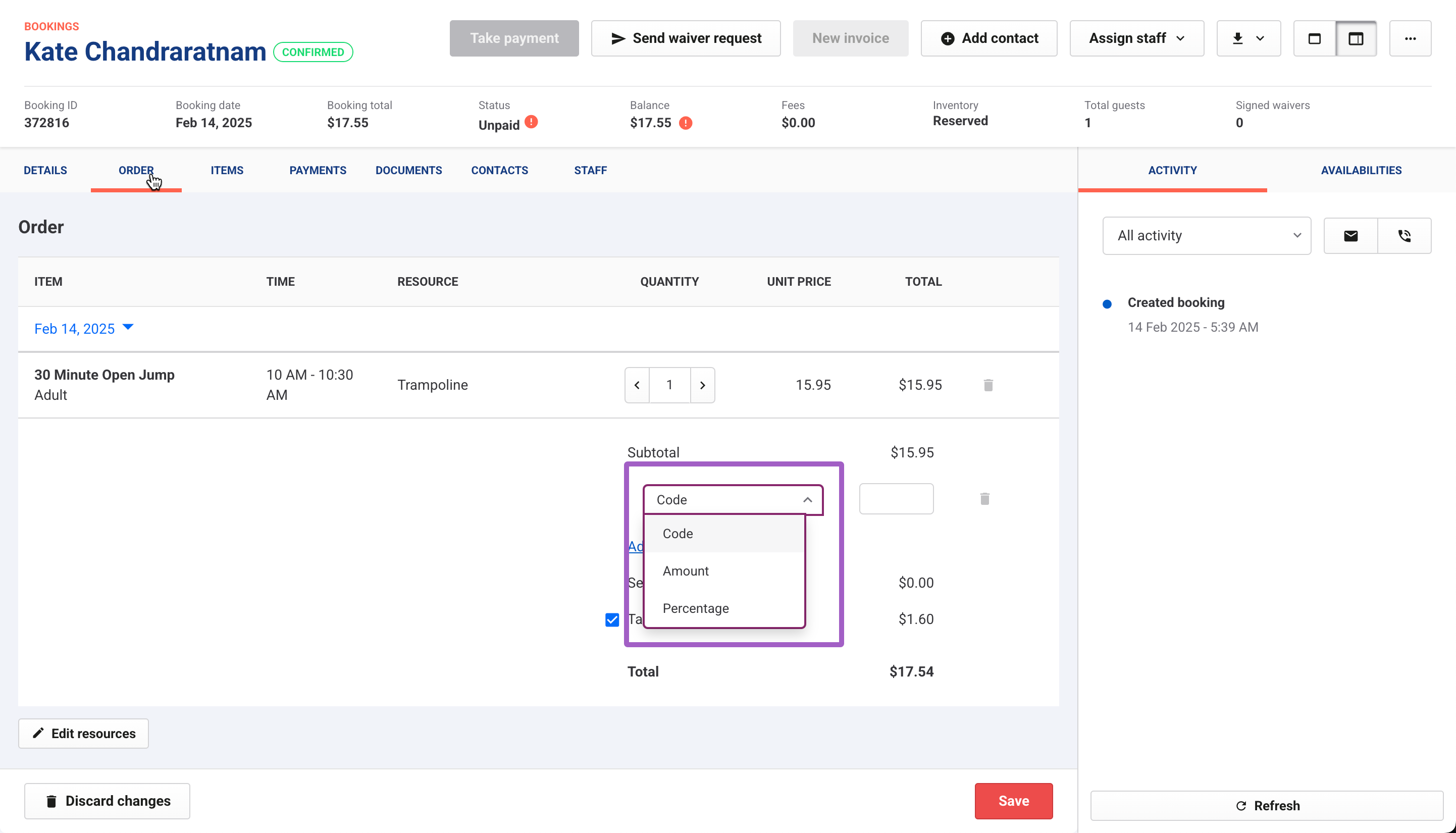
Choose the discount type from the drop-down:
Choose Code to enter a discount code or membership number (item ID, eg 372817-1220750 for the membership).
Choose Amount for a fixed amount, then enter the dollar amount.
Choose Percentage for a percentage off, then enter the percentage.
Select Save to apply the discount. The booking's total updates with the discount applied.
Discount types
From Venue Manager, you can apply the following discounts.
Code | This allows you to use existing discount codes you've created in ROLLER (Products > Discount codes) or membership numbers (a membership pass item number). |
Amount ($) | This allows you to set an exact amount to discount by. ROLLER will calculate the remaining balance accordingly |
Percentage (%) | This allows you to set a percentage between 1 - 100%. Setting it as 100% will make the booking complimentary. ROLLER calculates the remaining balance accordingly. |
View discount codes applied to a booking
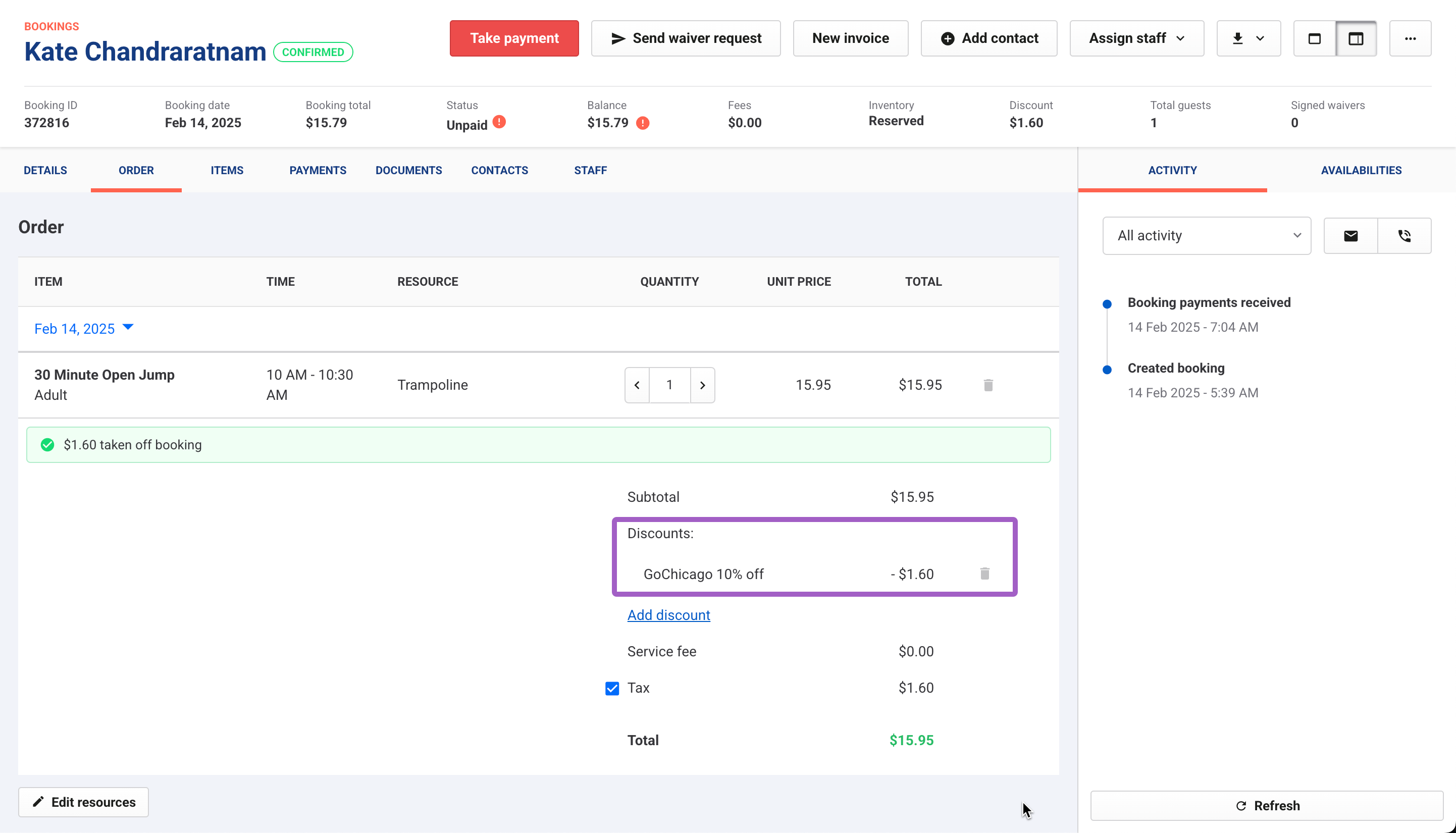
The discount code applied to the booking will be shown under the Discounts line item for the booking in Venue Manager. If a configured discount code (set up in Products > Discount codes) was applied, the code name and the discount amount will be displayed.
View membership discounts applied
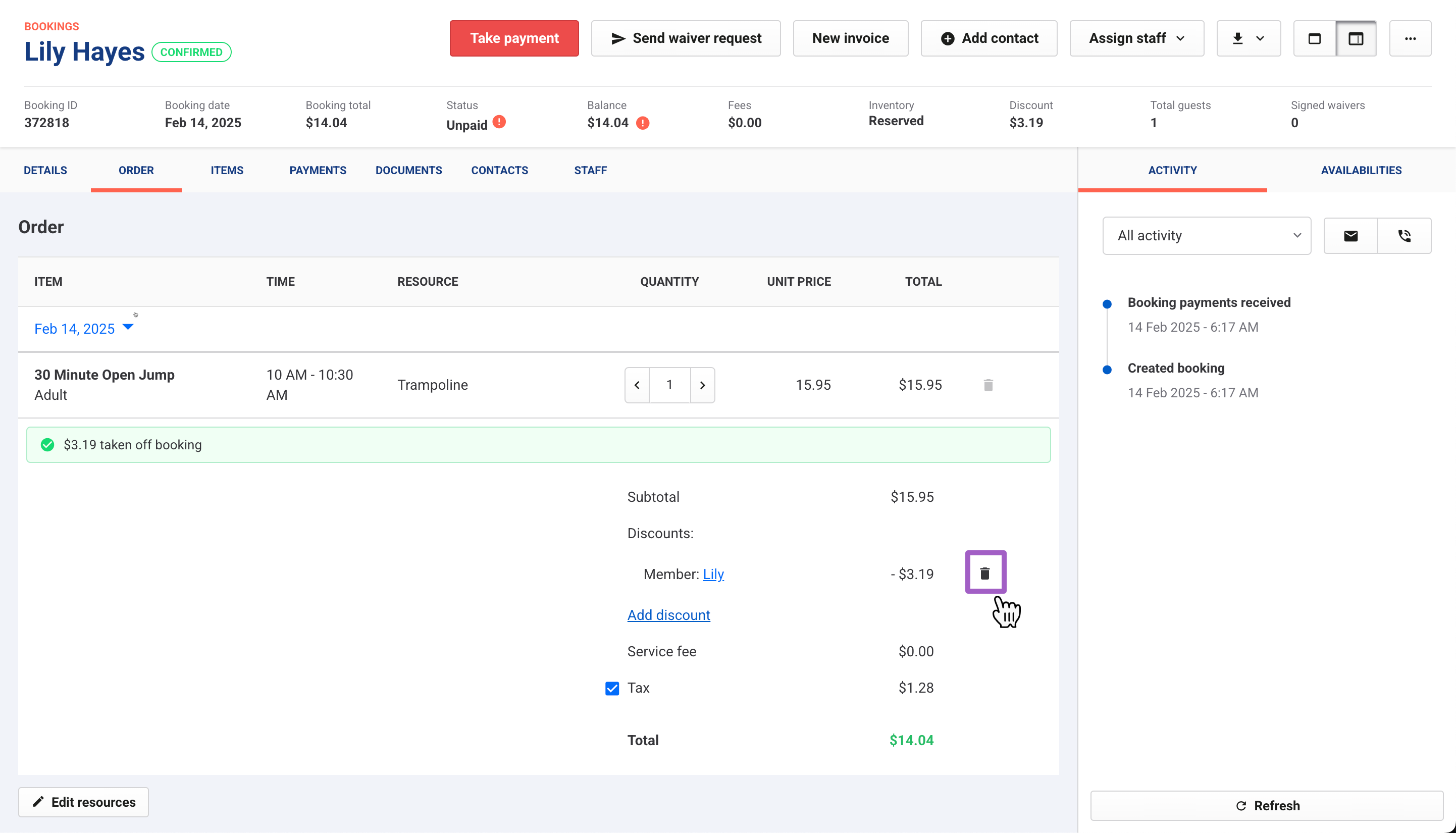
The member's name is displayed if the applied discount is a membership discount.
Selecting the member name opens the membership booking's item tab, where you can view the membership product name and membership/item number.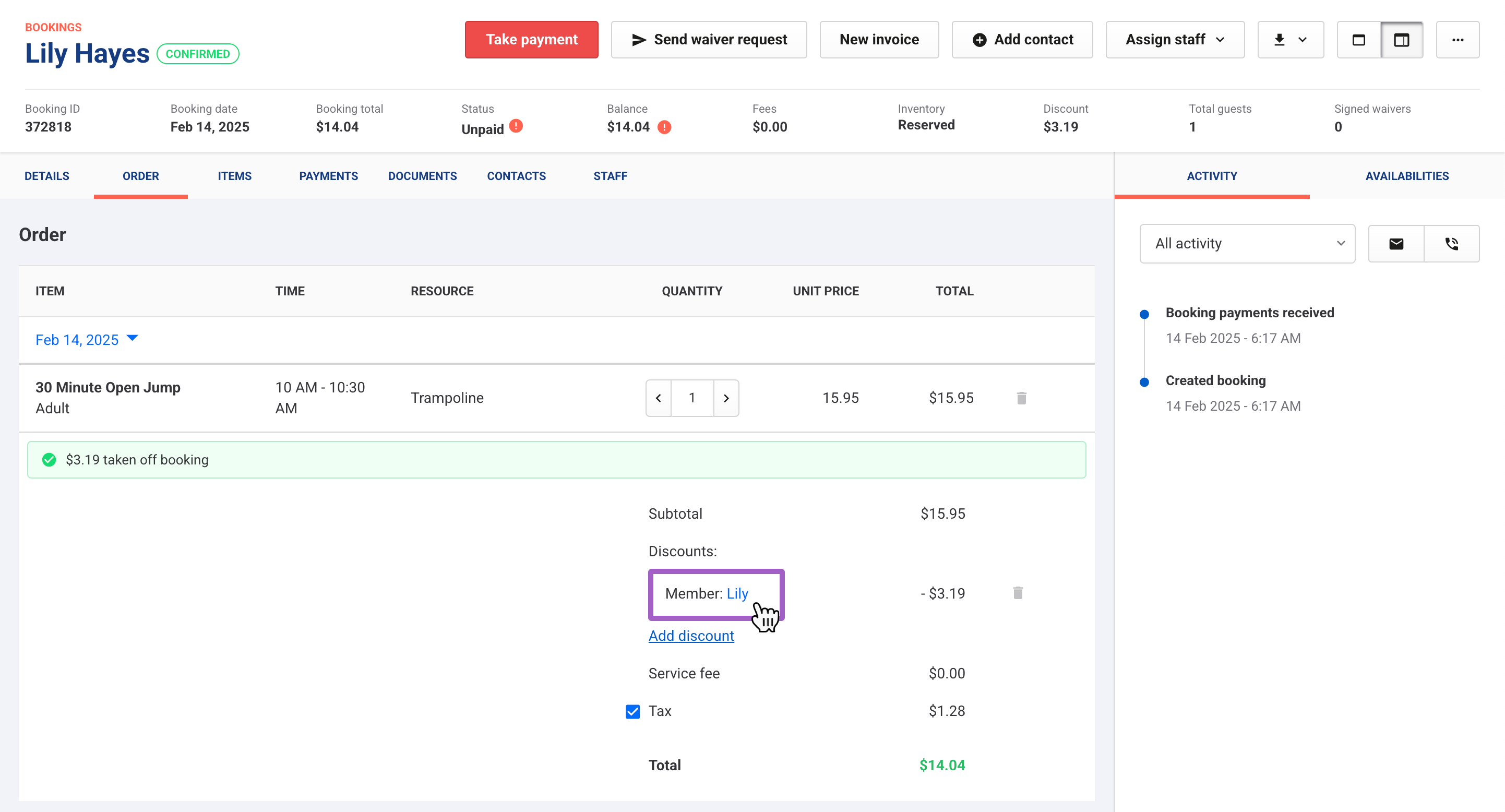
Remove a discount
From Venue Manager, search for and select the booking.
Select the Order tab of the booking.
Select the trash can next to a discount to remove it.
Adding discounts to past booking
There are restrictions on staff editing a past booking. To learn more about modifying booking restrictions, see the Restrict past booking modifications guide.