A cashless card bundle lets you group multiple balance types — such as cash credit, minutes and activity entitlements — into a single product. Guests can purchase everything in one transaction at checkout, and all balances are assigned to their card in one scan at POS. This simplifies the buying experience and speeds up card assignment, and works well for packages like arcade starter packs or party bookings.
Bundles are supported for Sacoa, Intercard and Amusement Connect.
Before you start
You need at least one existing cashless card product with the variations you want to include in the bundle.
The Card bundle type is set when the product is created and cannot be changed after saving.
Set up a bundle
Card bundles can only be configured when creating a new cashless card product.
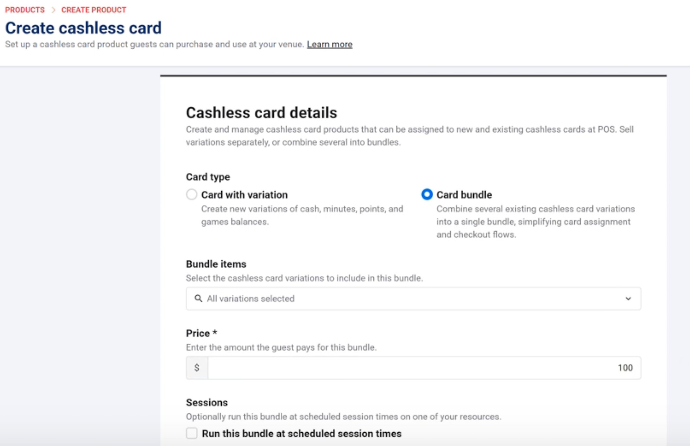
From Venue Manager, go to Products > Create product > Cashless card.
Under Card type, select Card bundle. This option is greyed out when editing an existing product.
In Bundle items, select the cashless card variations to include.
Enter the bundle price.
To attach a session, check Run this bundle at scheduled session times, then select the Resource and set the Session duration (minutes).
Save. The card type cannot be changed after saving.
If you selected Run this bundle at scheduled session times, you will now be redirected to set up the schedule.
Bundles with a session
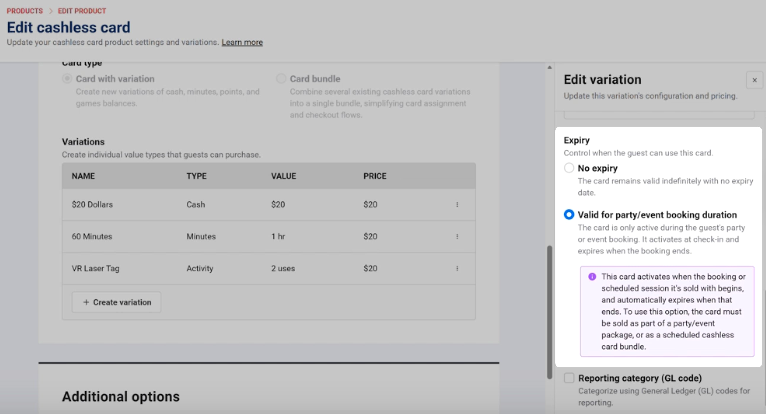
When a session is attached, you have the option to set an expiry on the variations within the bundle. To do this, open the cashless card variation and set Expiry to Valid for party/event booking duration. With this setting, the variation activates at check-in and automatically expires when the session ends.
Assign a bundle at POS
When a guest's cashless card bundle is ready for check-in:
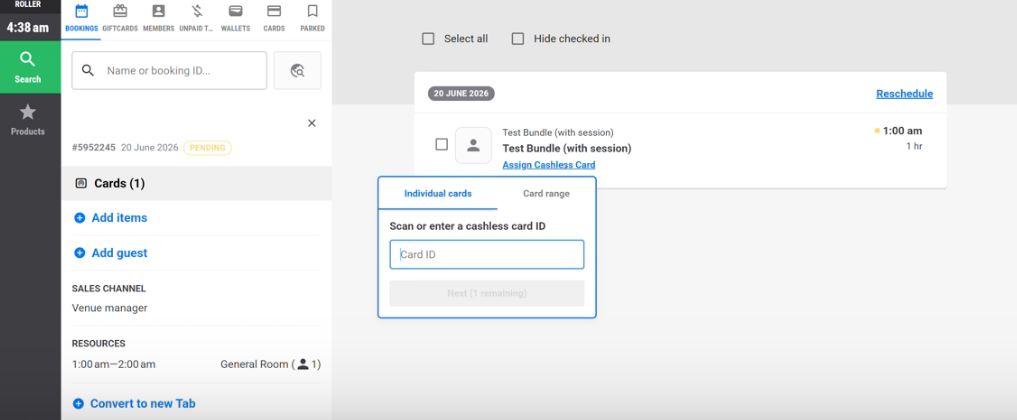
Search the booking at POS.
Select Assign Cashless Card on the bundle item.
Scan or enter a cashless card ID.
Once the card has been scanned, all variations are instantly assigned.
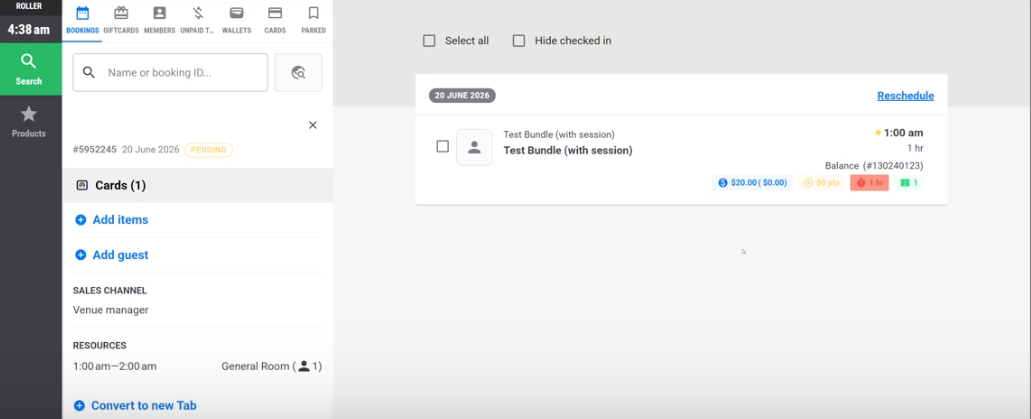
Staff do not need to assign each variation separately — one scan loads everything onto the card at once.
Cancellations
Sacoa and Amusement Connect
When a cashless card booking is modified or cancelled in ROLLER, the card balance is automatically reversed — no manual adjustment in the provider's system is needed. Balance reversals are triggered when you:
Reduce the number of cashless cards on a booking.
Remove a cashless card item from a booking.
Cancel a booking containing a cashless card.
The card itself remains active after a reversal. These actions can be performed from Venue Manager or POS.
Intercard
Balance reversals are not supported for Intercard. If you cancel or modify a cashless card booking, take the physical card from the guest and reset the balance manually in Intercard.