In this article, you'll learn how to create Mobile Check-in device profiles in Venue Manager so you can assign them to your device and start using this feature.
From Venue Manager, go to Apps > Mobile Check-in > Devices.
Select Create a device.
Name the device.
Add any check-in restrictions if applicable. These restrictions will ensure only tickets for specific products are redeemable with this device. After selecting eligible products, select Apply.
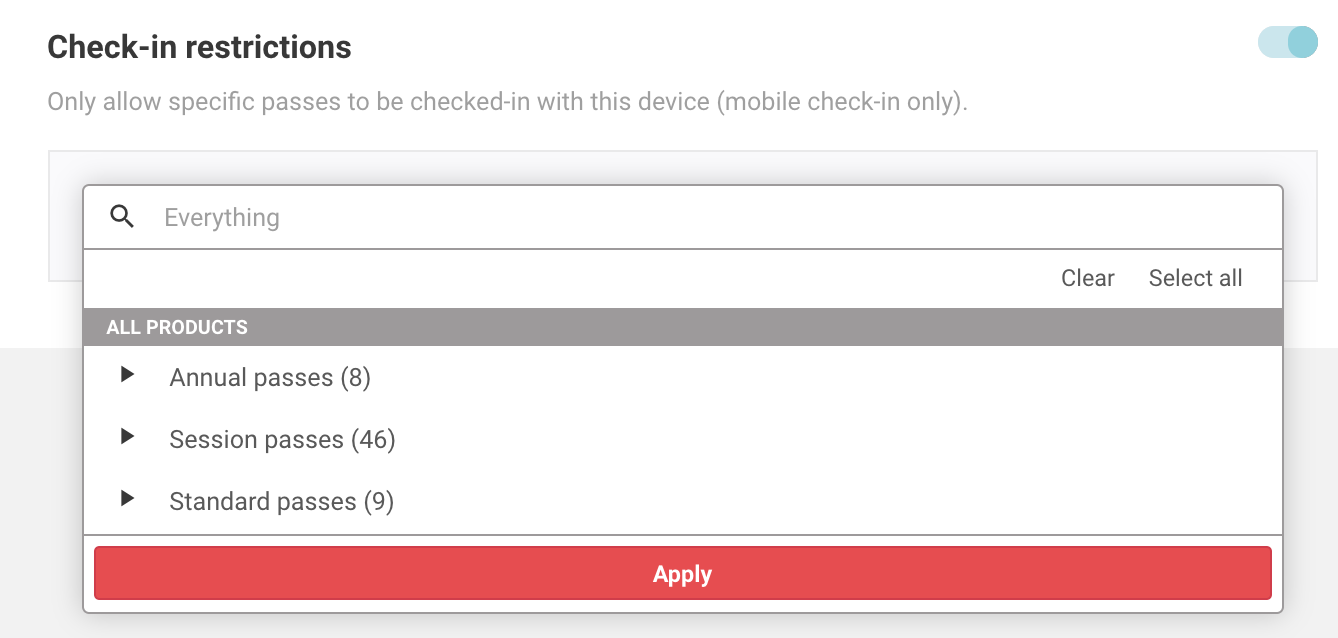
Select Save at the bottom right of the page
Using Mobile Check-in device templates & duplicating device profiles
If you have multiple devices that require the exact same configuration, we recommend creating a template and then creating your devices using this template.
To create a template go to Apps > Mobile Check-in > Templates.
Select Create a template.
Configure the template device profile as in steps #3 through to #5 above
Go back to Apps > Mobile Check-in > Templates
Select the options menu (3 dots) next to your template, then select Create device from template.
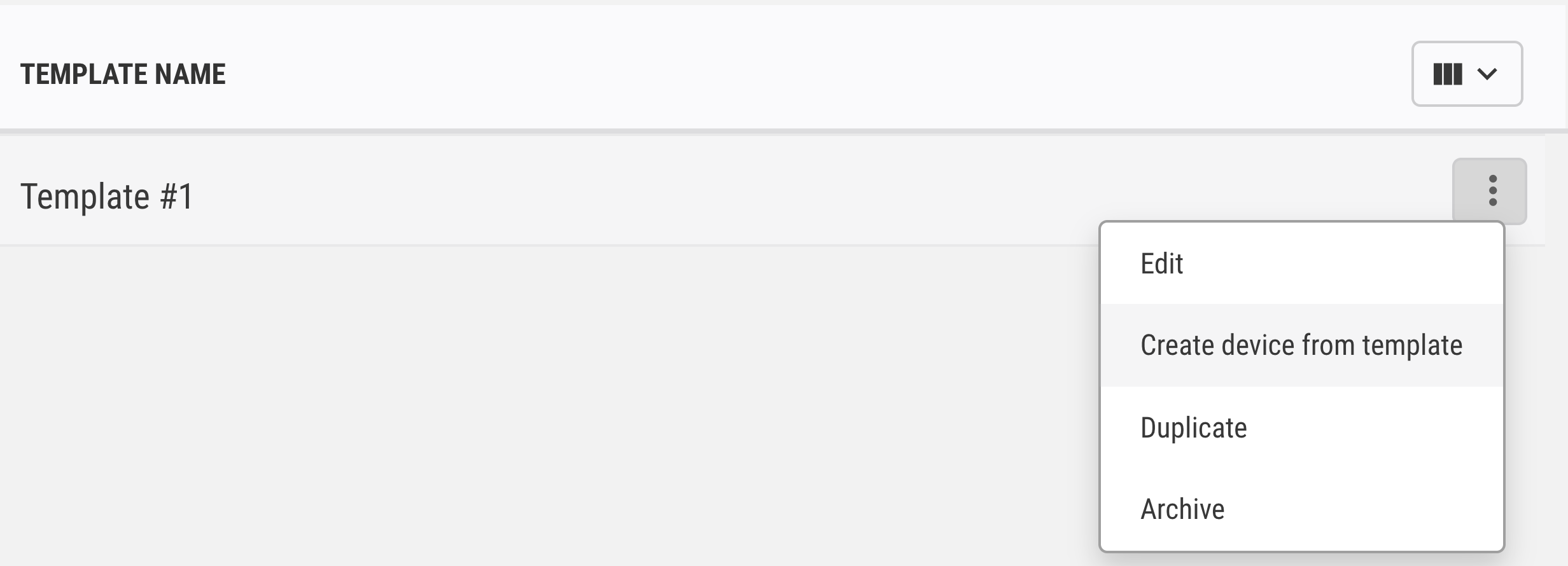
Name the new device.
Select Save.
Any changes that you make to the template in the future will update all Mobile Check-in device profiles that use that template.