Gift cards generate revenue by securing advance payments and incentivizing recipients to visit the venue. Once there, they often spend beyond the gift card value, further increasing revenue. They also attract new guests as a convenient gift option.
Guests purchase gift cards for others, and recipients redeem the balance for products at POS or online checkout. This encourages visits, drives additional spending, by making the redemption process easy for recipients. Follow this guide to set up and sell gift cards at your venue.
Types of gift cards you can sell
You can create variations of both fixed and custom amount gift cards to offer different pricing options for guests:
Fixed amount gift cards | Prepaid cards with set values (eg $50 gift card) |
Custom amount gift cards | Value is set at purchase (eg guest selects any amount within a defined range) |
You can offer both physical and digital gift cards.
Physical gift cards |
|
Digital gift cards |
|
Using gift cards as a payment method
Gift cards act as a stored value payment method in ROLLER. When a guest pays for products by redeeming their gift card:
ROLLER checks the card balance and deducts the purchase amount.
The transaction is completed if the balance covers the full amount.
If the balance is insufficient, the guest can pay the remaining amount using another payment method.
Transactions are recorded in reports under Gift Card Deferred Revenue in ROLLER until redemption when they are recognized as revenue. Note that purchased gift card values that are not redeemed remain in Gift Card Deferred Revenue (they do not expire like tickets).
Gift cards can be redeemed at POS by entering or scanning the gift card number or online by inputting the card number at checkout.
If you need to adjust the balance for a sold gift card, the best practice is to issue a new one via Venue Manager or at POS for the additional amount. This ensures accurate tracking of gift card funds received, deferred revenue and the movement of funds when guests redeem the gift card for purchases.
Step 1: Create a gift card
From Venue Manager, go to Products > Create a new product.
Select Gift card.
The product settings open for customization. Read on to explore your options.
Step 2: Add the content
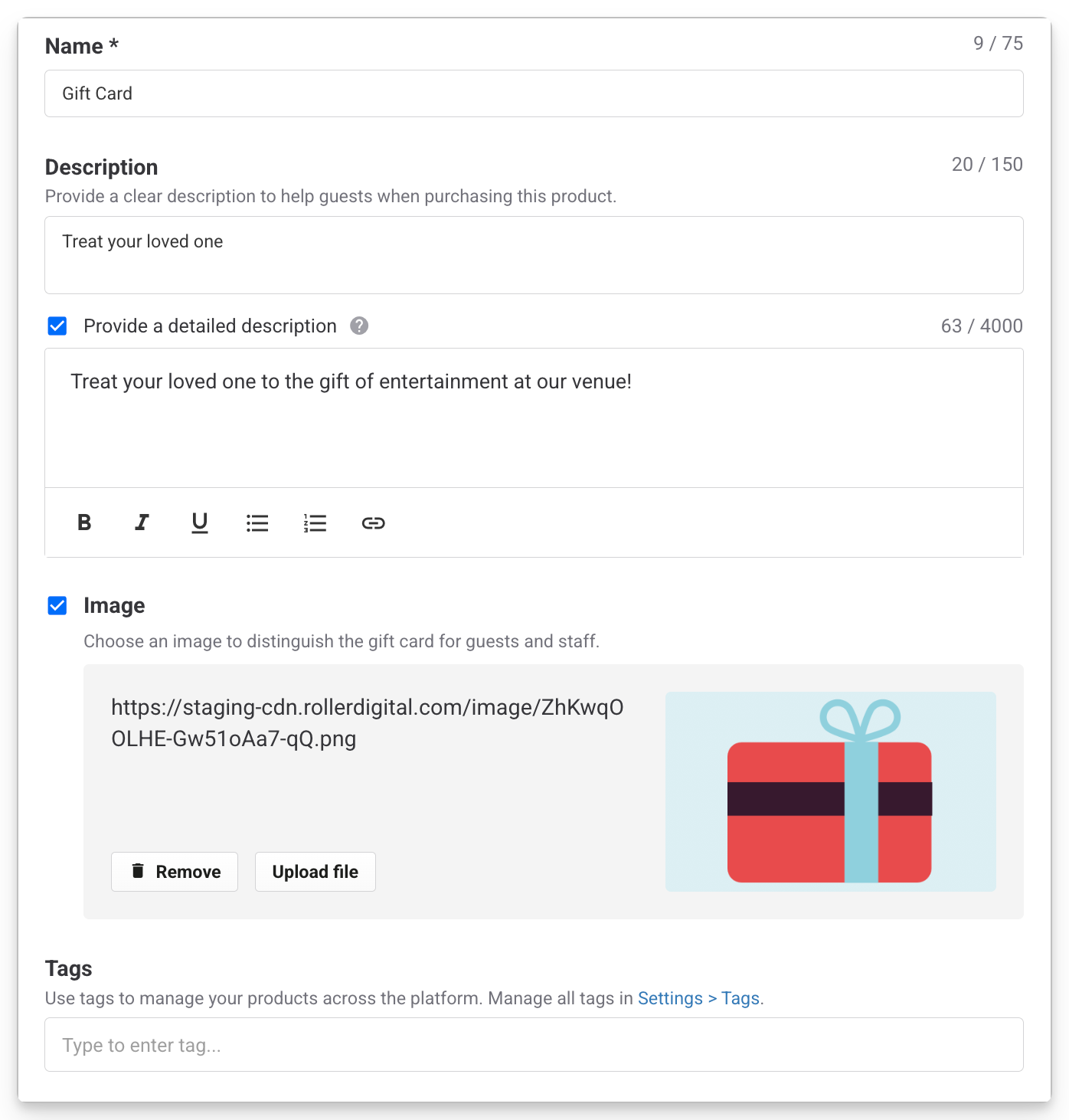
In this section, enter the basic product information:
Name (required): This is the name guests see online and staff see at POS.
Description: Add a short description (150 characters max) for online checkouts.
Detailed description: Provide more information which guests can access via a "Learn More" link in online checkouts.
Image: Upload an image that makes the product stand out from other products online and at POS (JPG or PNG, 640 x 390 pixels or 5:3 aspect ratio).
Tags: Use tags to manage and group products for easy organization, for example, in online checkouts.
Step 3: Add the gift card details
Configure the following settings for the gift card variations and details.
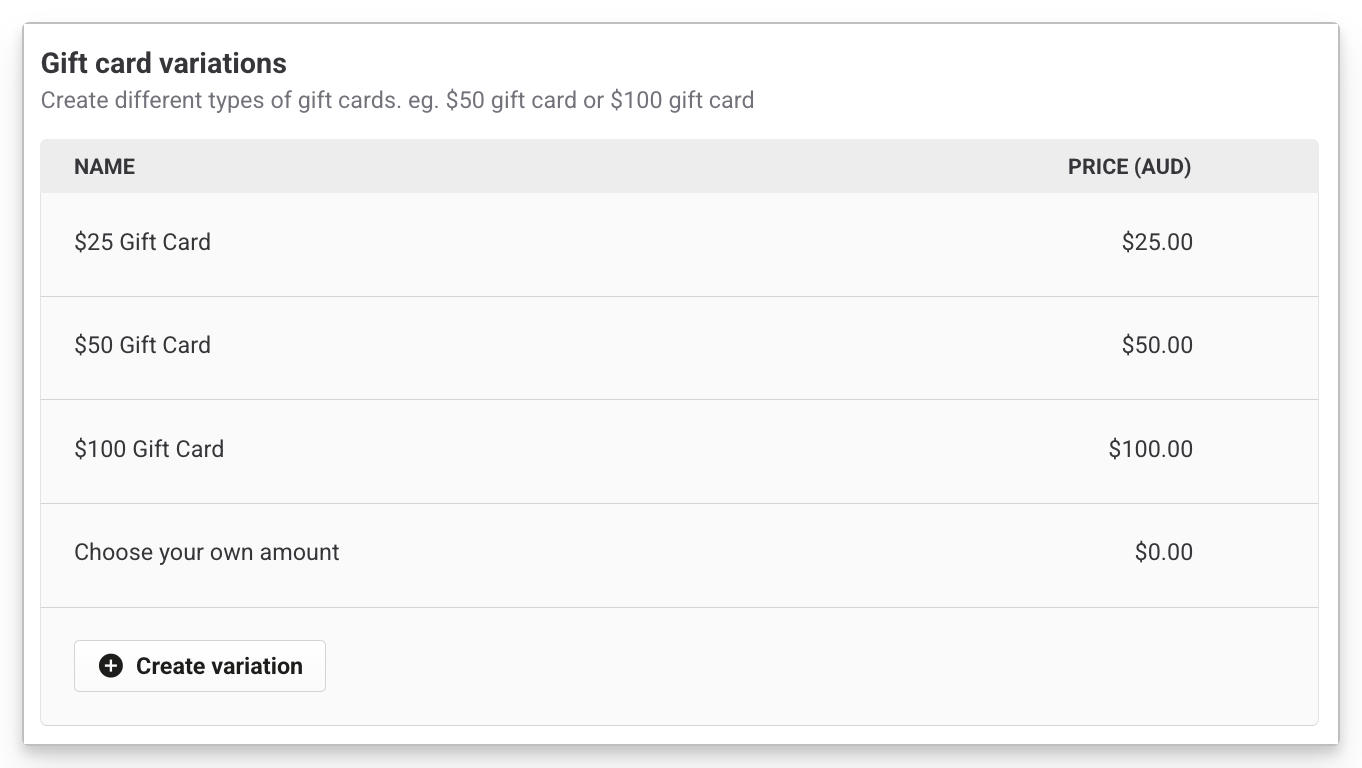
Select Create variation to add gift card variations for different values (eg $10 gift card).
For fixed-amount gift cards
Enter a variation name (eg "Gift Card $50").
Enter a variation price (eg ($50).
Select Create variation for additional fixed value options.
Custom amount gift cards
Enter a variation name (eg "Choose your own amount").
Leave the Price field blank.
Check Has user-defined cost and set Min and Max values (eg $20–$400).
Decide if it's a digital or physical gift card. If you select digital, set the redemption message. If it's physical, determine how to deliver the card to guests. While ROLLER determines how the gift product displays in the checkout, it's a venue's responsibility to produce and oversee delivery or pick of the card.
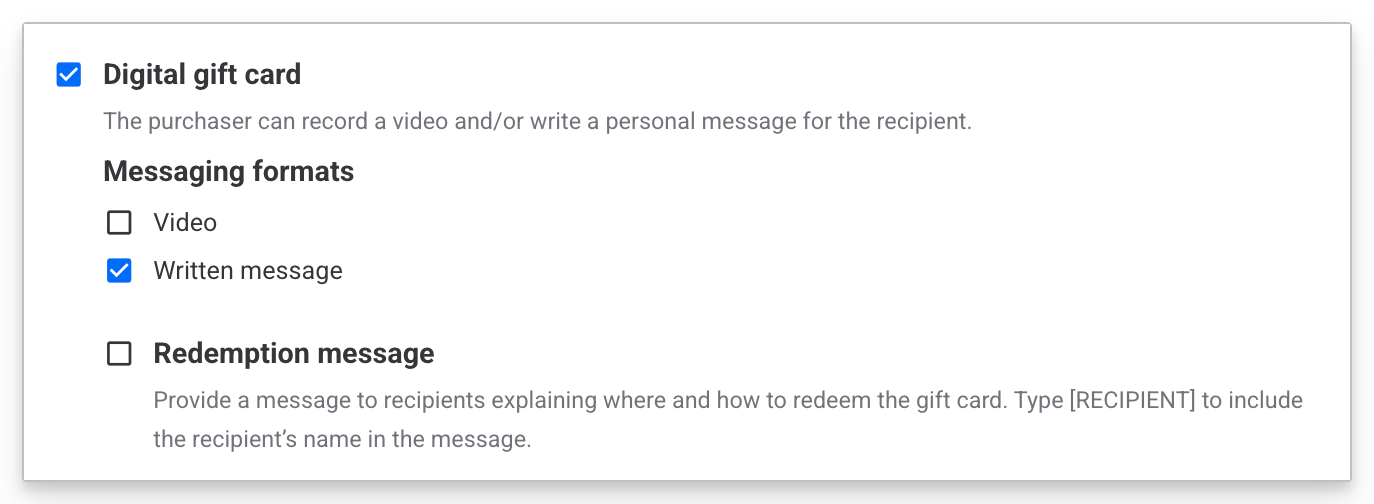
Digital gift cards: select this to offer digital gift cards.
Select the Messaging formats using the checkboxes. Decide between video, written message or both.
Select whether to include a Redemption message displayed on digital gift cards to guide guests on where and how to redeem them.
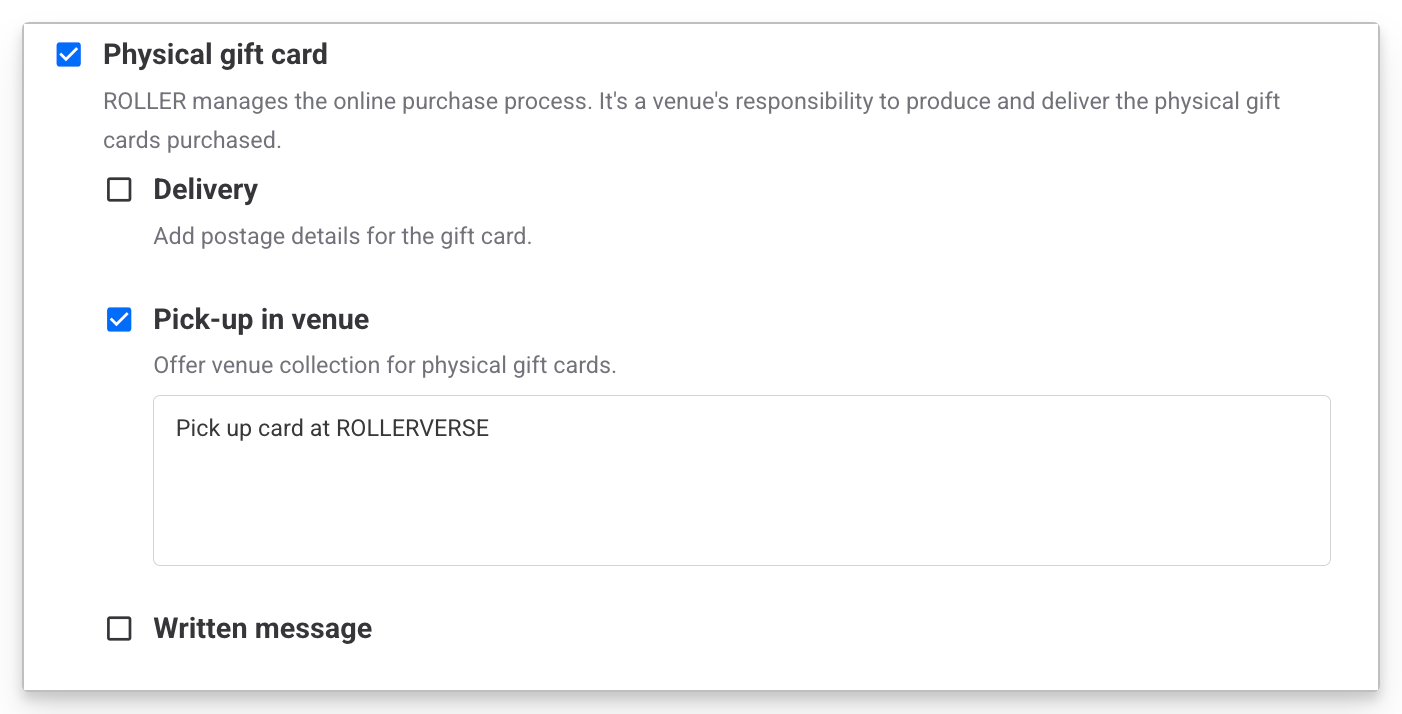
Physical gift cards: select this checkbox to offer physical gift cards. Select delivery method using the checkboxes. Decide whether to offer physical gift card delivery, venue pick-up or both.
If Delivery is selected, enter the delivery postage details.
If Pick-up in venue is selected, add some guidance for guests picking up their card.
Decide whether to include a Written message using the checkbox. Enter a character value for this.
Step 4: Set the sales availability
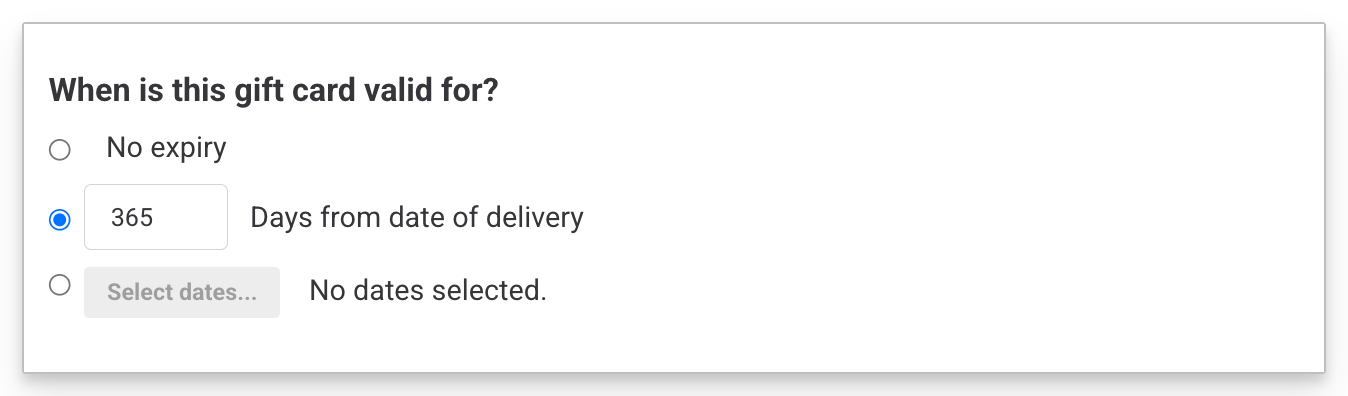
Under When is the gift card valid for?, select an expiry option that complies with local laws:
No expiry – Gift cards never expire.
Days from delivery – Set the number of days guests can redeem their gift cards at your venue (max 9999 days).
Gift cards are redeemable up to and including the last date. If gift card values are not redeemed for reporting in ROLLER, and the days from the delivery date expire, they remain in Gift Card Deferred Revenue.
This is due to varying global regulations on gift card expirations. Learn moreSpecific dates – Define specific dates on which the gift card can be redeemed (used as a payment method for products).
Set a redeem POS PIN
A redeem POS PIN allows you to redeem an e-gift card using your guest's mobile device. This is handy if you don't always have access to ROLLER when redeeming gift cards.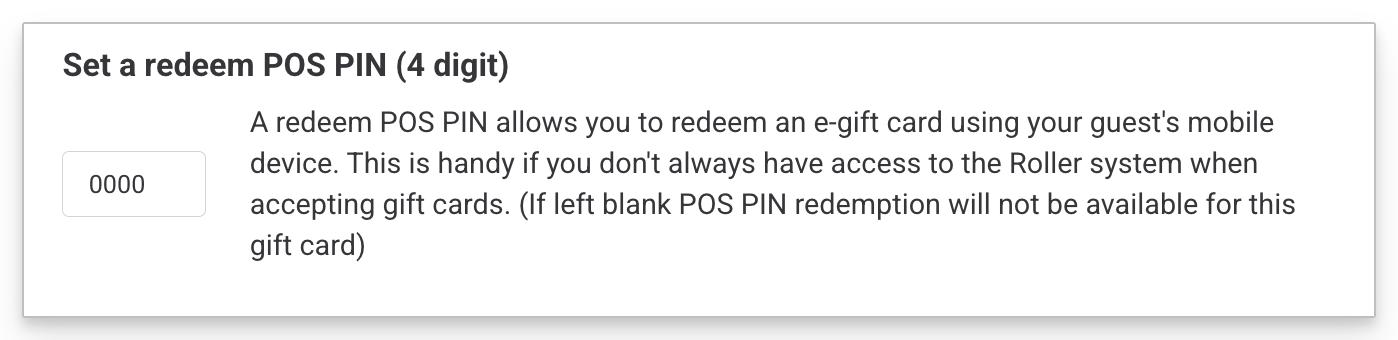
Step 5: Set any additional options
Customize the following options.
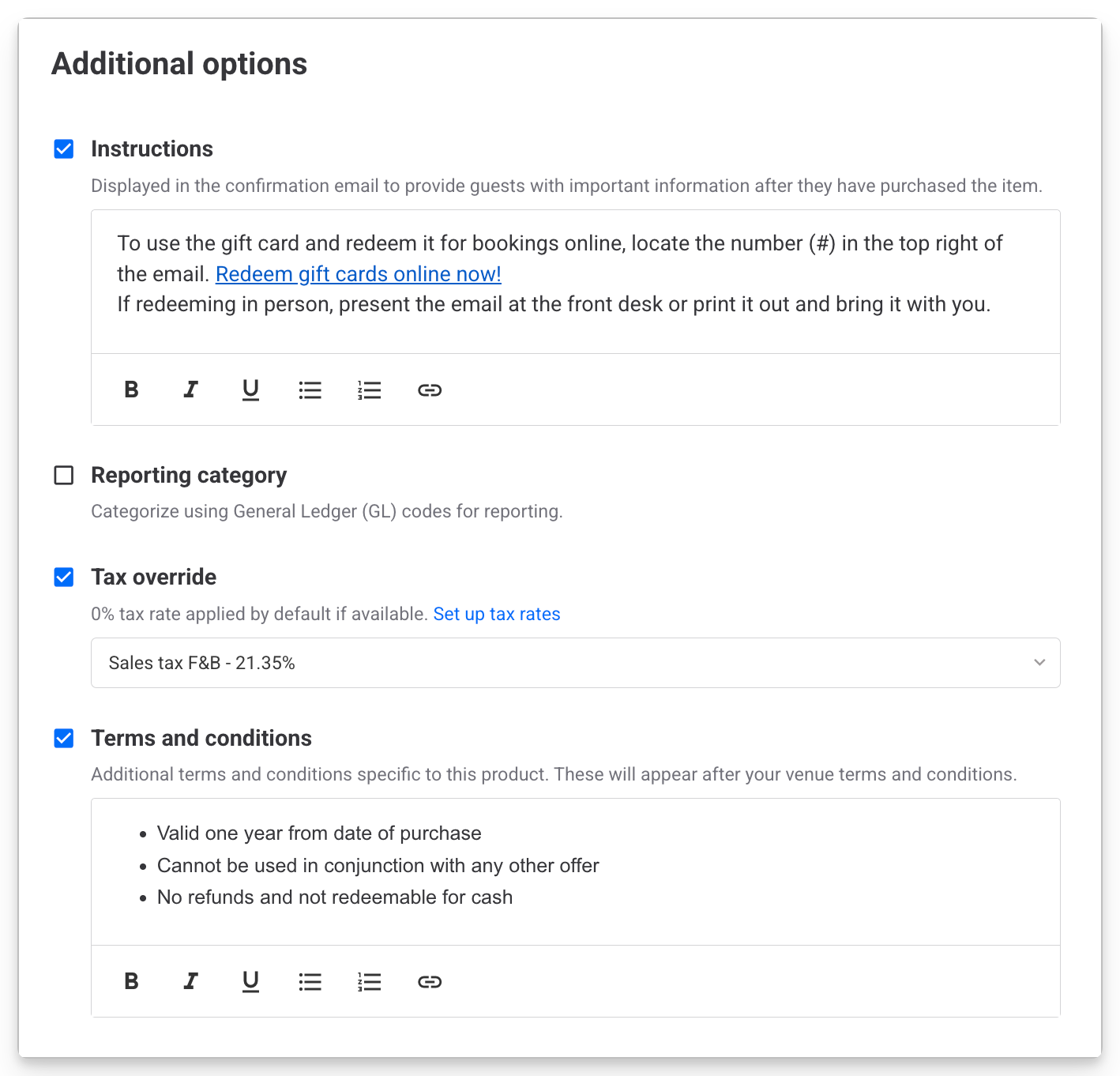
Setting | Description |
|---|---|
Instructions | Provide important instructions to guests about this product to display post-purchase in online checkouts, order confirmation emails and booking reminder emails. |
Reporting category | Assign products to the reporting categories you've created in ROLLER based on general ledger (GL) codes. You'll need to create your reporting categories first to enable this option. |
Tax override | The default tax rate is set to 0% to prevent double taxation since tax is applied when the gift card is redeemed for taxable items. You can override this if necessary by choosing a different tax rate you've configured in Settings > Account > Taxes & Fees. |
Terms & conditions | Add specific terms and conditions for this product. These will appear after your venue's terms and conditions for guests to agree to in online checkouts. |
Save the gift card product
Once everything is set, select Save. To start selling, add the product to the online checkout and POS device menus.
If the gift card product isn't appearing online or at POS, check the availability settings above.
Redemption text
Edit the message displayed on digital gift cards to guide guests on where and how to redeem them. To add the recipients name into the message, insert the text [RECIPIENT_NAME] as follows:
"Hi [RECIPIENT_NAME], use the gift card number (#) under the QR code below to purchase a booking online, or present this gift card in venue to redeem."
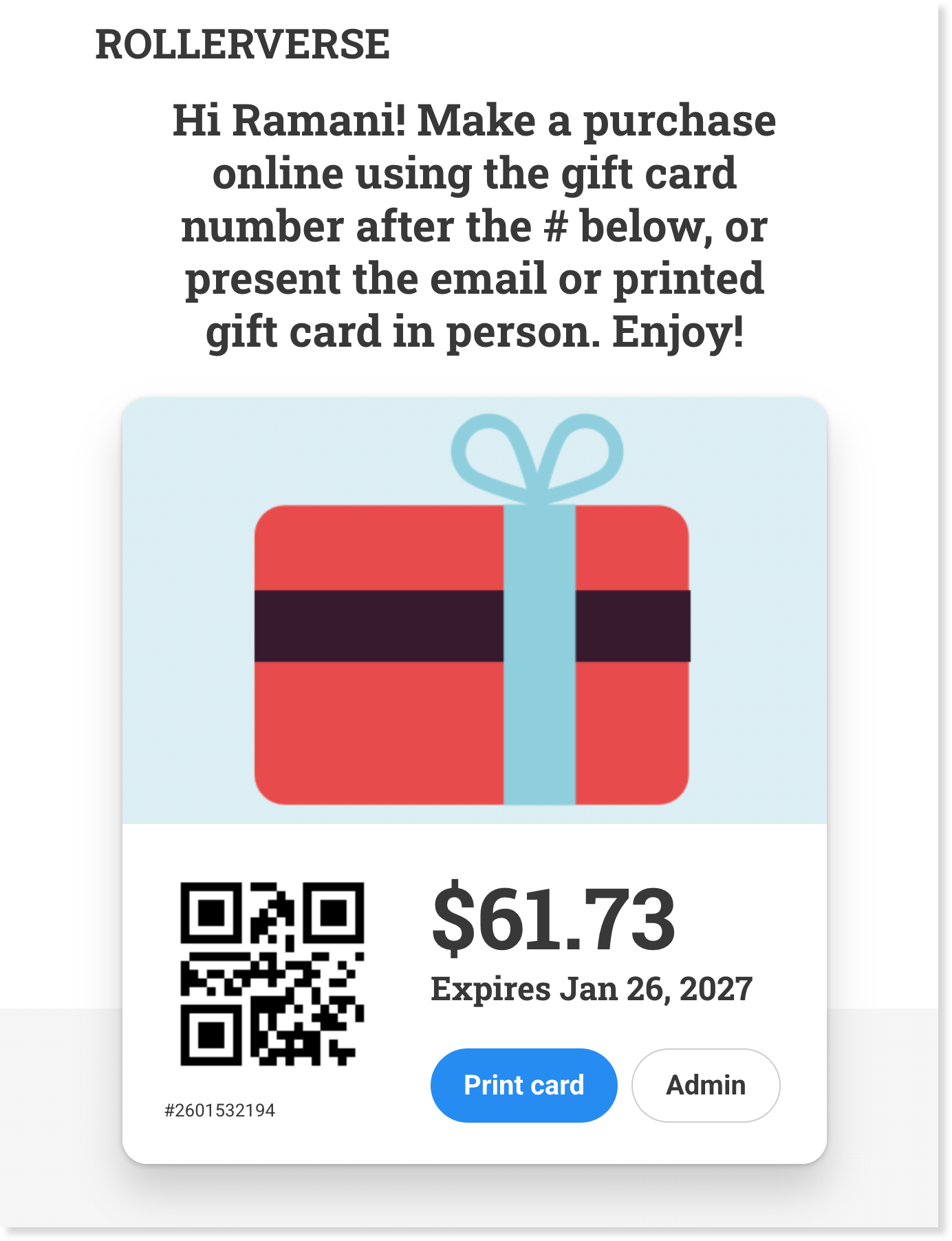
Example: Purchasing a digital gift card
Purchaser's experience
Select a gift card from the online checkout.
Choose from fixed amounts or enter a custom amount.
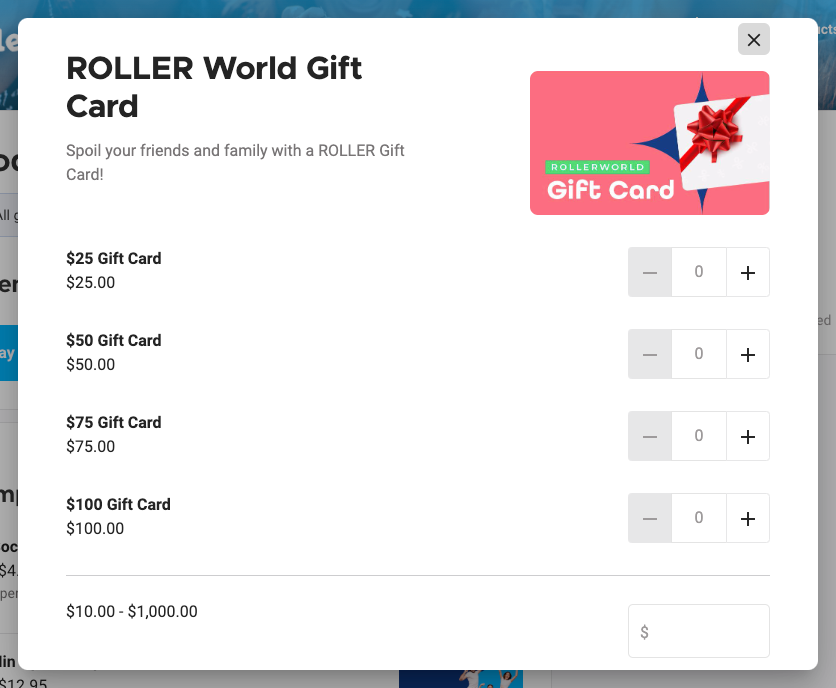
Personalize with an optional message or video that the recipient will see in their email notification.
Schedule a delivery date and time. For example, scheduling the gift card to be sent on the morning of someone's birthday.
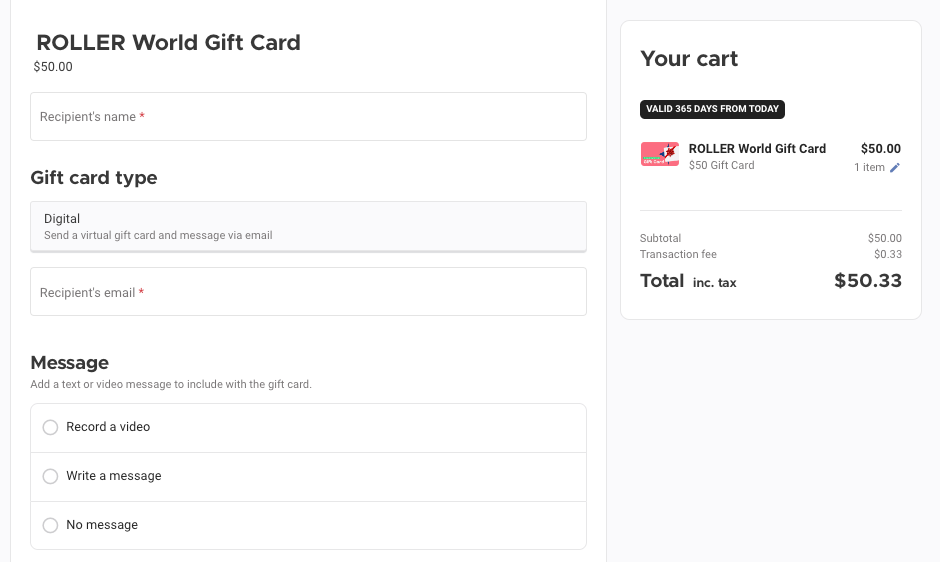
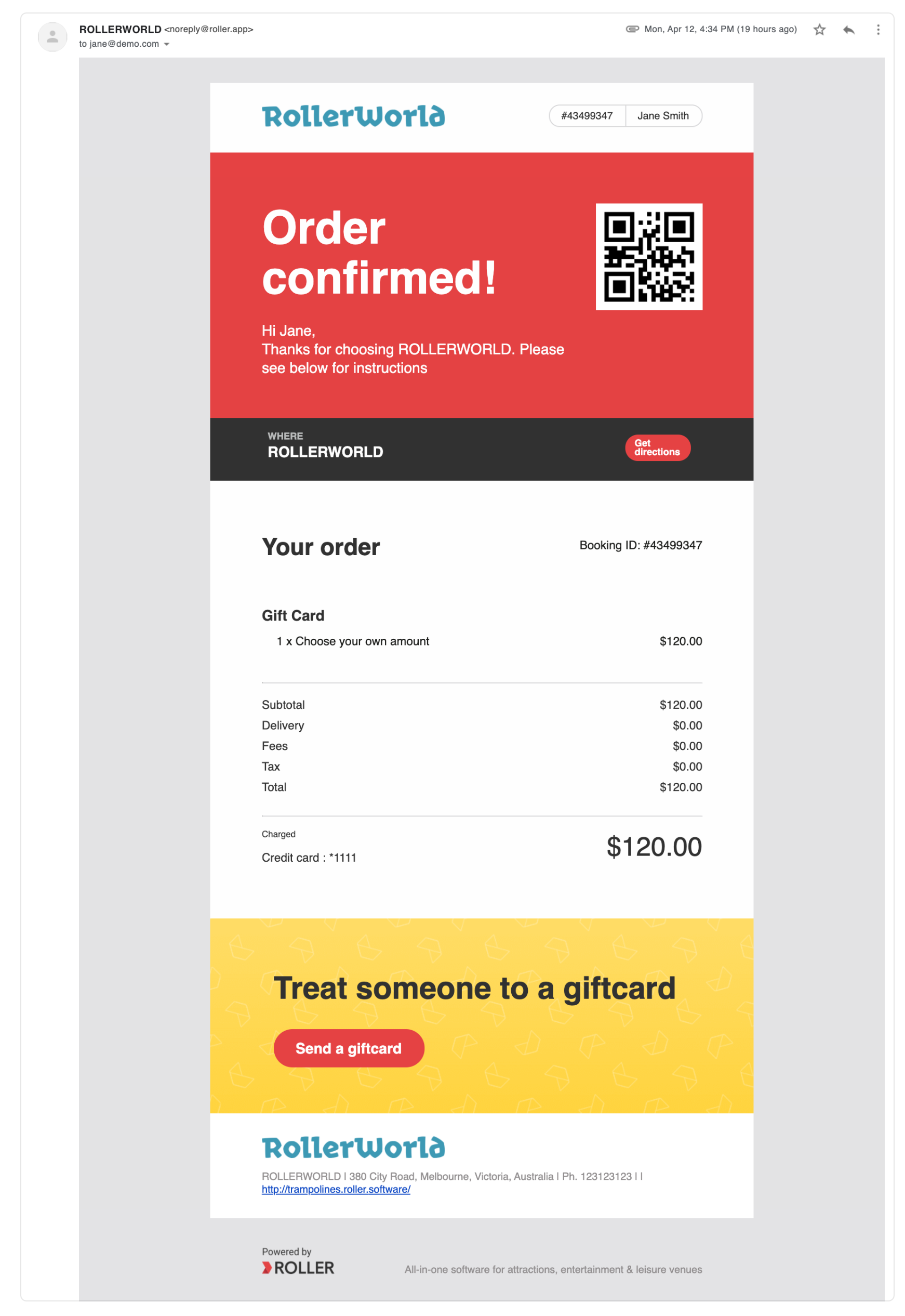
Once the transaction is complete, the purchaser receives:
Order confirmation email for the gift card purchase
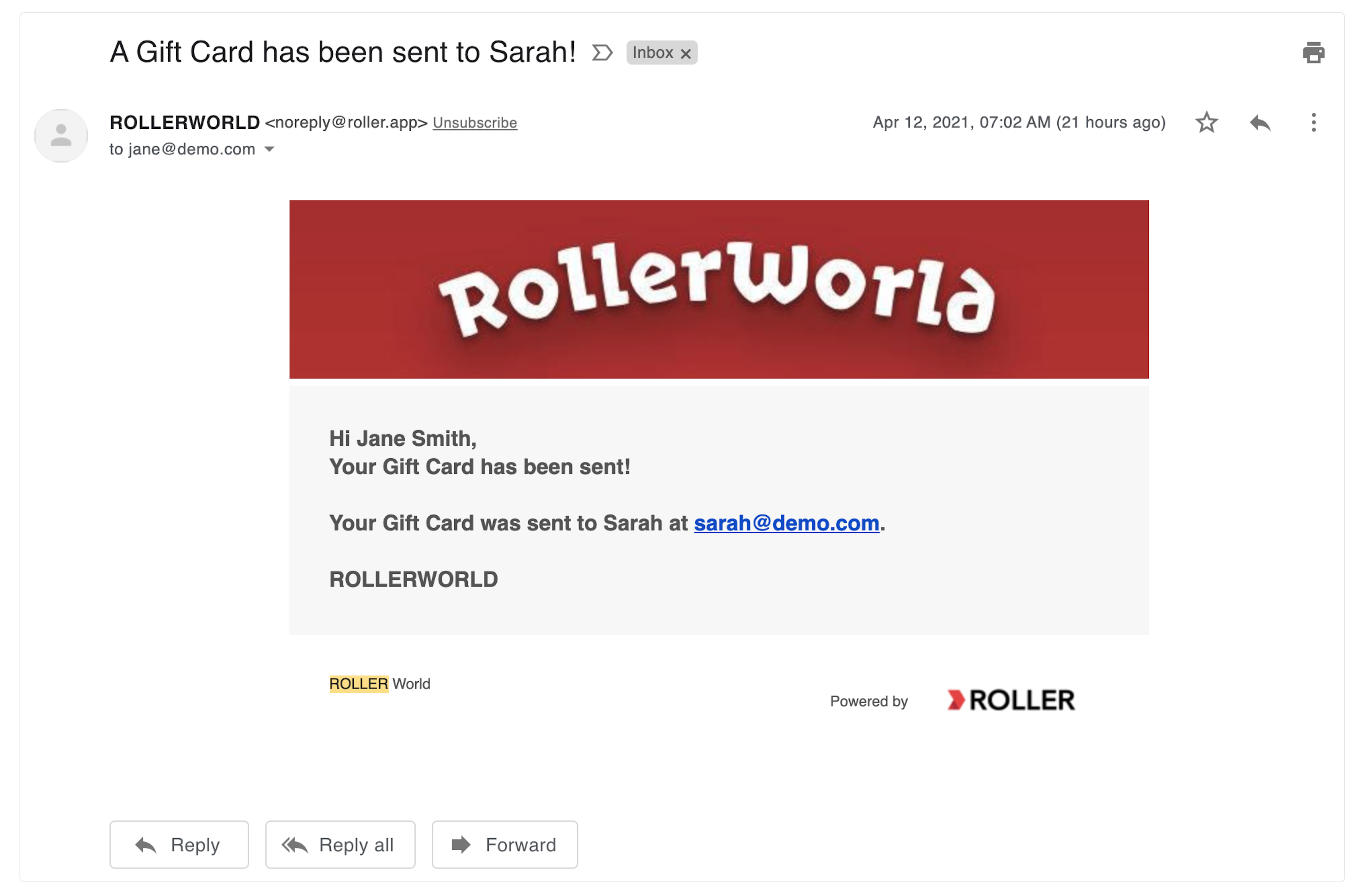
Notification email confirming the recipient was sent the gift card.
Recipient's experience
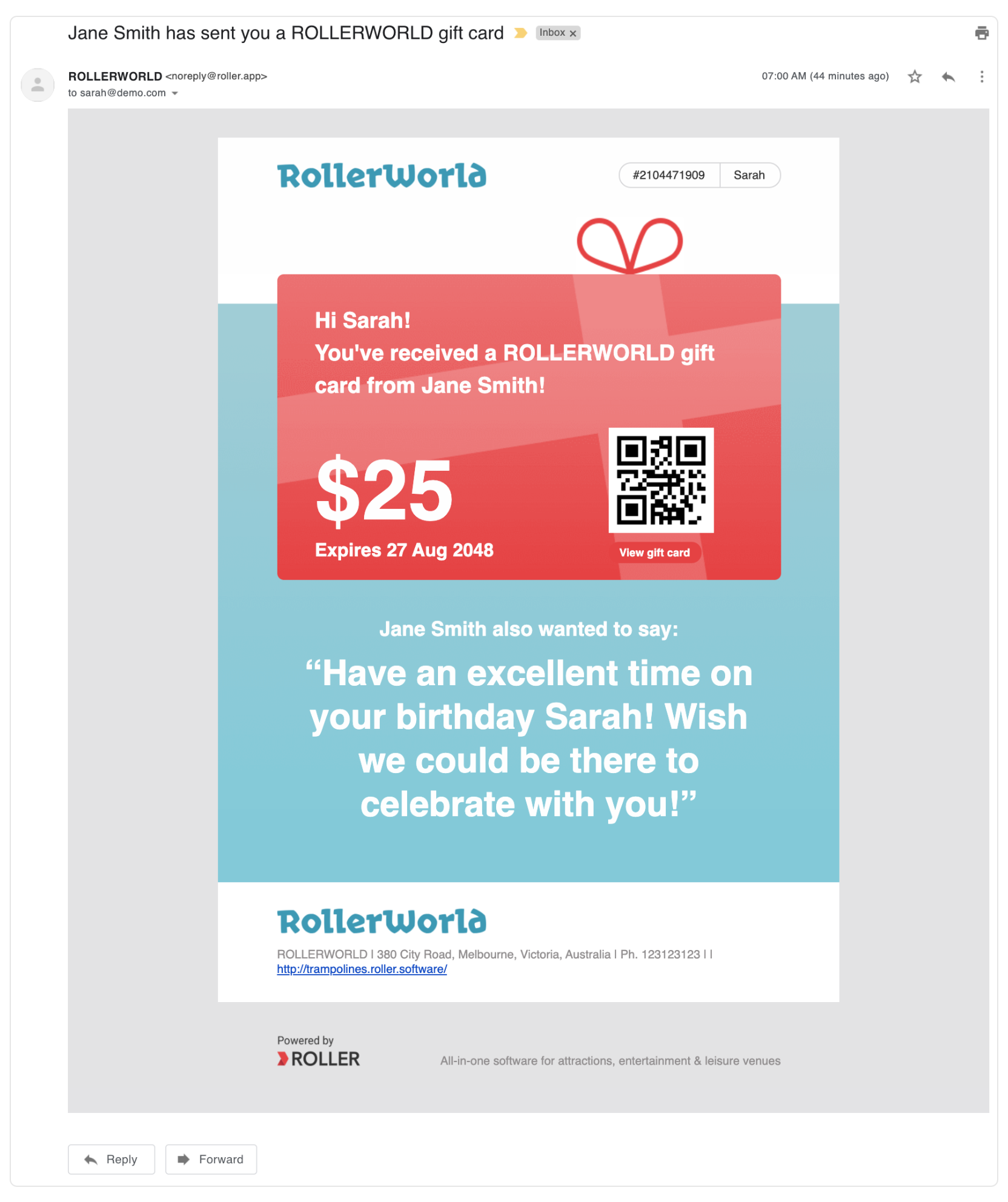
Receives an email with the gift card, which prominently displays the gift card message or video.
The recipient can select View gift card (under QR code) to see the digital gift card. This also shows the balance, which updates automatically when used.
Refer to the gift card sales dashboard to track the success of any gift card campaigns or even the best times of the year to promote.