A 40-person corporate booking, a birthday league night, a school group that wants everyone to get a fair run: a Grand Prix party runs a large group across several rounds and works out who advances for you. This article walks you through setting up and running a Grand Prix party in ROLLER Karting. You'll build the event once as a reusable template, then run the whole thing on the day, from the first practice round through to the final.
About Grand Prix parties
A Grand Prix party is an auto gridded group event. A group of drivers runs a series of rounds, for example practice, qualifying, and a final, and ROLLER Karting works out who advances and where they start each round based on how they performed. It works like a sports bracket: results in the early rounds decide the grid for the later ones.
You set the event up once as an auto gridding template, then run it on the day. The template is where all the complexity lives, so running the event is largely automated.
The auto gridding template, under Settings > Auto Gridded Group Events > Auto Gridding Templates, is the heart of the event. For each round you set the run template that defines the race, where the drivers come from, how they're sorted, how many carry across, how they're lined up, and how karts are assigned. You can also save custom grids as lineup templates under Settings > Auto Gridded Group Events > Lineup Templates.
A built-in simulation lets you test a template with a sample field, for example 40 drivers, and watch how they move from round to round before you ever run it live. It saves setting up a real event on the track just to check your logic.
Cet article suppose que vous êtes à l'aise avec le déroulement d'une course standard. If you haven't run a single race yet, get comfortable with that first, then come back for the group event format.
Before you begin
ROLLER Karting est installé et connecté à ROLLER, vos modèles de circuit et d'exécution sont configurés, et vos karts sont ajoutés. Consultez les articles de la section Configurer si vous n'avez pas encore terminé la configuration.
Vous avez créé les modèles d'exécution que vous souhaitez utiliser pour chaque manche, par exemple une séance d'entraînement, des qualifications et une finale. Voir Créer un modèle d'exécution dans ROLLER Karting.
Vous êtes à l'aise avec le déroulement d'une course standard.
Vous connaissez votre format d'événement : le nombre de manches, la façon dont les pilotes progressent entre elles et le nombre approximatif de pilotes attendus.
Part 1: Set up the auto gridding template
You build the event once as a template. ROLLER Karting comes with a few pre-made templates, and editing one works the same way as creating a new one, just with the fields pre-populated.
Step 1: Open Auto Gridding Templates
Open the templates list to create or edit an event. Follow the steps below:
Dans le menu, accédez à Paramètres.
Sous l'en-tête Auto Gridded Group Events, sélectionnez Auto Gridding Templates.
Sélectionnez l'option pour créer un nouveau modèle ou ouvrez-en un préexistant pour le modifier.
.png)
Step 2: Name the template
Follow the steps below:
Saisissez un Nom pour le modèle.
Définissez une Couleur sous forme de valeur hexadécimale, par exemple #ff0000. Cela permet de repérer facilement l'événement par la suite.
Step 3: Set up the rounds
The rounds are the sequence of sessions drivers move through. Un modèle commence avec trois manches, ce qui convient à un Grand Prix classique avec séance d'entraînement, qualifications et finale. Vous pouvez ajouter ou supprimer des manches pour correspondre à votre format. Follow the steps below:
Sélectionnez NOUVELLE MANCHE pour ajouter une manche, ou supprimez celles dont vous n'avez pas besoin.
Faites glisser une manche par sa poignée pour modifier l'ordre.
Sélectionnez l'icône d'information sur une manche pour lire un résumé en langage clair indiquant d'où viennent ses pilotes, comment ils sont classés et comment ils sont alignés. This is a quick way to sanity-check a round without opening it.
Sélectionnez le chevron pour développer une manche et la modifier.
.png)
Step 4: Configure each round
Développez une manche pour définir son déroulement. Practice rounds are simple, while later rounds pull drivers forward from earlier ones.
Nom de la manche : Par exemple Entraînement, Qualifications ou Finale.
Modèle de course : Le format de course pour cette manche, par exemple une course de 8 minutes. See Create a run template in ROLLER Karting.
Sélectionner les participants parmi : La source des pilotes pour cette manche. Utilisez la liste des participants à l'événement pour la première manche, afin que tout le monde dans le groupe participe, puis récupérez les participants d'une manche précédente pour les manches suivantes.
Trier par : Comment les pilotes entrants sont classés : meilleur temps au tour, meilleur temps au tour moyen, dernière position de départ, dernière position d'arrivée, total de points ou aléatoirement. Utilisez l'option aléatoire pour une manche d'entraînement, lorsqu'il n'y a pas de résultats antérieurs sur lesquels se baser.
Inversé : Sélectionnez cette option pour inverser le tri, ce qui permet de créer des grilles inversées.
Filtrer par : Combien de pilotes passent à la manche suivante : pourcentage ou nombre des meilleurs ou des moins bons. Un champ de valeur apparaît en dessous pour le chiffre, par exemple 100 pour faire passer tout le monde, ou 10 pour les dix plus rapides. This is how you build A mains, B mains, and knockout brackets.
Disposition par : Comment les pilotes sont répartis dans les courses de cette manche. La répartition équilibrée permet des courses bien équilibrées, « leaders en P1 » place chaque qualifié en tête de sa propre course, et « chaque position » et « personnalisé » vous donnent plus de contrôle.
Nombre maximum de participants par course : Combien de pilotes courent ensemble, limité par la capacité de votre circuit.
En créer : Combien de courses créer pour cette manche.
Ordre aléatoire pour chaque copie : Variez l'ordre entre ces courses plutôt que de répéter la même disposition.
Inverser l'ordre des courses : Intervertissez l'ordre dans lequel les courses se déroulent.
Attribution des véhicules : Comment les karts sont attribués pour la manche. Laissez sur « aucun » pour garder les pilotes dans le véhicule qu'ils ont déjà, ou choisissez une option telle que les conserver dans le même kart que la manche précédente, attribuer un kart aléatoire, assigner manuellement dans la voie des stands, ou donner les karts les plus lents aux pilotes les plus rapides pour égaliser le niveau.
.png)
Step 5: Simulate and save
Before you rely on a template, test it. Follow the steps below:
Run the simulation with a sample field, for example 40 drivers.
Watch how drivers move from round to round and check the event behaves the way you intended.
Lorsque vous êtes satisfait, sélectionnez ENREGISTRER.
Part 2: Run the Grand Prix on the day
Once the template is built, running the event is close to running standard sessions. The party arrives on your schedule as a booking from ROLLER, and ROLLER Karting handles splitting the field and moving drivers between rounds.
Step 6: Check in the full party
Because a party is often larger than the track holds, ROLLER Karting splits it across sessions when you create the event, so the guest list needs to be final first. Follow the steps below:
Confirm every driver in the party is checked in.
Remove anyone who didn't show up, and add any walk-ins.
Only move on once the session lists your complete field.
Step 7: Create the event
Turn the checked-in party into a running Grand Prix. Follow the steps below:
Right-click the session that holds the full party.
Select Create event.
Enter a name for the event.
Select the auto gridding template you want to use, for example your Grand Prix.
Leave auto-transfer between rounds checked so ROLLER Karting moves drivers on automatically once every race in a round is done.
Select Create.
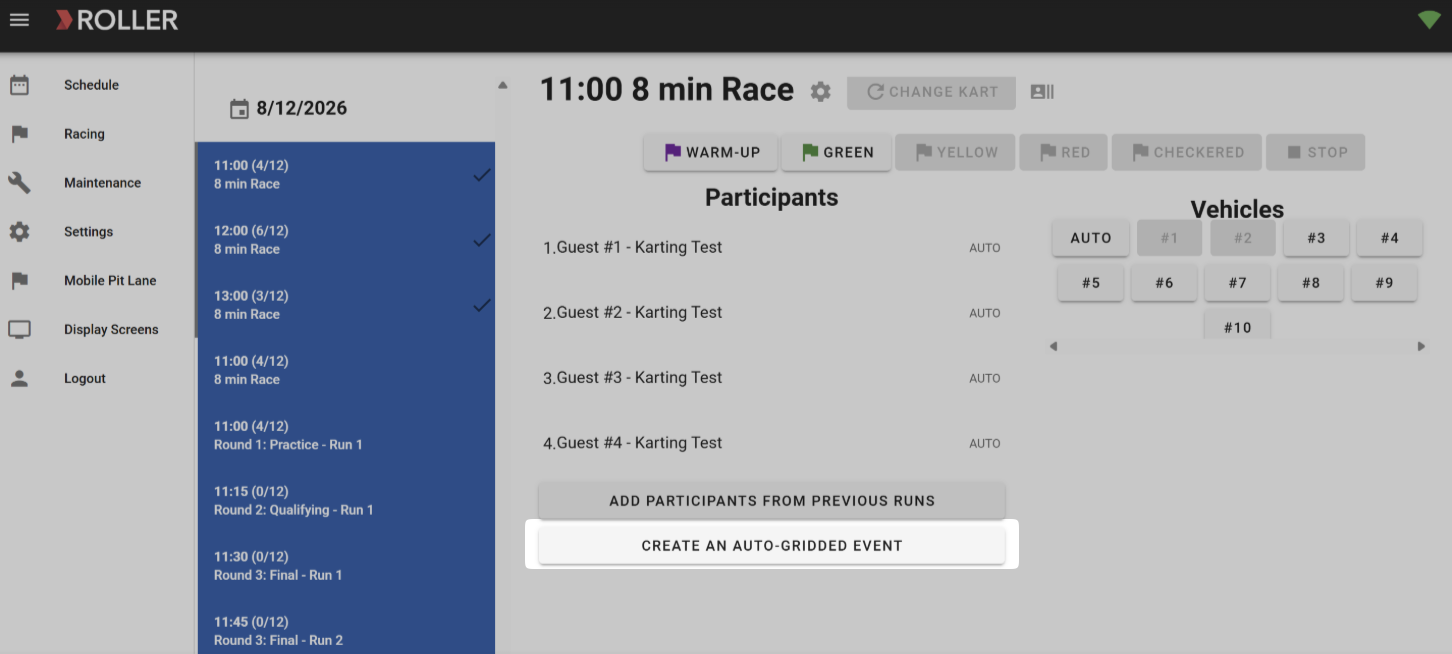
ROLLER Karting keeps your original party group, which you can return to at any time, and places everyone into the first round, split across correctly sized sessions. For example, 24 drivers might become two round-one races of 12.
Step 8: Run each round
From here it runs like standard racing, one session at a time. Follow the steps below:
Sélectionnez une course et lancez-la avec le drapeau VERT.
Laissez la course se dérouler, puis sélectionnez STOP et confirmez.
When the round finishes, ROLLER Karting calculates the results and moves drivers into the next round automatically, re-gridding them according to your template.
Repeat for each session until the final is run.
Les manches suivantes restent vides jusqu'à ce que la manche dont elles dépendent soit terminée, car les pilotes qualifiés et leur position de départ dépendent de ces résultats antérieurs.
Step 9: Handle drop-outs and changes
If a driver pulls out partway through, you can remove them without breaking the event. Follow the steps below:
Find the driver's upcoming session.
Delete them from it. The advancement calculations still work correctly.
Standard race controls apply throughout, so you can also change karts and move drivers between sessions the same way you would in a normal race.
Questions fréquentes
How does ROLLER Karting fit a 50-person party onto a track that holds 12?
When you create the event, ROLLER Karting reads the full guest list and splits it into correctly sized sessions automatically. A field of 24 might become two sessions of 12, and 20 might become two of 10. You don't do any of the splitting yourself.
Can I test an event before running it for real?
Oui. Every auto gridding template has a simulation. Run it with a sample number of drivers and watch how they move from round to round, so you can confirm your setup does what you intended before a single kart hits the track.
Do I have to manually move drivers to the next round?
No, as long as you leave auto-transfer between rounds checked when you create the event. ROLLER Karting detects when every race in a round is finished and moves everyone on. If you clear that option, you advance each round yourself.
A driver drops out mid-event. What do I do?
Find their upcoming session and delete them from it. The advancement math still works, and you run the remaining races as normal.
Can we run knockout formats like A mains and B mains?
Oui. Utilisez Filtrer par pour faire passer les meilleurs ou les moins bons pilotes par pourcentage ou par nombre, et sélectionnez Inversé ? pour mettre les plus lents en grille en premier. That lets you build A mains, B mains, losers brackets, and reverse grids.
Can we run a members-only or league Grand Prix with its own leaderboard?
Oui. You can tag the run templates used in the event, for example Tuesday Night League or Member Heats, so leaderboard results only show drivers from that event type.