Questions
How do I know which products have not been assigned a reporting category?
How do I verify if a product has been assigned a reporting category?
Solution
To verify if an individual product has been assigned a reporting category, follow the steps below.
From Venue Manager, go to Products > All products.
Select the product you want to verify and scroll down to the Reporting category section.
Select a reporting category from the dropdown if one hasn't already been assigned.
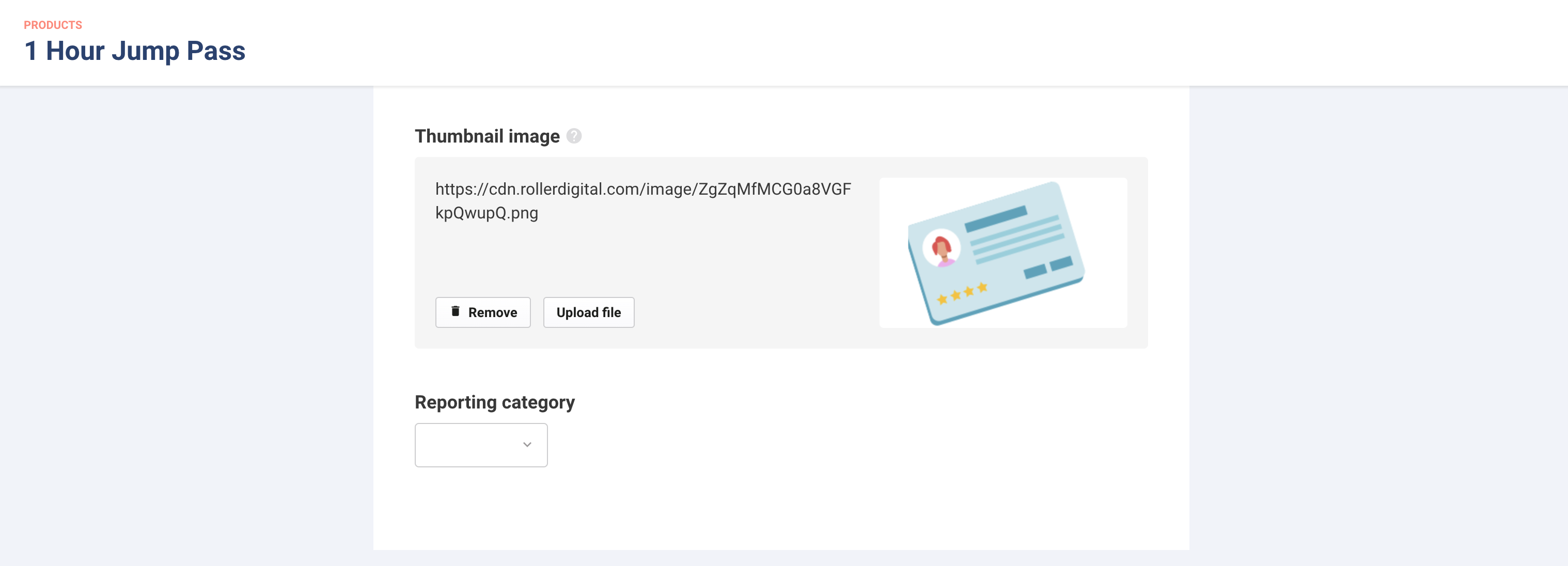
If you can't see the Reporting category section when you select the product, this means you haven't created any reporting categories and there are none to choose from. Read the guide Categorize products with GL codes to learn more.
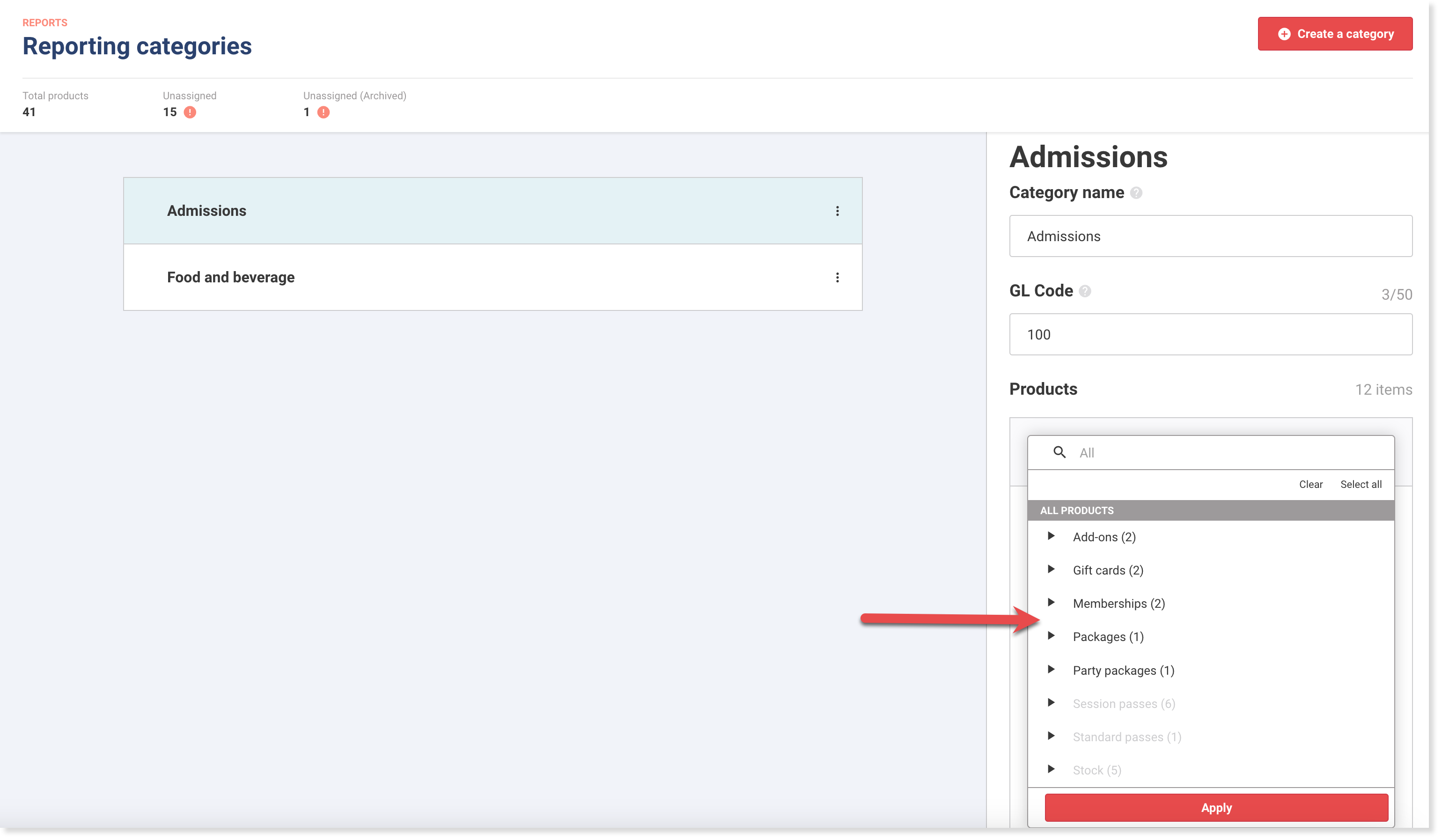
To find all products that haven't been assigned a reporting category, from Venue Manager, go to Reports > Reporting categories.
At the top of the page you will see the following information:
Total products in the platform.
Unassigned: The number of active products not assigned to GL codes and categories.
Unassigned (Archived): The number of archived products not assigned to GL codes and categories.

To do a more granular search, follow the steps below.
Select a reporting category from the list.
From the right-side panel, go to the Products section.
Select the Search bar, and from the dropdown you will see a list of all your products. Any product that can be selected (ie hasn't been "greyed out") has not been assigned a reporting category.