When guests book a session online, availability for session-based products can appear in two ways to help them understand how much capacity remains:
The number of bookings or spaces remaining (eg 2 left or 8 spaces left).
An availability indicator such as Filling up fast.
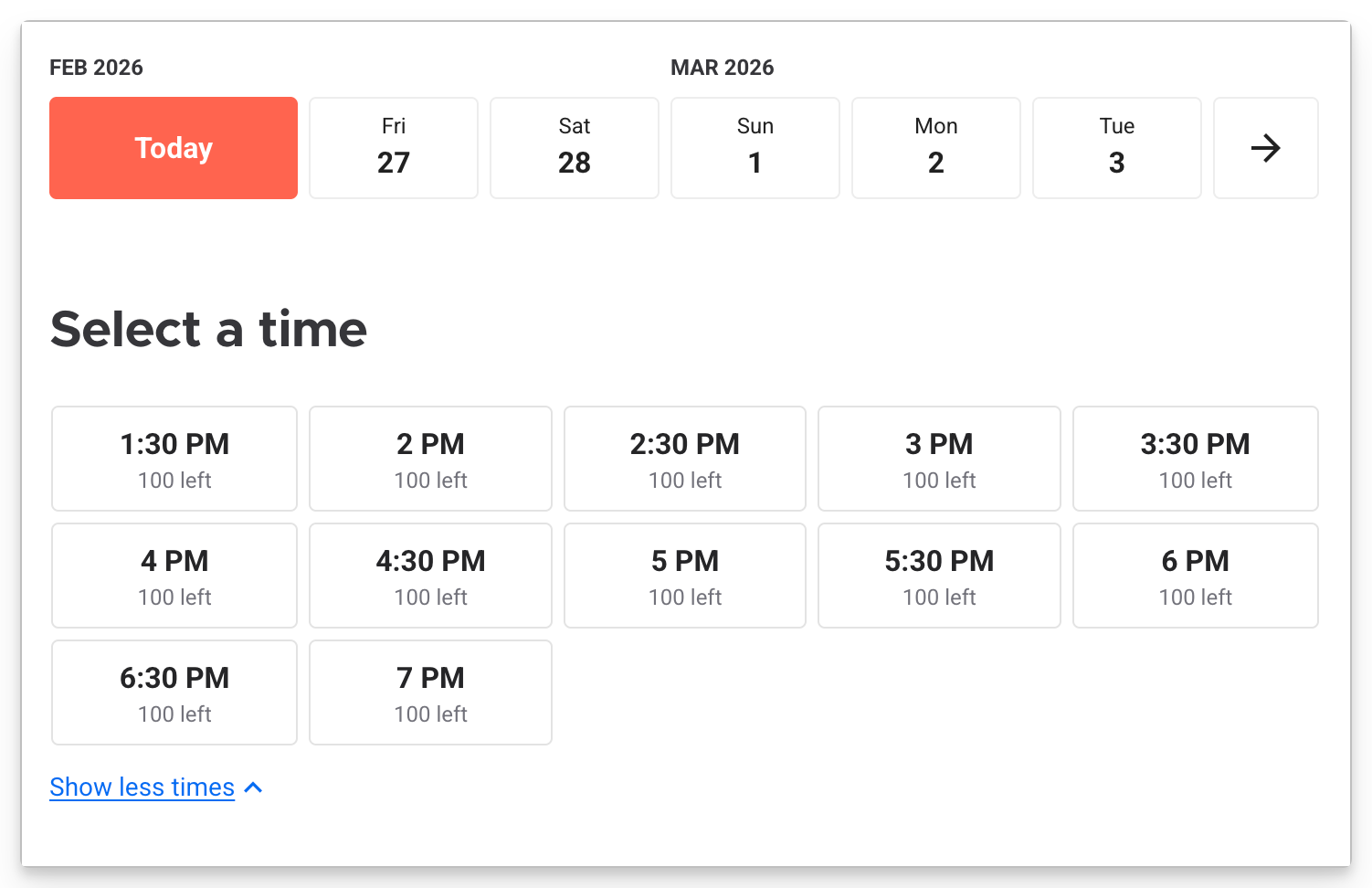
Show remaining availability on session time buttons
When availability display is enabled in checkout, guests may see the number of bookings or spaces remaining for a session.
For multiple-booking resources, availability is shown as remaining ticket capacity (eg 12 left).
For single-booking resources (eg escape rooms or private experiences), availability can be shown either by number of bookings or tickets.
To make sure that your checkout shows availability, check it's setup correctly in the checkout settings. Here's how:
From Venue Manager, go to Apps > Progressive checkouts > All checkouts.
Beside the checkout you want to edit, select options menu (3 dots).
Select Edit.
Select the Options tab.
Scroll down to enable Show number of tickets/resources remaining on session time button.
Select Save to lock in your changes.
To see the process in action, select the hotspots on the interactive demo below.
See the guide Create your online checkout to learn more about your checkout settings.
Single-booking resources and availability display
When you set up a product with a single-booking resource, you can choose between showing availability by number of bookings or tickets. This setting is controlled at the product level.
Per booking: shows the number of remaining resource bookings available.
Example: 2 rooms available → checkout shows 2 left.
Use this when guests reserve entire spaces.
Per ticket: shows the total number of guest spaces remaining across available resources.
Example: 2 rooms at 4 guests each → checkout shows 8 spaces left.
Use this when you want guests to see the total number of spots still available.
To configure whether availability displays by booking or by ticket, update the Additional options setting in the session pass or party package product. Here's how:
From Venue Manager, select Products.
Select the product you wish to edit.
Scroll down to Additional options and find the setting Display availability as remaining resources.
Select to enable / disable this setting:
Enable this if you want to show guests remaining resources (eg. rooms)
Disable this if you want to show remaining spaces (eg. tickets)
Select Save to lock in your changes.
To see the process in action, select the hotspots on the interactive demo below.
See the guide Create your session pass products to learn more about the additional options within products.
Capacity indicators in the checkout
Checkout may also display an indicator such as Filling up fast when capacity is low. This calculation is based on the products currently in the guest’s cart.
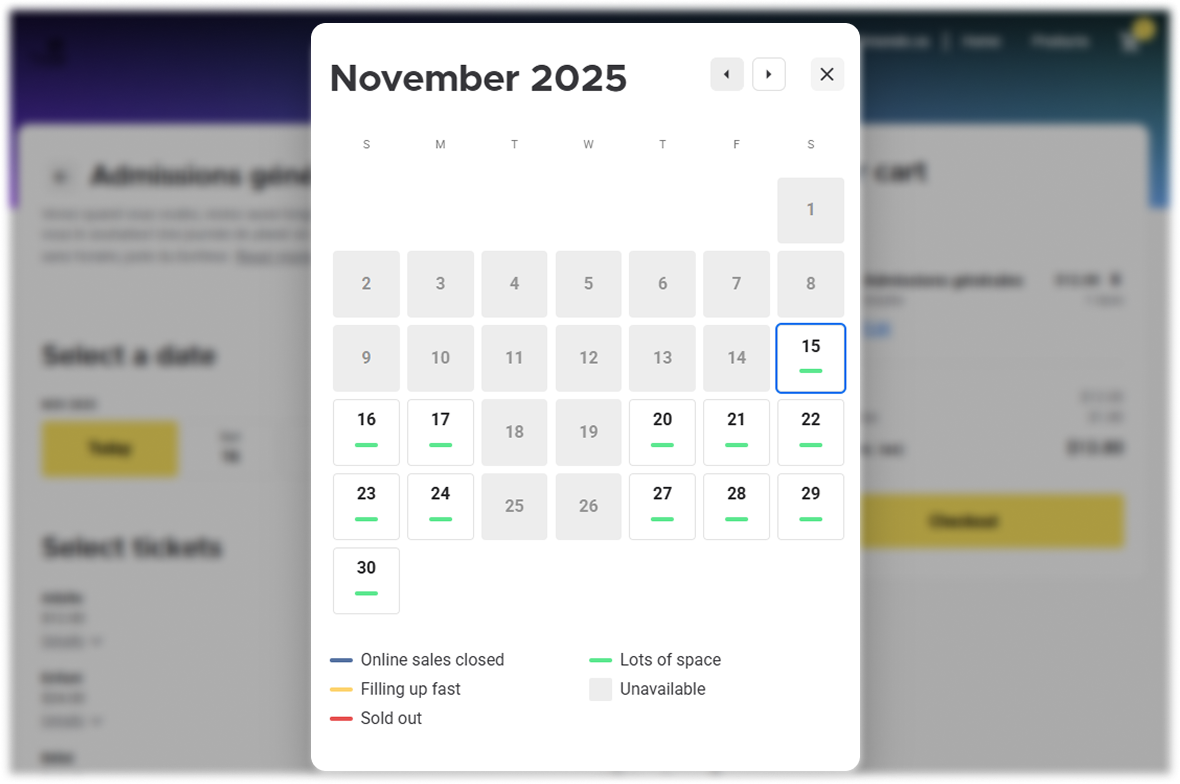
What the labels mean
Lots of space: capacity is comfortably available for the selected session.
Filling up fast: capacity is limited and nearing its threshold.
Sold out: no remaining capacity is available for that session.
Online sales closed: the session is no longer available for purchase online (based on your sales availability settings).
Unavailable: the session cannot be booked on that date (eg it is not scheduled or is excluded).
How ROLLER calculates "Filling up fast"
For each product in the cart, the percentage of capacity remaining is calculated.
The average of those percentages is taken.
If the result is under 40%, ROLLER shows Filling up fast.
Capacity indicators are designed to reflect remaining availability for guests. They do not change your configured capacity rules or how bookings are allocated.