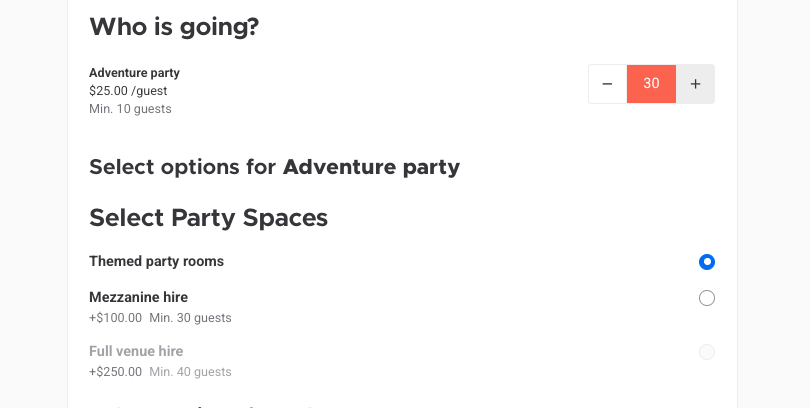
Let guests choose their party room when they book, from an included party table to a premium room for an extra cost, all within one party package. Guests see the choices at checkout, staff see them when they create a booking, and any extra cost is added to the booking automatically.
Guest-selected resources are in beta. To join the beta, contact your customer success manager or the support team.
How guest-selected resources work
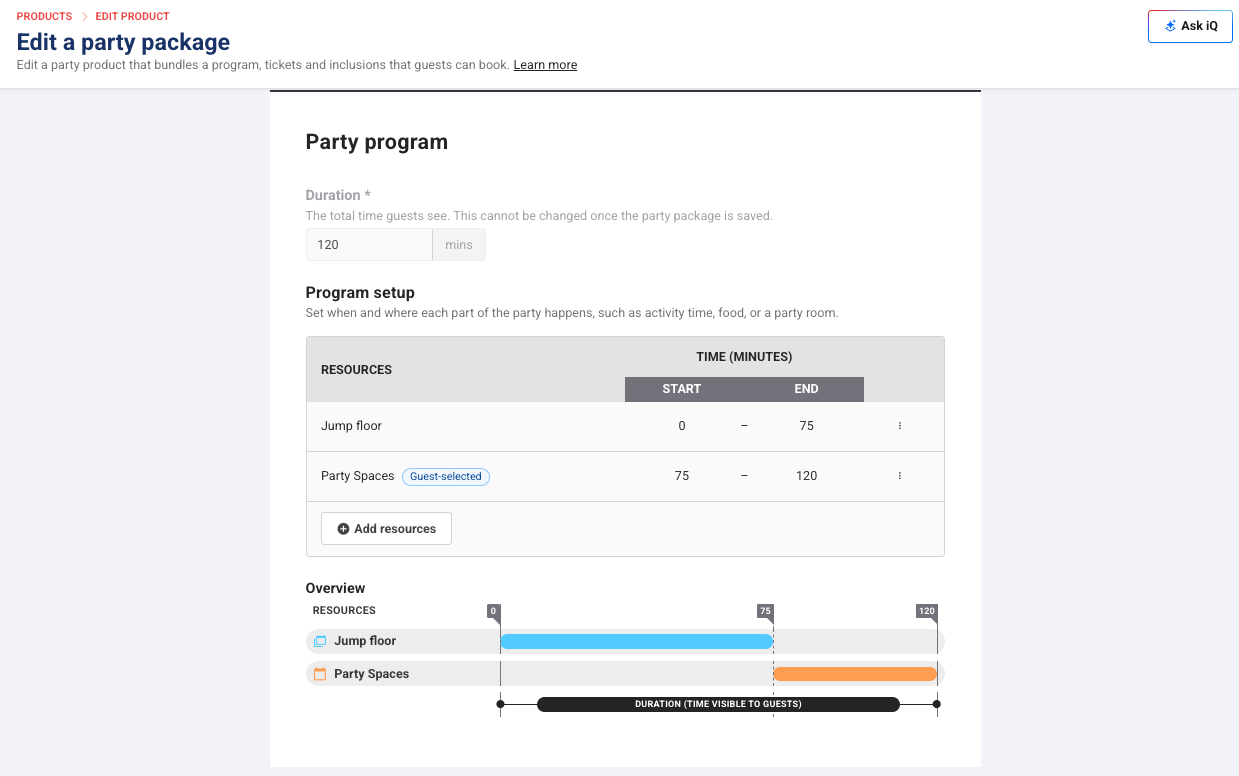
Your party program sets which resources a party uses and when. Fixed resources are the same for every party (eg time on the main floor). Guest-selected resources are a set of options guests choose from when they book (eg a choice of party rooms).
Each option guests can choose from has its own display name and can include an extra cost and a minimum number of guests. An option can include one or more resources (eg Party room 1 and Party room 2), as long as they share the same booking rule (Single bookings or Multiple bookings). Larger parties spread across the resources in their option.
Guests choose one option from each set. A party package can have several sets.
The start and end times you set apply to the whole set, whichever option the guest picks.
Charge extra for premium spaces (eg a VIP area).
Set a minimum number of guests to keep your biggest rooms for your biggest parties.
For example, a 2-hour party can include 75 minutes of jump time on a fixed resource, then 45 minutes in a party space the guest chooses.
Before you begin
Have these ready, so the resources show up when you build the program:
Create the resources guests will choose from (eg each party room) in Settings > Resources. See the guide Create resources.
Create the party package. See the guide Create party package products.
Add guest-selected resources to a party program
Add a set for each choice you want guests to make, such as their party space.
From Venue Manager, go to Products > All products and select the party package.
Scroll down to the Party program section. Under Program setup, select Add resources.
Under Resource type, select Guest-selected resources.
Enter a Display name for the set (eg Party spaces).
Add a resource variation for each option guests can choose from. Assign each one its resources, a display name and add any extra cost. Additional settings become available depending on the resources selected.
Set the Start time and End time for the set.
Select Save.
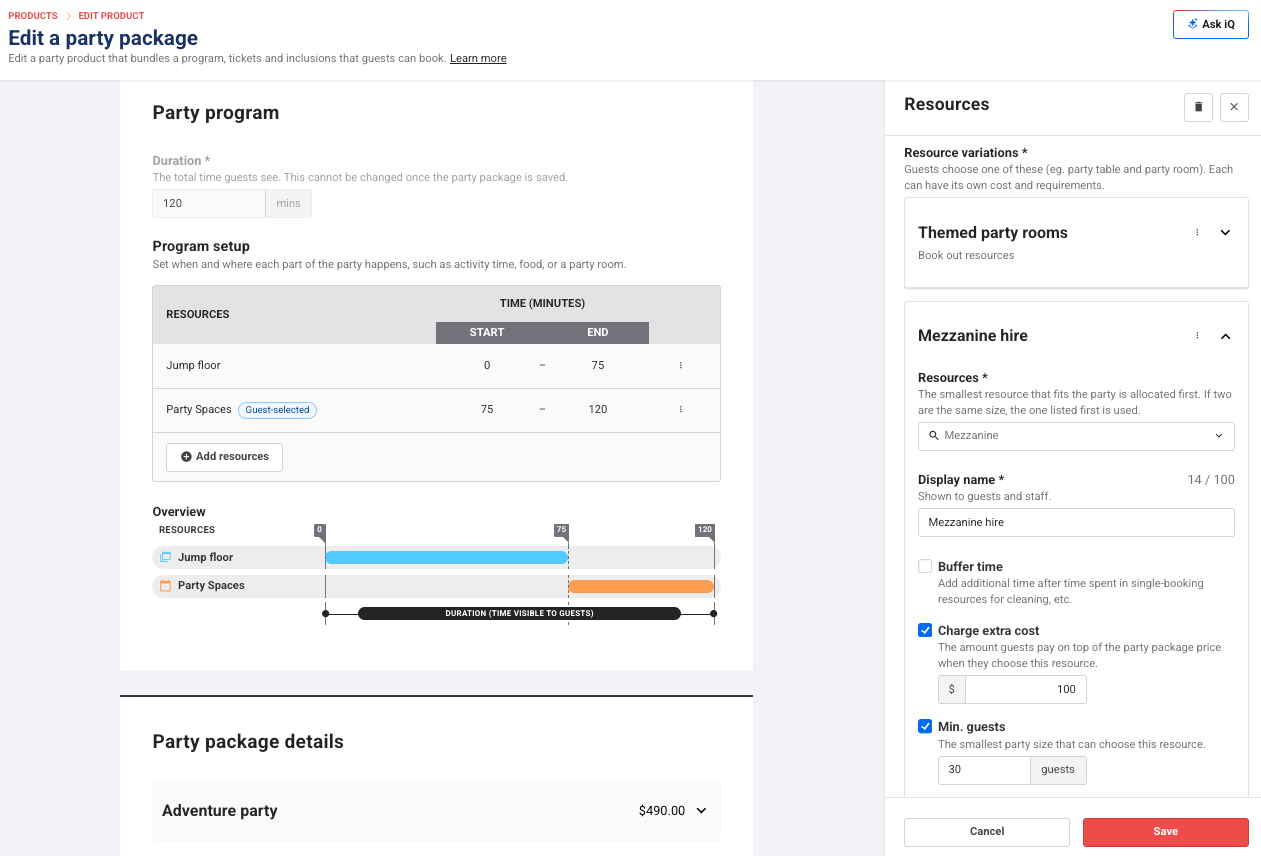
Settings for each option
Use these settings to price each option and control which parties can book it. The settings you see depend on the booking rule of the option's resources.
Setting | What it does | Booking rule |
|---|---|---|
Charge extra cost | Sets what guests pay on top of the party package price when they choose this option | All |
Min. guests | Sets the smallest party that can choose this option, so you keep your biggest rooms for your biggest parties | All |
Buffer time | Adds buffer time around the party | Single bookings |
Multiple resources per booking | Limits the number of resources one party can use | Single bookings |
Book out resources | Books out the whole resource for the party | Multiple bookings |
What guests and staff see
Guests see each option and any extra cost before they pay.
Online checkout: After choosing the date, time and number of guests, guests select one option from each set before they can check out. Any extra cost shows as its own line in the cart. Options that require a higher guest count are grayed out and can't be selected.
Venue Manager: When staff create a booking, they choose each option under Select a resource, with the extra cost or Included beside it. The choice then shows on the booking's Order tab, where staff can change it and the price updates.