A picture is worth a thousand words, and high-quality imagery throughout your checkout contributes to a better guest experience leading to higher conversion rates.
This is why spending some time finding the right images and optimizing them for the best performance of your checkout is important.
This guide walks through how to find and optimize images for your online checkout.
What images do I need to find and prepare?
There are two key areas you need to find and prepare images for:
Your product images
The checkout background image & logo that appears at the top of your checkout (hero image).
Learn more about the options you have to build your brand and showcase your products using images in this Academy video.
Product images
Product images can play a pivotal role in helping you sell your products. If your guests can clearly envision the experience you’re selling, they’ll be more likely to buy.
Make sure you add images to your products when creating them. They can help you convey important information about your products and offerings which helps drive sales.

Checkout background image and logo
The checkout uses the default logo and background image in your venue for your checkout's hero image, but you have the option to override these when creating the checkout.
The hero image is the the first photo, graphic or illustration your guests see at the top of your checkout.
You may want to change the default background image to one that more accurately represents what you're selling and your brand.
The goal of the hero image is to immediately draw visitors in and show them what you're selling. As the first touchpoint people have with your checkout, hero images can have a major impact on your brand perception, website traffic and conversion.
Optimizing your images
Before you can add images to your products and checkout, you need to make sure that they are properly prepared for best performance of your checkout. This means optimizing images for web use, which can involve:
Using the right file format (eg JPG, PNG)
Reducing the file size for web use
Resizing the image's width & height or image ratio (eg 2:1)
Product images
Guidelines:
File format: JPG & PNG
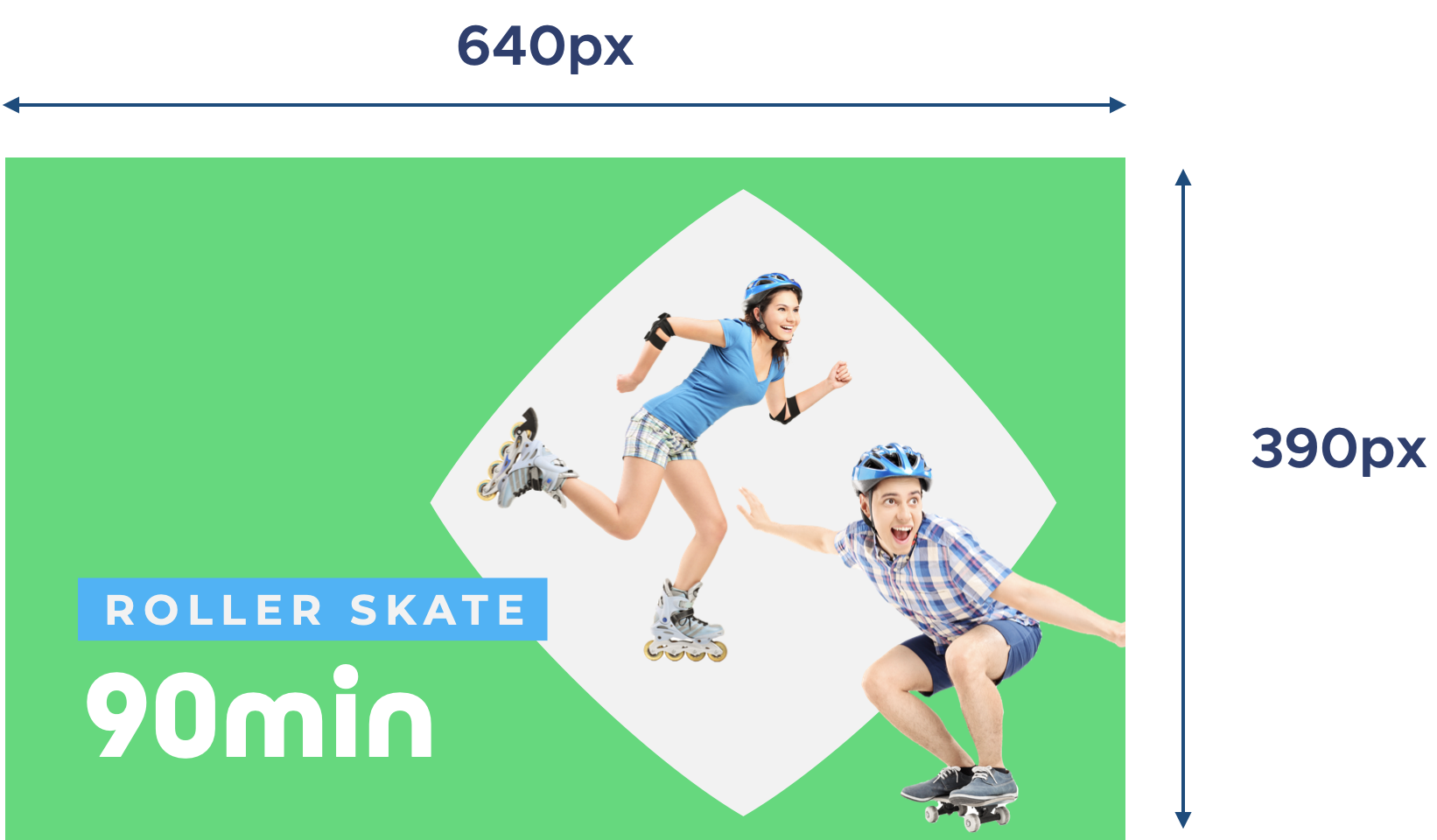
File dimensions: 640 x 390 pixels (width x height)
Resize or crop your product images to 640 x 390 pixels before uploading the thumbnail image in its product's settings.
Logo
Guidelines:
File format: Transparent PNG
Maximum width: 640 pixels
It doesn't matter what the height of the logo is, as height is dictated by the dimensions of the logo
File size: Must not exceed 1 MB
Background image
Guidelines:
File format: JPG, PNG
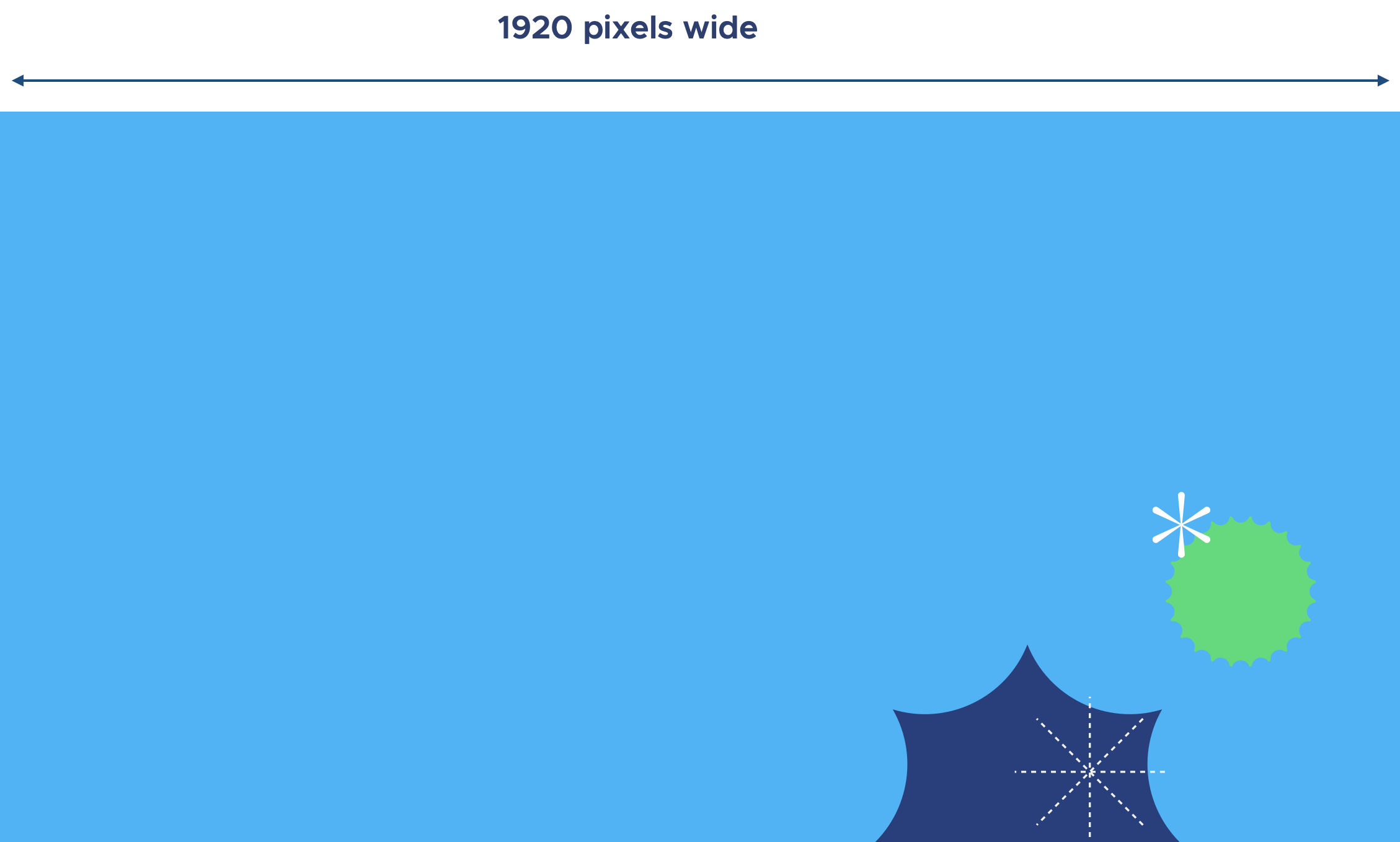
Recommended width: 1920 pixels
Minimum width: 320 pixels
File size: Must not exceed 5 MB
Background image for call-to-action home page widget
You can add an image to the call-to-action home page widget to make it stand out. A call-to-action widget allows you to link to a product in your checkout or an external URL.
Guidelines:
File format: JPG, PNG
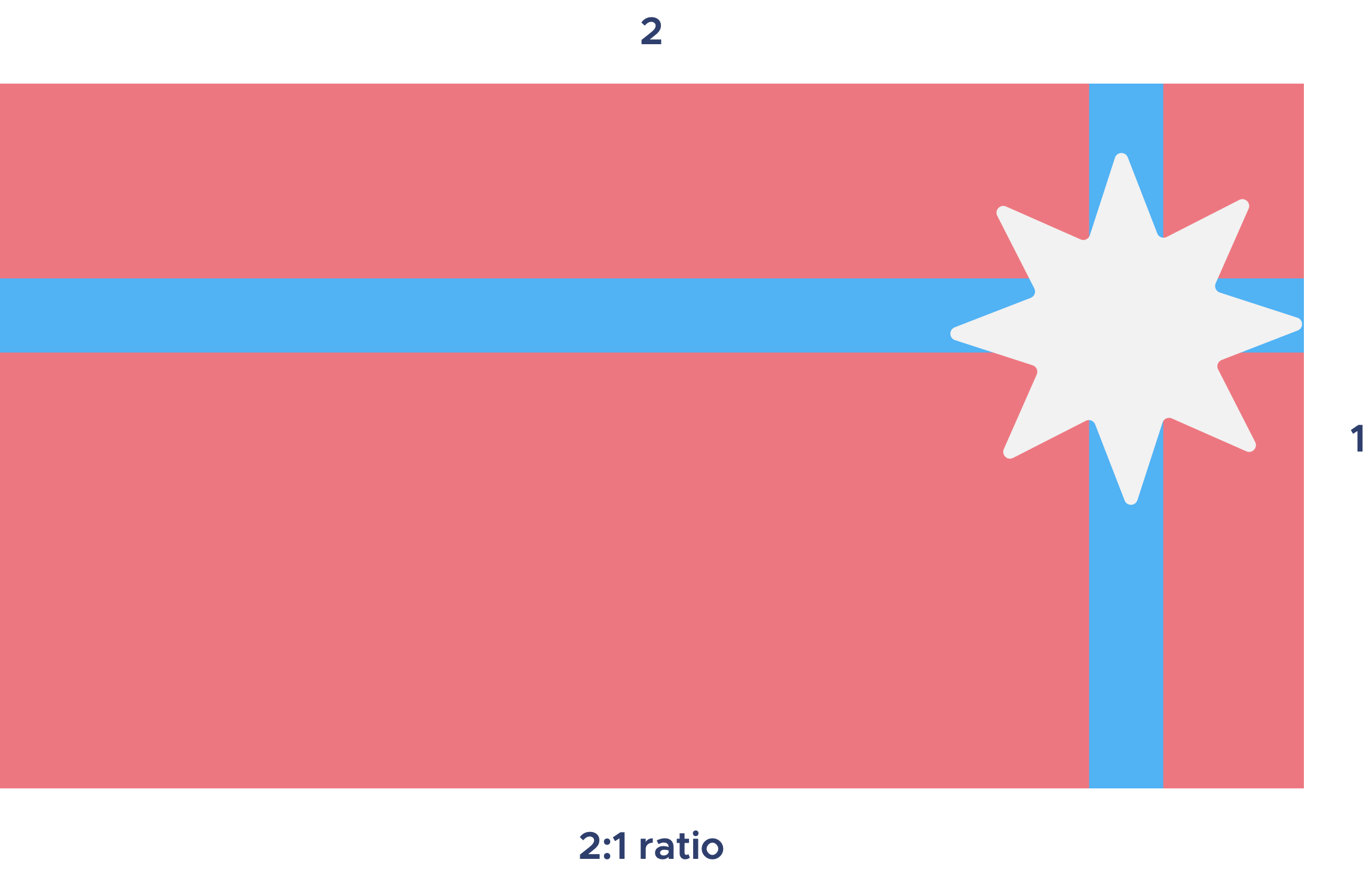
Image ratio: 2:1
Maximum file size: 1 MB
How do I get started?
Once ready to start creating your checkout, refer to the guide Create your online checkout.
And watch the Academy videos to learn more about how to prepare for, create and share your online checkout.