Turn loyalty rewards into repeat visits with quick redemption at POS and a seamless self-serve experience online. When guests unlock loyalty rewards, staff can redeem them at POS during checkout — and guests can redeem online themselves. Use this guide to redeem loyalty rewards at POS and see how online redemption works.
ROLLER Loyalty is an add-on product, charged in addition to your monthly plan. Learn more.
How reward redemption works at POS
When guests unlock loyalty rewards, staff can redeem them at POS during checkout, and guests can redeem them online themselves. Depending on your loyalty rules, guests can redeem points as a fixed discount, a fixed discount reward or a free product reward. Rewards apply to qualifying items in the cart, and a guest can only redeem rewards that are unlocked.
Which products guests can use rewards on
Guests can use points and fixed discount rewards against any product, including gift cards, cashless cards, wallets and memberships. This is true even though those four product types don't earn points, so a guest can spend a reward on a product they can't earn on.
Free product rewards work differently. They can't be applied to gift cards, cashless cards, wallets or memberships. For all other eligible products, the reward applies to the cheapest eligible variation in the cart. If there is only one variation in the cart (eg Adult), the reward applies to that variation. Add the eligible product or item to the cart before applying the reward.
Recognize a loyalty guest
When making a sale at POS, add the guest as the booking holder to check whether they have any loyalty points or rewards available.
After adding items to the cart, select Add booking holder at the top of the cart.
Look for the loyalty banner.
Select View rewards to open the guest’s loyalty summary.
The panel shows:
Available points
Available rewards
Upcoming rewards
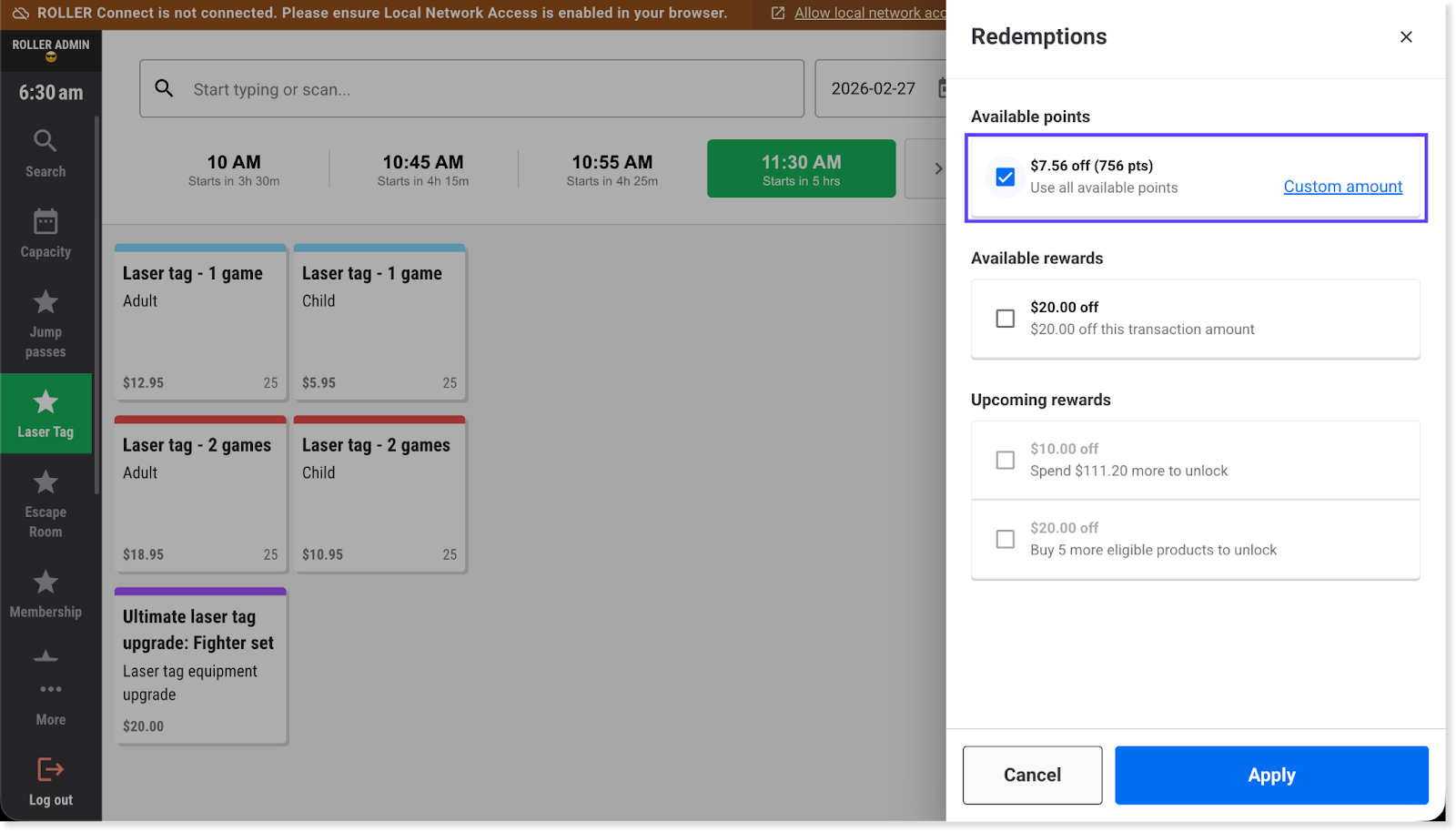
Redeem available points
Points are one type of loyalty reward guests can redeem at POS.
If the guest has available points to redeem:
Confirm they want to redeem their points.
Let them know the discount value available.
Ask whether they want to redeem the full amount or a custom amount.
If they choose a custom amount, select Custom amount and enter the value.
Select the checkbox to redeem points, then select Apply.
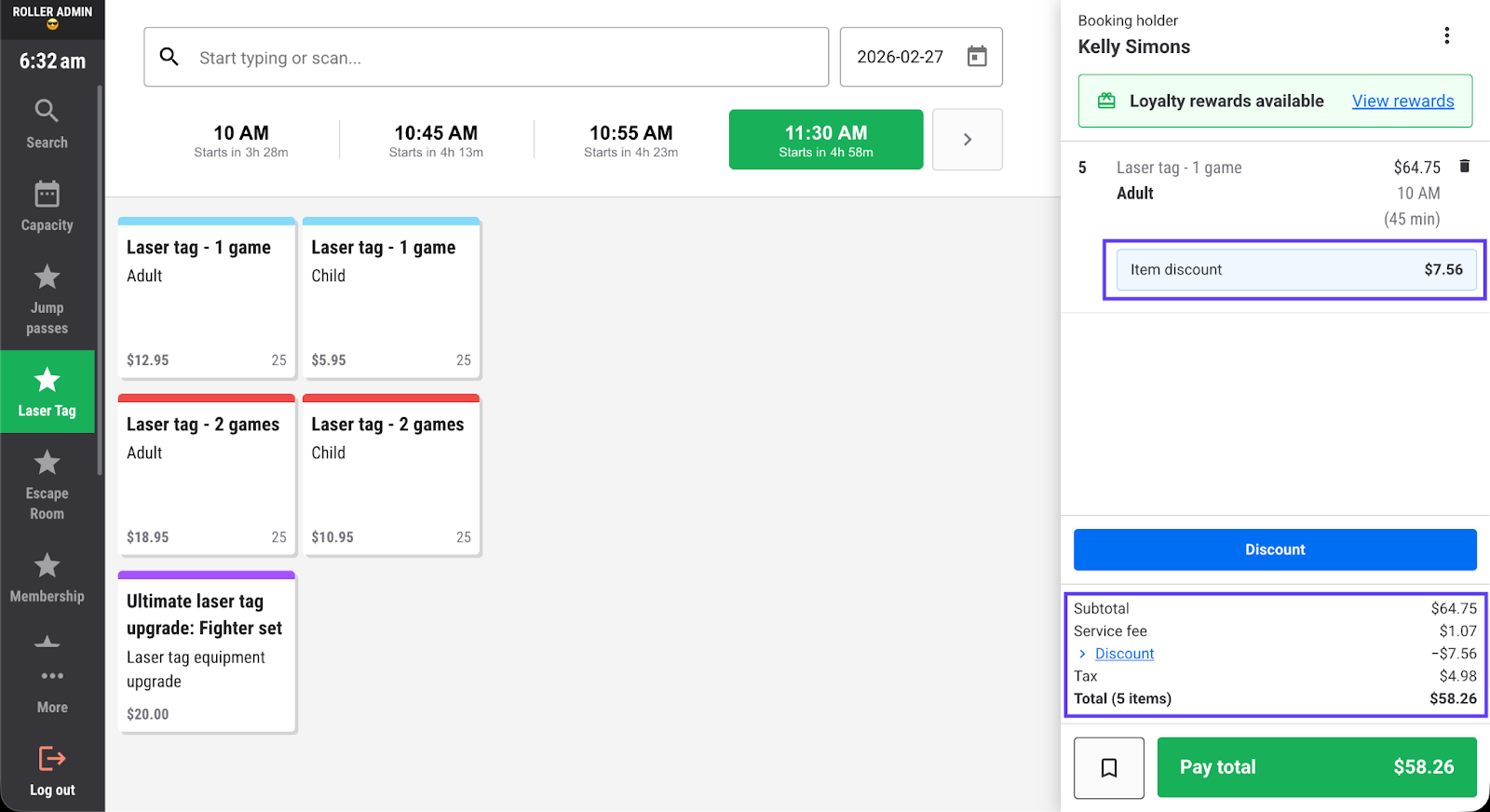
Confirm the adjusted total.
Complete the sale.
Redeem available rewards
Guests can redeem two types of rewards at POS: fixed discount rewards and free product rewards.
If the guest has an available reward:
Confirm they want to use it for the items in the cart.
Select the reward.
Select Apply.
Confirm the updated total.
Complete the payment.
If the reward is for a free product, add the eligible product to the cart before applying it.
If multiple items are in the cart, a fixed discount reward is applied proportionally across eligible items.
If a free product reward is available, offer it clearly. For example: “You’ve unlocked a free pass today.”
Redeem a free product reward
Add the product to the cart. You cannot redeem it if it is not added to the cart.
Select View rewards.
Select the reward, then apply it.
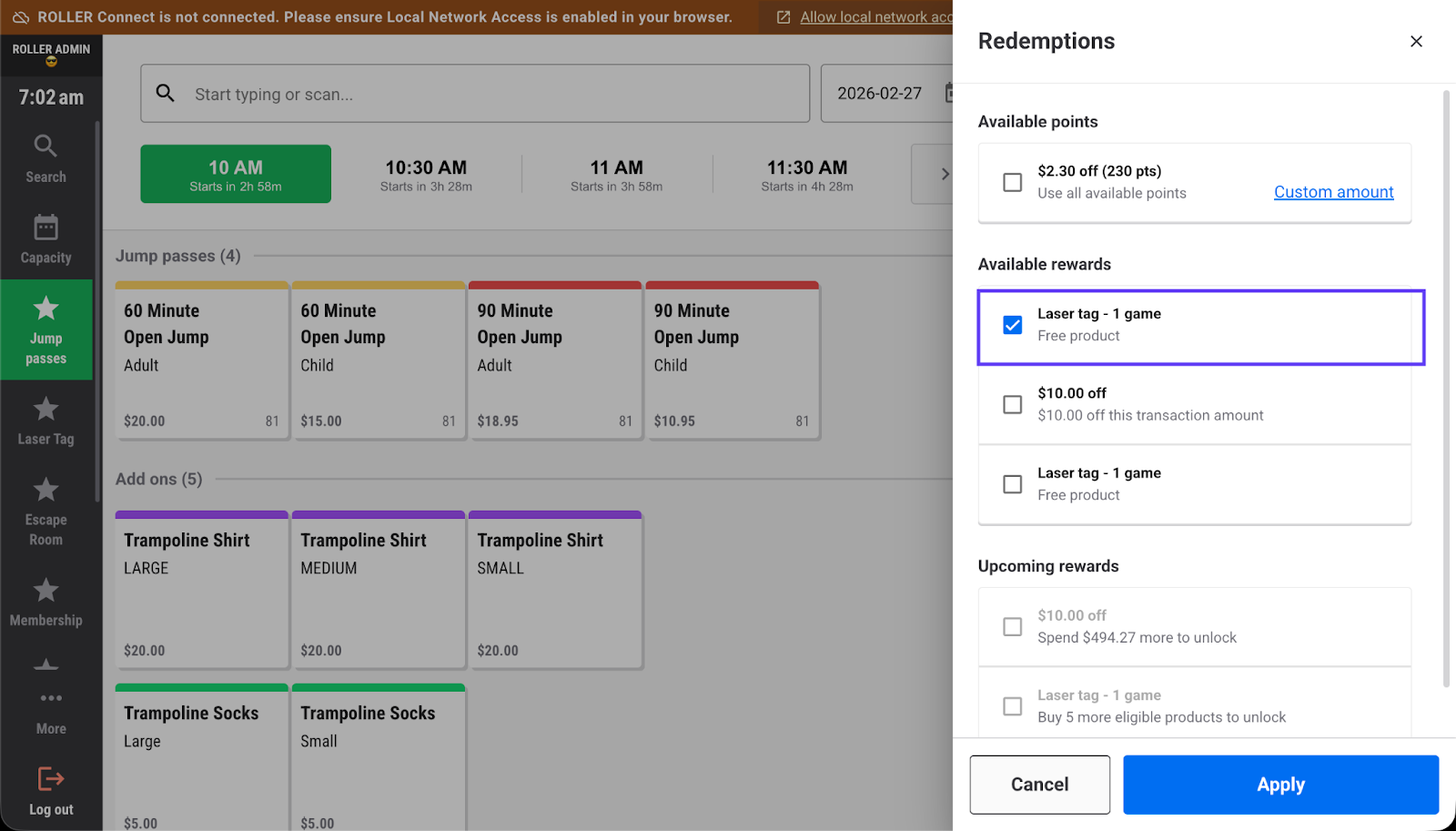
Confirm the discount has been applied (the item has a $0 cost).
Complete the payment.
What to say to guests
Keep it short and positive.
“You’ve unlocked a reward — would you like to use it today?”
“You’re close to your next reward.”
“This visit counts toward your next reward.”
How online redemption works
When guests book online, eligible rewards and points are applied automatically at checkout — as long as they're signed in to their online account using the same email address linked to their loyalty profile.
Guests can review any applied rewards or points on the checkout summary before completing their purchase. They can adjust the amount or remove a reward if they prefer not to use it.
No action is needed from staff for online redemption. The checkout handles it automatically.
What guests see in their online account
Guests can track their progress towards each loyalty reward from their online account. The loyalty details page shows guests:
Rewards to unlock: A progress bar for each active rule and what’s left to earn the reward.
My rewards: A list of all the rewards the guest has already unlocked, with their expiry dates.
Seeing how close they are to a reward gives guests a reason to book their next visit.
Progress updates when an eligible product or booking is redeemed at POS or expires, not when the guest makes a purchase. A guest who books online won't see their progress move until they visit.
Active loyalty promotions also appear on the rewards they boost. If a reward has a time limit or a cap on how many times it can be earned, guests see how much time they have left and how many more times they can earn the reward. If a reward can't be redeemed online, it appears greyed out with the reason (eg it needs to be redeemed at the venue), so guests know what to do instead of asking your staff.
Key things to remember
Guests can only redeem rewards that are unlocked, meaning the guest has already met the loyalty requirements and the reward is available to use.
Rewards apply only to eligible products. If an eligible product is not already in the cart, add it before applying the reward.
Free product rewards apply to the cheapest eligible variation in the cart. If there is only one variation in the cart, such as Adult, the reward applies to that variation.
Once a reward is redeemed, it is removed from the guest’s available balance.
Guests continue earning toward future rewards on eligible purchases.
FAQs
Can guests use loyalty rewards to buy gift cards or memberships?
It depends on the rule type and reward you've configured.
Guests can apply points or a fixed discount reward to any product, including gift cards, cashless cards, wallets and initial membership purchases.
Free product rewards are restricted. Gift cards, cashless cards, wallets and memberships can't be set as a free product reward.
So a guest could use points toward an initial membership purchase, but a membership can't be given to them as a free product reward.
See the guide How loyalty works seamlessly in the background.
Can we control which products guests can redeem rewards on?
Not currently. Points and fixed amount discount rewards can be applied to any product at checkout, and you can't limit them to specific products or exclude products (eg allowing rewards on jump sessions but not cafe items).
Free product rewards work differently. They apply only to the specific product you set as the reward.
See the guide How loyalty works seamlessly in the background.
Can guests choose which variation of a free product reward they receive?
No. Free product rewards are set at the product level. At redemption, the reward applies to the cheapest eligible variation in the guest's cart. If only one variation is in the cart, the reward applies to that variation.