Give your guests a convenient and personalized way to manage and redeem their passes, memberships and gift cards, by enabling online accounts in progressive checkouts.
By giving your guests the option to create an online account with your venue, you can unlock a world of benefits to enhance their experience. From easy access to their passes, memberships and gift cards for redemption online and at POS, to a convenient way to manage their payment details, online accounts put your guests in control and saves you time.
This article will walk through how guests can set up, use and manage their online accounts.
Pro feature
Save time and reduce operating costs by encouraging guests to create an online account with your venue. To unlock this feature with a Pro plan and above, contact your customer success manager or the support team.
Requirements
Before your guests can log in and start to use online accounts, there's some configuration work required.
Venues must be using progressive checkouts with online accounts enabled.
Venues must be using ROLLER Payments.
Create a new online account
There are a number of ways that guests can create a new online account. Keep reading to find out how.
Create an account at checkout
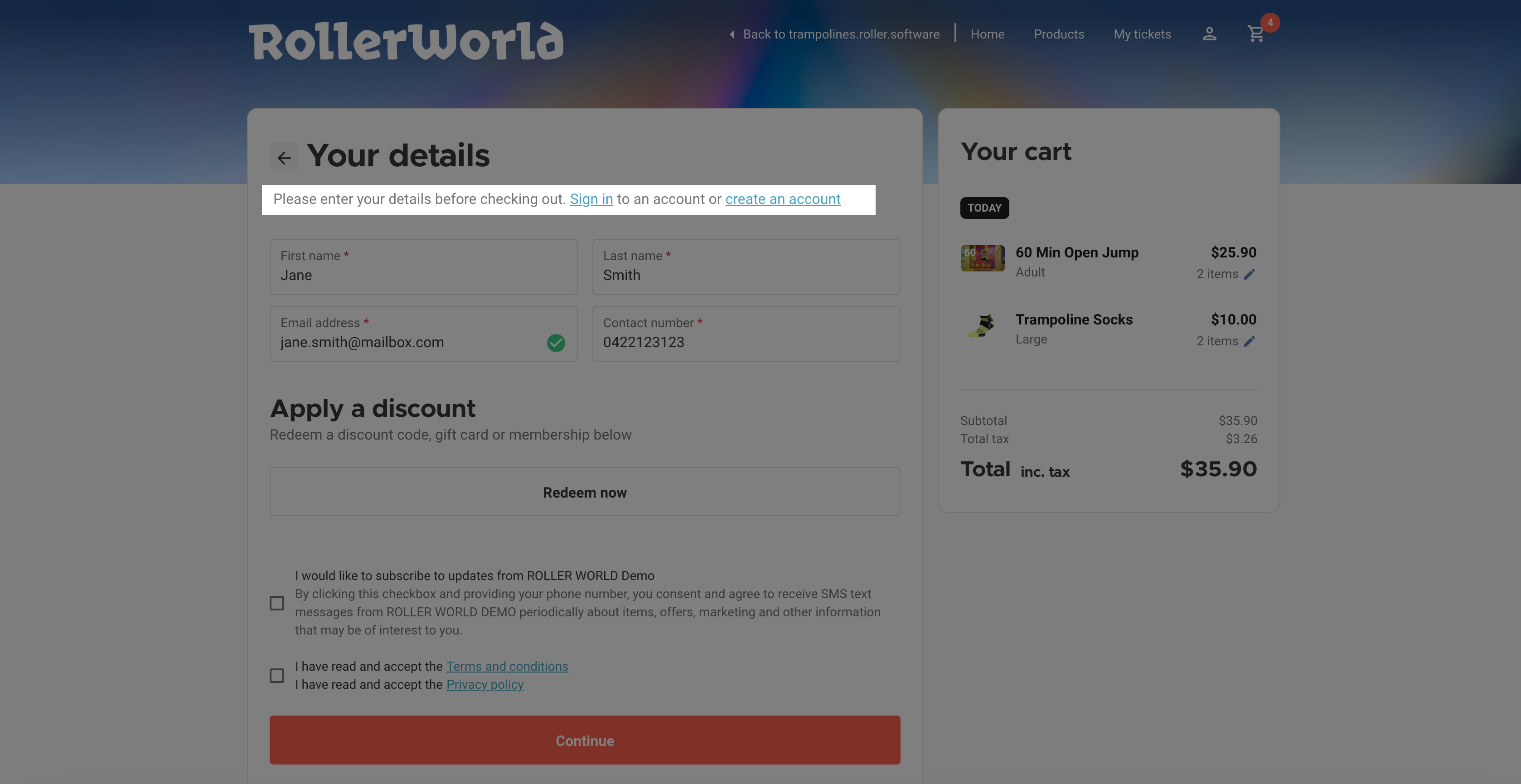
If you've enabled online accounts for your guests, they can create a new online account when they’re at checkout. Once they’ve added products to their cart and selected Checkout, they’ll be taken to the Your details page.
From here, they can create a new account before completing their purchase. They will be asked to sign in using either their email, mobile/cell phone number or preferred social account. They will then receive instructions on how to complete their account set up.
Guests sign in securely using either their email, mobile phone number or preferred social account. Guests will then be sent a code to complete sign in. They do not set a password, and instead will be sent a new code each time they sign in.
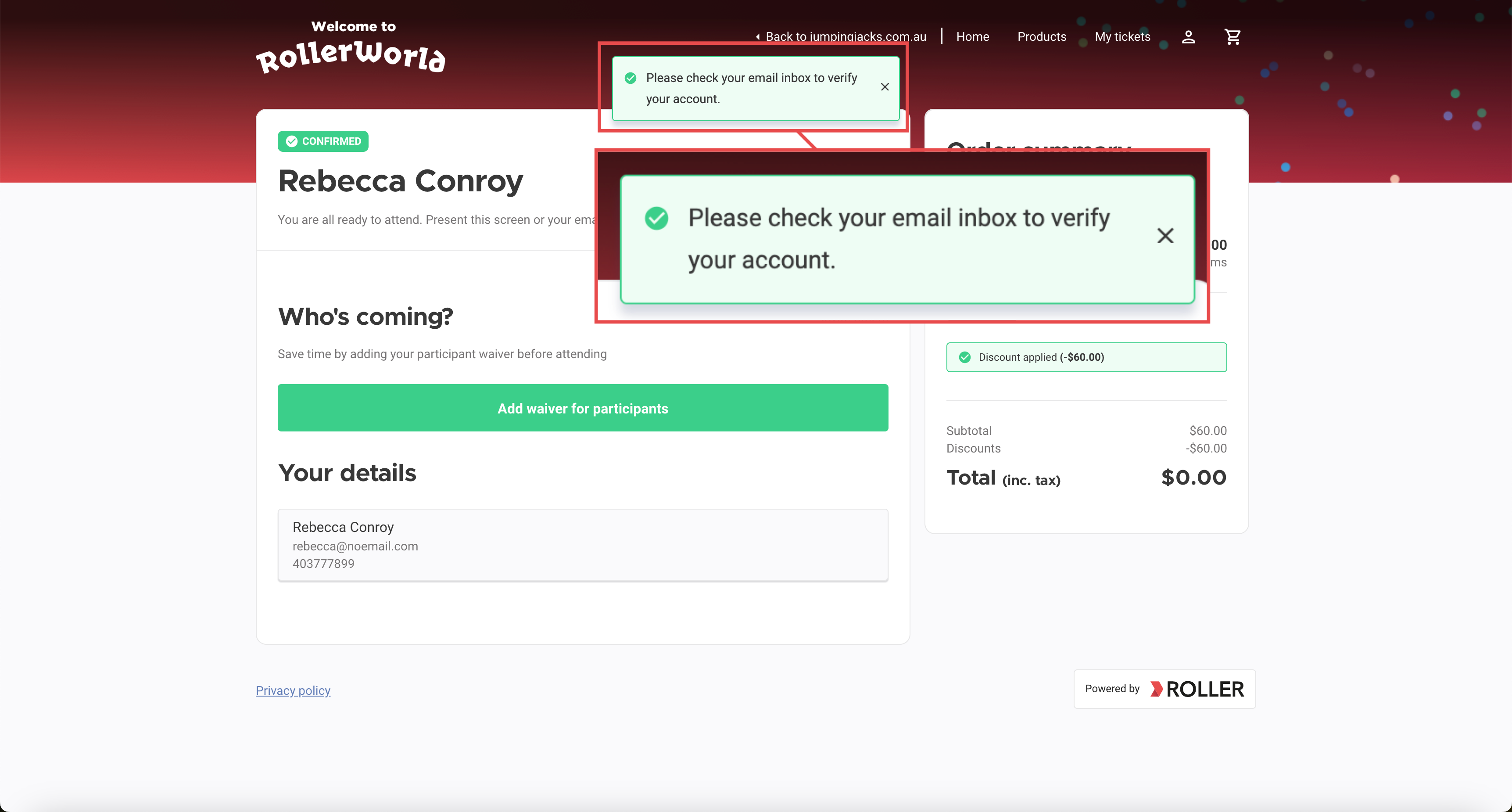
If you’ve configured auto-invites for online accounts, then guests will also be prompted to create an account after they’ve made a purchase, via email.
Guests will receive an email asking them to verify their email address, once they complete this step they access their new account.
Create an account from the checkout home page or products page
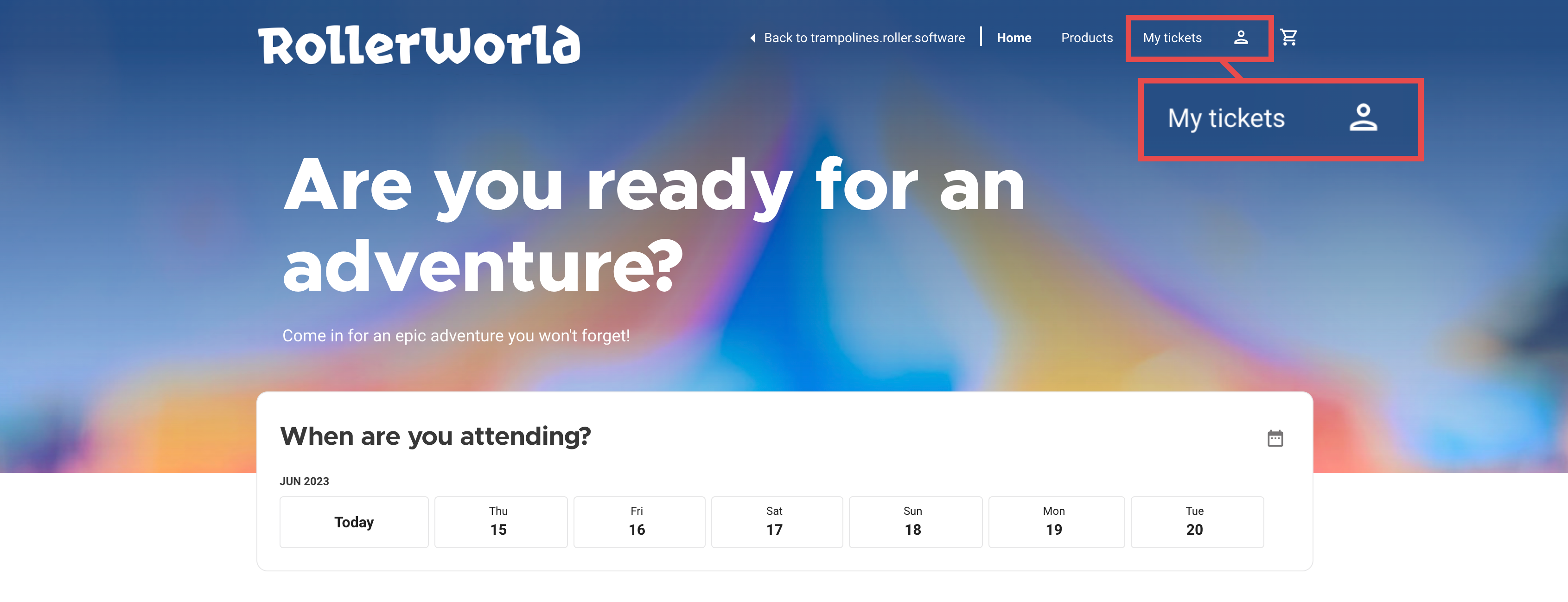
When guests want to make a purchase online they will see two new options to select at the top of the checkout page:
My account (icon): View account details and payment method.
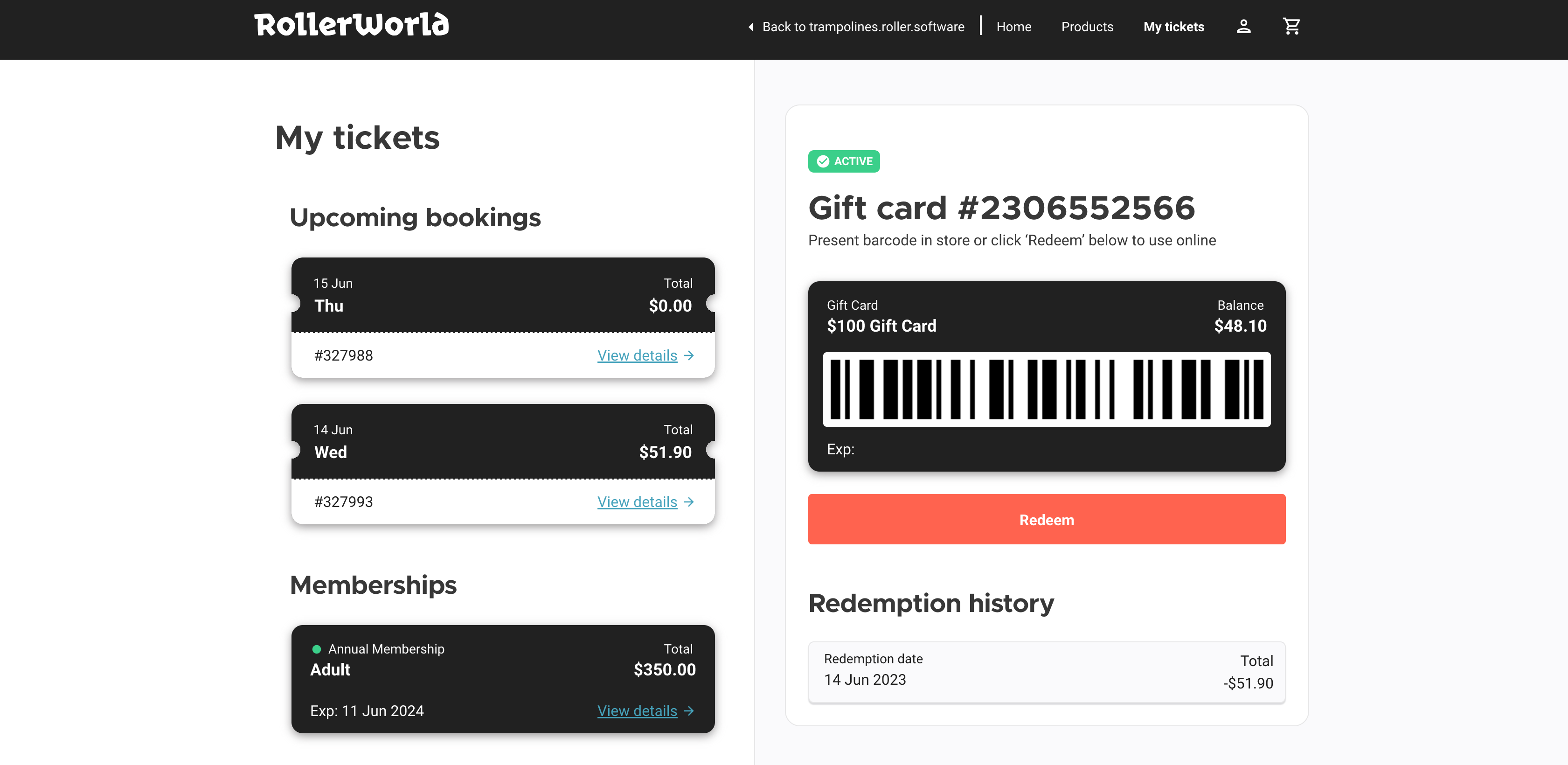
My tickets: View, redeem and manage passes, memberships and gift cards.
My account sign-in
If a guest selects the My account icon, they will be asked to sign in using either their email, mobile/cell phone number or preferred social account.
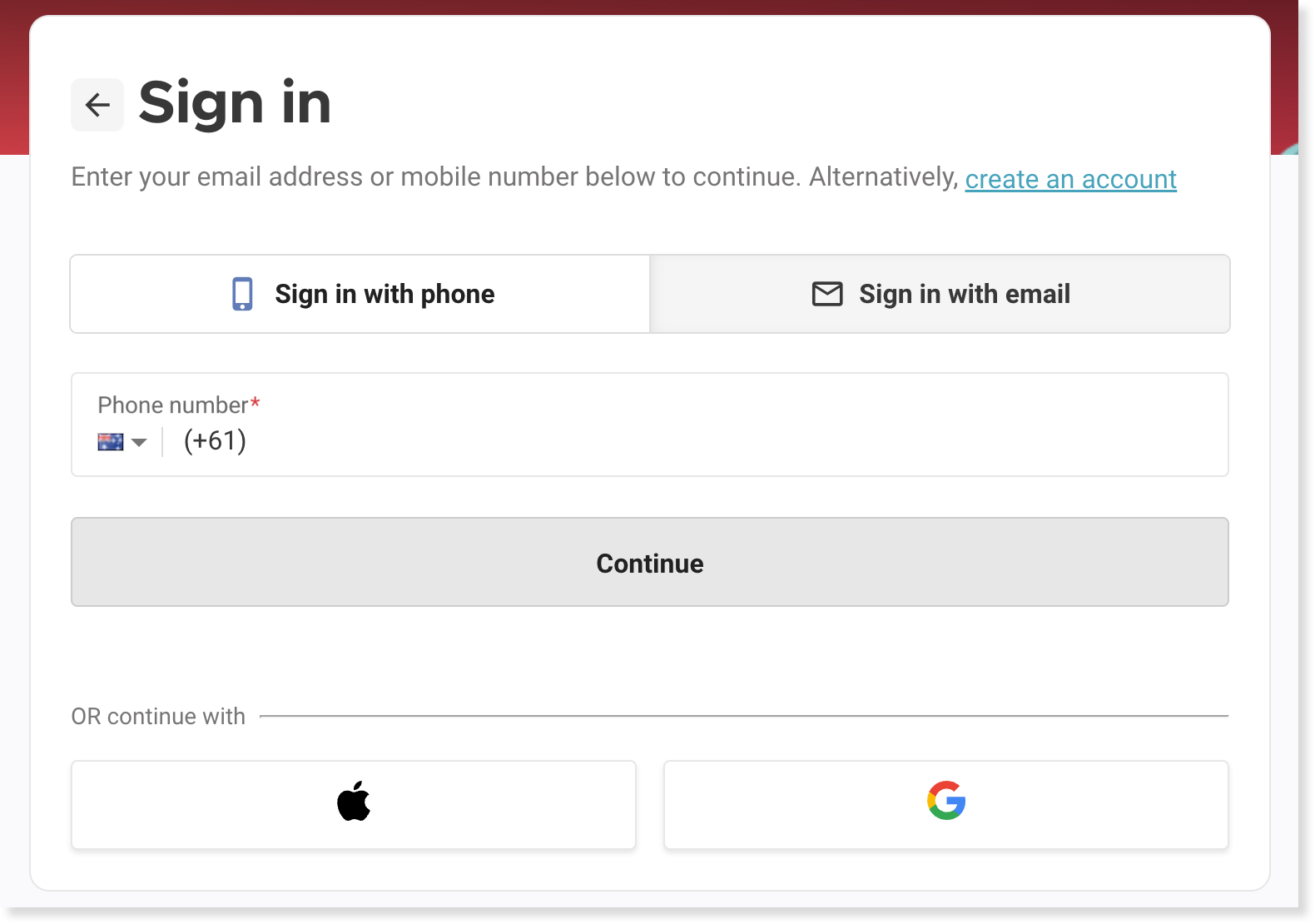
If they don’t already have an account, they can select Create an account and sign-up by email, mobile/cell phone number or their preferred social account.
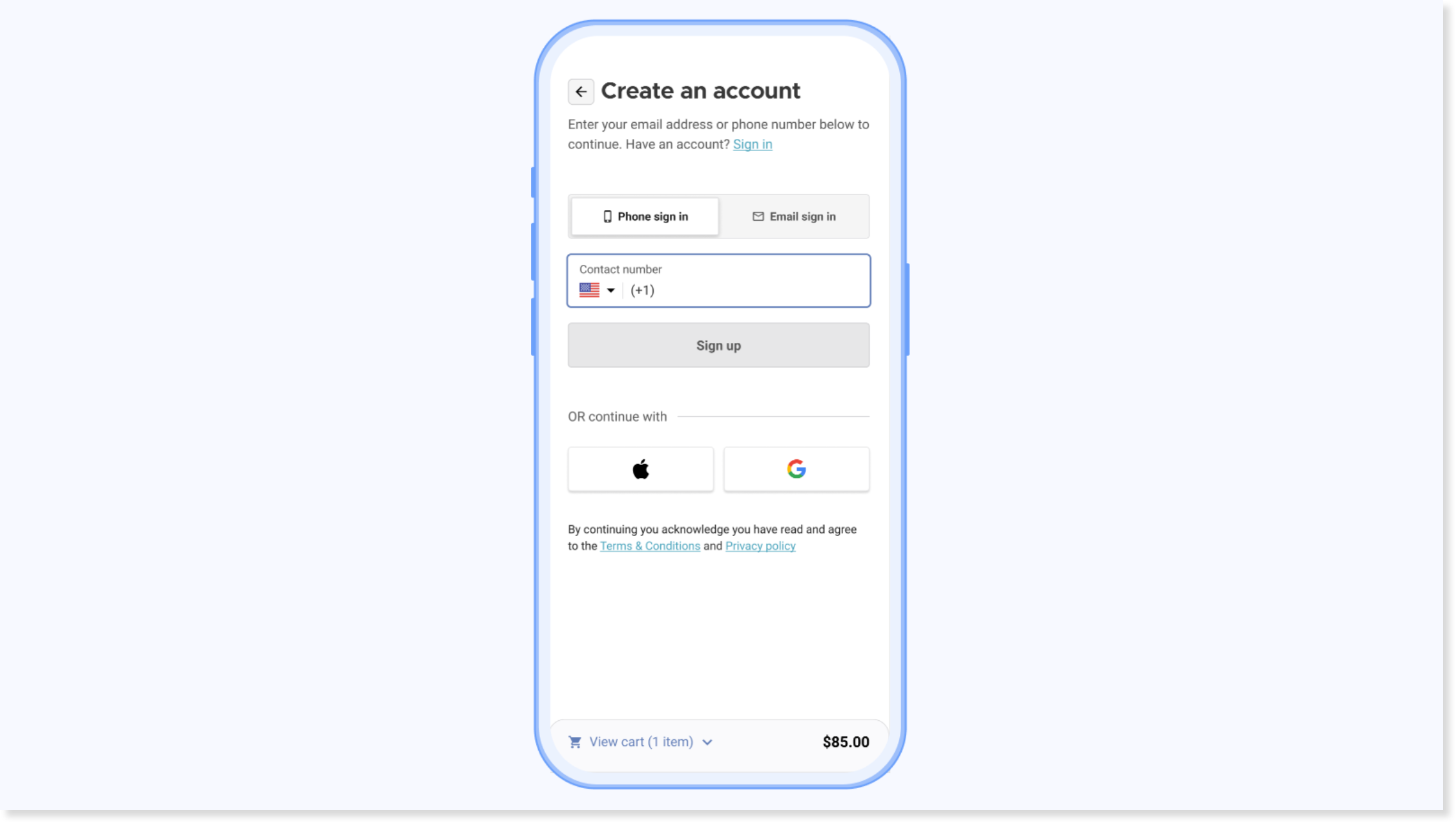
SMS fees may apply to guests who sign up (and sign in) using their mobile number.
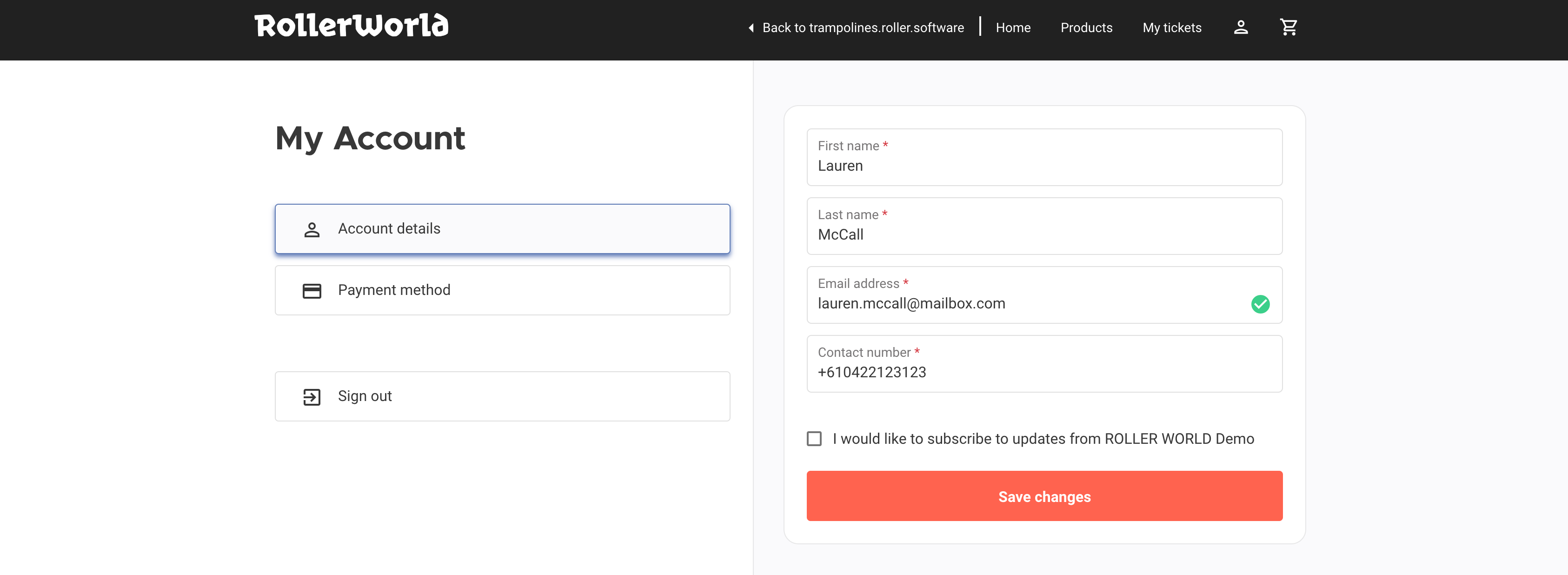
Once signed in to My account, your guests will be able to view their Account details and saved Payment method.
My tickets sign-in
If a guest selects My tickets, they’ll have the same options, to either sign in or create a new account.
Once signed in, they’ll be able to view and manage any passes, memberships or gift cards that they’ve purchased, and if they make a new purchase then those items will automatically display in My tickets once their booking has been confirmed.
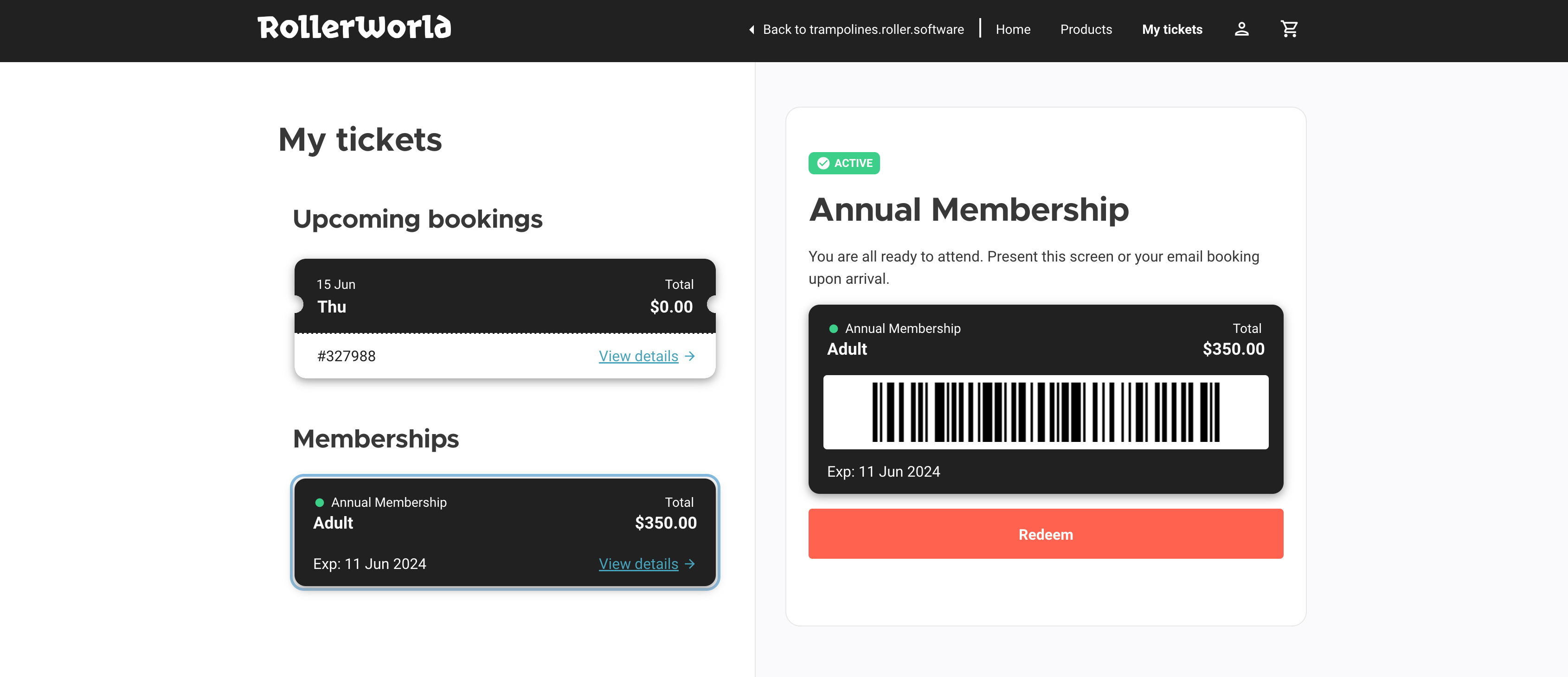
Guests can sign in and redeem their passes, memberships and gift cards at POS, simply by showing their digital tickets to staff.
Use an online account to redeem memberships
Once signed in, your guests are able to redeem their memberships at checkout.
They can select My tickets, then select the membership they would like to redeem and then select Redeem. The membership will automatically be applied at checkout.
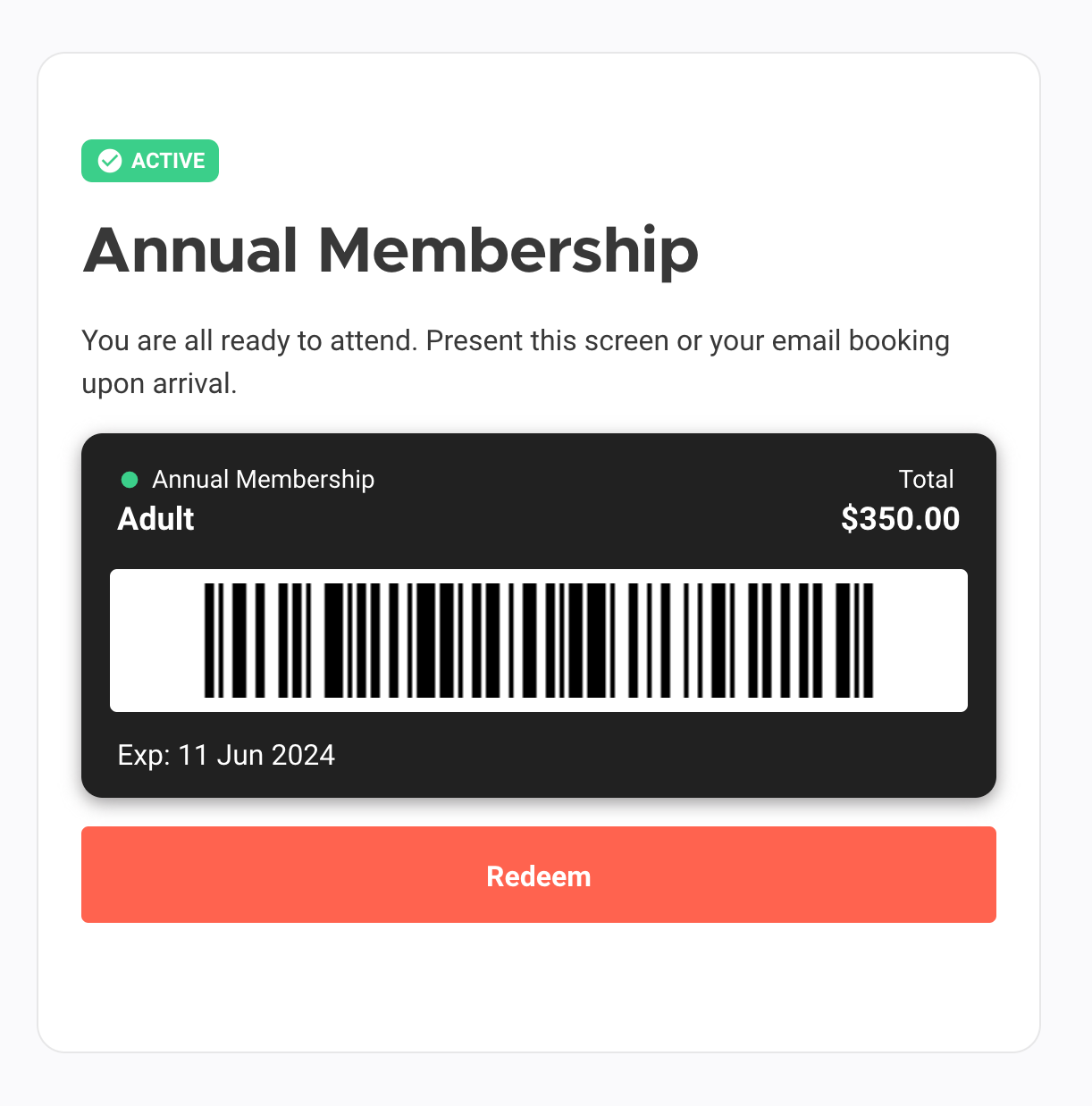
Guests are able to redeem memberships for themselves, or for others. For example, a parent may want to redeem a membership for their child.
If a guest is signed in and hasn’t selected to redeem their membership proactively, ROLLER will automatically prompt them to redeem their membership (when applicable) at checkout. Guests can also select more than one membership to redeem.
Guests can also upgrade and reactivate their memberships from their online account. To learn more, read the guide Encourage guests to self-serve membership upgrades and renewals.
Use an online account to redeem gift cards
Much like redeeming a membership, once signed in, guests can choose to redeem any gift cards they have attached to their account.
To do so, they select My tickets, then select the gift card they would like to use. Then they select Redeem.
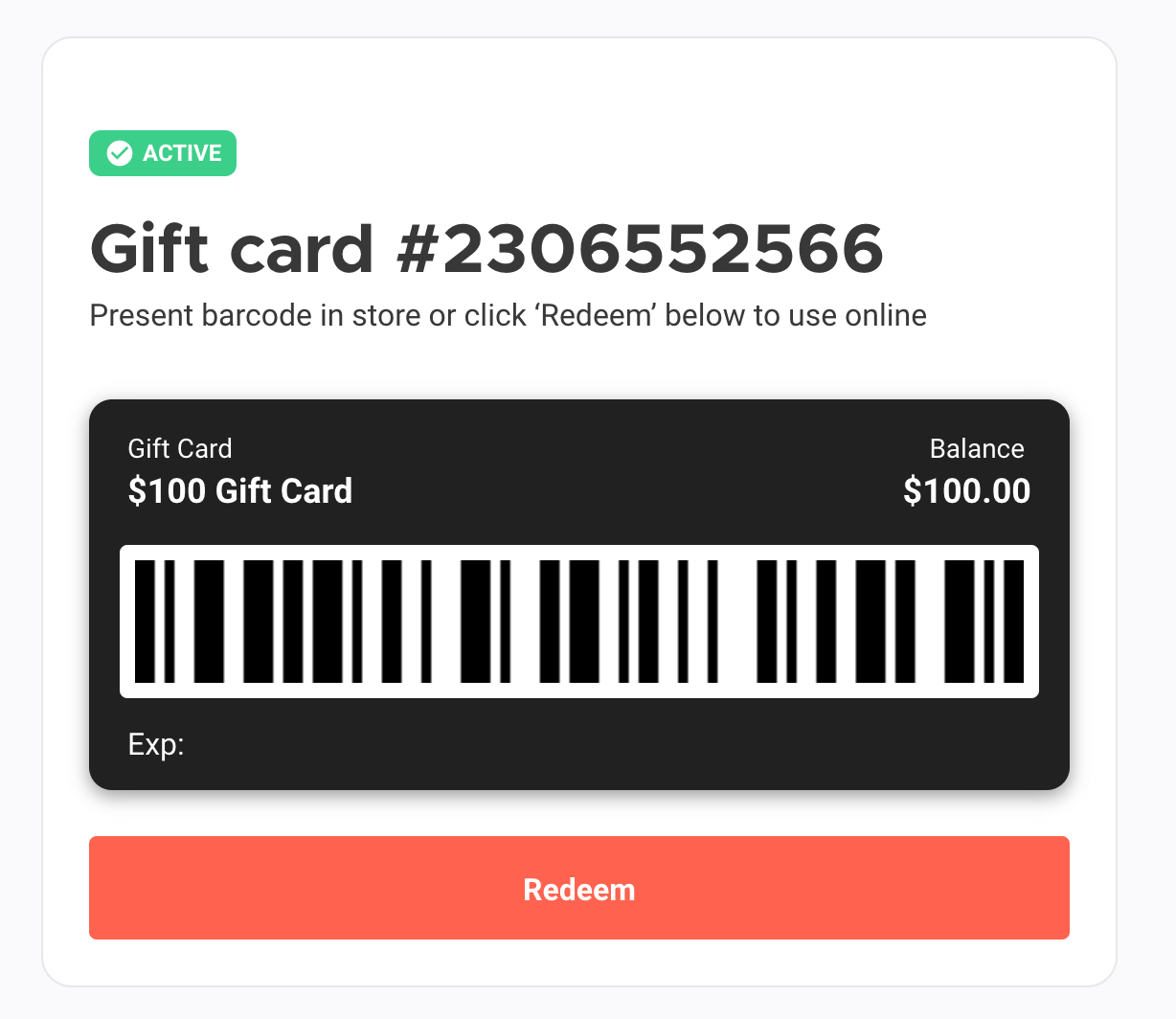
The gift card will be added at checkout.
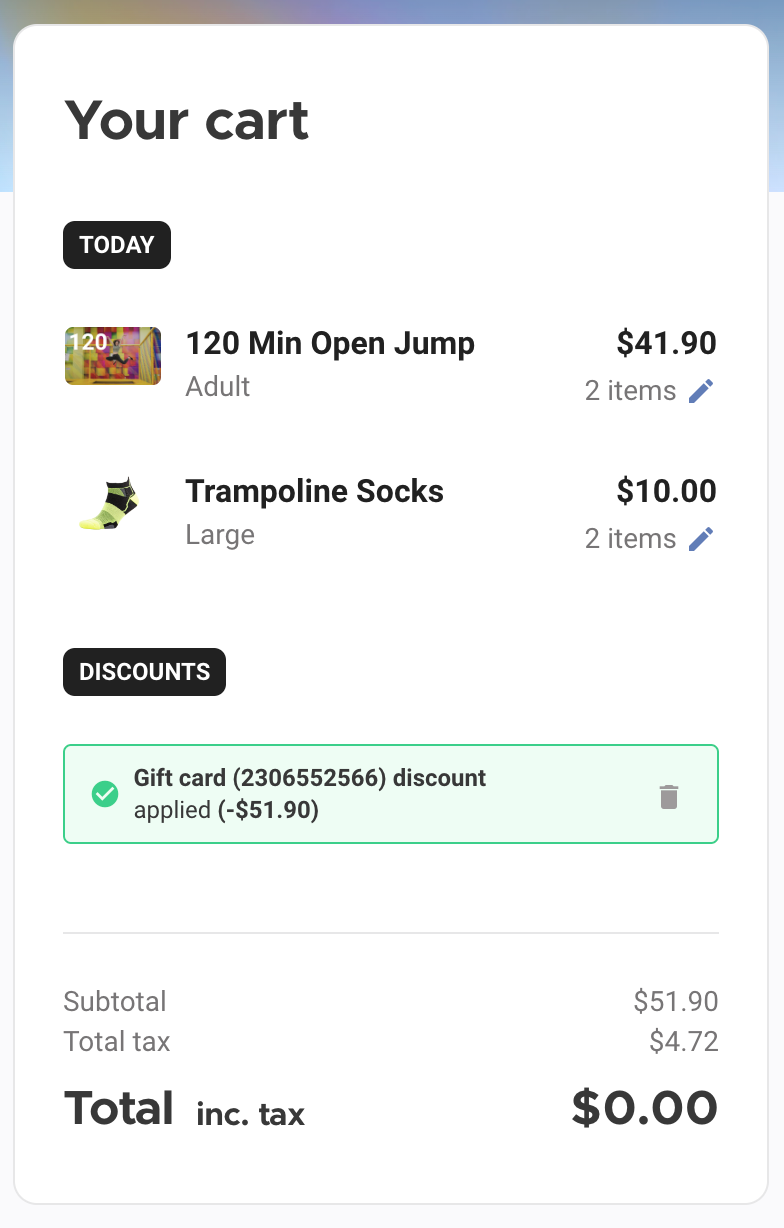
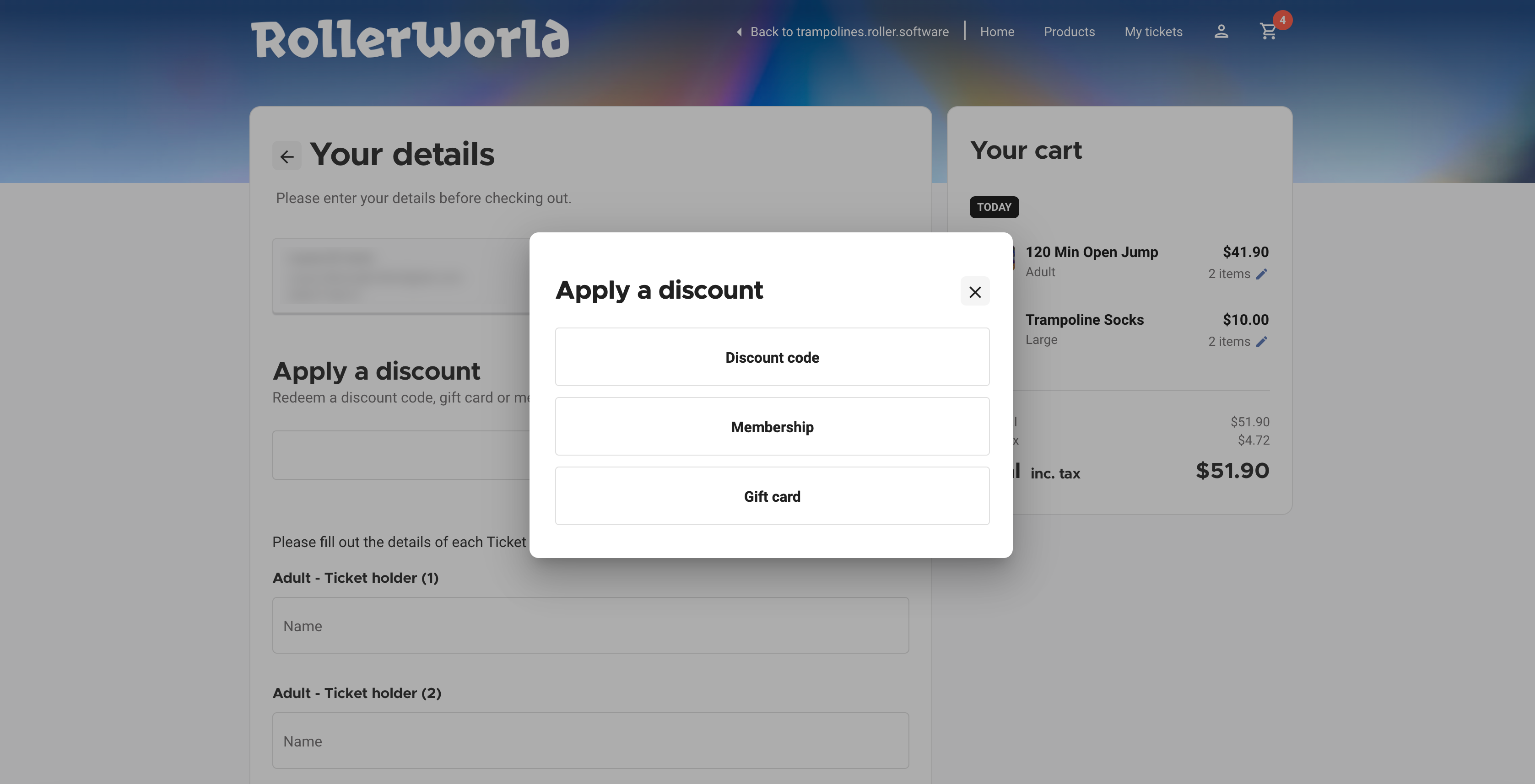
If a guest has signed in and hasn’t selected to redeem their gift card proactively, they can also select Apply a discount at checkout and then select the gift card from there.
Manage an online account
Guests can manage their passes, memberships and gift cards when logged into their online account.
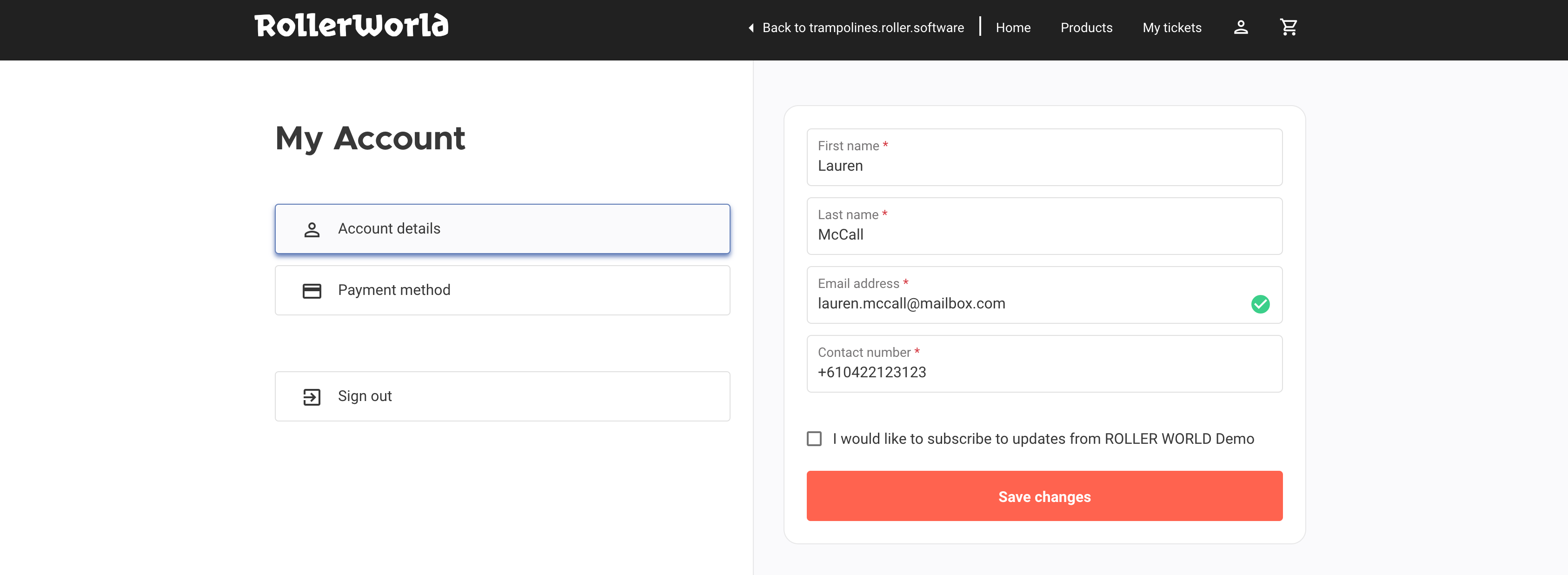
If they select the My account icon and sign in, they can:
View and edit their Account details, such as name, email address and mobile number.
View and edit their Payment method.
Sign out
If they select My tickets and sign in, they can:
View all the active passes, memberships and gift cards they have purchased.
View their gift card balances.
View their gift card redemption history.
View and manage their memberships.
View and manage their bookings.
View and manage their party bookings.
Redeem passes, memberships and gift cards at POS.
View past bookings in the Past tab.
To learn more about how guests can manage their own bookings from their online account, read the guide Encourage guests to manage their own bookings.
If they select the Documents tab, they can:
This lists the waivers and booking agreements a guest has signed. Guests can open a document and read the exact terms they agreed to on the date they signed, including older versions they signed previously.
On the right you’ll see a list of waivers and booking agreements signed. There’s a label for current documents, and for those that have expired.
Selecting one of the documents opens it, and shows the contents in the right panel. It shows who’s signed and the date of signing.