Managing party booking changes often requires additional admin support, as even minor adjustments mean your staff must manually handle calls and emails from guests — taking precious time.
But with online accounts, guests can manage their own party bookings, like rescheduling, adding extra guests, updating inclusions or purchasing more food and drinks, directly from their preferred device.
This reduces the manual workload for your staff, while increasing upsell opportunities and improving the guest experience. It’s a modern, self-serve solution that helps venues run more efficiently and keeps guests in control of their event.
This guide walks through how to edit a party booking from online accounts.
Requirements
To use online accounts, venues must be on a pro plan or above and using ROLLER’s progressive checkouts.
Before getting started
To allow your guests to manage their party bookings from their online account, you first need to configure booking management rules. These rules control what your guests can edit and how far in advance they can make party booking changes.
To learn how to configure your booking management rules for party packages, read the guide Configure online accounts in progressive checkouts.
Edit party bookings from online accounts
Using online accounts, guests can reschedule their party booking, add or remove other guests from their booking, update their inclusions or purchase more food and drinks.
Watch the video below for an overview of how guests can self-serve their party from their online account.
You’ll get a notification in the activity center in Venue Manager whenever a guest updates their party booking via online accounts.
If a guest’s payment fails while editing their party booking, you’ll also get an activity center notification. Use this alert to review the booking and follow up with the guest if payment for the booking changes still needs to be completed.
Reschedule the date and time of a party booking
To reschedule the date and time of a party booking, follow the steps below.
Guests log into their online account and navigate to My tickets.
Under the party booking, select Edit booking.
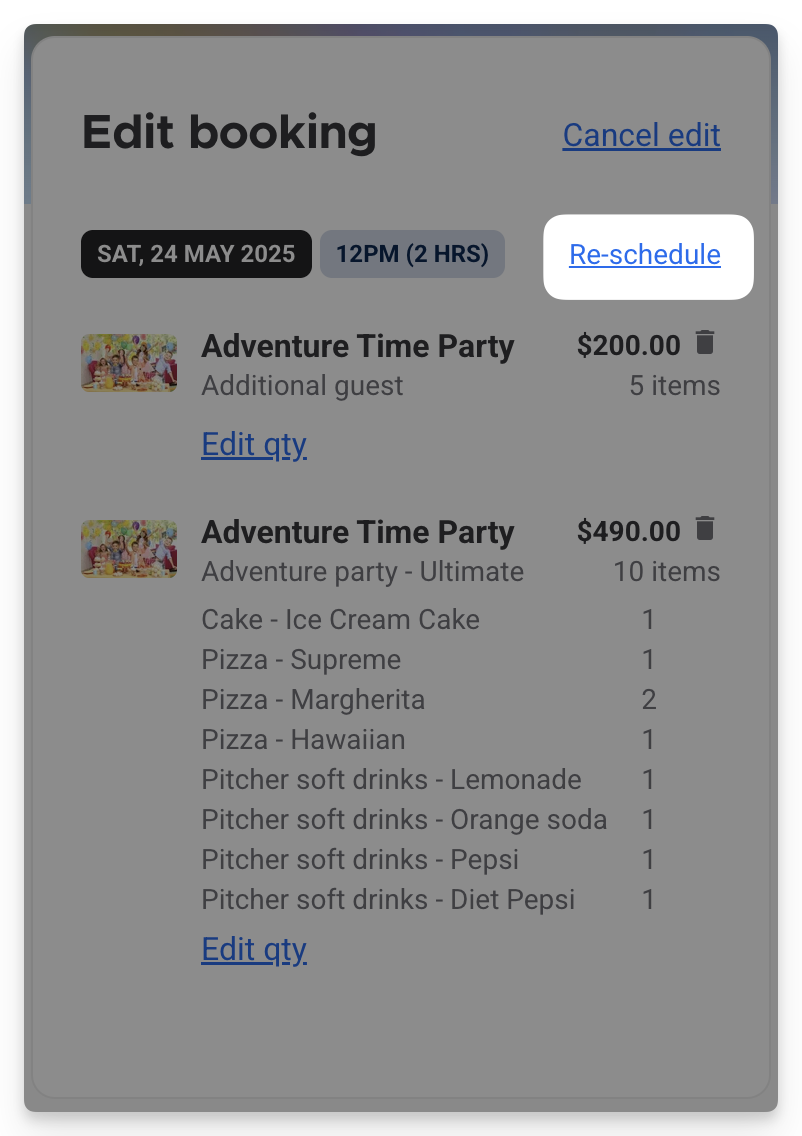
To reschedule a party booking, guests select Re-schedule and choose a new date and time. Then they select Re-schedule again to confirm the change.
The updated party booking will now display in their online account.
Add or remove guests, inclusions or food and drinks from a party booking
To add or remove guests, inclusions or food and drinks from a party booking, follow the steps below.
Guests log into their online account and navigate to My tickets.
Under the party booking, select Edit booking.
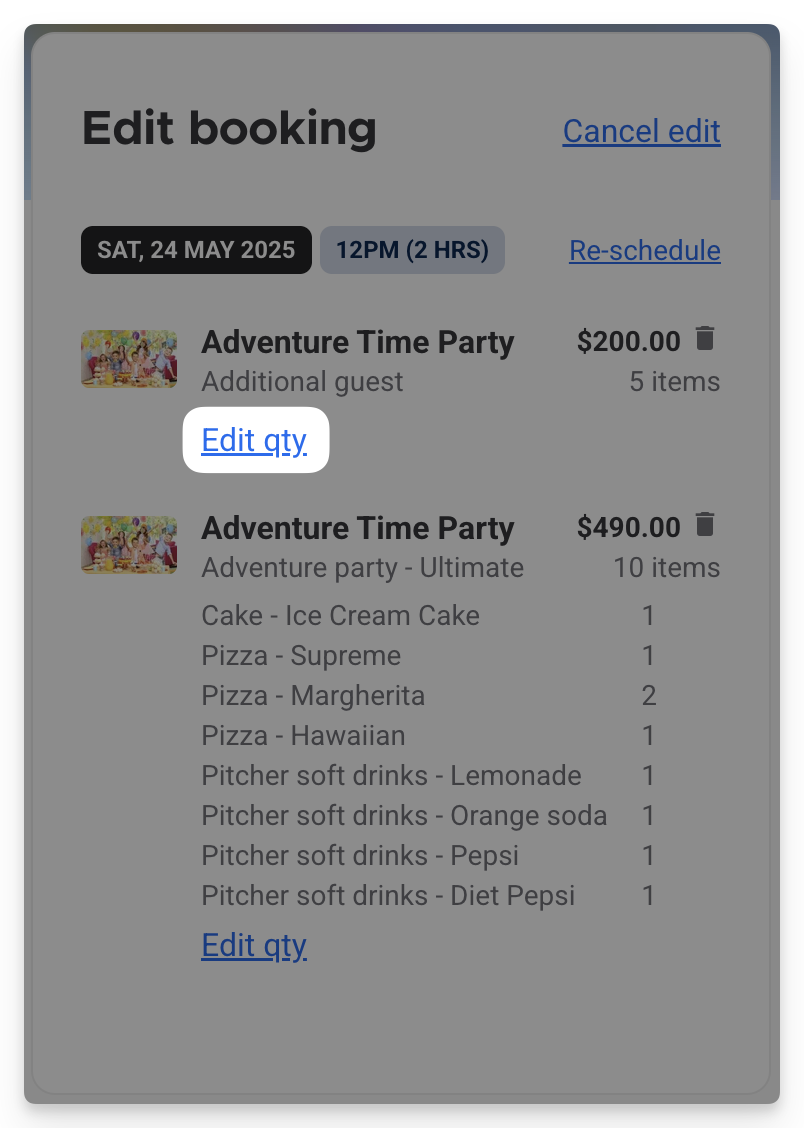
To add or remove guests, food and beverage options and other party inclusions from the booking, guests select Edit qty and then make their changes.
If tickets and other items have been added to the booking, then guests select Checkout and pay for their extras.
The updated party booking will now display in the guests online account.
If items have been removed from a booking, a refund may be owing to the guest. ROLLER does not support refunds when guests edit and modify their own bookings from online accounts. A maximum credit owing amount can be set in Venue Manager, along with a refund policy message that will communicate your venue’s refund policy to your guests. Guests can then choose to proceed or contact your venue for further information.