Stay on top of everything that needs your team's attention, from guest inquiries to tentative bookings about to expire, without hunting through Venue Manager. The activity center collects notifications ROLLER sends you, and the ones that need action appear under To-Do so nothing slips.
Snooze notifications until you're ready for them, assign them to team members and customize which staff roles receive which alerts.
How the activity center works
Every item in the activity center appears automatically when something happens at your venue that needs attention — a guest submits an inquiry, a guest replies to an email, a tentative booking nears its cancelation deadline. The ones that need action from your team appear under To-Do.
The activity center doesn't currently support creating your own tasks or reminders. What you control is who handles each notification and when: mark it as done, snooze it until later or assign it to a team member.
To record a note for your team instead, use the option that fits where the note belongs:
To record ... | Use ... |
|---|---|
A note about a specific booking | Booking notes or POS notes on the booking's Details tab. Booking notes are visible to staff in Venue Manager, POS notes at both POS and Venue Manager. See Edit bookings from Venue Manager. |
A note for your manager about your shift | A till note at POS. See Using till notes in POS. |
A record of a call or email with a guest | The booking's activity stream. See Send emails and log calls from the booking's activity stream. |
Examples of notifications
The activity center can send various notifications based on your venue setup. Here are some common examples:
Type | Use to ... |
|---|---|
Manage guest inquiry form submissions, such as for corporate events, weddings or educational school visits, from custom forms created in ROLLER and linked to from your website. | |
Get timely updates on replies to emails sent from booking and guest activity streams in Venue Manager, with direct access to the booking details and guest history. | |
Monitor tentative bookings close to expiration to prompt guests for payment, making sure no booking opportunity is missed. | |
Respond quickly when banned guests book via the online checkout. Notifications are automatically sent when a guest email address or phone number matches a guest flagged as banned in ROLLER. | |
Stay informed about any changes — when a guest updates their party booking through online accounts, you'll receive a notification in the activity center. | |
Pick up conversations that Guest Experience Agent escalates to your team, with the full transcript and context attached. |
Customize notification settings
You can customize notification settings to control which staff roles receive which alerts in the activity center. This ensures everyone gets the notifications relevant to their work.
To customize notification settings, from Venue Manager, go to Settings > Notifications.
From there, you can:
Choose which staff roles receive each notification type. By default, all staff roles (system and custom roles) are selected to receive activity center notifications.
Configure additional options for specific notifications (such as sending via email or delivery timing).
Review all available notifications.
For detailed guidance on notification customization, see the guide Customize activity center notification settings.
Use the activity center
From Venue Manager, go to Activity center.
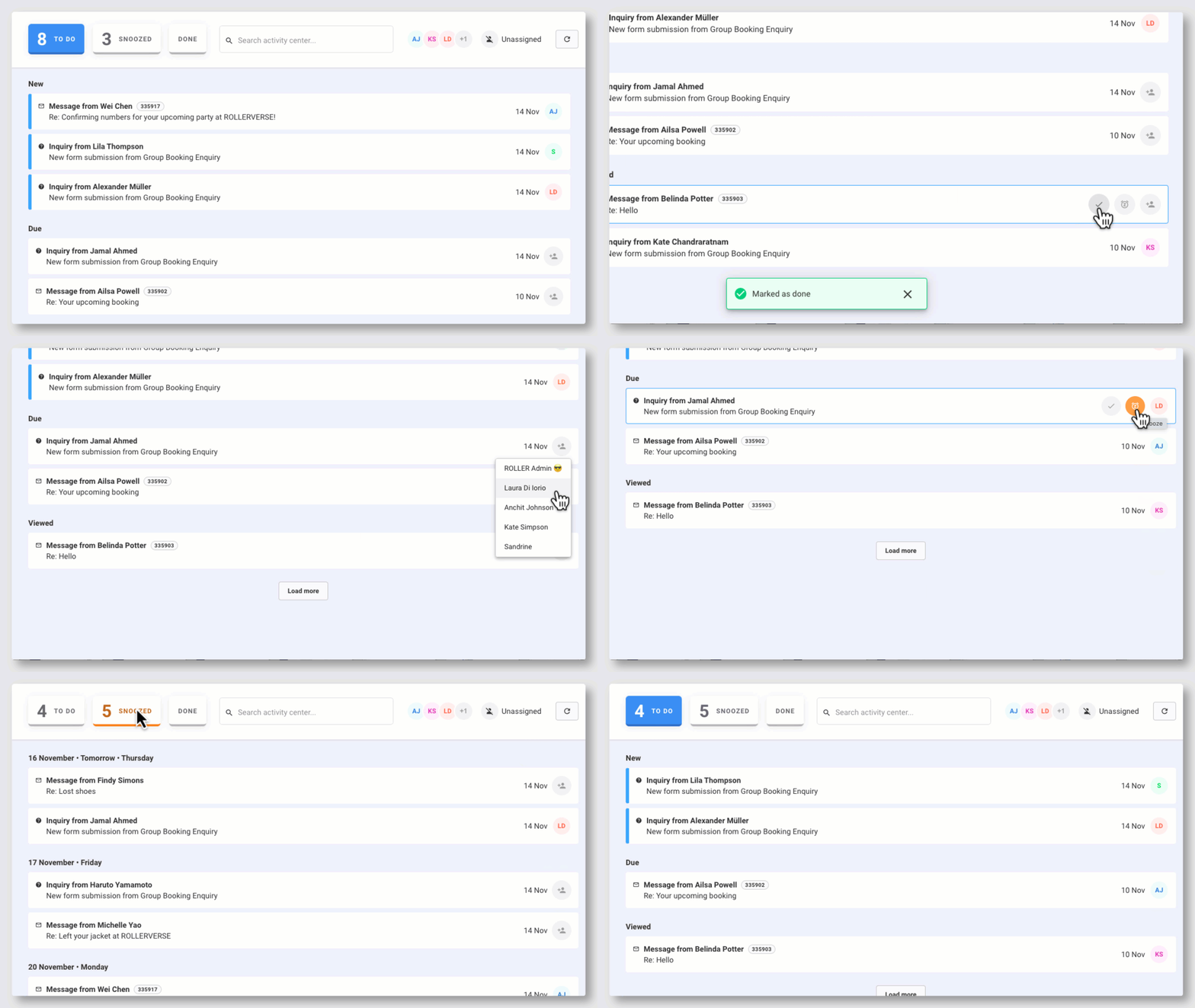
Organizing your notifications: Notifications are organized into three categories:
To-Do: Notifications that need action, divided into New (just arrived), Due (action needed soon) and Viewed (you've seen but not acted on). Overdue notifications are marked as such.
Snoozed: Notifications you temporarily set aside to deal with later
Done: Completed notifications
Quick actions: Hover over any notification to:
Mark as done to move it to the Done category
Snooze for later to temporarily hide it and have it reappear when you've scheduled (eg tomorrow, later this week, this weekend or next week)
Assign to a team member to delegate the notification to someone else
View details: Select any notification to see full details and take action.
Find specific notifications
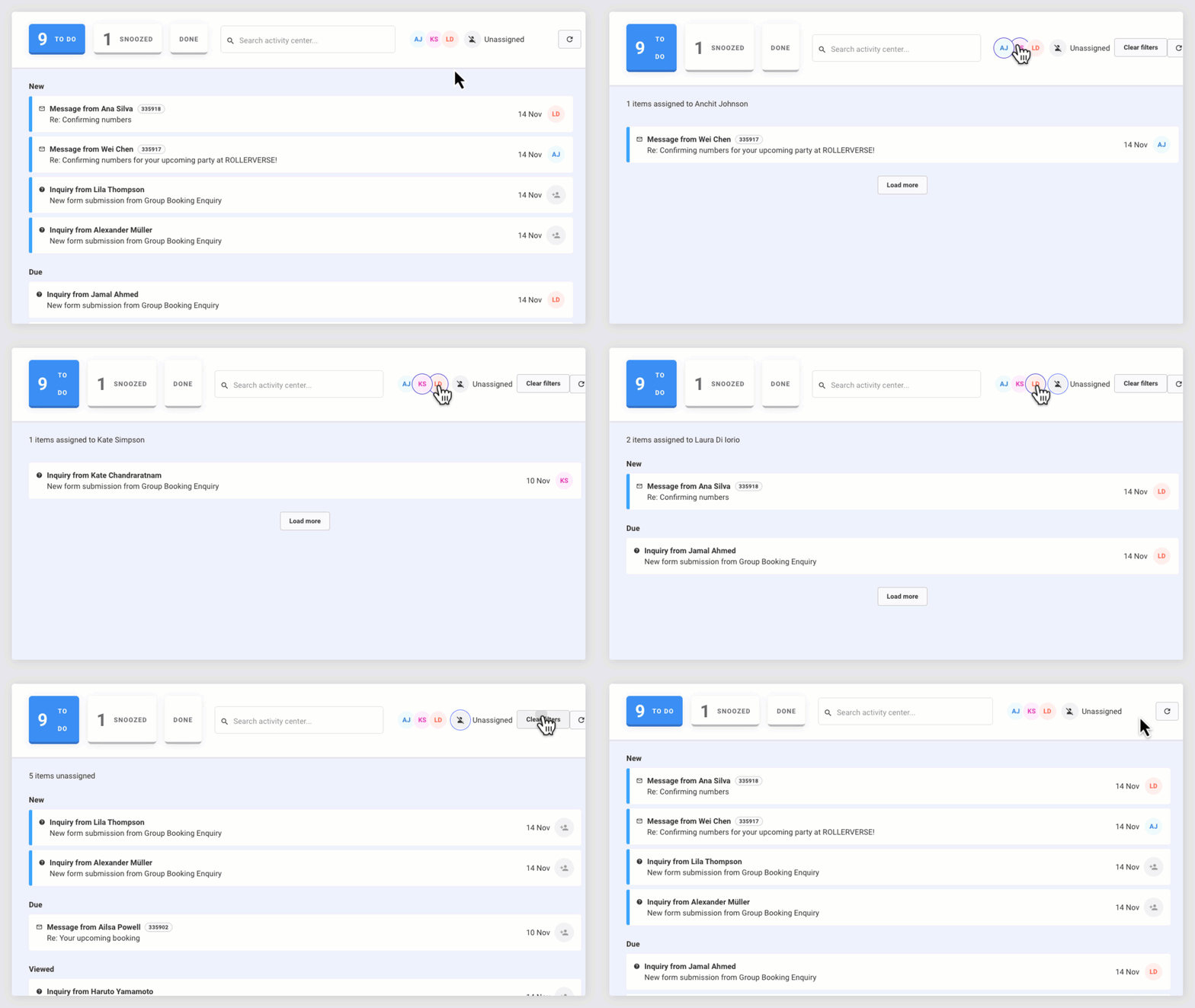
Search activity center: Use the search box to quickly find a specific notification across all categories (To-Do, Snoozed and Done). This is helpful when you have many notifications and need to locate one quickly.
Filter by assignee: Select your avatar or a staff member's avatar at the top of the activity center to display only notifications assigned to that person. This helps you focus on your own work or monitor another team member's assigned notifications.
Working with notifications
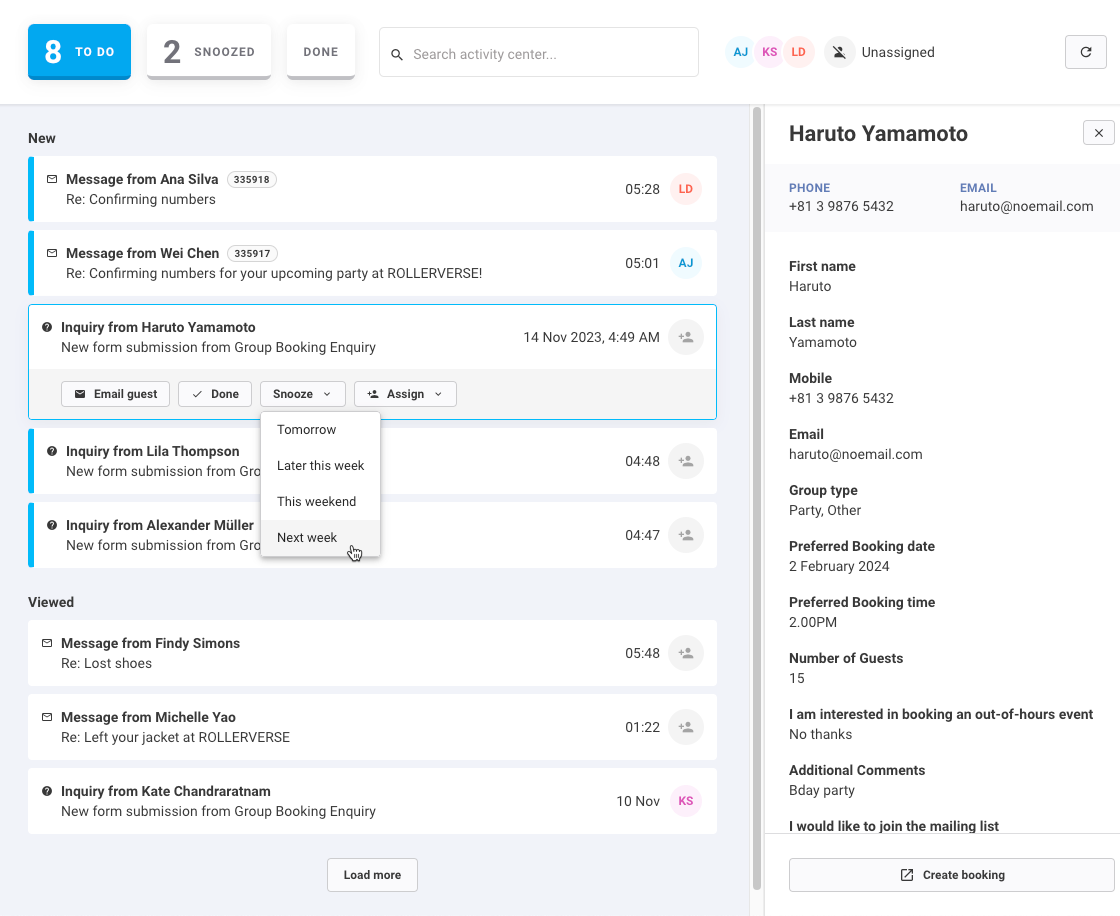
New inquiries
Manage guest form submissions from custom forms. Select a notification to review the submission, convert it into a booking or email the guest.
New guest messages
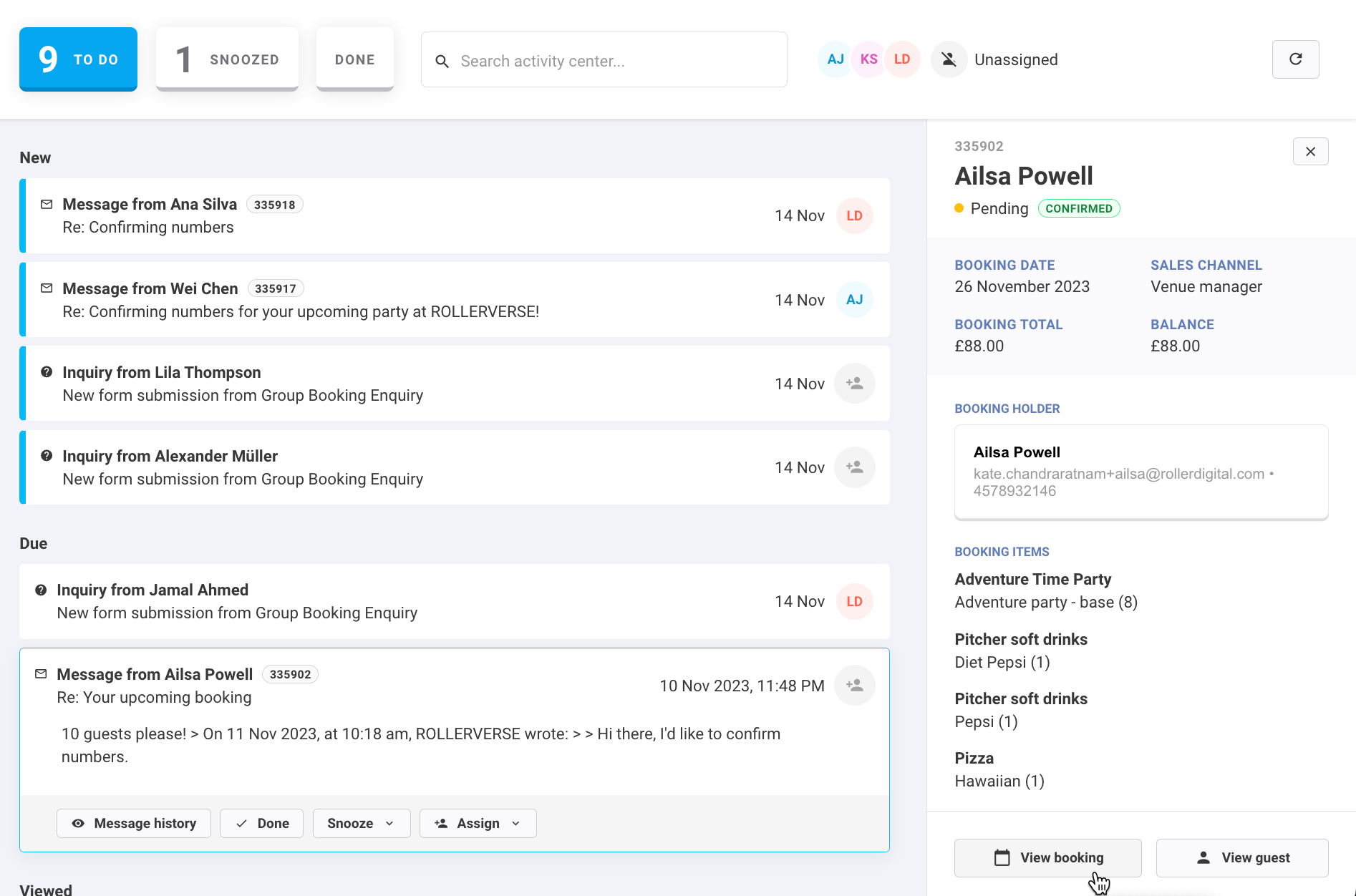
Respond to guest replies from booking or guest activity stream emails. Select a notification to read the message, view guest/booking details or reply.
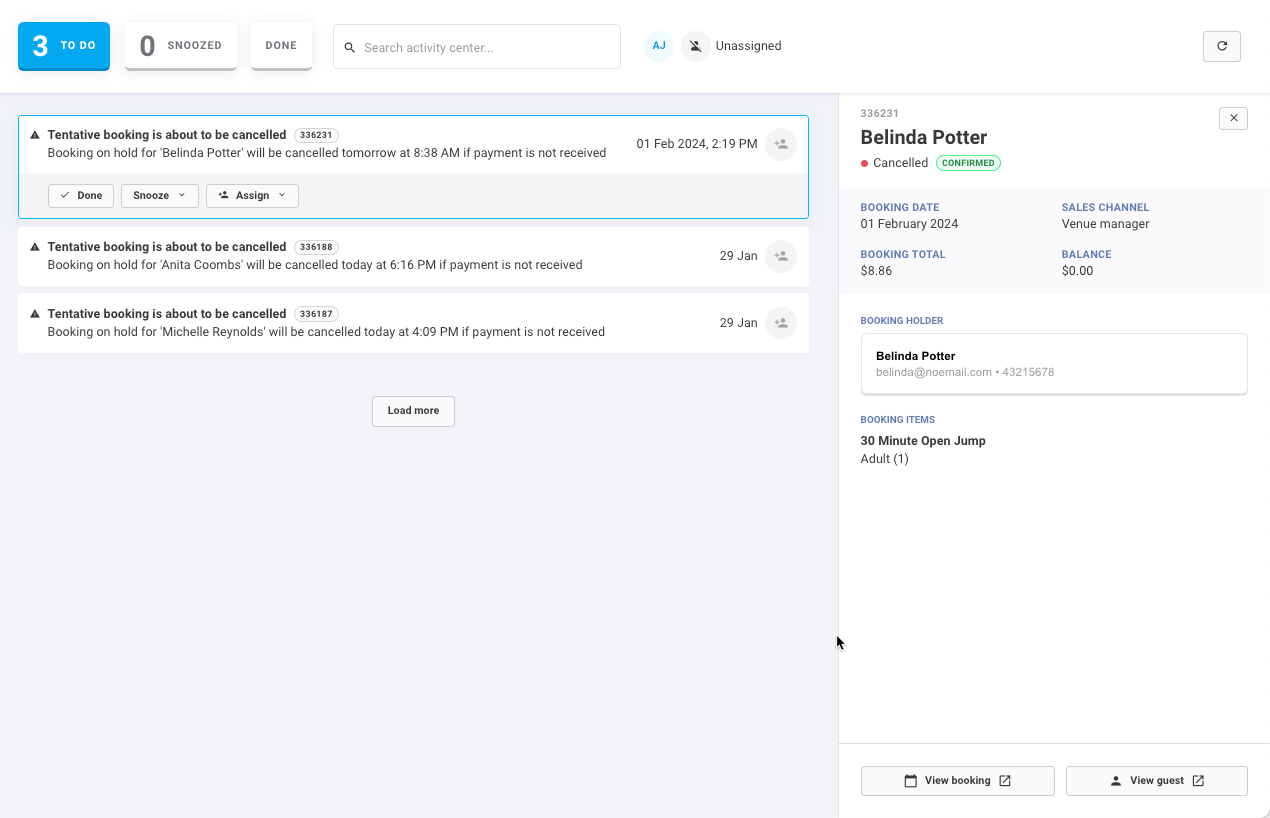
Tentative booking cancelation
Monitor tentative bookings approaching expiration. Select a notification to view the booking, request payment or extend the cancelation deadline.
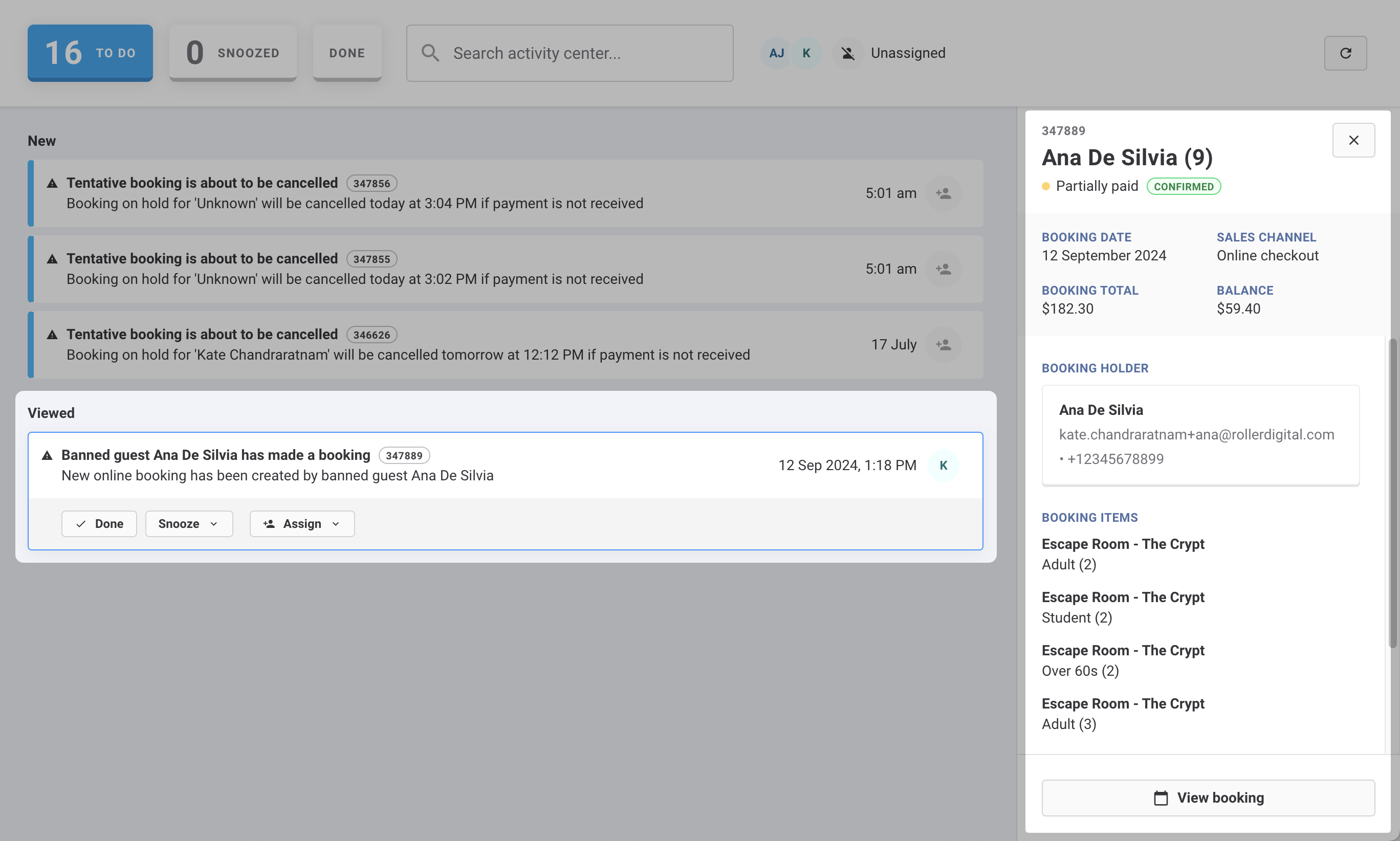
Banned guest alerts
Get alerted when a banned guest books via the online checkout. Select a notification to review the booking details and take the appropriate action.
Party booking updated via online accounts
Receive updates when guests modify their party bookings online. Select a notification to view the changes.
FAQs
Can I create my own task in the activity center?
No. The activity center doesn't currently support creating your own tasks or reminders — it shows the notifications ROLLER sends you, and the ones needing action appear under To-Do. To record a note for your team instead, see the options in How the activity center works above.
Why can a colleague see a notification that I can't?
Activity center notifications are filtered by staff role. From Venue Manager, go to Settings > Notifications to check which roles receive each notification type. Staff also need the Can access activity center permission, which administrator and manager system roles have by default. Notification settings override that permission, so check both. See Permissions by feature and role.
What happens to notifications after I mark them as done?
They move to the Done category. To find one again, use the search box at the top of the activity center, as described in Find specific notifications above.