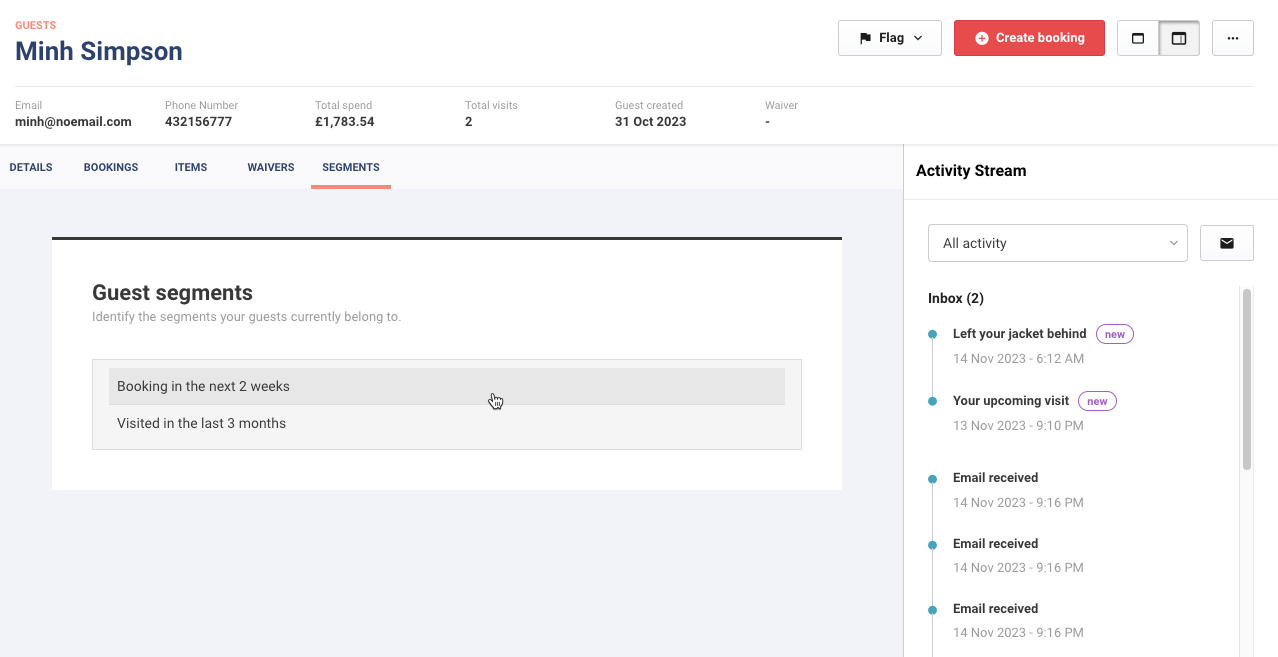
When a booking is created, a waiver is signed (including minors) in ROLLER, or even an inquiry form from ROLLER is submitted with guest details, guest information is stored as a record in Venue Manager.
Access guest records
From Venue Manager, go to Guests > All Guests.
Here you'll find a list of all guests.
The following information can be stored for each guest:
Name
Email
Mobile
Total spend
Joined date
Postcode/Zip code
Total discount
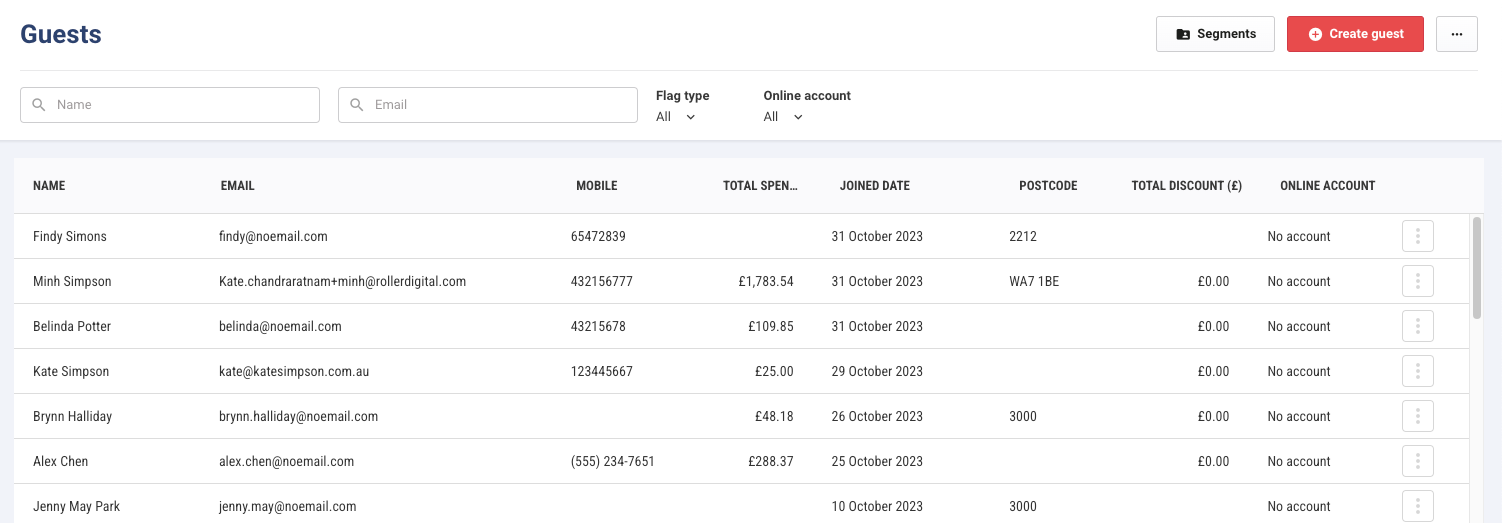
Right-click the grid to customize which columns display. You can also hide or sort columns into ascending or descending order.
Filter or search for guests
Use the filters to fine-tune results by guest flag or online account status.
Search for specific guests by their Name or Email.
View all details for a guest record
Select a guest record in the grid to access all stored details in ROLLER.
At the top, you'll see a summary of the guest's contact details, total guest spend, total visits, the date the guest record was created and if they have any signed waivers.

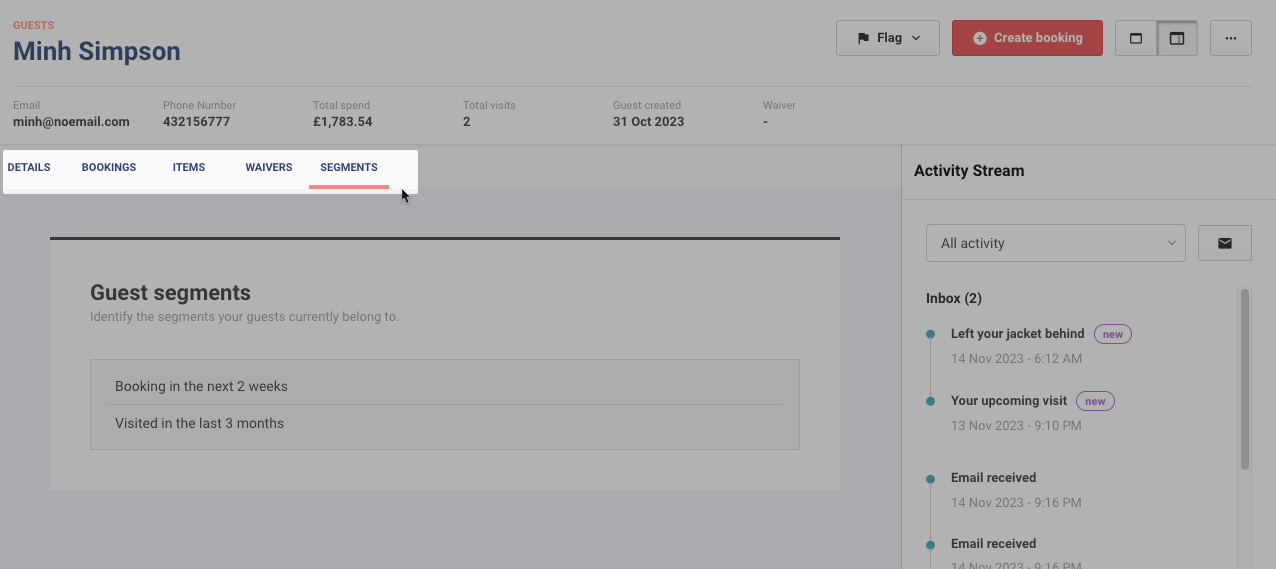
Select a tab to see further details such as contact details, bookings purchased, items that make up the purchased bookings, any signed waivers and any segments you've created that the guest belongs to.
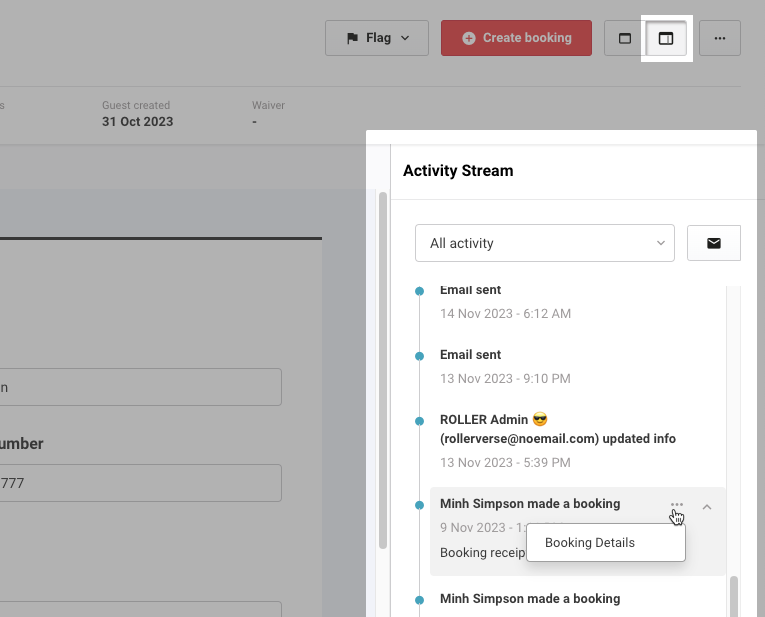
When the activity stream is shown on the right, you can see all guest activity. Hover over an activity to expand further details or access actions you can take for each activity.
Flag a guest
You can also flag a guest to quickly share information about them with your team. From POS or Venue Manager, you and your teams can clearly see the flags when searching for a guest or booking or creating a booking.
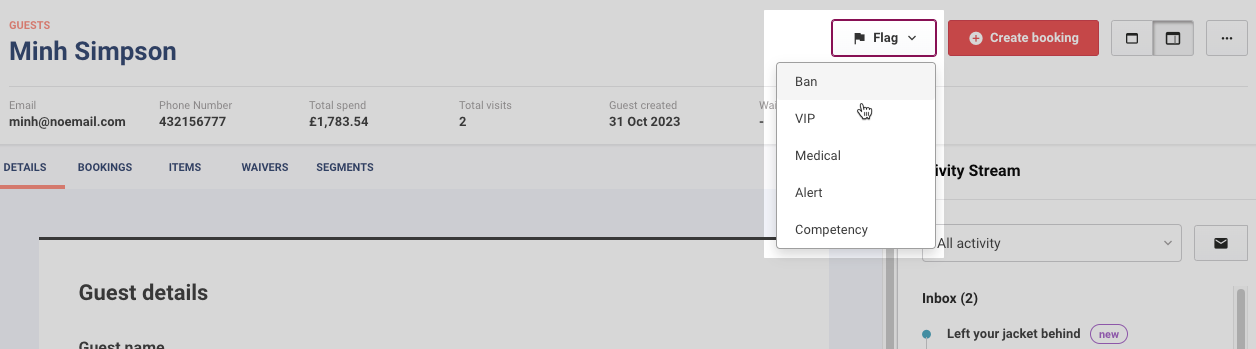
Learn more about the different types of flags available.
Send the guest an email
From the guest activity stream, you can send the guest an email from your ROLLER venue. Any email replies appear in the Activity center in Venue Manager for you to action.
Select the email icon.
Enter the subject and text.
Select Send.
You can also send a guest an email from a booking's activity stream in ROLLER.
Manage guest records
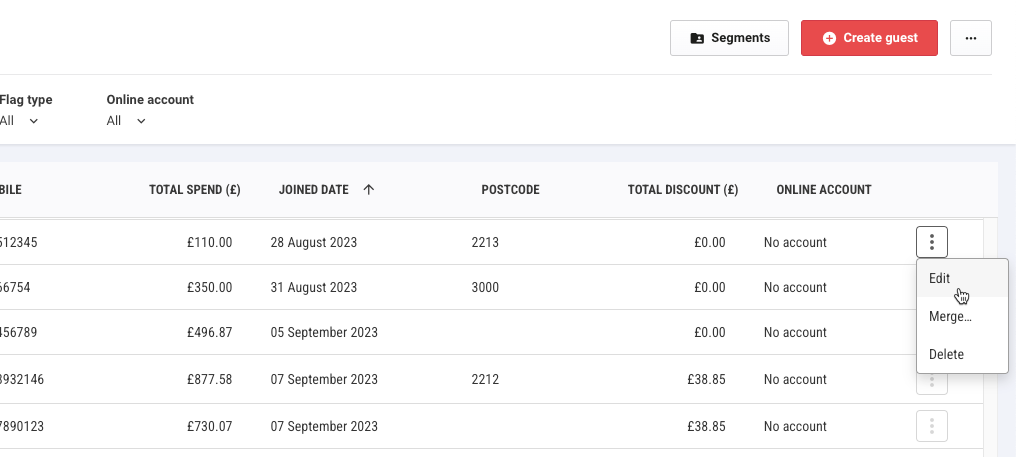
From the options menu (3 dots) for a guest record you can:
Edit the guest's details
Merge the record with a duplicate record
Delete a record
The permission required to merge and delete guest records is Can merge and delete guests. Administrator and manager system roles have this permission enabled by default and any custom roles created based on these roles.
Export guest data
If you want to further analyze your guest data you can export all data into a CSV file.
Select the options menu (3 dots) in the top right, then select Export.

Use guest segments
With guest segments, you can easily segment guest records based on rules that you create. This can help you target specific guests for marketing purposes.
Select Segments at the top right to start creating guest segments. Alternatively, you can access segments from Guests > Segmentation.
To check which segments a guest belongs to, select a guest record, then select the Segments tab. Select a segment from the list to go to its settings page.