Guest segments group guests by what they have in common (eg a birthday coming up, or how much they've spent). Use them to send families a party offer before a birthday, or to reward your biggest spenders. You can also limit discount codes to a segment (eg VIPs, members or local guests).
This guide covers how to build a segment from one or more rules, sync it to Campaign Monitor or export it, and use it to limit a discount.
If you run several venues from HQ, you can define segments once for the whole group. See Set up guest segments at HQ.
Pro plan and above
Create targeted marketing campaigns and automations with guest segmentation. Available on Pro plan and above. To upgrade your plan, contact your customer success manager or the support team.
The video follows one birthday segment from its first rule to syncing it with Campaign Monitor or exporting it (2 minutes).
Create a segment
The permission required to create and manage segments is Can access segment settings. The administrator and manager roles have this permission enabled by default.
Build a segment once and ROLLER keeps its guest list up to date. These steps use guests with a birthday in the next two months as the example.
From Venue Manager, go to Guests > Segmentation > Create segment.
Name the segment after the guests it targets (eg Birthdays in the next two months).
Select Add....
Select an attribute (eg Birthday).
Select a condition (eg Is within the next).
Enter a value (eg 2, then select Months).
Select Add rule.
Check the count under your rules (eg Total: 42 guests). It updates as you add rules.
Select Save.
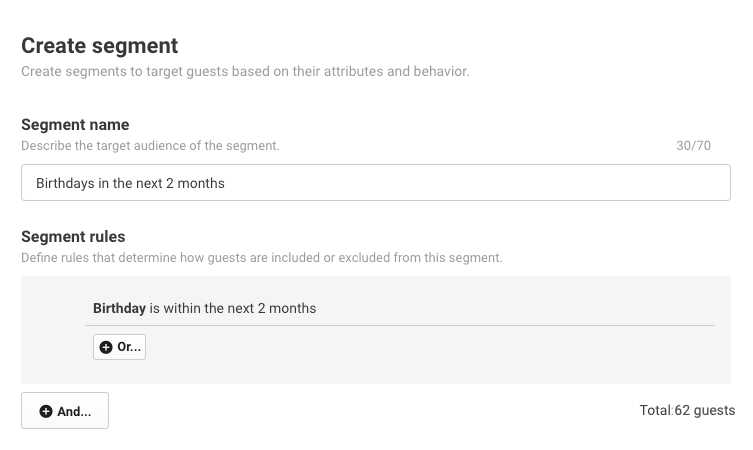
A rule based on a date (eg Is within the next) refreshes the list each night, adding guests who now match and removing guests who don't.
Combine rules with And and Or
Most segments need more than one rule. There are two ways to add one:
Or... adds another condition to the same rule. Guests who match any condition in that rule are included.
And... adds a new rule. Guests must match every rule.
Logic | Who's included | Example |
|---|---|---|
Or... | Guests who match any of the conditions | Members whose status is active or pending activation |
And... | Guests who match every rule | Active members who visited in the last 30 days |
Is on specific dates holds one date or a range of up to 366 days. For dates that aren't next to each other, or a longer span, add another condition with Or.... Conditions for separate dates joined with And... return no guests.
Segment examples
Start from one of these and change the values to suit your venue. Each row lists the rules to add in order.
Goal | Rules to add | Good to know |
|---|---|---|
Guests with a birthday in the next two months | Birthday, Is within the next, 2 months | The list changes each night |
One email a set time before each guest's birthday | Birthday, Is X days away, eg 30 | Each guest is in the list on one day only |
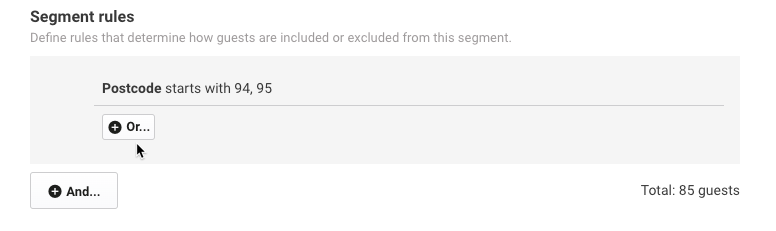
Local guests, or anyone who visited in the last 30 days | Postcode, Starts with, eg 94 (press Enter, then add 95 the same way). Then Or... > Last visit date, Is within the last, 30 days | Starts with covers a whole area, so you don't need an entry for every postcode |
Guests who opted in to marketing emails and aren't banned | Marketing email opt-in, Opted in. Then And... > Flags and bans, Are not, Ban | Use this pair as the base for any email campaign |
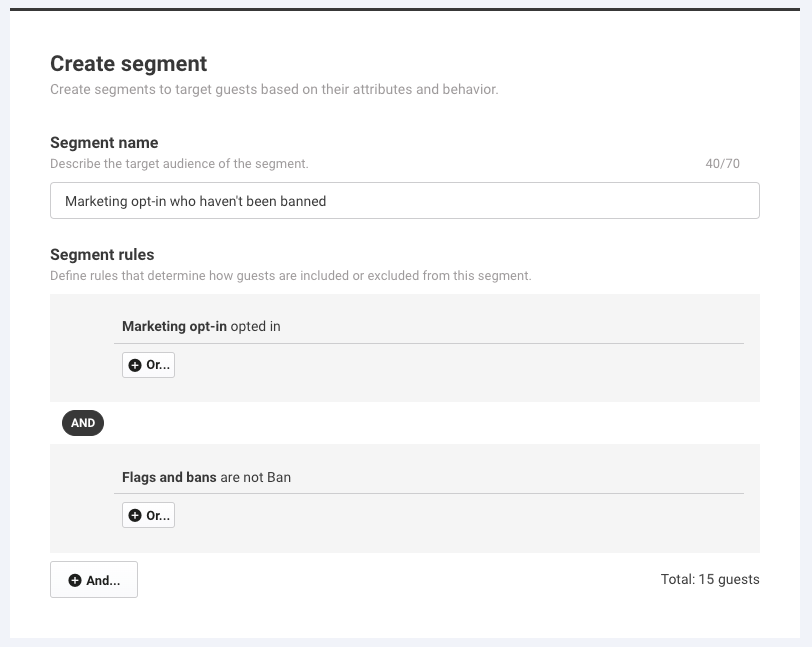
If you'll email a segment, add an And... rule with Marketing email opt-in set to Opted in, so it only holds guests who agreed to marketing. To learn how guests opt in, see Subscriber opt-in.
Sync a segment to Campaign Monitor
Connect Campaign Monitor to sync your segments to its lists automatically, then use them in your Campaign Monitor automations. See the guide Push guest segments from ROLLER to Campaign Monitor.
Export a segment
Using a marketing platform other than Campaign Monitor? Export your segment to CSV, then upload the list to that platform.
The permission required to export segments is Can export guest data. The administrator and manager roles have this permission enabled by default.
From Venue Manager, go to Guests > Segmentation > Segments.
For the segment you want to export, select the options menu (3 dots), then select Export csv.
Select Alert me when complete.
When the export is ready, select the notification icon (bell) at the bottom of the left-side menu.
Select the download report icon.
The file includes each guest's contact details, including their address, suburb, city and state (you can't use those four as segment rules). For a guest who's a minor, it also includes the name of the parent or guardian who signed their waiver.
Limit a discount to a segment
Keep a deal for the guests it's meant for (eg VIPs, members or guests you want to win back).
Open the discount code.
In Additional options, select Limit to specific guest segments.
Choose the segments.
The discount only applies when the guest is identified at the time of purchase. In Venue Manager, staff complete the booking holder information. In online checkout, the guest fills in their own details. ROLLER checks the booking holder first, then any children named on the booking holder's signed waivers.
To learn more, see Discount codes in ROLLER.
Edit, duplicate or delete a segment
The Segments page lists your segments, with each one's name, integration type and total guests.
From Venue Manager, go to Guests > Segmentation > Segments.
For the segment you want, select the options menu (3 dots).
Select one of these:
Edit
Duplicate (the copy is named "Copy of" and the segment's name)
Sync all integrations (syncs to its Campaign Monitor lists)
Delete segment
Export csv
Deleting a segment can't be undone. Any discount limited to that segment stops applying.
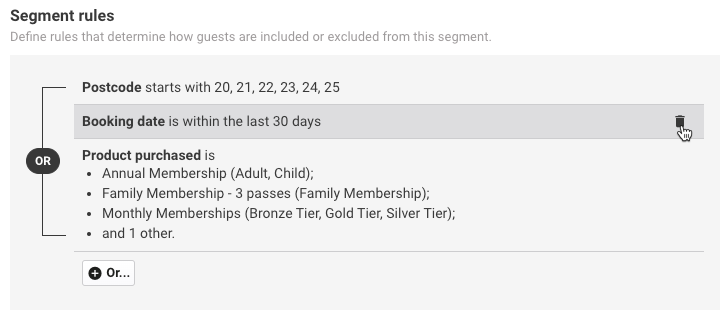
To remove one rule, open the segment with Edit, hover over the rule and select the delete icon (trash can). Then select Save.
Segment rules reference
Each rule matches guests on one thing in their record.
Rule | Matches guests by | Filters |
|---|---|---|
Birthday | Their birthday (day and month), whatever the year | Date filters |
Date of birth | Their exact date of birth, including the year | Date filters |
Last visit date | The date they last visited | Date filters |
Booking date | The visit date of a booking they made | Date filters |
GX Score response date | The date they completed a GX Score survey | Date filters |
Membership purchase date | The date they bought a membership | Date filters |
Membership expiry date | The date their membership expired | Date filters |
Postcode | Where they live | Starts with, Is equal to, Is not equal to |
Product purchased | A product they bought | Is in |
Whether they agreed to marketing emails | Opted in, Opted out | |
Lifetime spend | Their total spend | Is equal to, Is more than, Is less than |
Average spend | Their average spend | Is equal to, Is more than, Is less than |
The star rating they gave | Is equal to, Is above, Is below | |
Their membership status | Is active, Is suspended, Is canceled, Is expired, Is pending activation, Is pending cancellation | |
Their membership type | Is recurring members, Is fixed cost members | |
Booking status | The status of their bookings | Is booked, Is canceled |
A flag or ban in their record | Are, Are not |
The date filters are Is current date, Is within the last, Is within the next, Is X days away, Is X days ago and Is on specific dates.
Birthday finds guests by the day and month they were born, whatever the year. Date of birth matches the exact date, including the year: use it for ages.
FAQs
Why can't I see Segmentation in Venue Manager?
Check your plan and your permissions. Guest segments are available on Pro plan and above, and on other plans Segmentation shows as locked, with an option to request an upgrade. Your role also needs the Can access segment settings permission. Ask an administrator to turn it on for your role (see Permissions by feature and role).
Can I see which guests are in a segment?
Export it. Venue Manager shows how many guests match (the count as you build the segment, and Total guests on the Segments page), but it doesn't list them on screen. Follow the steps in Export a segment, above.
Can ROLLER send emails to a segment?
ROLLER builds the list, and your email platform sends the email. Sync the segment to Campaign Monitor, or export it and upload it to another platform. You can also send through ROLLER + Patch Retention, which needs a ROLLER API subscription and a Patch account.
Why does Campaign Monitor show fewer guests than ROLLER?
Campaign Monitor counts email addresses, and ROLLER counts guests. Children often share a parent's email address, so several guests in ROLLER can be one subscriber in Campaign Monitor.
How do I find guests who haven't visited for a while?
Rules can't leave out a date range, so select the period when they last visited instead. Add Last visit date, select Is on specific dates and pick a range before your cutoff (eg 1 January to 31 July for guests who haven't been back since August). For more than 366 days, add another condition with Or....
Why isn't a guest in my segment, or why is someone there I didn't expect?
Check these:
No date of birth: Birthday and Date of birth rules skip guests with no date of birth in their record.
Or instead of And: conditions joined with Or... include guests who match any one of them. Use And... when guests must match every rule.
Not refreshed yet: saving runs the segment again in the background. Refresh the page if the count looks out of date. Date rules also refresh each night.