Conveniently manage online accounts from Venue Manager, and have the ability to see a guest’s account status, as well as have the ability to lock and unlock a guest’s account.
This article will walk through how you can manage your online accounts in Venue Manager.
Pro feature
Save time and reduce operating costs by encouraging guests to create an online account with your venue. To unlock this feature with a Pro plan and above, contact your customer success manager or the support team.
When to use
Managing online accounts in Venue Manager is convenient because it gives you the ability to:
View a guests's online account status with your venue.
Lock a guest's account if unusual or suspicious activity is detected.
To enable online accounts in progressive checkouts, learn more.
Requirements
Venues must be using ROLLER's progressive checkouts and have online accounts enabled.
Venues must be using ROLLER Payments.
How it works
View a guest’s online account status by looking at their guest profile in Venue Manager.
Lock (and unlock) guest accounts by selecting this action on the guest profile in Venue Manager.
View a guests online account status
To view whether a guest has an active online account, a locked online account or no online account with your venue, follow the steps below.
From Venue Manager, go to Guests > All guests.
Under the Online account column, you’ll see one of three options for each guest, depending on their account status:
Active | The guest has an active account with your venue. |
Locked | The guest has an online account with your venue, but it is currently locked (they are unable to sign in). |
No account | The guest does not have an account with your venue. |
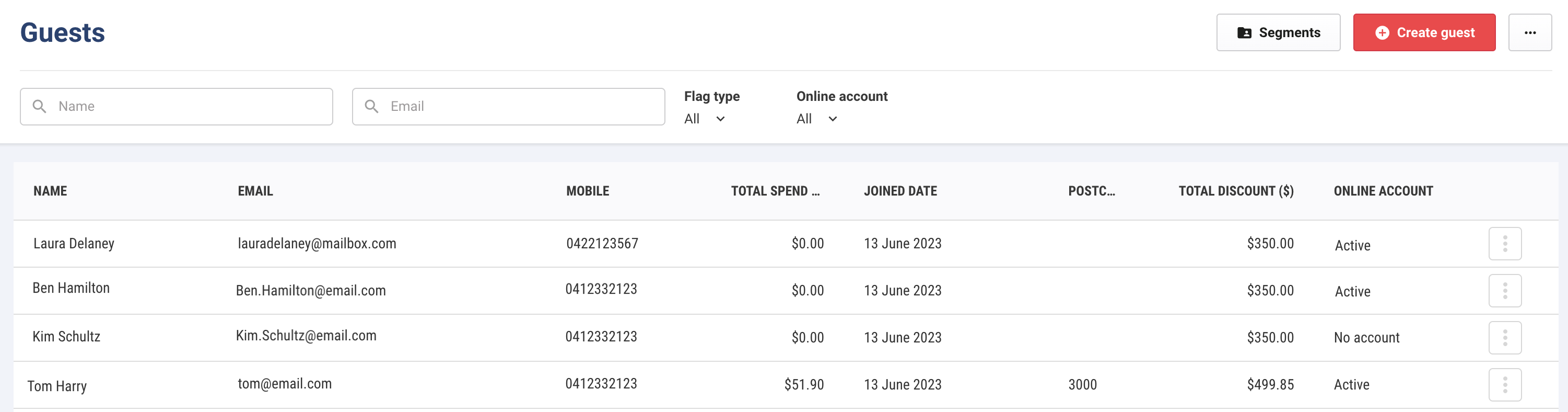
To see how many guests have an active online account with your venue, you can filter by selecting the dropdown menu under Online account. Then select Active. Follow the same process to see all guests with a Locked account. The default filter is set to All.

Lock a guest's online account
Sometimes it may be necessary to lock a guest’s online account. For example, a guest may have noticed suspicious activity on their account. You can then lock the account and protect your guest’s payment details. To lock a guest's online accounts, follow the steps below.
From Venue Manager, go to Guests > All guests.
Search for the guest name.
Select the options menu (3 dots) at the end of the guest record.
Select Lock online account.
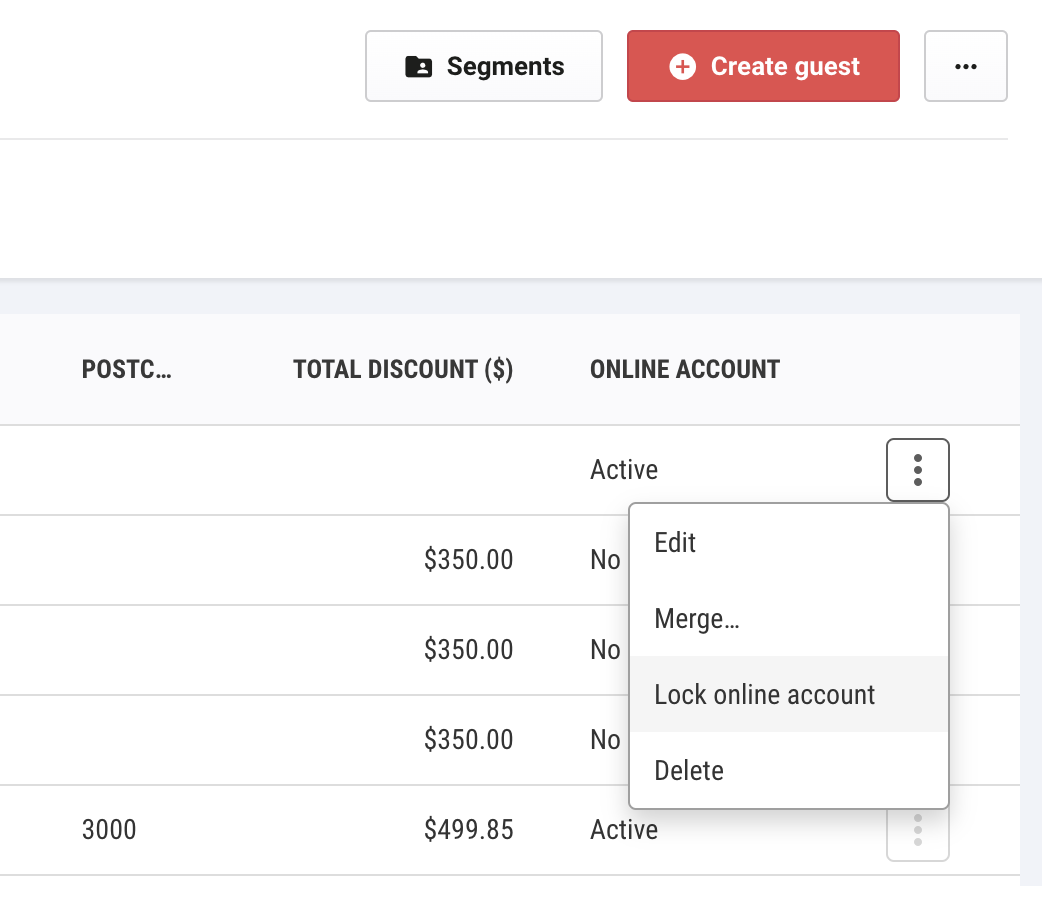
Once you have locked an online account, the guest cannot sign in again until you have unlocked the account. This won’t prevent the guest from using their passes, memberships and gift cards, they will just be unable to log into their account and make purchases using the saved payment method, or make any changes to their payment method.
To unlock the guest's account, follow the steps above and then select Unlock online account from the menu.
You can also confirm whether a guest's account is locked by viewing their guest profile in Venue Manager.
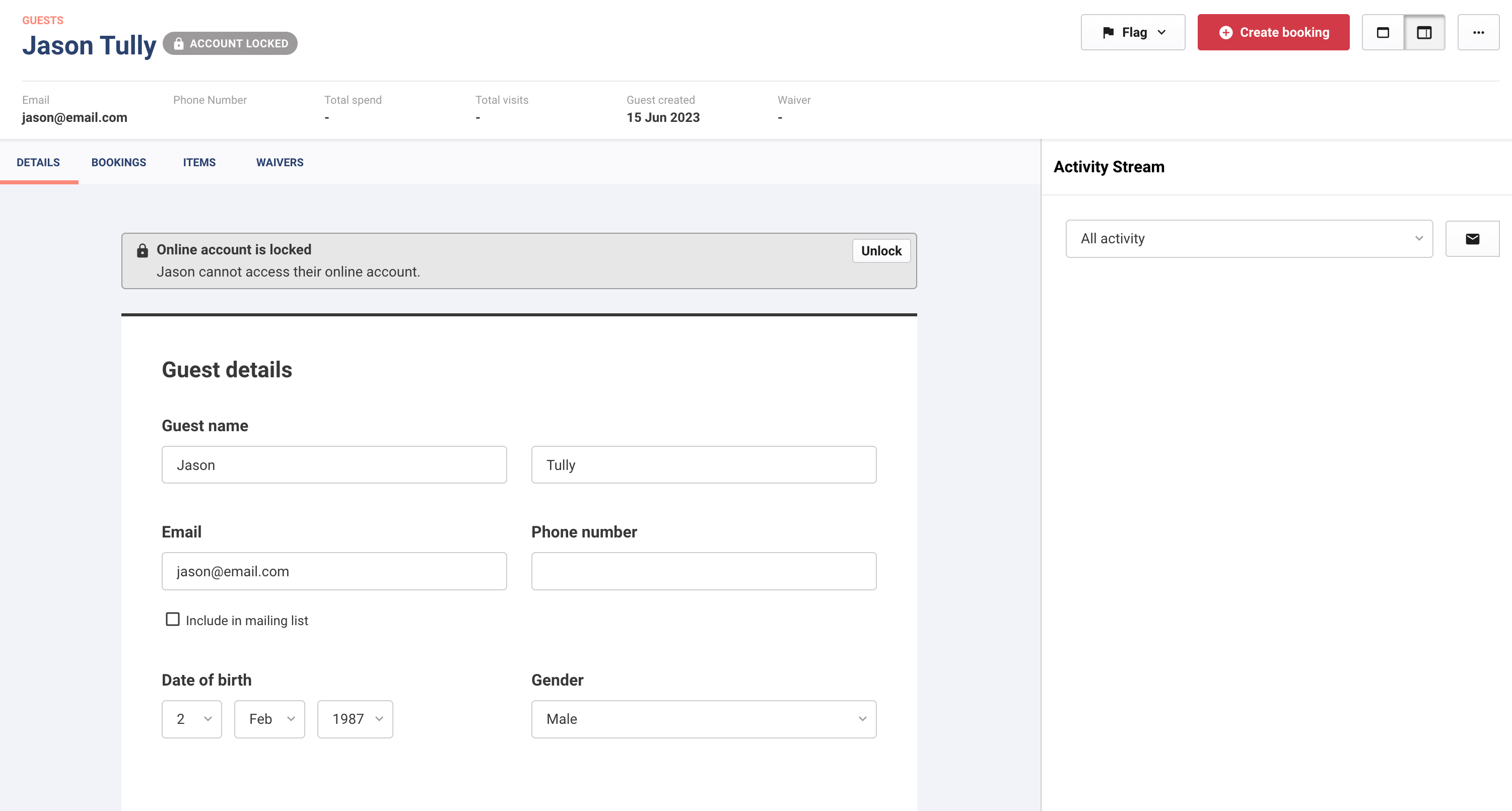
You can unlock the online account from here too by selecting Unlock in the information banner.