This article you’ll see how to make changes to existing guest data and merge duplicate records.
The permission required to merge and delete guest records is Can merge and delete guests. Administrator and manager system roles have this permission enabled by default and any custom roles created based on these roles.
Edit a guest record
From Venue Manager, go to Guests and All Guests.
Search for your guest record by entering their Name or Email and press enter.
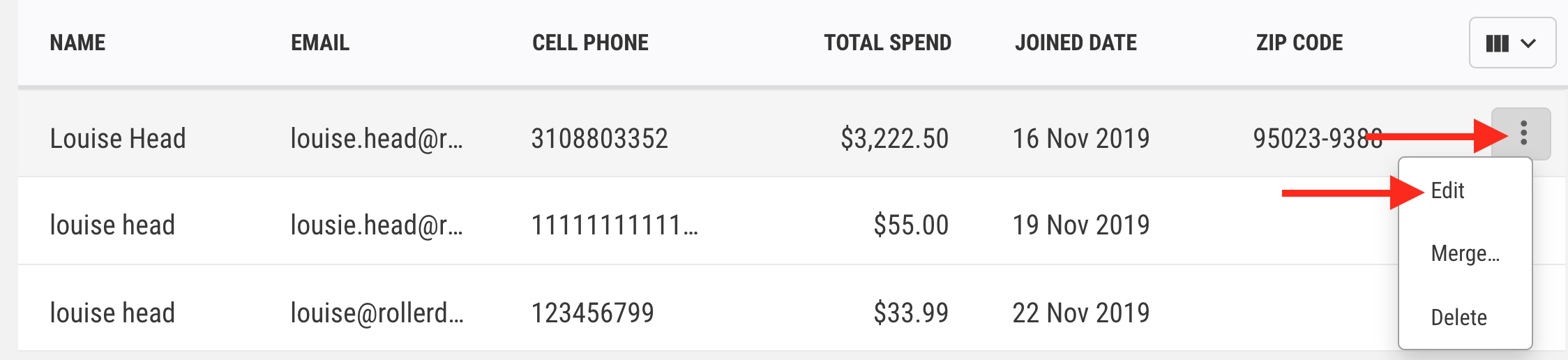
Once you've found the record select the options menu (3 dots), then select Edit.
Adjust the information or add any details as required.
Select Save to publish the changes.
Merge guest records
For the scenario where a single guest has multiple records, you can merge these records.
From Venue Manager, go to Guests and All Guests.
Search for your guest record by entering their Name or Email and press enter.
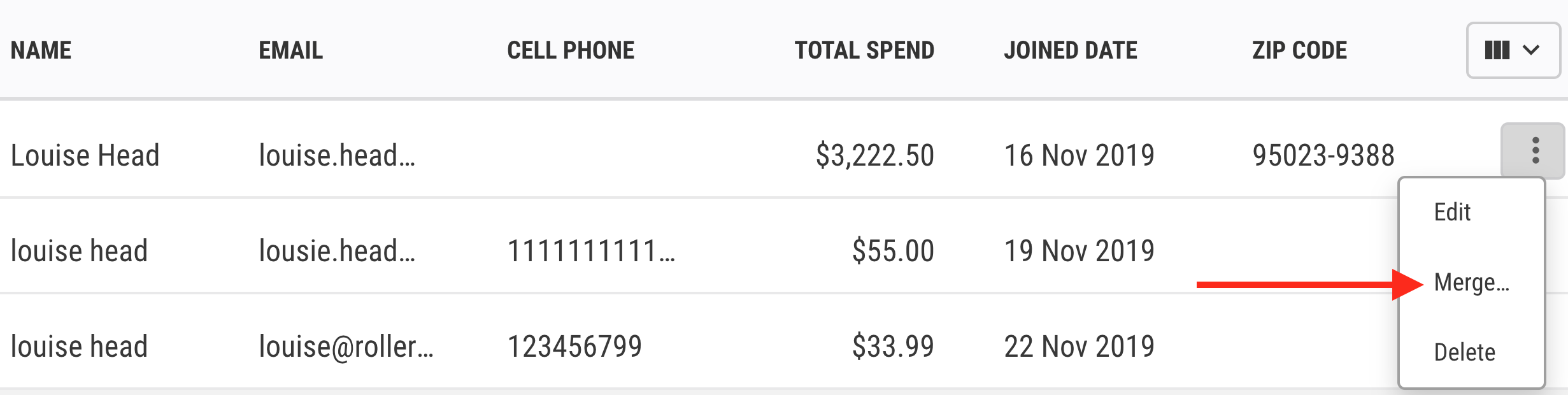
Select the options menu (3 dots), then select Merge.
A pop-up prompts you to search for the other record you want to merge with
All conflicting fields will be highlighted by a yellow exclamation symbol. You will need to choose from the drop-down menus which details you want to keep.
Select Merge guests.
Select Yes, merge guest option to confirm. This action is not reversible.
A pop-up prompts you to search for the other record you want to merge with.
All conflicting fields will be highlighted by a yellow exclamation symbol. You will need to choose from the drop-down menus which details you want to keep.
Select Merge guests.
Select Yes, merge guest option to confirm. This action is not reversible.
To avoid duplicate records, when a guest attempts to create a new account using an existing email address or phone number, ROLLER prompts guests to verify their account with SMS.