Attract new guests during off-peak periods by listing your ROLLER products on Groupon, an online marketplace for limited-time discounted offers.
Groupon is an online marketplace that promotes limited-time discounted offers, helping venues like yours attract new guests, especially during off-peak periods. Guests purchase deals through Groupon’s platform, then redeem them at your venue using ROLLER.
This guide shows you how to set up and use the Groupon integration with ROLLER.
Groupon is currently available to venues located in the US, UK and Germany.

What you can do with the ROLLER + Groupon integration
Integrating Groupon with ROLLER allows you to:
List your products in ROLLER on the Groupon website/app.
Manage capacity and pricing directly within ROLLER for Groupon bookings.
Schedule availability for specific ticket types in ROLLER, automatically reflected on Groupon.
Redeem Groupon tickets at POS using the same process as other ROLLER bookings.
Track Groupon redemptions and external payments using ROLLER Analytics and reports. Note: revenue is only recognized after voucher redemption in-venue at POS.
Sync sales updates automatically between ROLLER and Groupon (may take up to an hour to update).
Each ticket variation must be configured as tax-inclusive in Advanced options. This is a mandatory Groupon requirement for correct integration.
Quick summary
Topic | Key Info |
|---|---|
Supported product types | Session and standard pass product types in ROLLER, and any included stock items/add-ons. |
Payment type/method | Voucher |
Sales channel | API |
Redemption | POS (same as any booking in ROLLER) |
Tax requirement | Tax inclusive pricing per ticket variation |
Reporting tools | Payment type/method filter > Voucher - to view Groupon transactions |
Supported regions | US, UK, Germany |
Supported ROLLER product types and features
Groupon products are configured as regular products in ROLLER with a few additional settings. Currently, the product types and features are:
Supported products |
|
Supported product features |
|
Product descriptions or images from ROLLER. Add these directly in Groupon.
Getting started with Groupon
You must have an account with Groupon to get started with this integration.
You must first:
Decide which ROLLER products to offer on Groupon.
Negotiate pricing and terms with a Groupon rep.
If you don’t have a contact, connect through Groupon’s partner site, or contact your customer success manager or the support team.
Once you have completed the above steps, it's time to set up your Groupon products in ROLLER.
An administrator staff level is required to edit Groupon-specific fields for ROLLER ticket variations.
Step 1: Create and configure Groupon products in ROLLER
Set up your Groupon offerings as session or standard pass products in ROLLER, including ticket variations, prices and availability.
Each product's ticket variation must be set to "tax inclusive" in its advanced settings. This is required by Groupon for the integration to work correctly. If your venue normally uses tax-exclusive pricing, avoid including other items in Groupon bookings, as all items in the transaction will be treated as tax-inclusive.
From Venue Manager, go to Products > Create product.
Select a new session or standard pass for your Groupon offer.
Configure the product with variations, prices and availability.
If you are a HQ venue, you can create Groupon offers as HQ products and then add them to individual managed venues, just as you would with other products.Set each ticket variation to be tax inclusive. Groupon requires that your ticket prices include all taxes. You must do this in the advanced options of each ticket.
In the product settings, select the ticket variation.
Select Advanced options to reveal the ticket's tax settings.
Select Tax override, then select Tax inclusive, for the tax rate you want. View the standard pass example below. You won't be able to select Item is sold on Groupon until you configure the ticket price to be tax inclusive.
In the ticket variation’s advanced options, select Groupon > Item is sold on Groupon. You won’t be able to select this option until the ticket type is configured as tax-inclusive (Groupon requirement).
Complete the following mandatory fields from Groupon products:
Sale price – The price the item is sold for in Groupon
Original price – The value of the item before the Groupon discount. This shows as a strikethrough price on the Groupon checkout.
Merchant price – The amount your venue is paid by Groupon. This value is used in ROLLER to report external payments and should match your agreement with Groupon to ensure accurate financial reporting.
(Optional) Tickets for this product do not expire (standard passes only) – below the Groupon Merchant price field, select Tickets for this product do not expire to change how ROLLER recognizes revenue for the product. Selecting this option means revenue is recognized only when they are redeemed at POS, not when they expire (eg due to no-shows).
Enabling Tickets for this product do not expire for a standard pass ticket variation means revenue for tickets from this product is only recognized when redeemed, not on expiry:
Groupon expects unused vouchers to be recognized as revenue when they expire.
With this setting enabled, ROLLER intentionally doesn’t recognize revenue on expiry — revenue is only recognized when the ticket is redeemed.
Expired but unused Groupon vouchers won’t appear in the Revenue Recognition Report.
If revenue appears to be missing from the Revenue Recognition Report for your Groupon standard pass products, check whether this standard pass ticket variation setting is enabled.
.png)
Step 2: Share ROLLER Groupon product IDs with Groupon
ROLLER product IDs must be shared with Groupon for products associated with your deals.
Find these in Venue Manager > Settings > Integrations > Groupon.
.png)
Step 3: Additional configuration
Find these settings in Venue Manager > Settings > Integrations > Groupon.
Disable date selection (standard pass only)
This removes the calendar on the Groupon checkout for standard pass products. When selected, Groupon creates bookings with a booking date corresponding to the day of the transaction and should be used for passes that are valid within a specified date range from the purchase date.Report Groupon merchant price as revenue
This will use the Groupon merchant price (the value paid to you, rather than the value paid by the guest) as the reported external payments received and revenue value in ROLLER.
.png)
Modify products being sold through Groupon
Once your products are live on Groupon, any modifications to the product name, pricing and availability in ROLLER may take up to one hour or more to sync through to Groupon.
Guest's view on Groupon checkout
The ROLLER fields and settings that are displayed on the Groupon checkout are:
Ticket names and prices (not product name; this is configured in Groupon)
Groupon-specific settings
Available dates/times
When a Groupon deal is purchased, the guest will receive a confirmation email from Groupon that contains their ROLLER booking ID.
This can be scanned or typed into the ROLLER POS search field to locate and redeem the booking on entry to your venue.
Redeem Groupon bookings at POS
Groupon bookings are fully integrated into the ROLLER platform and behave like any booking.
Booking details
Groupon bookings contain guest details and the tickets purchased, just like regular bookings.
You can view, manage and interact with these bookings in Venue Manager or at POS.
Redeeming at POS
Staff must redeem Groupon bookings at ROLLER POS using the same process as for any other booking.
Staff can also:
Assign waivers to guests
Add extra items to the booking (eg food, merchandise, upsells)
Capture guest details if not already completed
You must correctly redeem Groupon bookings at POS as this information will be sent back to Groupon. If the booking is not redeemed, then it may be eligible for a refund if the guest asks for one, as Groupon have a very liberal refund policy. All refunds are managed by Groupon.
Redeem flexible-use passes sold on Groupon
Standard passes sold through Groupon can be redeemed at POS like any other booking in ROLLER.
However, if a Groupon standard pass functions more like a general-use voucher, where guests can turn up and choose a session on the day, you’ll need a way to assign them to a specific session time to manage capacity.
To manage flexible-use passes, create a $0 session pass product in ROLLER. This lets you allocate guests into scheduled sessions while tracking capacity.
Here’s how it works:
Create a product in ROLLER with:
A session schedule (eg jump times or activity slots)
A price of $0 (since the guest has already paid Groupon)
At POS:
When the guest arrives with their Groupon pass, search for their Groupon booking, and redeem the booking.
Complete the $0 booking to assign them to a session. No additional payment is required — they’ve already paid Groupon.
Now the guest:
Is allocated to a session.
Your capacity limits are respected.
Report on Groupon sales
When a guest purchases a Groupon, it creates a booking in ROLLER. These bookings appear in ROLLER reports, but there are key differences in how the payment is recorded.
Because the payment is made through Groupon — not through ROLLER Payments — the transaction is recorded differently depending on your venue’s configuration.
There are two ways ROLLER can record Groupon transactions:
API integration with Groupon:
When Groupon is connected to ROLLER via API (bookings created automatically when guests purchase on Groupon), payments appear under the API Channel with Cheque as the payment method.
These are bookings created and prepaid through the Groupon integration.Manual POS Groupon method:
When venues use a manual POS method (no API integration — staff select “Groupon” as a payment type at POS), payments appear under the POS Channel with Voucher as the payment method.
These are bookings entered manually at POS when guests present their Groupon voucher.
This ensures Groupon sales are correctly separated from other transactions, such as credit card or cash payments.
Report specifically on Groupon transactions
To report specifically on Groupon transactions (external Groupon payment received - not recognized if your venue is using accrual accounting):
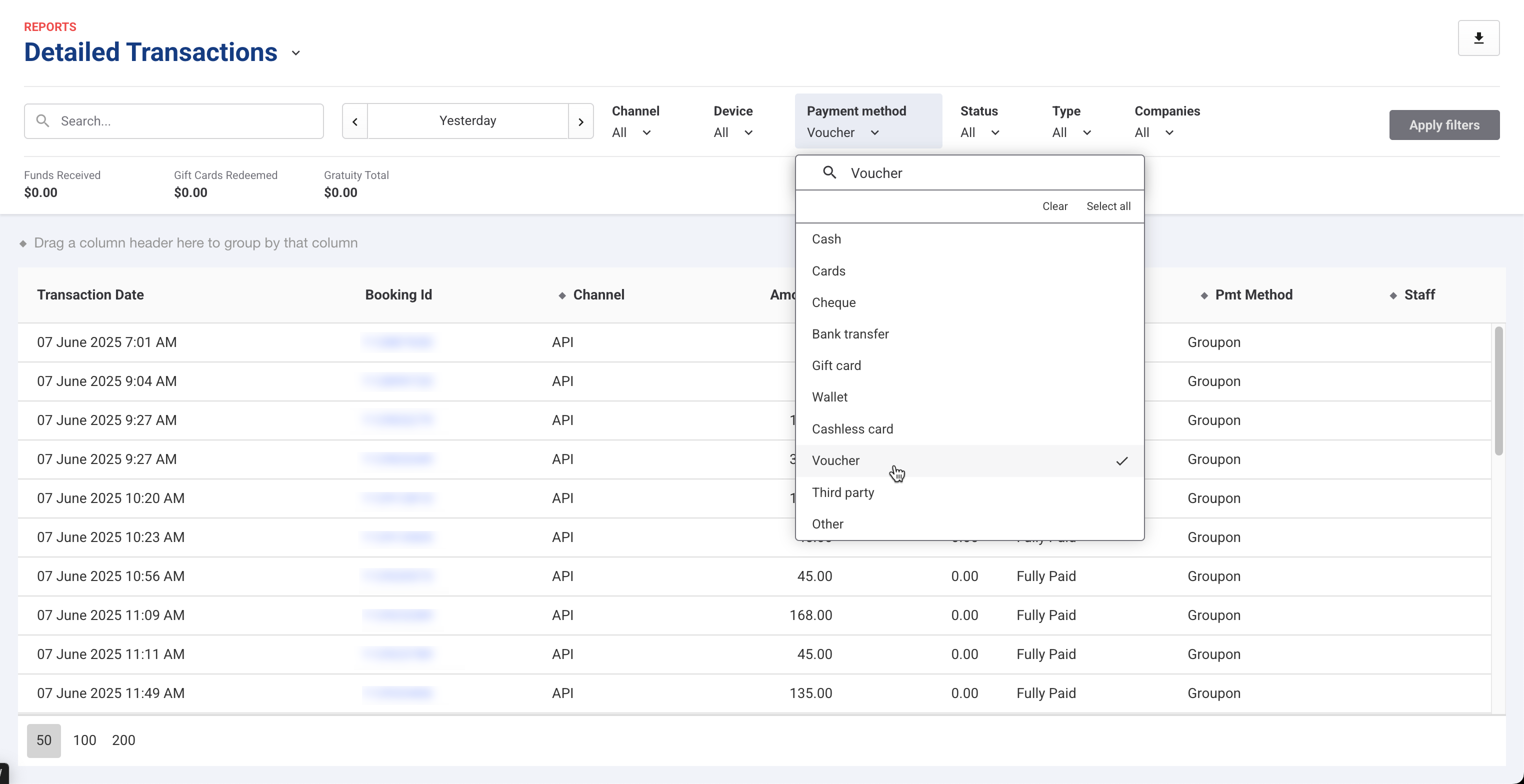
Open a report like Detailed Transactions and filter by Voucher to identify Groupon transactions.
Use the filter and select "Voucher" as the payment type.
Report on Groupon sales numbers
To track Groupon-related sales volume and net revenue, use the Detailed Product Sales report in ROLLER. This report gives you full visibility into Groupon product performance and payments received via external platforms.
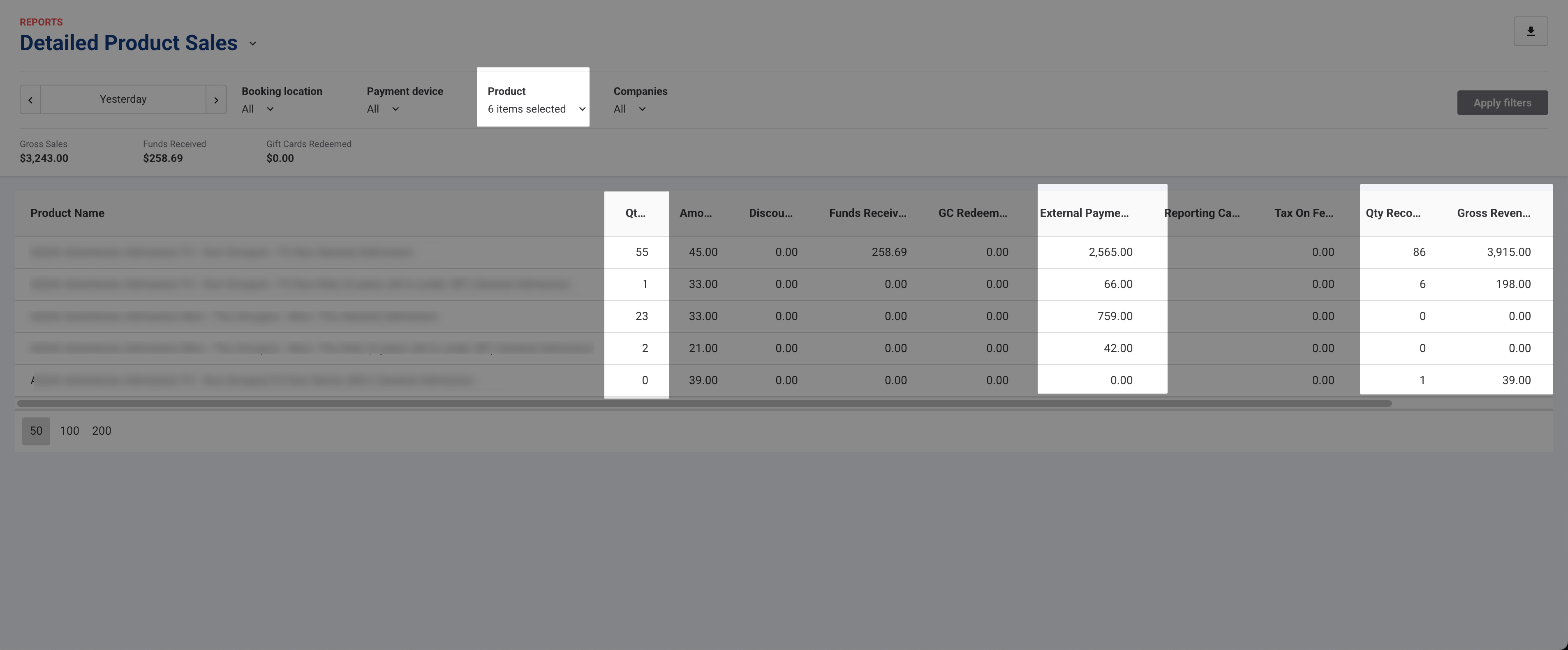
Use the Detailed Product Sales report (Reports > All reports > Detailed Product Sales).
Use the Product filter to select only the Groupon-specific products you’ve set up.
Add the "External Payments" column:
Right-click in the table, choose External payments, and view how much Groupon has paid your venue.
Select “External Payments” to display the payments received via Groupon (not via ROLLER Payments).
You can now view for the selected timeframe:
Number of tickets sold through Groupon (Quantity sold).
Total amounts received from Groupon redemptions (External payments).
Total tickets redeemed at POS (Quantity recognized).
Save as a custom view (optional but recommended):
Select the down arrow next to the report title.
Then, save the view to reuse this configuration later, without reapplying filters or re-adding columns.
Tax is always inclusive
If tax is applied to a Groupon ticket, the sale price for tickets in Groupon will always be tax-inclusive, regardless of your venue's default tax setting.
To enable this, you must configure each ticket’s tax settings individually in the ticket's advanced options in the standard or session pass product settings, as this cannot be set at the product level.
You won't be able to set up the integration without setting each Groupon product ticket variation to tax-inclusive in ROLLER. Refer to the section above to see how to do this.
For example, if you set a $10 Groupon ticket with a 5% tax rate, tax is backed out from the $10 (ie $9.52 + $0.48 tax).
FAQs
What is the purpose of integrating ROLLER with Groupon?
The integration allows venues to list their products on Groupon, helping to attract new guests during off-peak periods through limited-time discounted offers.
Which regions currently support the ROLLER + Groupon integration?
The integration is available for venues located in the US, UK, and Germany.
What types of products can be listed on Groupon through ROLLER?
You can list session passes, standard passes, as well as stock items, and add-ons attached to session or standard passes.
Is it necessary to set ticket prices as tax-inclusive for Groupon products?
Yes, each ticket variation must be configured as tax-inclusive in the ticket’s advanced options in the product’s settings, as this is a mandatory requirement for correct integration with Groupon.
How can I track Groupon redemptions and payments in ROLLER?
You can track Groupon redemptions and external payments using ROLLER Analytics and reports, specifically by filtering for voucher transactions.
Do I need a Groupon account to use the integration with ROLLER?
Yes, you must have an account with Groupon to get started with the integration.
How long does it take for product modifications in ROLLER to sync with Groupon?
Any modifications to product name, pricing, and availability in ROLLER may take up to one hour or more to sync through to Groupon.
Can Groupon bookings be redeemed at the ROLLER POS?
Yes, Groupon bookings are fully integrated into the ROLLER platform and can be redeemed at the POS using the same process as any other booking.
What should I do if I want to report specifically on Groupon transactions?
To report specifically on Groupon transactions, you can open a report like Detailed Transactions and filter by Voucher to identify Groupon transactions.