Whether it's a group of friends hitting the bowling lanes or a full team booking laser tag, larger groups often expect a discount for buying in bulk. A quantity-based price rule automatically adjusts ticket prices based on the number of tickets purchased in a single transaction. This way, you can easily incentivize larger bookings by offering tiered discounts as the cart size increases. Prices update automatically across checkout, POS and Venue Manager.
Use this guide to build the rule. To apply it to a product afterwards, see Apply a price rule to products.
The permission Can manage price rules is required to create and edit price rules. The permission Can edit products is required to apply the price rule to products.
Why use quantity-based pricing
Use quantity-based rules when you want to:
Goal | Venue example | How to use it |
|---|---|---|
Encourage larger bookings | Bowling alley | Offer lower per-person pricing for 5+ players to fill under-capacity lanes |
Fill session capacity | Laser tag or escape room | Create tiered pricing that rewards full teams (eg 2–3 players standard, 4–6 discounted) |
Increase total spend | Indoor play center | Reward larger bookings with "4+ guests save $5 each" to lift the average basket size |
Use capacity efficiently | Waterpark or trampoline park | Tier pricing for general entry to drive larger session bookings |
How quantity-based price rules work
A quantity-based rule automatically adjusts the price per ticket based on how many tickets a guest buys for the same session or date.
Each rule uses tiers, which are price ranges that trigger new pricing as the booking quantity increases.
Ticket type | 1–2 tickets | 3–4 tickets | 5+ tickets |
|---|---|---|---|
Adult | $40 | $36 | $32 |
Child | $30 | $27 | $25 |
For example, if a guest adds a third ticket to their booking, the price per ticket instantly drops to the next tier.
You'll configure these tiers when you create your rule, then apply the rule to one or more of your products, and set the actual prices for each tier.
To check this rule type works with your product, see How price rules work with different product types. For where the rule prices and what happens when a booking changes later, see Which sales channels a price rule applies to.
How quantity thresholds are calculated
Quantity tiers count the total number of tickets purchased for the same product and session time.
Combines across variations: Adult, Child, and Concession tickets for the same session combine to unlock a quantity tier.
Does not combine across sessions: Tickets for different dates, times, or products are evaluated separately and will not combine toward a tier threshold.
Before you begin
Check the product type first. Quantity-based rules work on session passes, standard passes, and packages containing a single pass. They do not work on party packages. See How price rules work with different product types.
Check your ticket variations. Quantity-based rules cannot be applied to group ticket variations (eg "Admit 4") because they are already priced as a single bundle.
Check your session settings. Price rules cannot be applied to products that have consecutive sessions enabled.
Step 1: Create a quantity-based price rule
Define how your tiers work and how tickets are counted.
From Venue Manager, go to Products > Price rules > Create price rule.
Select Quantity-based pricing.
Enter a Price rule name (eg Buy More and Save Admissions).
Choose how tickets are counted to qualify for discounted tiers:
Any variation counts all ticket types together to reward total session size. Example: 2 Adults + 1 Child = 3 tickets qualify for the "3+" price.
Specific variation counts each ticket type separately to apply discounts by ticket type. Example: 3 adults qualify for the 3+ price; 2 Adults + 1 Child don't.
Add your quantity tiers, the ticket ranges that trigger different prices. Keep tiers simple, as two or three is usually enough. For example:
1–2 tickets
3–4 tickets
5+ tickets
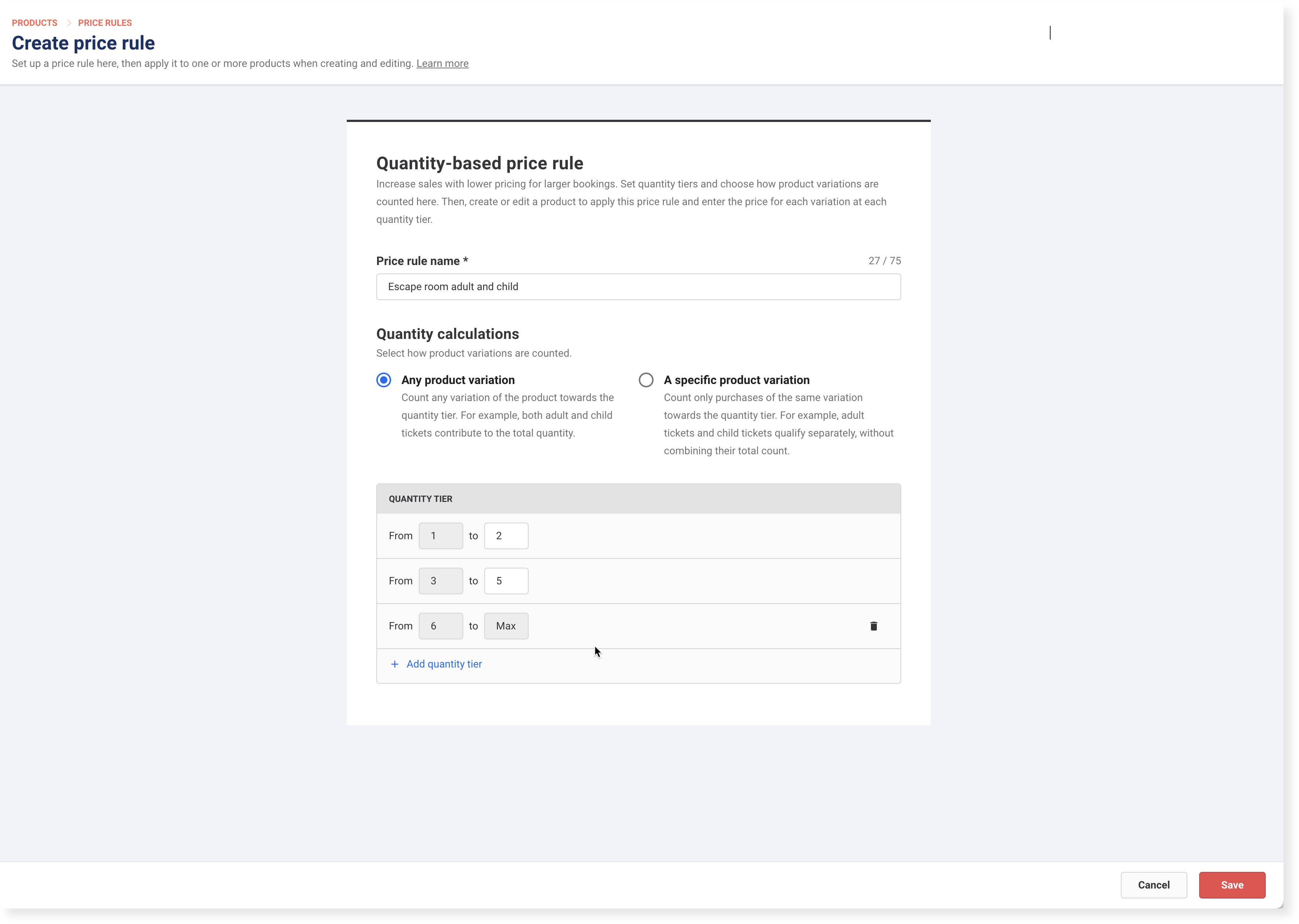
Select Save.
Your rule now appears in the All rules list, ready to be applied to a product. You'll enter the actual prices for each ticket type per tier in the next step.
Think about where you want discounts to start. Is it about rewarding larger groups, or encouraging that extra ticket sale to fill a lane or room?
Step 2: Apply the price rule to products and set prices
The steps are the same for every rule type. See Apply a price rule to products.
To choose what guests see in the checkout, see Manage checkout display settings for price rules.
Check it works
Preview your checkout and add tickets to the product until you reach the next tier. The per-ticket price should update instantly.
From POS and Venue Manager, create a test booking and change the ticket quantity. The price adjusts automatically when the threshold is met.
If the price doesn't change, check that the tickets are all for the same product, date and session time, and that the rule is still selected on the product.
To rename a rule, change its tiers, update prices on products already using it, or get more out of quantity-based pricing, see Manage and optimize price rules.
FAQs
Do tickets purchased across multiple sessions or days in the same booking count together?
No. Tickets must be for the same product, date and session time to qualify.
Can I set a minimum purchase with quantity-based pricing?
Yes. You can set a minimum ticket requirement alongside tiers (eg a 2-ticket minimum, discounts from 3+).