A price rule changes what a guest pays. A checkout display setting changes whether they can see why. The two are separate. A rule prices correctly whether or not the display setting is on.
Use this page to check what guests see for each rule type, turn the setting on, and work out why a message isn't showing.
The display settings
There is one setting per rule type, located directly below the variations table. It only appears once a price rule is applied. You will never see all three simultaneously, only the setting matching your active rule displays. If you swap rules, the setting swaps with it.
Setting | Rule type | What it tells guests |
|---|---|---|
Show quantity savings on checkout | Quantity-based | How the price per ticket changes as they add more tickets |
Show price comparisons on checkout | Time-based and capacity-based | That cheaper days, times or capacity tiers exist, so they can choose when to book |
Highlight early bird pricing on checkout | Early bird | That booking further ahead costs less |
Turn a display setting on
The permission Can edit products is required to edit price rule product settings.
From Venue Manager, go to Products > All products and open the product.
Scroll past the variations table to the checkbox below it.
Select the checkbox (the exact name will match your applied rule, eg "Show quantity savings on checkout").
Select Save.
Enabling a checkout display setting replaces the remaining ticket or resource count on the session time button with the ticket price. Price takes priority as both cannot display at the same time. The price shown comes from the first listed variation for that day (or a compulsory variation if set), rounded up to the nearest dollar.
What guests see
Quantity-based
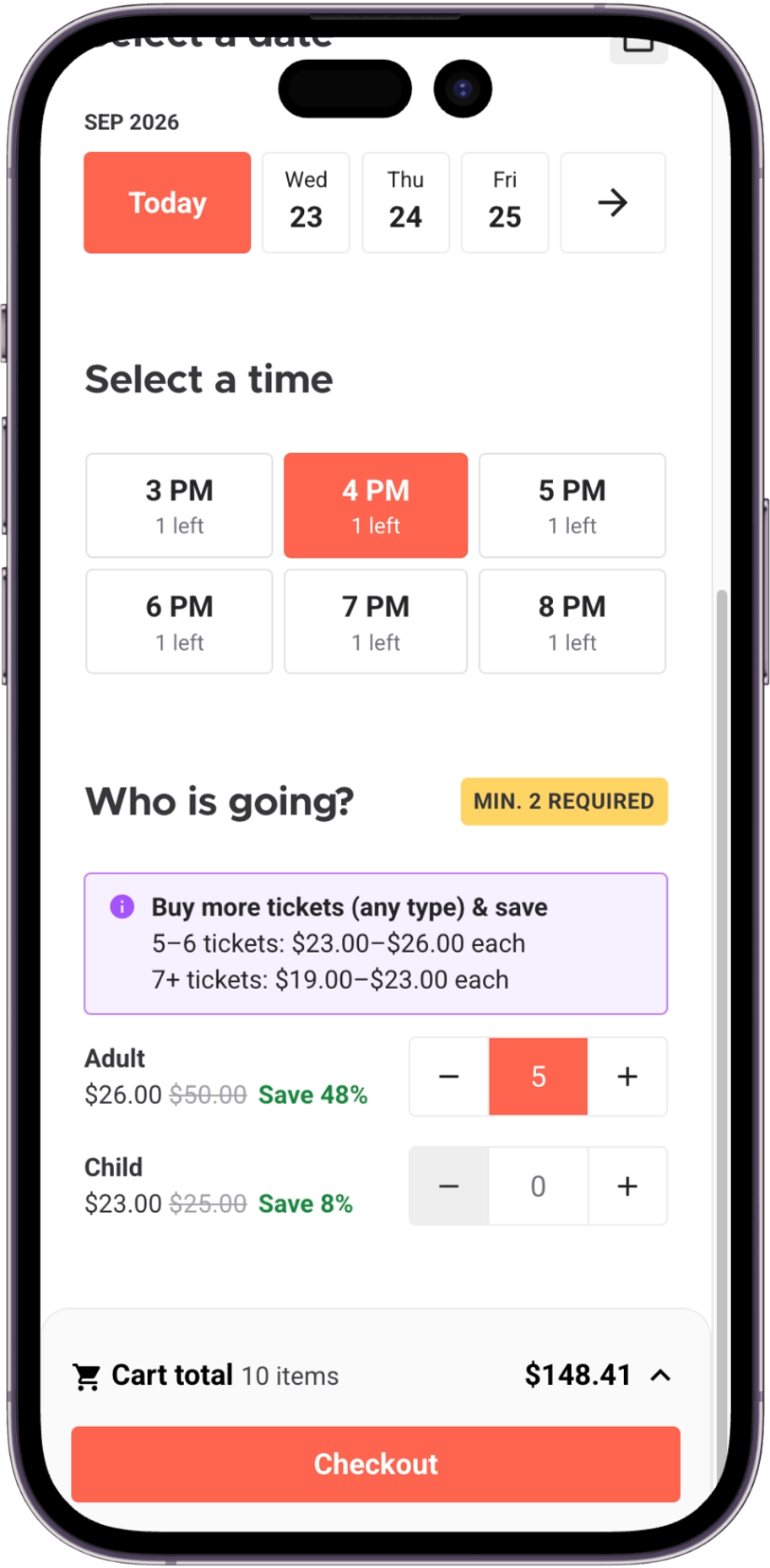
A banner on the session prompts the guest to add more tickets, naming the next tier and its price. When they cross the threshold, the per-ticket price drops automatically. The old price is struck through with the new one in its place.
Where a minimum purchase applies, the checkout shows MIN. 2 REQUIRED (or your own figure) until the guest reaches it. A minimum is not a tier. A booking can meet the minimum and still fall below the first discounted tier.
Time-based and capacity-based
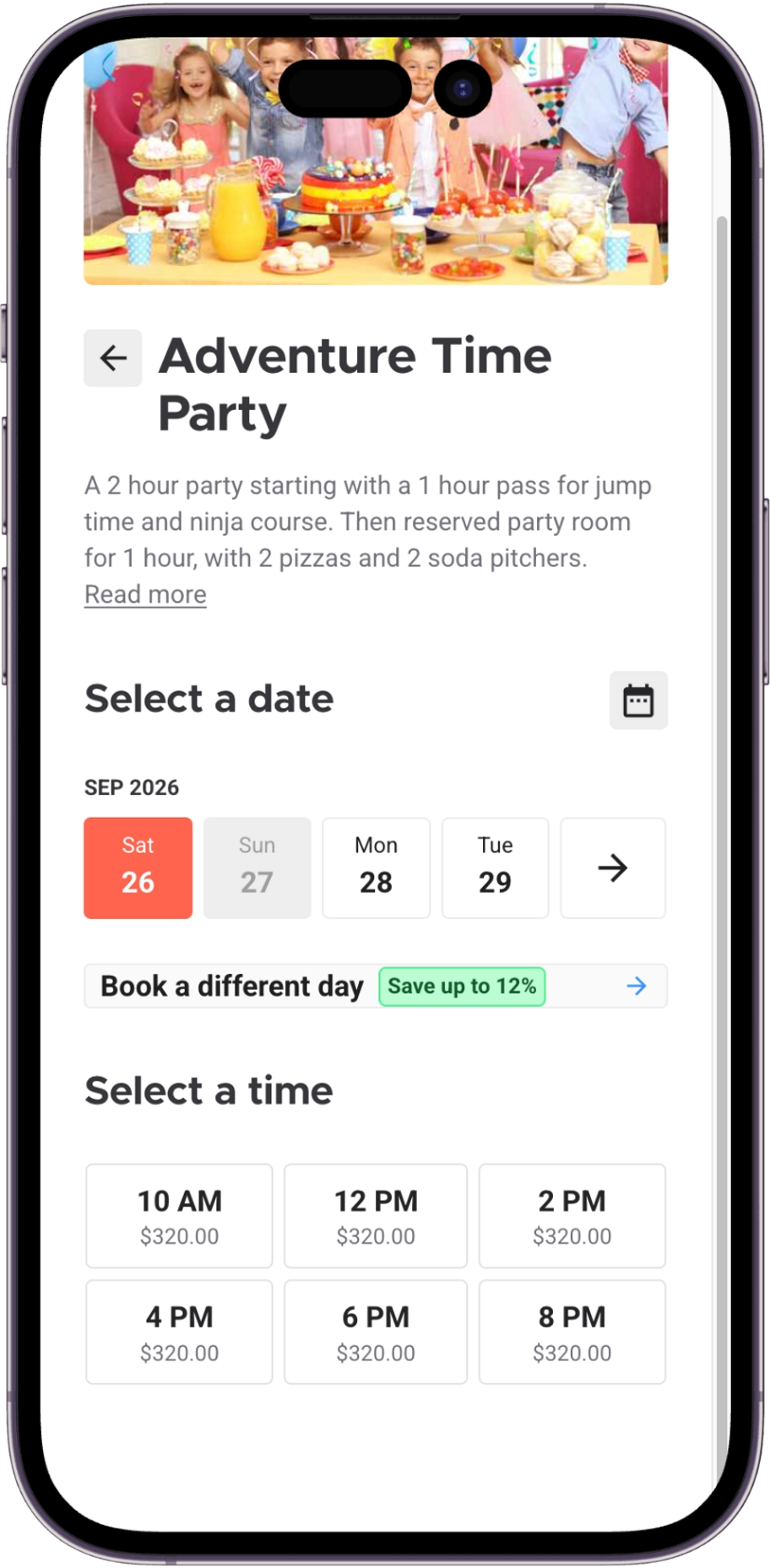
Guests see a Book a different day → (or session) message with an estimated saving when a cheaper day, time or capacity tier exists. Selecting the banner in the checkout opens a calendar that highlights the cheaper dates and times in green.
For time-based rules, savings compare against off-peak or base dates. For capacity-based rules, savings compare the current session's capacity tier against lower capacity tiers.
The message disappears once the guest selects an option at the lowest tier price.
Early bird
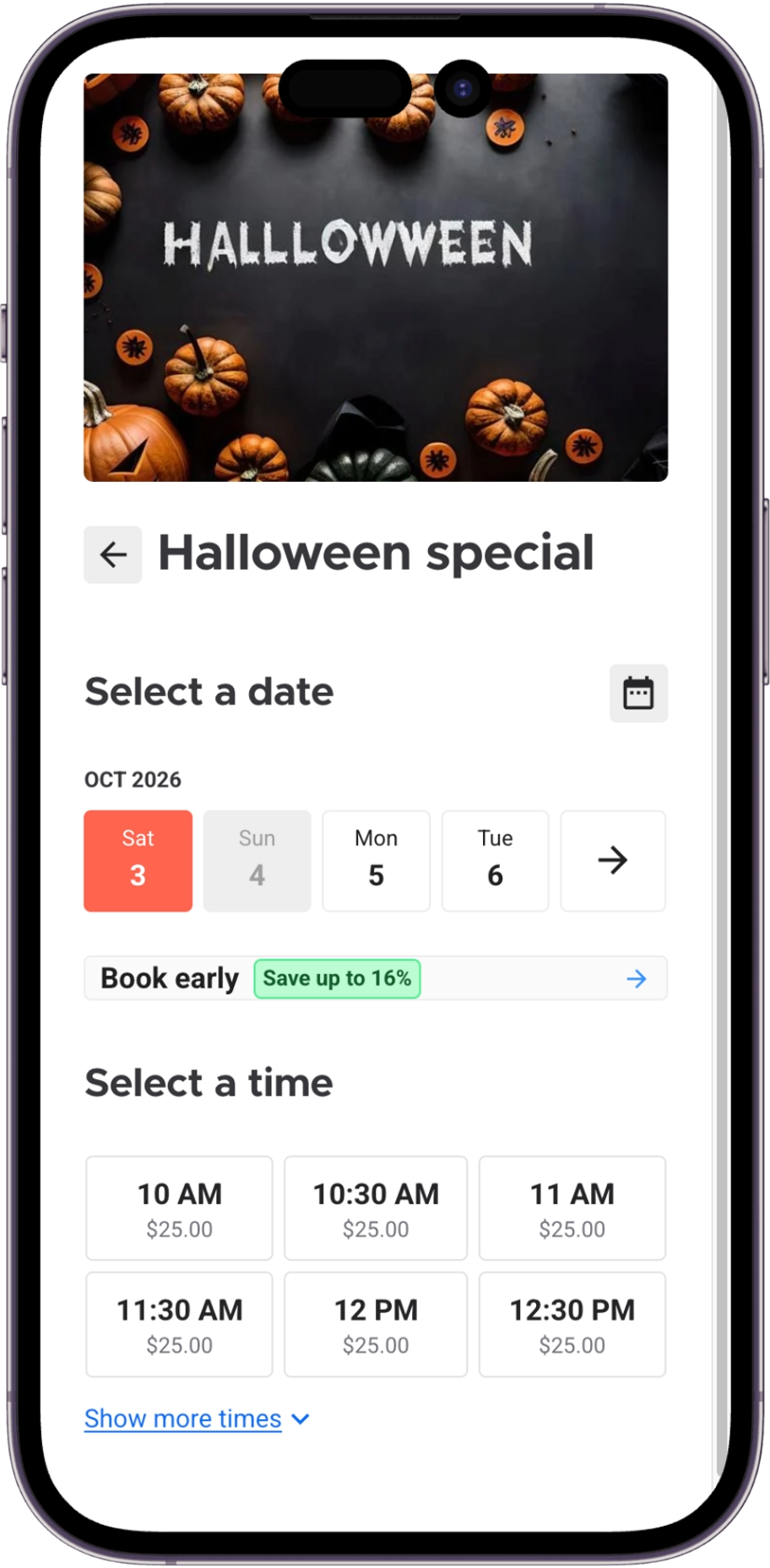
Early bird prices are determined by lead time: the number of days between the date a guest books and their experience date.
Guests who book further in advance (eg 7+ days ahead of their visit) can unlock your discounted early bird rates. Guests who book closer to their visit date (eg 0–6 days ahead) could pay the standard price, depending on how you’ve configured the rule and set the pricing for the tiers.
How the saving is calculated
The percentage in the banner compares the cheapest available price on the selected date against the lowest price the rule can produce on any available date.
In the calendar view, the highest price in the month serves as the baseline, with lower prices highlighted in green against it.
Availability is already accounted for — sold-out sessions are never offered as comparison points.
If the cheapest price on the selected date already equals the rule's lowest possible price, the banner and View dates → button are suppressed because there are no savings to highlight.
Why a savings message isn't showing
What's happening | Why | What to do |
|---|---|---|
No checkbox below the variations table | No price rule is applied to the product | Apply a rule first. If a rule is applied and there is still no checkbox, contact your customer success manager or the support team |
Checkbox is there but off | Turned on by default for new products. For existing products, quantity rules were enabled automatically, while time-based and early bird rules maintained their prior state prior to the feature being released. | Select it and save |
No savings message on a session | The cheapest price for that date matches the rule's lowest price, so there is no saving to show | Expected. The message only appears when there is a genuine difference |
Time-of-day prices not showing, dates fine | Time-of-day pricing needs the session time selector, which may not be turned on for your venue | Contact your customer success manager or the support team |
Price differs between the product page and the session times | The "from" price checks all variations, while the session time button uses the first variation listed in the variations table. | Move your primary ticket variation to the top of the variations table if you want them to match more closely. |
Checkbox looks ticked, but no message shows in checkout | The setting was never saved on this specific product, so no value is stored (most common on HQ-managed products). | Open the product in Venue Manager, select Save, and refresh the checkout. |
If the behavior on this page is missing entirely rather than just switched off on a product, contact your customer success manager or the support team.
What the homepage shows
The checkout display settings control the session selector and savings banners. They do not control product previews on the checkout homepage.
Homepage preview prices (eg "From $10.00") are controlled by Show the minimum ticket value on product previews under Checkout > Options.
The homepage "From" price checks the lowest price across all ticket variations and tiers, whereas the session time button uses the first listed variation only.
On product-led checkouts, the homepage preview doesn't know the booking date, so the "From" price may differ from what displays once a date is selected.
What these settings do not cover
Pricing on other channels. These settings change the online checkout only. See Which sales channels a price rule applies to.
Products with consecutive sessions. Price rules do not apply to them, so there is nothing to display.
Single-date products: Products running on one date only cannot compare prices across days, so no banner appears.
POS and Venue Manager: Price rules apply automatically at POS and in Venue Manager. Capacity-based rules apply only on the sales channels you select. Guest-facing promotional banners only display in the online checkout.
Legacy checkouts and Self-Serve Kiosks: Price rules are not supported on Self-Serve Kiosks or legacy checkouts.
Quantity-based rules: Quantity rules do not show date-based comparison banners; they use their own quantity savings banner.
FAQs
Why can't I find all three settings on one product?
Only the setting matching the applied rule is shown. A product with a time-based rule shows Show price comparisons on checkout and nothing else. Change the rule and the setting changes with it.
Does turning this off change what guests pay?
No. The rule prices the booking either way. The setting only controls whether guests are told a cheaper option exists.
A guest says they saw no discount prompt but got the lower price anyway. Is that a bug?
No. That is the setting being off, or the prompt being suppressed because there was no cheaper option to point at. The price is still correct.
Is the setting on by default?
On new products with a rule applied, yes. On products that already existed when the setting was introduced, quantity savings was switched on automatically for products with a quantity rule attached. Time-based and early bird products kept whatever state they were left in. Check each product.