You can view, edit, and refine your price rules at any time to keep your pricing effective across all products, venues, and sales channels.
Find your rules
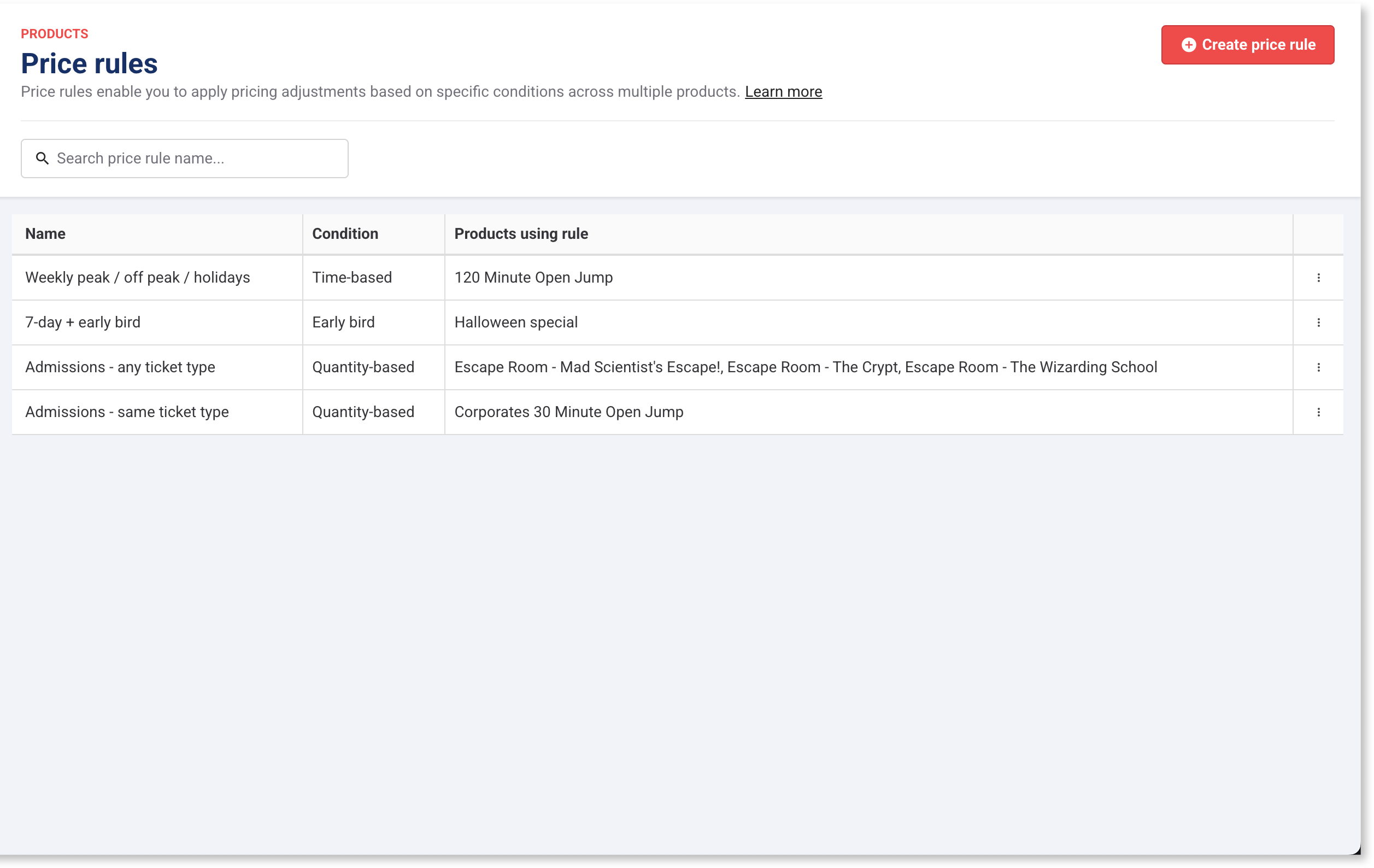
The All rules page is your central hub. In Venue Manager, go to Products > Price rules > All rules. This page lists every rule created, its type, and which products it's linked to.
View or rename a rule
View settings: Select any rule from the list to inspect its configuration.
Rename a rule: Open the rule, edit the Name field, and select Save. Renaming a rule does not affect linked products.
Update tier prices for a product
You can change the dollar amount for any tier at any time without unlinking the rule.
Go to Products > All products and select the product using the rule.
Scroll down to the Variations table.
Enter the new dollar values in the tier columns (eg update the "Weekend" tier price from $22 to $23).
Select Save.
Price adjustments apply to new bookings only. Existing bookings retain the price at which they were purchased.
Change a rule's tiers, schedules or lead times
To modify a rule's core structure (such as adding new tiers, changing date schedules, or altering lead-time windows), you must temporarily unlink it from all products first:
From Venue Manager, go to Products > Price rules > All rules.
Find the rule and take note of the products listed in the Linked products column.
Go to Products > All products. Open each linked product and change its Price rule setting back to Fixed price. Save each product.
Return to All rules. Once the rule shows "0" linked products, select it to edit its core tiers, schedules, or lead times.
After saving your edits, reopen each product and re-apply the price rule.
Delete a rule
You can only delete a price rule that has 0 linked products. Unlink the rule from all products using the steps above, return to All rules, and select Delete.
Optimize your pricing strategy
Recommended starting gaps
If you're setting up tier pricing for the first time or re-evaluating your strategy, use these recommended gaps as a baseline before refining based on performance reports:
Rule type | Starting gap | Example |
|---|---|---|
Quantity-based | 5–10% less per tier | Adult $30 for 1–4 tickets, $27 for 5+ |
Time-based | $2–$5 between off-peak and peak | Weekdays $20, weekends $25, holidays $28 |
Early bird | 15–30% off your standard rate | $16 booked 14+ days out, $20 inside a week |
The example figures are illustrative. Set yours from your own margin and what your reports show.
Best practices by rule type
Quantity-based
Understand ticket aggregation: Tier savings combine across all ticket types (eg Adult + Child) booked for the same session time. Tickets for different dates or session times are evaluated as separate line items and will not combine toward a threshold.
Keep tiers simple: Start with one product and 2 or 3 clear tiers (eg 1–4, 5–9, 10+).
Align tiers with capacity: If a room or vehicle seats 6, set tier steps at 2, 4, and 6 rather than arbitrary round numbers.
Encourage full sessions: Reserve your largest per-ticket discount for your highest quantity tier.
Monitor drop-off points: If guests consistently book just under a tier threshold (eg high volume at 4 tickets on a 5+ tier), adjust the threshold down to 4.
Time-based
Start broad: Begin with a simple weekday vs. weekend split before adding time-of-day tiers or specific date groups.
Use clear tier names: Choose descriptive names like "Weekend Peak" or "Off-Peak Saver". Staff see these as column headers when editing product variation tables.
Drive off-peak demand: Use morning or weekday discounts to boost quiet sessions while keeping peak rates firm on sessions that naturally sell out.
Maintain custom date groups: Remove outdated event date groups (eg "Easter 2024") so old configurations don't clutter your setup.
Remember priority order: Custom dates override time-of-day settings, which override day-of-week settings, which override the base rate.
Early bird
Use easy-to-understand windows: Set clean lead times that are straightforward to market (eg "Book 7+ days early" or "Book 14+ days ahead").
Offer a meaningful discount: A 15–30% savings is usually required to change guest booking habits.
Exclude peak slots: Do not apply early bird discounts to high-demand dates or sessions that regularly reach 100% capacity at standard rates.
Track lead-time metrics: If your average booking window isn't extending, test a longer advance window or a slightly larger discount gap.
Capacity-based (beta)
Start with a narrow price gap: Begin with a modest spread between your lowest and highest capacity tiers, then widen the gap as you observe guest response.
Set a base price: Any channel you don't select on the rule charges the product's standard, fixed price, whatever the capacity. Use your usual counter price.
Test channel fallbacks: Verify booking behavior on both a selected channel (eg Online checkout) and an unselected channel (eg POS) to confirm pricing matches expectations.
Review and refine your pricing strategy
Analyze attendance data: Review performance reports regularly to check whether demand has shifted into quiet periods or advance windows.
Adjust price gaps rather than flat rates: If peak demand remains strong, widen the spread between off-peak and peak tiers rather than raising prices across all tiers equally.
Reuse successful rules: Once a rule drives the desired behavior, apply it to other similar products to maintain consistent pricing logic across your venue.
Restrict rule management access: Limit the Can manage price rules role permission to administrators and pricing managers to ensure rule changes remain deliberate.