Give each product a reporting category and GL code, so your reports group revenue the way your accounts do. That makes month-end reconciliation easier. You can also see your top categories in Analytics.
This guide shows you how to create reporting categories, group them with subcategories, assign them in a product's settings and delete one you no longer need.
Watch the video for a walkthrough of setting up reporting categories.
Where reporting categories show up
Reporting categories carry through to your accounting reports:
Ledger Summary, Trial Balance and the Xero Export group revenue and tax by reporting category and GL code.
Revenue Recognition and Detailed Product Sales show each line’s reporting category in its own column.
The Revenue analytics dashboard breaks down net revenue by reporting category.
Assign every product to a reporting category, including new products as you create them. Revenue from products with no category shows as unassigned in reports (eg the Ledger Summary report), so it isn't matched to a GL code.
Create your reporting categories
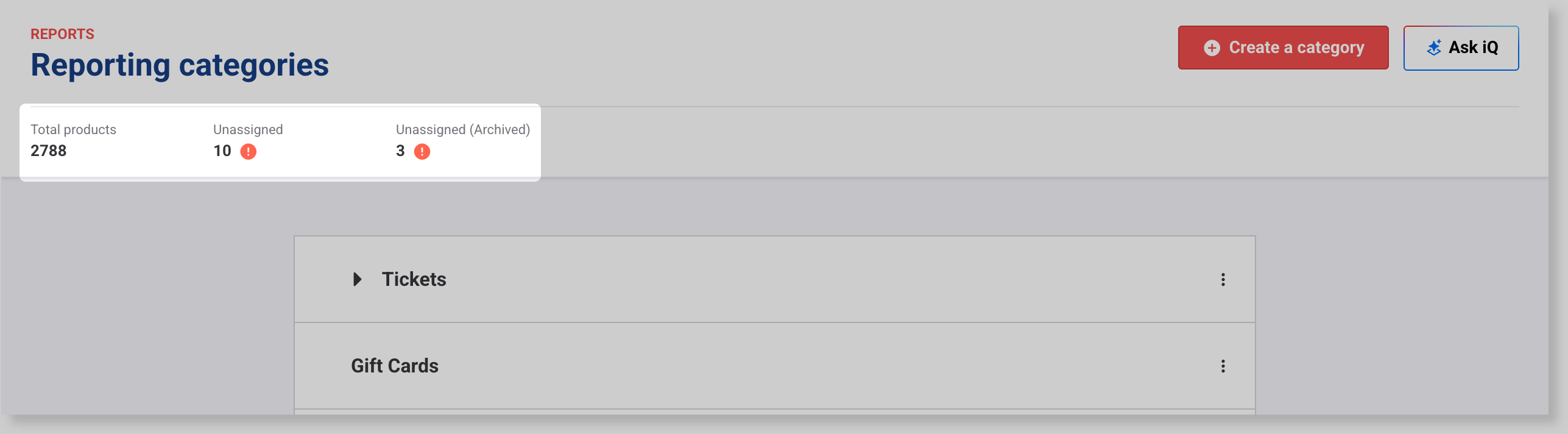
Start by checking what's missing. Unassigned at the top of the page shows how many active products have no reporting category, and Unassigned (Archived) shows the archived ones.
The permission required to create, edit and delete reporting categories is Can manage reporting categories. The administrator and manager roles have this permission enabled by default.
From Venue Manager, go to Reports > Reporting categories.
Select Create a category.
Enter a Category name (eg Admissions or Food and beverage) and the GL Code from your accounting system. Use letters, numbers and spaces, up to 50 characters. Each GL code can only be used once.
Select Products, choose the products to include, then select Apply. Products are grouped by product type (eg Session passes), and products already in a category don't show in the list. The product and all its variations are included.
Select Save.
The category shows in the list, and the Unassigned count goes down by the products you added.
To remove a product from a category, select the delete icon next to it, then select Save. To add another category, select Create a category again.
Group categories with subcategories
Use subcategories to keep a long list easy to scan (eg Food and beverage, with Hot food and Drinks under it). You can add subcategories to a category only while it has no products assigned.
From Venue Manager, go to Reports > Reporting categories.
Select the options menu (3 dots) for the category, then select Add subcategory. If you don't see Add subcategory, the category has products. Remove them first.
Select the new subcategory, enter its Category name, GL Code and Products, then select Save.
Assign a reporting category in product settings
Revenue from products with no reporting category shows as unassigned in your reports. Assign a category when you create a product.
From Venue Manager, go to Products > Create product, or go to Products > All products and select the product.
Scroll to Additional options, then select Reporting category.
Choose the category.
Select Save.
Categories you assign in a product's settings show in Reports > Reporting categories, and the reverse. Reports can take a few minutes to show the change.
Delete a reporting category
Deleting categories you no longer use keeps your category list short.
Deleting a category removes its GL code from every product in it, and you can't undo it. Those products count as unassigned until you add them to another category.
From Venue Manager, go to Reports > Reporting categories.
Select the options menu (3 dots) for the category, then select Delete.
Select Yes, delete '[category name]' to confirm.
The category is removed from the list, and its products are added to the Unassigned count.
FAQs
Can I change a GL code after I've set it up?
Select the category, change the GL Code, then select Save. To learn what happens to past reports, see the guide Does changing reporting categories and GL codes impact historical data?
What's the difference between product categories and reporting categories?
Product categories organize products for checkouts, bookings and report filters. Reporting categories group revenue by GL code for accounting. To learn more, see the guide What's the difference between product and reporting categories?
Why can't I edit a reporting category marked HQ?
Your HQ created it. Categories from your HQ show an HQ badge, and only your HQ can change or delete them.