Set up your loyalty program to reward repeat visits, encourage higher spend and give guests a reason to come back.
This guide shows you how to set up your program rules, choose qualifying purchases and rewards, then activate the program rules.
ROLLER Loyalty is an add-on product, charged in addition to your monthly plan. Learn more.
Before you start
To set up loyalty rules, you need a custom role based on the administrator or manager role with the Can edit loyalty settings permission enabled to set up loyalty rules.
Decide which rule type fits your goal and what rewards you want to offer.
For guests to enroll and redeem online, your venue needs to be using progressive online checkouts, with online accounts configured, so guests can enroll, redeem rewards and track their points.
Choose a rule type based on your goal
Goal | Rule type | Example |
|---|---|---|
Reward every visit and encourage spend on extras | Per $1 spent (a points-based rule) | A laser tag venue gives points on every purchase. Guests redeem them as a dollar discount at checkout, so each visit builds toward their next saving. |
Drive return visits over time | Cumulative spend (a spend-based rule) | A soft-play venue rewards a fixed amount discount of $10 off once a guest spends $150 in total. Weekly families reach it in 4 to 6 visits, and the count resets after the reward unlocks. |
Build a ritual around a specific product or products | Product purchase (quantity) (eg stamp card) | A mini golf venue gives a free round after every 5 paid rounds. The count resets after the reward unlocks. |
Per $1 spent rewards points only. Cumulative spend and Product purchase can reward points, a free product or a fixed amount discount.
Points are a flexible reward. When guests redeem them, points convert to a fixed-amount dollar discount at checkout.
How guests earn points depends on your rule type.
With a per $1 spent rule, points accrue automatically — you set how many points guests earn per dollar spent.
With cumulative spend or product purchase rules, points are one reward you can choose: if you select points as the reward, you set how many points guests earn.
Either way, you then set the point value to determine how much each point is worth at checkout. See Set point value below.
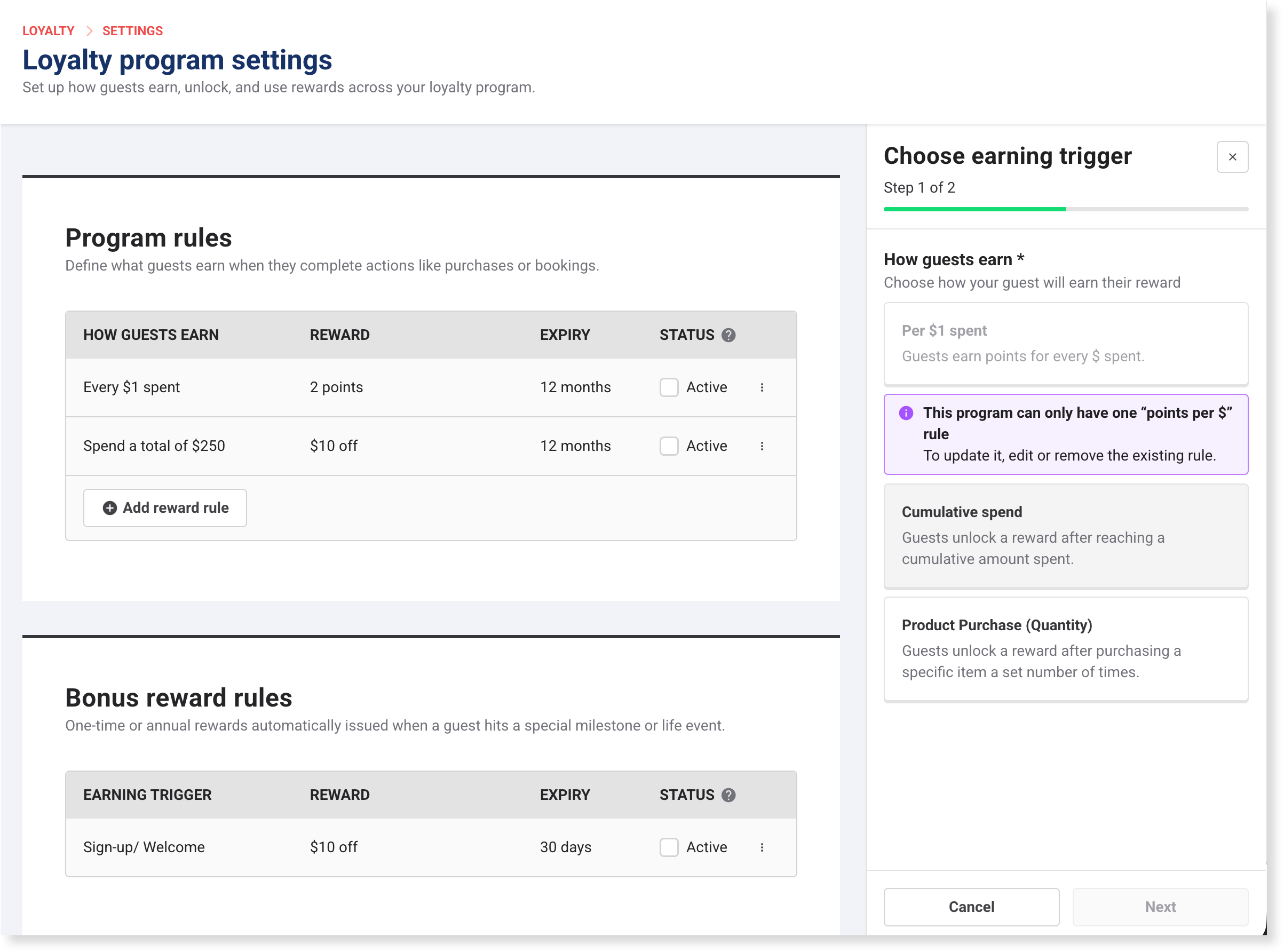
You can run multiple rules at the same time, but only one Per $1 spent rule (points-based) is allowed in each loyalty program.
For more help choosing a rule, see Choose the right loyalty rule for your goal.
Set up your program rules
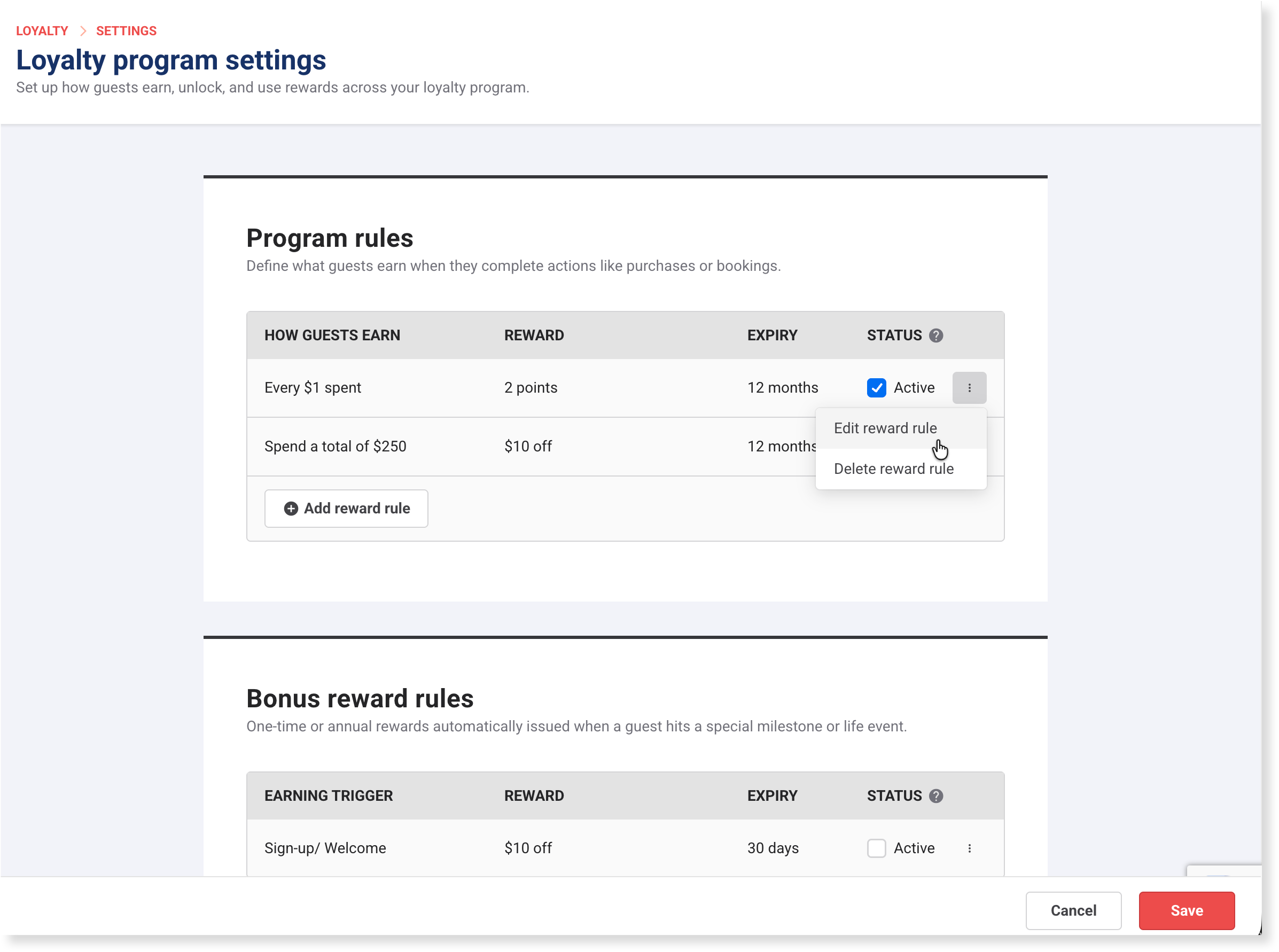
From Venue Manager, go to Loyalty > Rules to open the Loyalty program settings page.
The Program rules section shows two preset rules ready to customize: Every $1 spent (points-based) and Spend a total of $250 (spend-based).
Preset rules are inactive by default and won't start until you activate them. Presets cover points-based and spend-based rules, so most venues can go live without creating rules from scratch.
To use a preset, edit it to update the default settings, then activate it.
To add a product purchase rule or build one from scratch, select Add reward rule.
Just starting out? Activate the Every $1 spent preset and the Sign-up/Welcome bonus reward. That gives guests a reason to join and earns them points on every purchase, a complete first program without building from scratch. Set your point value so those points are worth something at checkout, then customize further once it's live. For other starter setups, see Choose the right loyalty rule for your goal.
Configure each rule
You configure every rule the same way:
To edit a preset, select the options menu (3 dots) next to the rule, then select Edit reward rule. The Edit rule details panel opens.
To create a new rule, select Add reward rule, choose the rule type, then select Next. The Add rule details panel opens.
Then set the fields for that rule type.
Rule | What it does | How to configure |
|---|---|---|
Per $1 spent (points-based) | Guests earn points on every dollar of qualifying spend. Only one allowed per program. Available as the Every $1 spent preset. | Applies to: keep All products (excl. gift cards) or select Selected products and choose the products. Reward: Points only, set the earn rate (points per dollar). Set an optional expiry, then select Apply. |
Cumulative spend (spend-based) | Guests earn a reward once total qualifying spend reaches a threshold. The count resets after it unlocks. Available as the Spend a total of $250 preset. | Unlock reward after spending: enter the total spend. Applies to: keep All products (excl. gift cards) or select Selected products and choose the products. Reward: default Fixed amount discount ($10 off), or Points or Free product. Set an optional expiry and earning conditons, then select Apply. |
Product purchase (quantity) (eg stamp card) | Guests earn a reward after buying a set quantity of specific products. The count resets after it unlocks. Not available as a preset, create it with Add reward rule. | Enter the number of purchases required, then select the product or products from the drop-down. Reward: Points, Free product or Fixed amount discount, then configure the reward details. Set an optional expiry and earning conditions, then select Apply. |
Products excluded from earning: Gift card, cashless card, wallet and membership products are excluded from earning across all rule types. These products also can't currently be selected as a free product reward. For gift cards, cashless cards and wallets, guests earn loyalty points and progress when they spend the stored value, not when they buy the product. For how earning works when a discount or membership benefit is applied, see How loyalty works seamlessly in the background.
If you choose Selected products for qualifying purchases, only those products count toward the rule. Other items in the same booking (eg food and drinks) don't add progress, even when they're on the same order.
If a free product selected as a reward has variations, the reward applies to the cheapest eligible variation in the guest's cart. You can't choose which variation is awarded.
Running more than one rule
Most venues run two or three rules together, each driving a different behavior. Here's how rules behave when you run more than one:
Rules progress independently. Each rule tracks its own progress against its own threshold. Rules don't reset or interfere with each other.
A purchase counts toward every rule it qualifies for. If a product qualifies for more than one rule, that purchase can add progress to each of those rules at the same time.
Guests keep every reward they unlock. If a purchase meets the threshold for two rules, the guest unlocks both rewards. It's not a choice between them.
A rule's qualifying products are set under Applies to. Rules with no qualifying products in common never share progress. The default is All products, so two rules left on the default fully overlap. You can set Applies to on each rule if you want them to progress separately.
For the full detail on how rules interact, see How loyalty works seamlessly in the background.
Reward expiry (rule-specific)
In the panel, select Set expiry for this reward, then under Expire unused rewards after enter a value and select Months or Days. This overrides the program default. See Set reward expiry for the program below.
Earning conditions
Add earning conditions to spend and product milestone rules to control how guests progress towards and earn rewards. You can choose which of the earning conditions to add to your rule.
Limit qualifying spend per day/Limit qualifying progress per day: Caps how much progress a guest can make towards the milestone in a day. For example, “Buy 10 jump passes, get 1 free rule” where only 2 eligible purchases count towards the milestone each day.
Limit earning to a time window: Progress towards a reward resets if a guest doesn't reach it within a set number of days. For example, “spend $250 and get $10 off your next visit" with a 90-day window resets a guest's progress if they haven't hit $250 within 90 days of starting.
Limit how many times this reward can be earned: Caps how many times a guest can earn the same reward, instead of repeating indefinitely. For example, "buy 5 jump passes, get one free" capped at 3 total redemptions and stops paying out once a guest has earned it three times.
Each earning condition is off by default. When you enable an earning condition, progress emails and the guest's online account reflect the value you've set.
Activate your rules and save
In the Program rules table, select the Active checkbox next to each rule you want live.
If a rule uses Points as the reward, set the Point value so those points are worth a dollar discount at checkout. It appears once a Points rule is Active. See Set point value below.
Select Save. Guests can now start earning on qualifying purchases.
Before you activate, confirm the eligible products for each rule (Applies to). Rules that share products stack — every qualifying purchase adds progress to all of them, so a single purchase can unlock more than one reward. Because the default is All products, two rules left on the default will both progress from the same purchases. You can set Applies to on each rule so you only reward what you intend to. For how overlapping rules behave, see How loyalty works seamlessly in the background.
Detailed program rule steps
Per $1 spent rule (points-based)
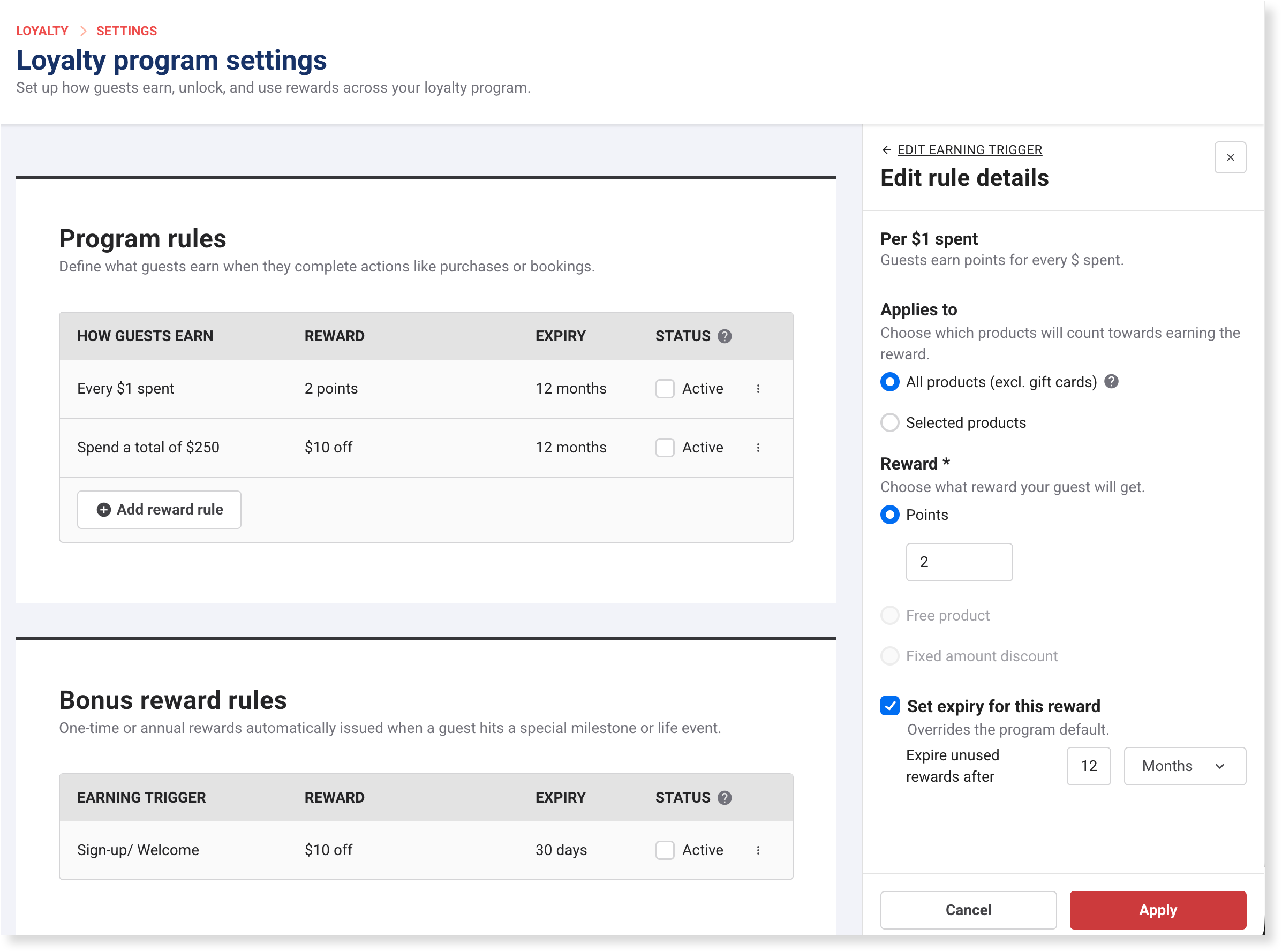
You can only have one Per $1 spent rule (points-based) in a loyalty program, so you set it up by editing the preset.
To edit the preset, select the options menu (3 dots) for Every $1 spent, then select Edit reward rule. The Edit rule details panel opens.
Under Applies to, the default is All products (excl. gift cards). Cashless card, wallet and membership products are also excluded automatically. To limit qualifying products further, select Selected products, then choose the products to include.
Under Reward, Points is the only reward type available for this rule. To change the earn rate, enter a new value. You'll set how much each point is worth when you activate the rule. See Set point value below.
(Optional) Select Set expiry for this reward, then under Expire unused rewards after enter a value and select Months or Days. This overrides the program default. See Set reward expiry for the program below.
Select Apply.
Cumulative spend rule (spend-based)
Set the spend threshold guests need to reach and choose the reward they receive: points, a free product or a fixed amount discount.
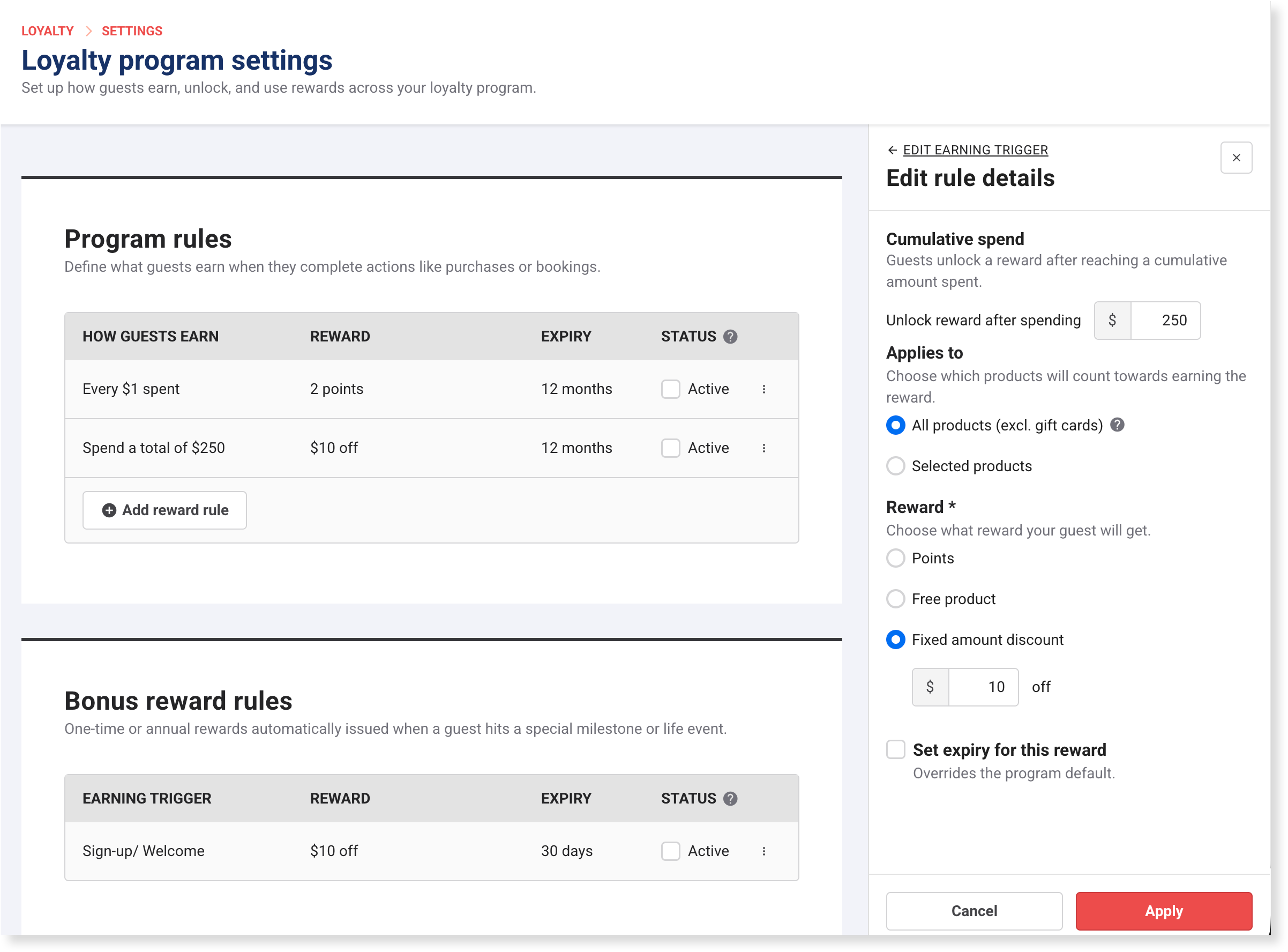
To edit the preset, select the options menu (3 dots) next to Spend a total of $250, then select Edit reward rule. To create a new rule, select Add reward rule, choose Cumulative spend, then select Next. The Edit rule details panel opens.
Under Unlock reward after spending, review or enter the total spend required to unlock the reward.
Under Applies to, the default is All products (excl. gift cards). Cashless card, wallet and membership products are also excluded automatically. To limit qualifying products further, select Selected products, then choose the products to include.
Under Reward, the default is Fixed amount discount, set to $10 off. To change the value, enter a new amount. To use a different reward type, select Points or Free product.
Free product rewards are set at the product level. If the product has variations (eg 60-minute and 120-minute sessions), you can't choose which variation is awarded. At redemption, the reward applies to the cheapest eligible variation in the guest's cart. See Redeem loyalty rewards at POS and online.
(Optional) Select Set expiry for this reward, then under Expire unused rewards after enter a value and select Months or Days. This overrides the program default. See Set reward expiry for the program below.
(Optional) Select Limit qualifying spend per day/Limit qualifying progress per day to cap how much progress a guest can make towards the milestone in a day. Add the cap.
(Optional) Select Limit earning to a time window to set how many days from the first qualifying purchase a guest has to earn this reward. Add the number of days.
(Optional) Select Limit how many times this reward can be earned to cap how many times a guest can earn this reward. Then, choose when this limit resets. Under Reset this limit select either: Lifetime, calendar year or Loyalty enrolment anniversary.
Select Apply.
Product purchase rule (eg stamp card)
Drive repeat visits for a specific product. This rule type isn't available as a preset, so select Add reward rule to create one.
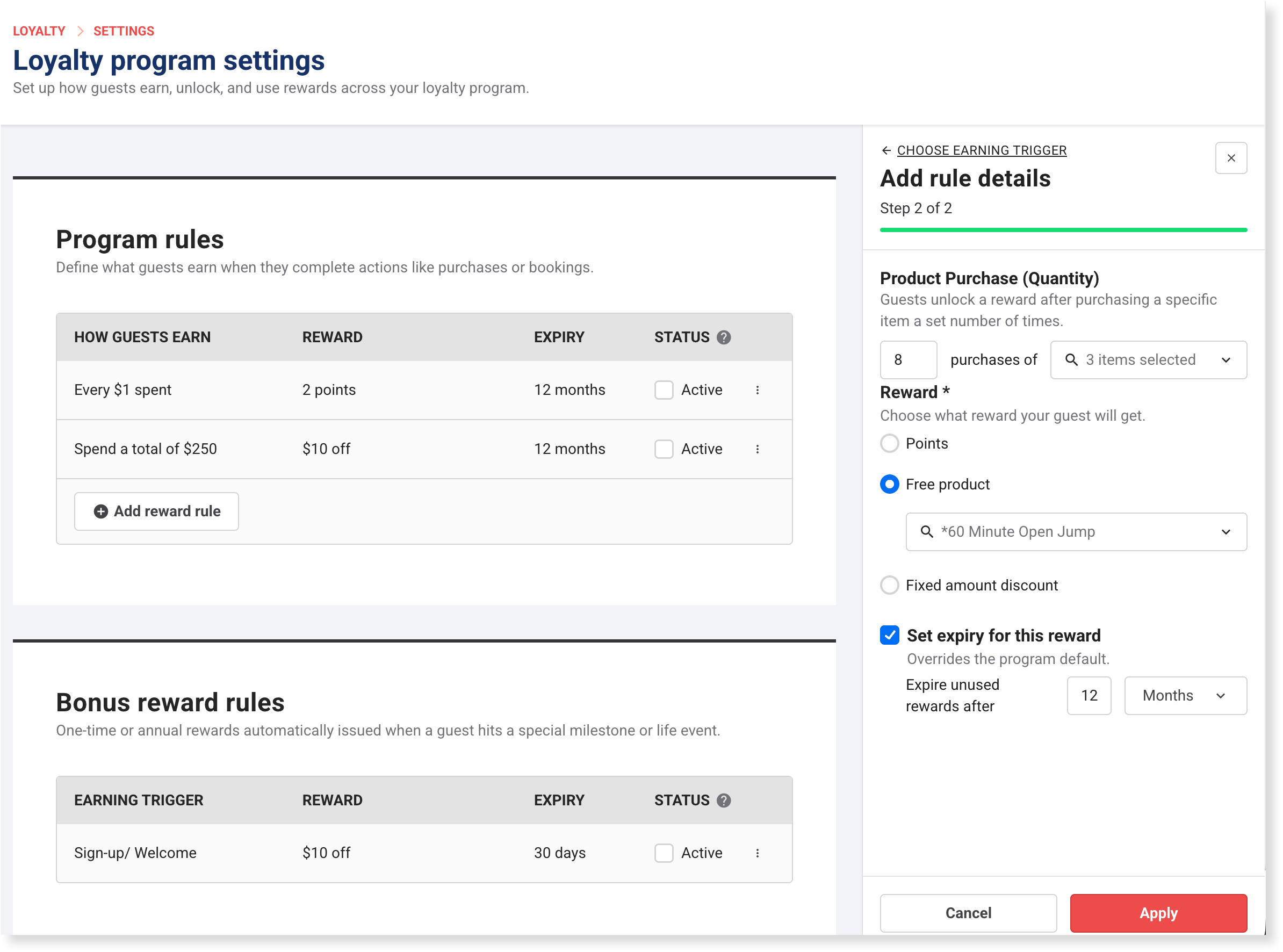
Select Add reward rule, choose Product purchase (quantity), then select Next. The Add rule details panel opens.
Enter the number of purchases required, then select the qualifying products.
Under Reward, select Points, Free product or Fixed amount discount, then configure the reward details.
If the free product has variations, the reward applies to the cheapest eligible variation in the guest's cart. You can't choose which variation is awarded.
(Optional) Select Set expiry for this reward, then enter a value and select Months or Days. This overrides the program default. See Set reward expiry for the program below.
(Optional) Select Limit qualifying spend per day/Limit qualifying progress per day to cap how much progress a guest can make towards the milestone in a day. Add the cap.
(Optional) Select Limit earning to a time window to set how many days from the first qualifying purchase a guest has to earn this reward. Add the number of days.
(Optional) Select Limit how many times this reward can be earned to cap how many times a guest can earn this reward. Then, choose when this limit resets. Under Reset this limit select either: Lifetime, calendar year or Loyalty enrolment anniversary.
Select Apply.
Set up bonus rewards
Bonus rewards are issued automatically when a guest hits a specific trigger. They run separately from your program earning rules and don't require a purchase to trigger. There is currently one type of bonus reward.
Sign-up/Welcome reward
Use the Sign-up/Welcome reward to give guests an immediate reason to join. It's issued automatically when a guest enrolls, once per guest, even if they leave and rejoin the program.
The default reward is $10 off with a 30-day expiry. The rule is inactive until you activate it.
From Venue Manager, go to Loyalty > Rules.
Scroll to Bonus reward rules.
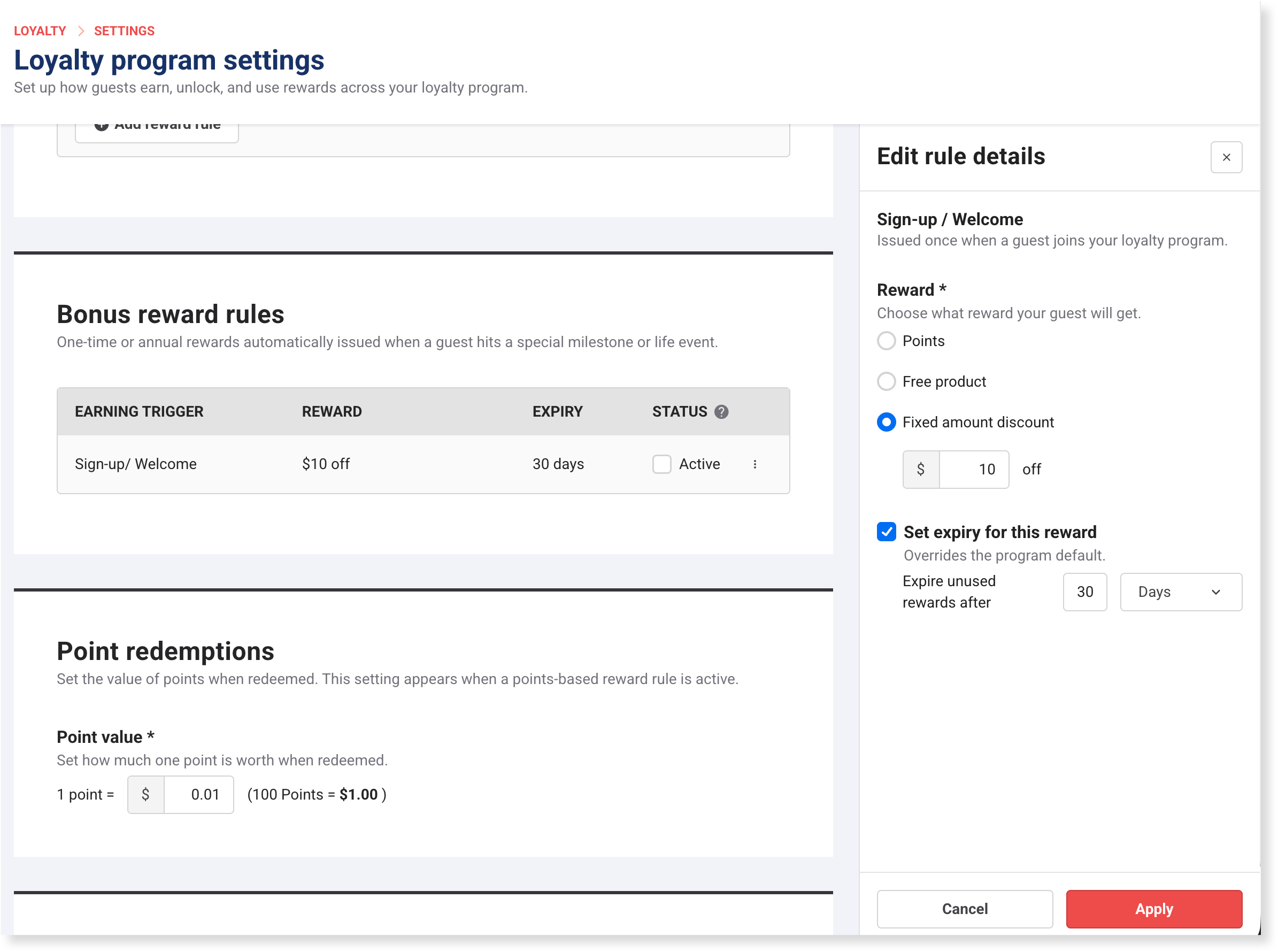
Select the options menu (3 dots) next to the Sign-up/Welcome rule, then select Edit reward rule. The Edit rule details panel opens.
For Reward, the default is Fixed amount discount, set to $10 off. To change the value, enter a new amount. To use a different reward type, select Points or Free product.
Under Set expiry for this reward, the default is 30 days. To change it, enter a new value and select Months or Days from the drop-down. If no expiry is set here or at the program level, the reward won't expire.
Select Apply.
In the Bonus reward rules table, select the Active checkbox next to the rule to activate it for guests.
If you selected Points, set the Point value so points are worth a dollar discount at checkout. This is a program-level setting. See Set point value below.
Select Save. The reward is now issued automatically when guests enroll.
You can also set up promotions that let you temporarily multiply rewards for a set period without permanently changing your program rules. Unlike your ongoing program rules, a promotion runs for a defined start and end date, then reverts automatically once the promotion ends. To learn more, see the guide Set up time-limited promotion campaigns for your loyalty program.
Set point value
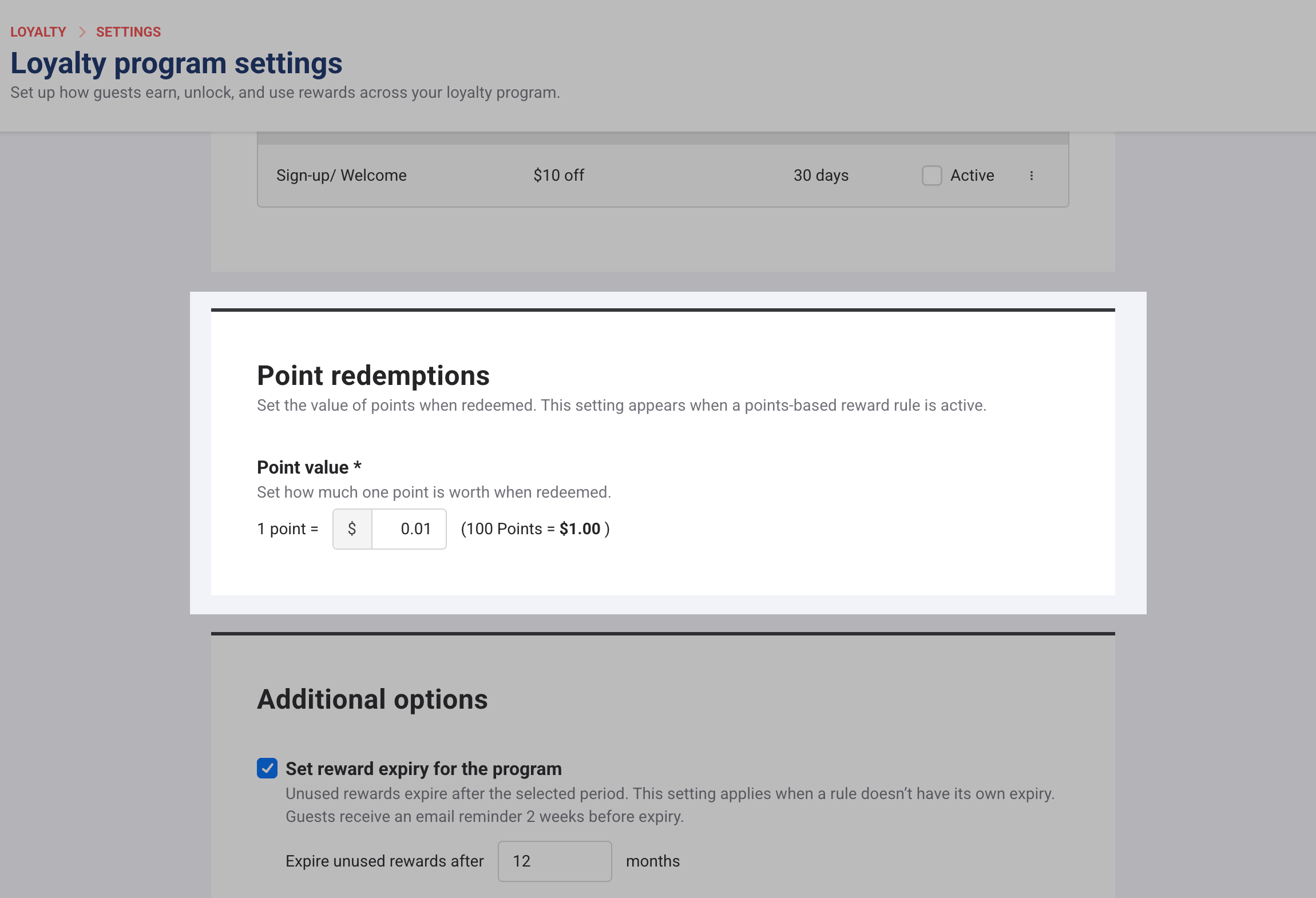
The Point redemptions section appears on the Loyalty program settings page when you set at least one rule Active that uses points as the reward. The point value controls how much each redeemed point is worth as a dollar discount at checkout. This is a program-level setting.
From Venue Manager, go to Loyalty > Rules.
Scroll to Point redemptions.
Under Point value, set how much one point is worth (eg 1 point = $0.01).
Select Save.
Setting the right point value
A common starting point is 1 point = $0.01 (100 points = $1 off). This is low enough to feel achievable but requires meaningful spend before a reward is earned.
A higher earn rate or point value makes the program feel more generous and can drive faster enrollment, but reduces your margin on rewards.
Consider your average transaction value: a venue with a $15 average spend earns 15 points per visit at 1 point per $1. At 1 point = $0.01, a guest needs 7 visits to earn $1 off. Is that the right incentive for your venue?
Start conservative and adjust. You can increase the point value later, but reducing it affects guests with existing balances.
Example
If you set 1 point = $0.01:
Points | Calculation | Discount |
|---|---|---|
100 points | 100 × $0.01 | $1.00 off |
500 points | 500 × $0.01 | $5.00 off |
1,000 points | 1,000 × $0.01 | $10.00 off |
Don't see the Point redemptions section? This option only appears when a rule using points as the reward has its status set to Active. An active rule is live.
Set reward expiry for the program (optional)
Set reward expiry to control how long unlocked rewards stay available before they expire. You can set a default expiry for the program, which applies to all rules that don't have their own expiry set, or override it in the individual rule settings where needed (see specific setup for each rule above).
From Venue Manager, go to Loyalty > Rules.
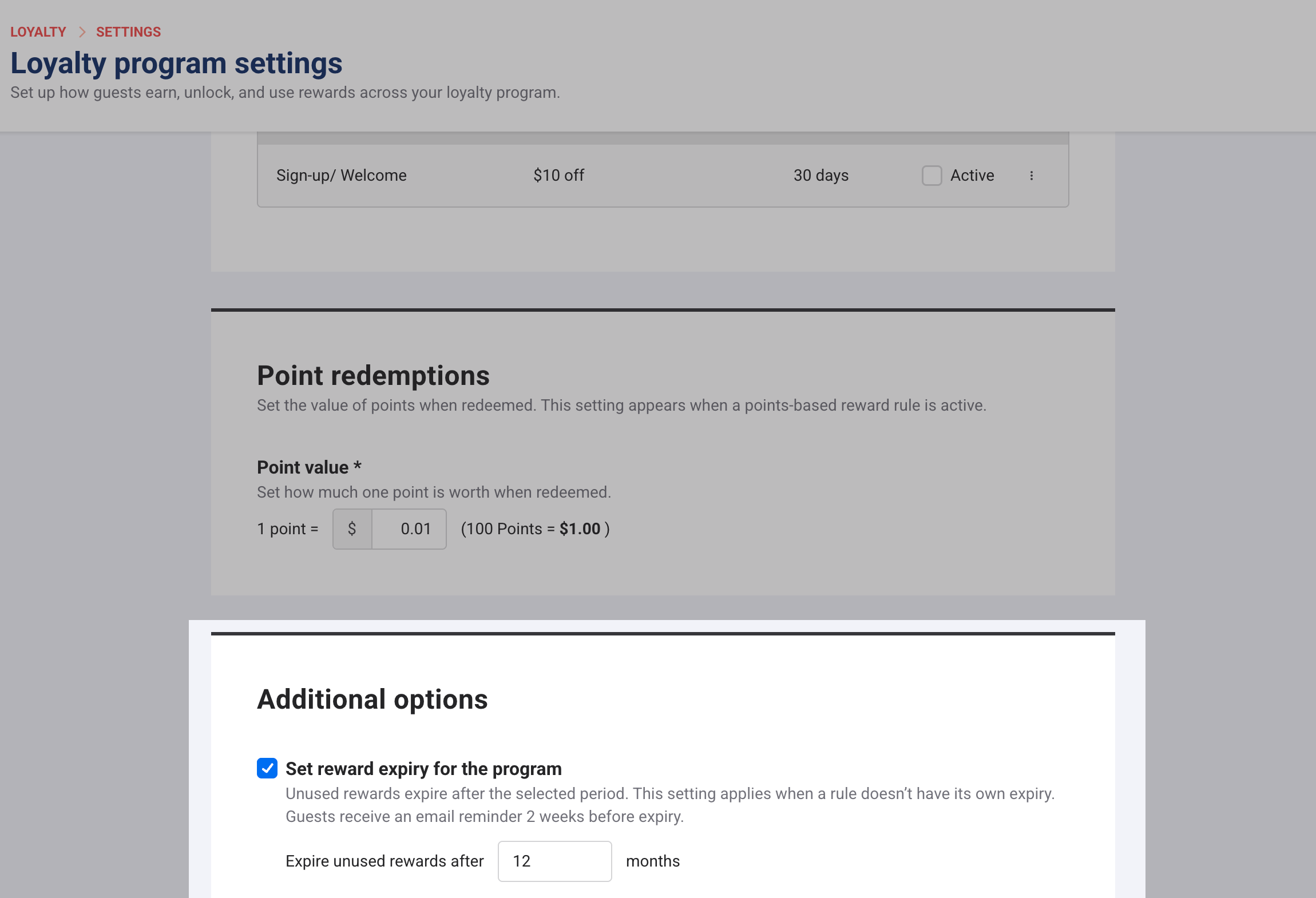
Scroll to Additional options.
Select Set reward expiry for the program.
Under Expire unused rewards after, enter a value and select Months or Days.
Select Save.
When a guest earns a reward, ROLLER emails them at 5 pm venue time that day, then sends a reminder every two weeks, up to three reminders, until they redeem it. You can view and modify the email content in Settings > Design > Email templates.
Prepare your loyalty terms and program rules
Before you activate loyalty, update your existing terms and conditions in Venue Manager so they reflect your loyalty program and make the rules clear to guests.
Your terms should cover:
You can use the Loyalty terms and conditions sample as a starting point. Add it directly to your terms in Venue Manager or host it on your website and link to it from there.
If you change settings that affect guest value — such as reward expiry or point value, review and update your terms before the change takes effect. The sample terms are a starting point, not legal advice. Share your loyalty terms with your own legal counsel before you go live to make sure your program meets any local requirements specific to your business. ROLLER is not able to provide legal or tax advice.
What happens after activation
Once a loyalty rule is active, guests can join in several ways: through an email invitation sent after a purchase, by self-enrolling at the online checkout, or automatically when they create an online account. When enabled, the order confirmation email also includes a Join loyalty section.
After joining, guests earn points and progress toward milestones on qualifying purchases. Progress is counted when booking items are redeemed at POS or expire.
For more on how guests enroll, see How guests join your loyalty program.
Set your program up for success
Before guests start earning, take a few minutes to:
Brief your front-of-house staff on how guests join, earn and redeem. Staff who understand the program can answer guest questions at POS and encourage sign-ups. See Redeem loyalty rewards at POS and online (early access) for a staff reference guide.
Check your loyalty email templates are on-brand and that the invitation email is enabled in your order confirmation settings. See How loyalty emails work.
Set a review date. Plan to check enrolment rate and redemption rate two to four weeks after go-live to confirm the program is working as expected. See Measure the impact of your loyalty program with Analytics (early access).
Loyalty email templates
ROLLER sends automated emails to guests as they earn and progress through your loyalty program. You can customize these templates in Settings > Design > Email templates in Venue Manager.
The following loyalty email templates are available:
Loyalty enrollment: sent to guests when they are enrolled in the program.
Loyalty invitation: sent to guests when they are invited to join the program.
Loyalty milestone progress: sent to guests to notify them of their progress toward the next loyalty milestone.
Loyalty reward reminder: sent when a guest earns a reward, then as reminders until they redeem it.
Loyalty reward expiry notification email: sent to guests 14 days before rewards are set to expire.
Loyalty promotion launch email: sent to guests on the day a new promotion launches.
Loyalty promotion reminder emails: sent to guests to remind them that a promotion is running.
The loyalty invitation is also embedded as a panel within the order confirmation email template. To customize the loyalty content in this email, go to Settings > Design > Email templates and select Order confirmation.
To learn more, see the guide How loyalty emails work.
Edit an existing rule
Take care when updating settings that affect guest value, such as reward expiry or point-to-dollar conversion rates. Before you make changes, review your loyalty terms and program rules and update them if needed.
Select the rule.
Select Edit reward rule.
Make changes and select Apply.
Save the program page.
To learn more, review the steps in Configure each rule above.