This feature is currently in beta. If you’d like to sign up and be a part of the promotions beta program, please contact your customer success manager or the support team.
Run time-limited promotion campaigns that temporarily multiply rewards for a single loyalty rule or your entire program, without the need to manually change rule settings and then remember to revert them once a promotion ends.
Set a multiplier, a start date and an end date, and choose whether the promotion applies to one reward or your whole program. Guests who are signed up to your loyalty program get an automatic email when a promotion starts, plus reminder emails while it's running. Then, when your promotion ends, your rewards revert back to normal without having to make the change manually.
This guide walks through how to set up a time-limited promotion that multiplies rewards for one loyalty rule or your entire program.
ROLLER Loyalty is an add-on product, charged in addition to your monthly plan. Learn more
Why use time-limited promotions?
Use promotions to elevate your loyalty program, and make your loyalty members feel rewarded, while giving non-members a tangible reason to sign up. Decide what you want to achieve, then build your promotion around that goal. Some examples include:
Filling slow periods: A reward multiplier gives guests a concrete reason to come in during the periods that are normally quieter. For example, if you see less guests during winter, run a “winter warmer” promotion during this season to get more guests through the door.
Riding a seasonal moment: Capture the natural spike in foot traffic at certain times of the year, school holidays, for example. You can convert these visits into loyalty engagement, not just one-off purchases.
Boosting a specific reward: If you want to push a particular reward, a reward-level promotion lets you boost that without affecting earn rates anywhere else.
Reactivating lapsed guests: A promotion timed around a re-engagement email campaign gives past guests a reason to come back now rather than "eventually".
Rewarding a venue milestone or anniversary: An anniversary or hitting a visitor-count milestone are natural occasions for a "thank you" bonus window. For example, celebrate 5 years in operation by doubling points during your venue's “birthday” month.
How it works
A promotion applies a whole-number multiplier (eg 2x or 3x) to rewards for a set period. What it multiplies depends on the reward type:
Points: The multiplier applies to the earn rate only (eg 10 points per $ spent = 20 points per $ spent with a 2x multiplier).
Free product: The multiplier applies to the reward (eg if your reward is 1x 60 minute jump pass when a guest reaches the goal, then during a 2x multiplier promotion a guest will earn 2x 60 minute jump passes when they reach the goal).
Fixed amount discount: The discount amount is multiplied (eg $10 = $20 with a 2x multiplier).
Promotions are different from bonus reward rules. A bonus reward rule (like your Sign-up/Welcome reward) issues a one-time reward when a guest enrolls in your loyalty program. A promotion temporarily multiplies rewards across your program for a set period. If you choose your entire program as the scope, that includes your bonus reward rules too.
Redemption values always stay the same. During a promotion, only how rewards are earned or issued changes.
Considerations
You can only run one promotion per reward type at a time. But, you can run future promotions targeting the same reward type (eg run one promotion after another, just not at the same time).
You can only run one program-level promotion at a time.
A program-level promotion and a reward-level promotion can't be active at the same time.
The multiplier must always be a whole number.
You can't exclude rules from a promotion. For example, if you have 2 rules offering a free product (even if the product is different), both rules (and their product reward) will be affected by the promotion.
Once a promotion is active, you can't edit it. Only scheduled promotions can be changed.
If you need to make changes to an active promotion, you can manually stop it at any time before the scheduled end date and then start a new promotion. Start the new promotion on the next day, rather than on the same day the first promotion ends.
To set up promotion campaigns, you need a custom role based on the administrator or manager role with the Can edit loyalty settings permission enabled. To learn more, see Create and manage staff roles and permissions.
Set up your promotions
To get started, follow the steps below.
From Venue Manager, go to Loyalty > Promotions.
Select Create promotion.
Give your promotion a Name.
Enter a multiplier (eg 2 for double rewards).
Set which reward type this promotion applies to: All reward types, points, free product or fixed amount discount.
Set the start date and time and the end date and time.
If the start date of the promotion is in the future, you can select Schedule and the promotion is scheduled to start on the date you’ve selected.
If the start date of the promotion is today’s date (or a past date), when you select Schedule you’ll be asked to confirm that you’d like your promotion to start immediately. Select Activate promotion to do so.
Select Save.
Once your promotion is active, your rewards are automatically multiplied for the dates you set. You don't need to do anything else. Then, when your promotion ends, your rewards revert back to normal without you having to make the change manually.
The promotions list
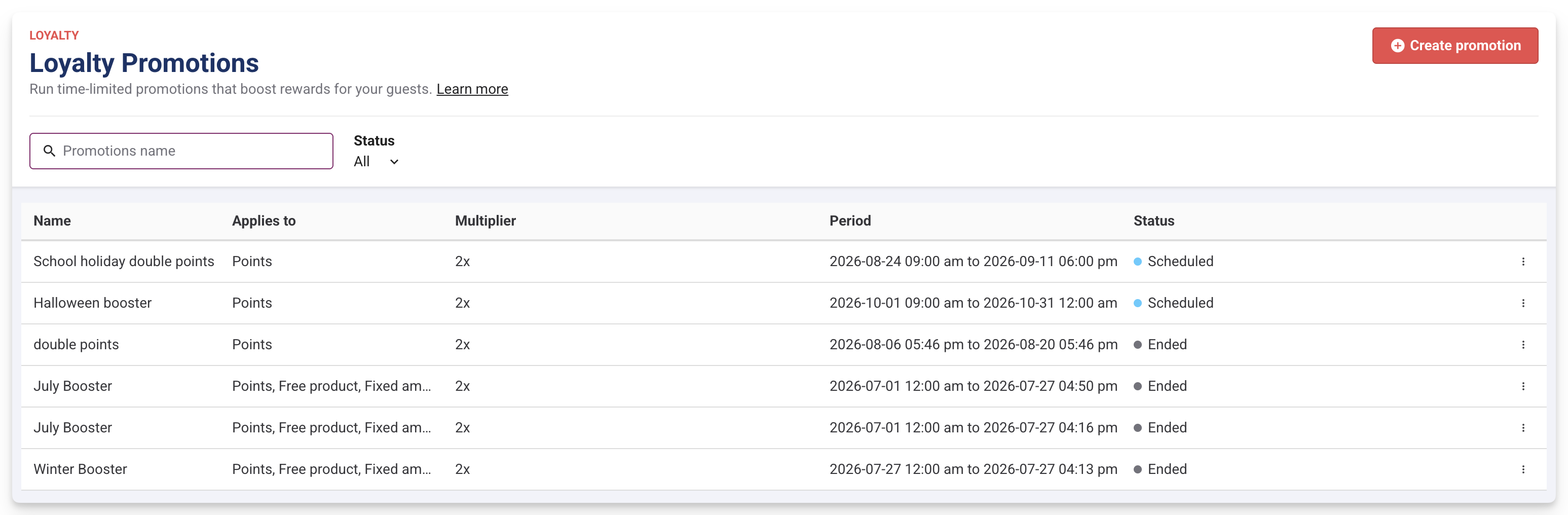
From Venue Manager, go to Loyalty > Promotions to see a list of all your active, scheduled and ended promotions.
Active promotions appear at the top of the list, followed by scheduled and then ended promotions.
End a promotion manually
To end a promotion manually before the scheduled end date, follow the steps below.
From the promotions list, find the promotion and select the options menu (3 dots) at the end of the row.
Select End promotion from the dropdown.
Or, select View promotion from the dropdown, to open a read-only view of your promotion. From the bottom of the page, select End promotion.
If you don’t need to end a promotion manually, then it will end on the date you specified when creating the promotion.

Edit a scheduled promotion
You cannot edit an active promotion, but you can edit a scheduled promotion (one that has been created but hasn’t started yet).
To edit a scheduled promotion, follow the steps below.
From the promotions list, find the promotion and select the options menu (3 dots) at the end of the row.
Select Edit promotion from the dropdown.
Make your changes and then select Save.
You can also delete a scheduled promotion by selecting Delete from the dropdown menu.

Promotion emails
When you run a promotion, guests enrolled in your loyalty program automatically receive a series of emails keeping them updated while it's active. You don't need to send anything manually because the emails are triggered by your promotion's start date, end date and duration.
There are two types of promotion emails:
Launch email: Sent the moment your promotion goes live. This email is always sent once per promotion, regardless of how long the promotion runs.
Reminder emails: Sent periodically while the promotion is active, to keep it front of mind for guests. The number of reminders and their timing depend on how long your promotion runs. See below for more information.
Every promotion email (launch and reminders) includes the guest's current loyalty status, without them needing to log in or check their balance elsewhere. This includes:
Their current points or reward balance.
Their progress toward any active milestone, if the promotion applies to a milestone rule.
To learn more about loyalty emails, see the guide How loyalty emails work.
Reminder cadence
Reminder emails are sent at a rate of no more than once every 7 days. How many reminders a guest receives depends on your promotion's total length.
Promotion length | Reminder emails sent | Total emails (including launch email) |
|---|---|---|
7 days or fewer | 0—1 | 1—2 |
8—30 days | Up to 4 (roughly weekly) | Up to 5 |
Over 30 days | Capped at 5, regardless of promotion length. | 6 |
For promotions over 30 days, the 5-reminder cap means guests won't be emailed every single week for the full duration of the promotion. Reminders are capped at 5 in total to avoid too many emails on long-running promotions.
The final reminder email
Whatever your promotion's length, the final reminder email before it ends is timed to arrive 3 days before the end date, rather than strictly following the weekly interval schedule. This acts as a "last call," giving guests a clear, final nudge to take advantage of the promotion before it closes. It uses the same format and content as a regular reminder email.
Example 1, a 14-day promotion:
Day 0: Launch email.
Day 7: Reminder email.
Day 11: Final email (3 days before the promotion ends on day 14).
Example 2, a 30-day promotion:
Day 0: Launch email.
Days 7, 14, 21: Reminder emails.
Day 27: Final email (3 days before the promotion ends on day 30).
Example 3, a 60-day campaign
Day 0: Launch email.
Days 11, 23, 34, 46: Reminder emails.
Day 57: Final email (3 days before the promotion ends on day 60).