When redeeming tickets at POS, you can find out more specific information about a guest ticket. You can also upload a guest photo.
Access guest ticket details at POS
From POS, go to the booking.
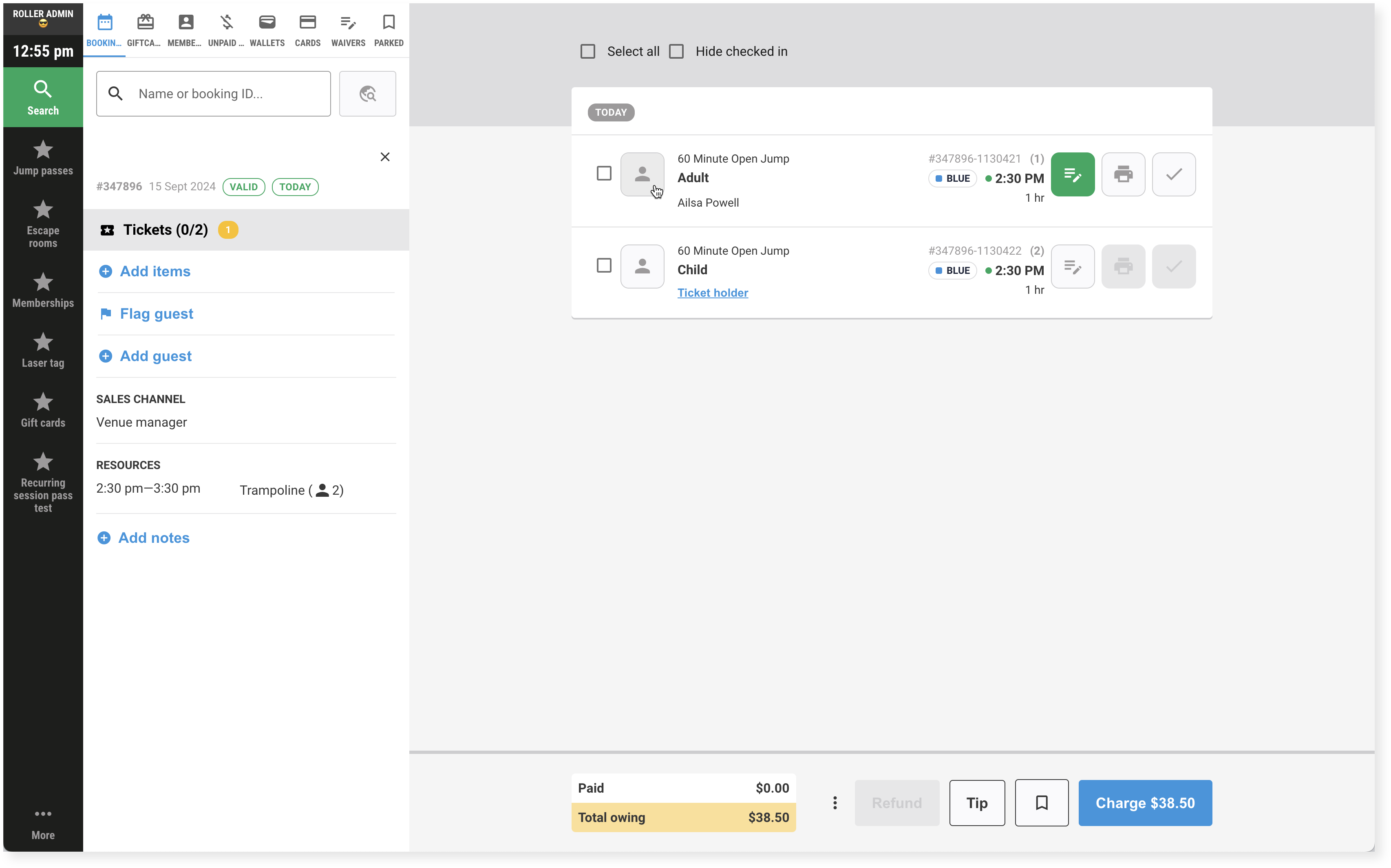
From the main booking panel, select the guest icon for a specific guest ticket. The guest details appear.
Guest details and photos
Use the tabs at the top of the guest details screen to find out more information about the ticket, guest and any linked guest waivers.
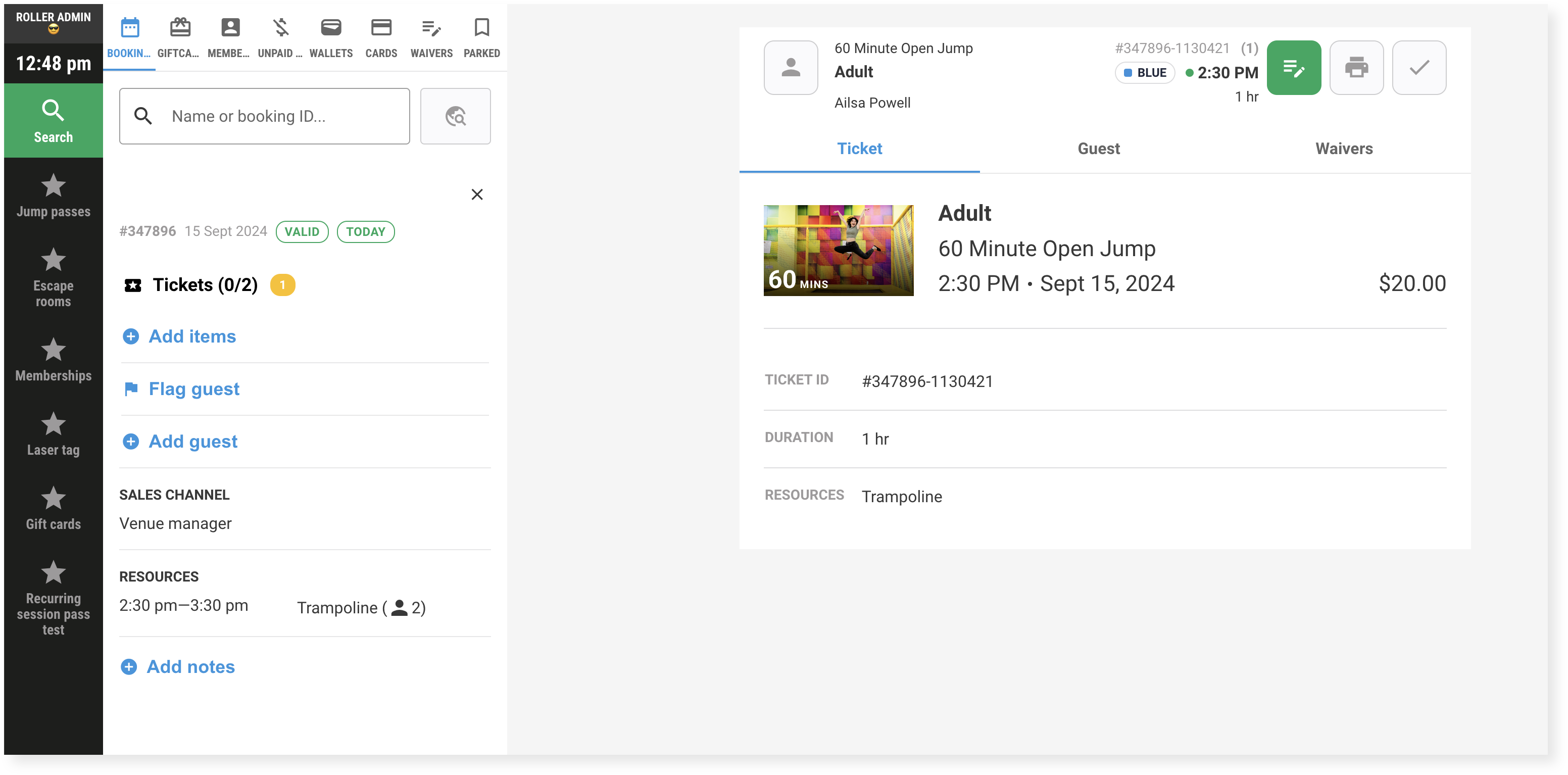
Ticket tab | From this tab, you can see specific information related to the ticket such as the ID, duration, resources for sessions or expiry date, last redemption and number of times redeemed for passes.
|
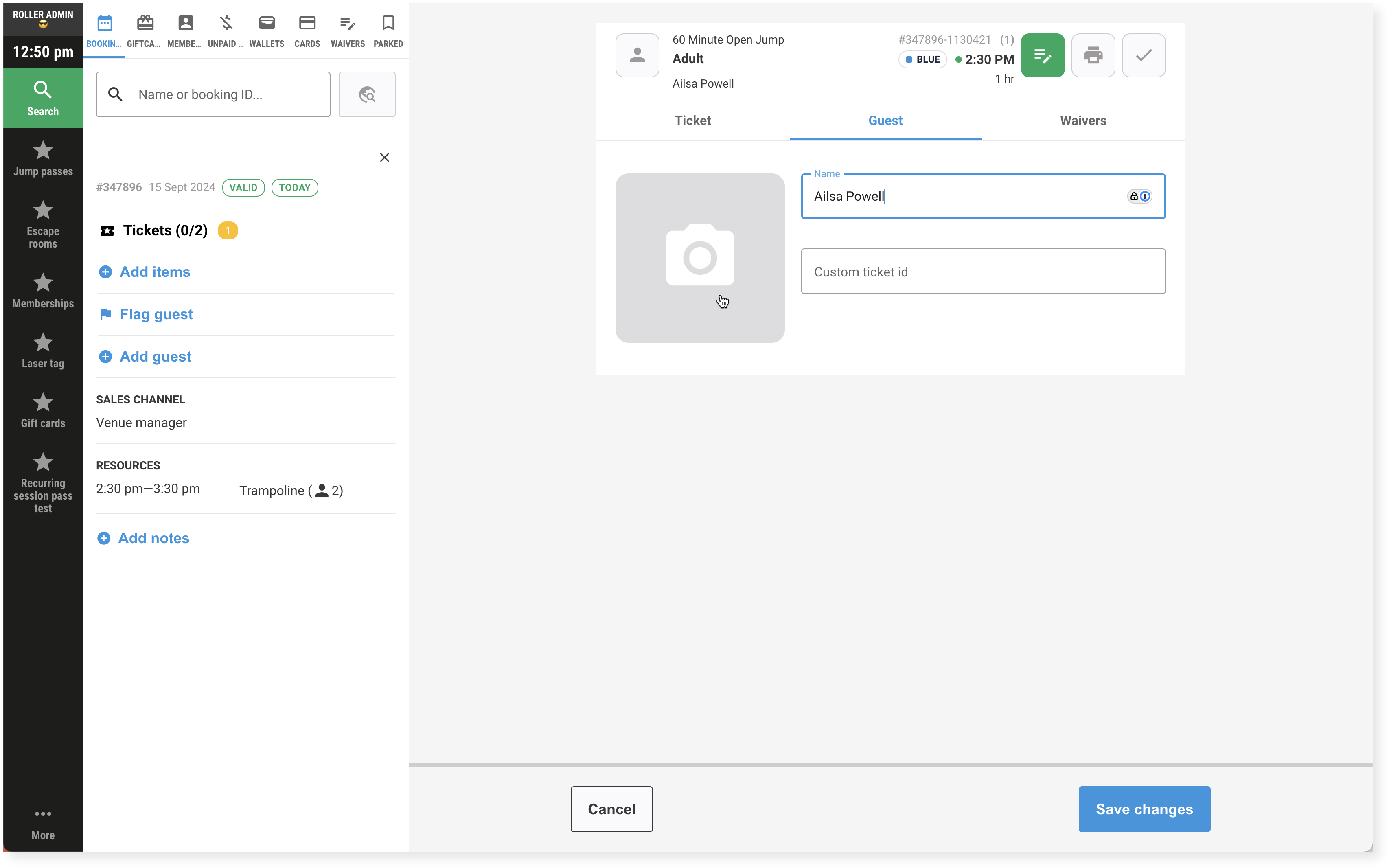
Guest tab | From this tab, you can:
|
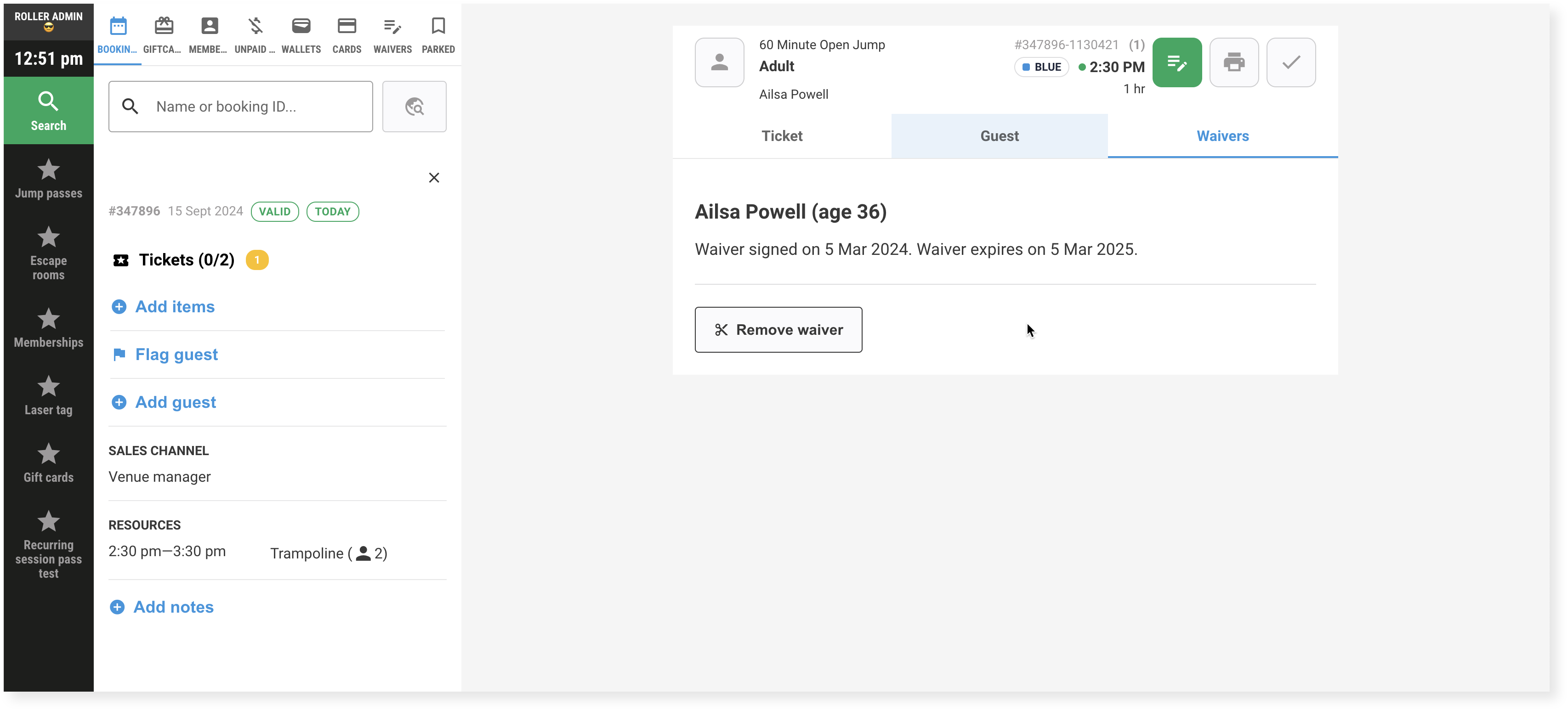
Waiver tab | From this tab, you can find out more details about the signed waiver attached:
|