Take greater control over advance bookings with new flexible scheduling options. Now, you can set a max booking window in days (1 to 366) in product schedules. This allows you to control how far in advance guests can book, ensuring availability aligns with your venue’s needs, such as prioritizing high-value bookings and reducing manual schedule updates.
For all product updates and changes this month, refer to our changelog.
Set max booking window in days for more precise scheduling
Plan: Available on all plans
Target release date: 27 February
We’ve modified how far in advance guests can book in product schedules. Previously, the maximum booking window could only be set in monthly increments. Now, you can specify an exact number of days, from 1 to 366.
This flexibility allows you to tailor booking windows based on your venue’s needs, such as setting a shorter booking window of less than one month.
Example: Prioritize high-value bookings
You can prioritize high-value corporate and group bookings by allowing event products to be booked months in advance while keeping regular session and standard pass tickets available only within a shorter, more precise booking window for the same space:
Corporate event product schedules: Max booking window set to 6 months.
Session and standard pass product schedules: Max booking window set to 14 days.
With a 14-day max booking window for regular tickets, only group bookings can be made further in advance. Once inside the 14-day window, any remaining spaces become available for standard and session pass purchases online.
This setup ensures higher-value group bookings can be secured well in advance while regular tickets are available for guests to purchase closer to their booking date.
With rolling availability, the booking window updates daily, automatically opening a new booking day and simplifying schedule management.
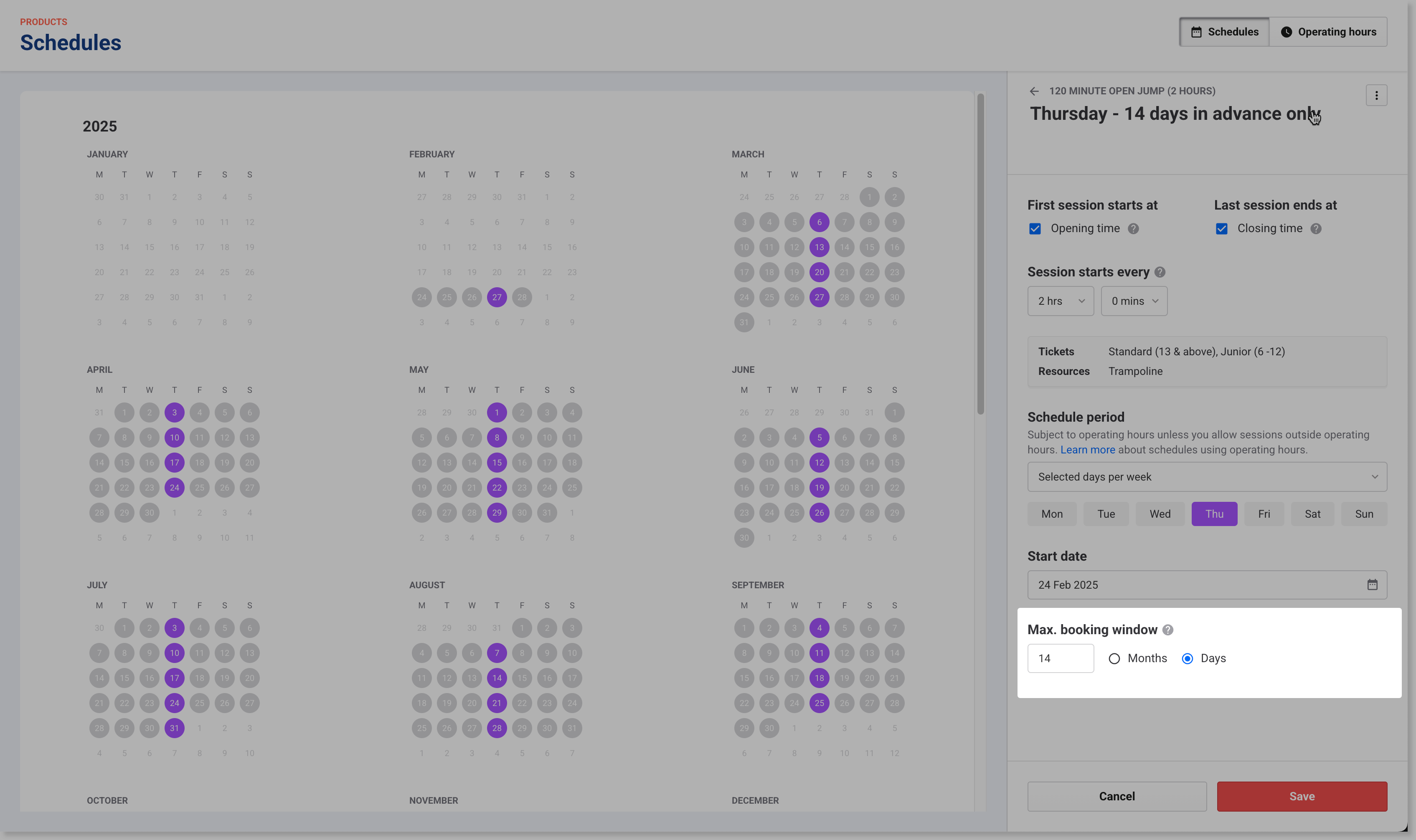
Set a max booking window in days
Follow these steps to update or create new schedules with a max booking window in days instead of months:
From Venue Manager, go to Products > Schedules.
Select the product you want to update.
Select an existing product schedule to edit or create a new schedule.
Before adding a new schedule for a specific day, remove it from any existing schedules to avoid scheduling conflicts.
In the schedule, select Days as the max booking window and enter the number of days in advance guests can book product variations and resources.
Select Save.
For more details on creating product schedules, see Create your product schedules using operating hours.