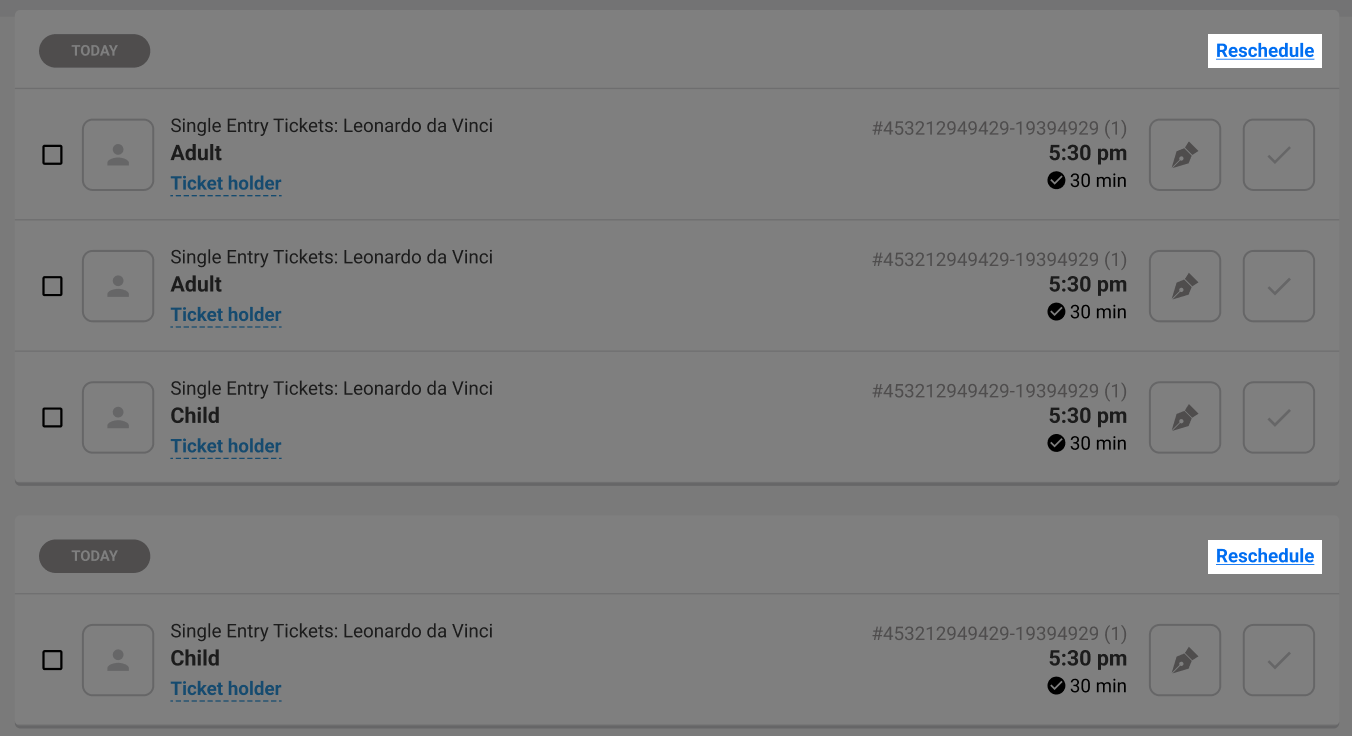
If a guest misses their booking, you can reschedule their session pass or standard pass at POS without deleting and re-adding tickets.
You can reschedule an entire booking or just selected tickets on the booking.
If a pass has already been redeemed, you’ll need to unredeem it first before rescheduling. Watch the video to see how.
When to use
Use this when you need to move a booking to a new date or time, for example:
A guest arrives on the wrong day. POS prompts you to reschedule the booking instead of redeeming it.
A group arrives after their 6 PM session time and needs to be moved to the 7 PM session.
A party booking needs to be rescheduled due to sickness, and staff need to move all invitees to a new date and time in one go.
Video: Reschedule bookings at POS
In this video, you’ll learn how to reschedule bookings in ROLLER POS. If plans change, you can quickly move a booking before the session starts to keep operations running smoothly.
Reschedule a booking
With the booking open at POS, select Reschedule.
Select the items you want to reschedule, then select Reschedule.
On the calendar, select the new date. For session passes, also select the new session time.
Review any price difference shown (based on the product’s price rules).
Choose how to handle any price difference:
If the new date costs more, select the option to charge the guest the difference.
If the new date costs less and creates a credit, select the option to apply the credit, then refund the amount at POS.
If needed, select the option to keep the original price.
A manager or supervisor approval may be required if you charge less than the price for the new day or time (eg keeping the original price). You can set this up in global POS device settings in Venue Manager.
Select Confirm. ROLLER moves all booking details, including any signed waivers, to the new booking time.
If any payment is due, select Charge, choose the payment method, then select Pay.