An online checkout is a 24-hour storefront that allows your guests to purchase products at any time on their mobile, tablet or desktop device. Use this guide to create a legacy online checkout in Venue Manager.
This guide is for ROLLER’s legacy checkout. For progressive checkouts, see Create your progressive checkout.
To learn how changing the checkout settings in Venue Manager impacts the guest experience online, refer to the guide Set up your checkout to improve the guest experience.
Create your checkout
From Venue Manager, go to Apps > Legacy checkouts > Create checkout.
Enter a name for the checkout (eg Book now). By default, this becomes part of the checkout address.
Choose how guests select a date
Date selection method
Date-led checkout — Guests choose a booking date from a calendar before they see products.
Show today’s products — The checkout opens on today’s date and shows products available today.
Start on a set date — Use this for event checkouts where products are only available on one date.
See how changing these settings impacts the guest experience.
Configure the product page (optional)
Add a page title, image and pre-purchase information to introduce the guests to your product offerings.
The page title, image and information will appear above any products in the checkout.
Use pre-purchase information to show important details before guests select products, such as a clothing policy or a special offer. For example, a clothing policy or to promote a special offer with a link to another checkout flow/webpage.
Note: Page title will only be displayed if there is an image and/or pre-purchase information added.
Add products
Select the search box.
Enter the product name.
Select the product from the list.
You can add any product except stock items, wallets, and add-ons.
To change the product order, hover over a product and use the arrows on the right. To remove a product, select delete.
Organize products
Use groups in product listing (optional)
This setting allows grouping products into categories such as Admissions and Gift Cards.
To create a new group:
Select Use groups in product listing.
A group will be created and named Untitled group.
Select this name to rename it.
Select the Add product group button to create additional groups.
To add or move products into a different group, hover over the product and use the arrow icons on the right-hand side to change the order or move the product into a new group.
Expand all products
If the checkout has one product, it expands by default. If it has more than one product, guests must select a product to view its ticket types.
To choose a ticket type, a guest must first select the product to expand it.
Checking the Expand all products setting will eliminate this step, but bear in mind that the page could become very long if the checkout contains many products and ticket types.
Add another Product Page (max 2) (optional)
Select this option to add a second product page to your checkout flow with additional products.
For example, you may decide to promote one type of product on the first page and then on the second page, sell other products such as special events, offers or gift cards.
Guests can only access the second product page after they add an item from the first page.
To remove this, select the Remove product page 2 button. A pop-up dialog will appear and ask to confirm deletion of the page.
Select Save to publish the checkout
If a product does not appear in the checkout, check its availability dates and sales settings.
Configure additional checkout settings
There are a number of settings available to further customise your online checkout.
Sessions
These settings affect session products sold in checkouts.
Use tiles and Use horizontal bars change how session tickets display in the checkout.
Show number of tickets remaining shows guests the remaining capacity for each session start time.
If a session ticket is linked to a single-booking resource, such as a party room, the checkout shows the number of rooms remaining for that start time instead.
Allow guests to choose session duration lets guests select multiple hours when you use consecutive sessions. To learn how to set this up, see Consecutive sessions.
Call to book after online sales close shows a Call to book phone link when guests view session products after online sales have closed.
For example, if a party product cannot be sold online within three days of the session start time, guests who view that session within three days see the Call to book link instead.
Details page
Extra terms adds a second text field before payment. Use it to share important policies or requirements before purchase.
Payment
Guest pays fees overrides your fee settings so guests pay fees in the checkout.
Accept only discount codes as payments lets guests pay using a discount code only.
For example, if you use standard passes with multi-pass discount codes, you can set up the checkout so guests must pay with a discount code.
Override URL (will only appear before saving for the 1st time)
If you don’t want the pre-populated name at the end of your checkout flow link, highlight the text and type in the new name accordingly.
The override address can only include letters, numbers, and dashes. You can’t change it after you save the checkout for the first time.
Legacy checkout web tracking
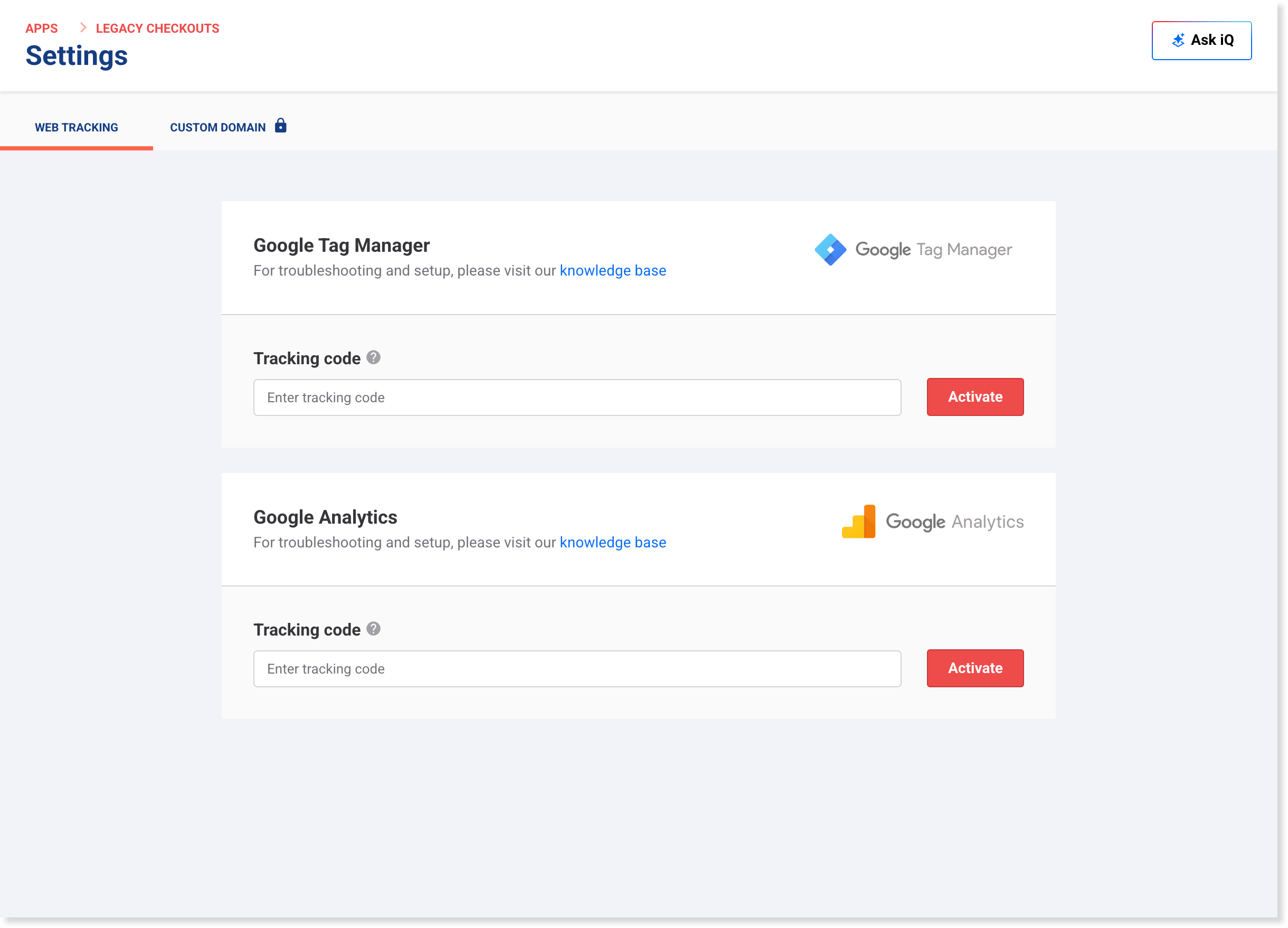
Legacy checkout includes web tracking settings, giving you the flexibility to add Google Tag Manager (GTM) or Google Analytics tracking if needed. As tracking setups can vary, ROLLER doesn’t provide setup or troubleshooting support for legacy checkout web tracking. If you’d like to use GTM or GA, you can manage the setup yourself or work with your web analytics specialist.
From Venue Manager, go to Apps > Legacy checkouts > Settings.
Stay on the Web tracking tab.
Under Google Tag Manager or Google Analytics, paste your tracking code into the Tracking code field.
Select Activate.
If you’re using progressive checkouts, refer to the guide Track online guest behavior and checkout conversions.
Review your checkout
Always review your products in the checkout using the standalone checkout address link:
Go to Apps > Legacy checkouts > All checkouts.
For the checkout, select the options menu (3 dots) on the right-hand side.
Select Copy URL to clipboard.
Paste the checkout URL into a new browser tab to review.
If you’ve added a product to a checkout, and it's not displaying for a particular day in your review, the product is most likely not set up to be available that day. You can change the date in the checkout to a day where your product is available, or edit the product availability so that it displays on the intended date.
Edit a checkout
Go to Apps > Legacy checkouts > All checkouts.
For the checkout, select the options menu (3 dots) on the right-hand side.
Select Edit.
Archive a checkout
Go to Apps > Legacy checkouts > All checkouts.
For the checkout, select the options menu (3 dots) on the right-hand side.
Select Archive. This removes the checkout and can’t be undone.
Learn more
To learn how to add a checkout on a page of your website, see Add checkouts to your website (legacy)
For a visual explanation on how checkout settings will look, see How to set up your checkout to improve the guest experience (legacy)
To customize the confirmation email guests receive after making a purchase via the online checkout, see Customize guest email templates.