Cashless wallets let guests load funds onto scannable cards, fobs or wristbands and use that balance at POS. This guide shows you how to set up a wallet product for use at your venue.
How guests use wallets
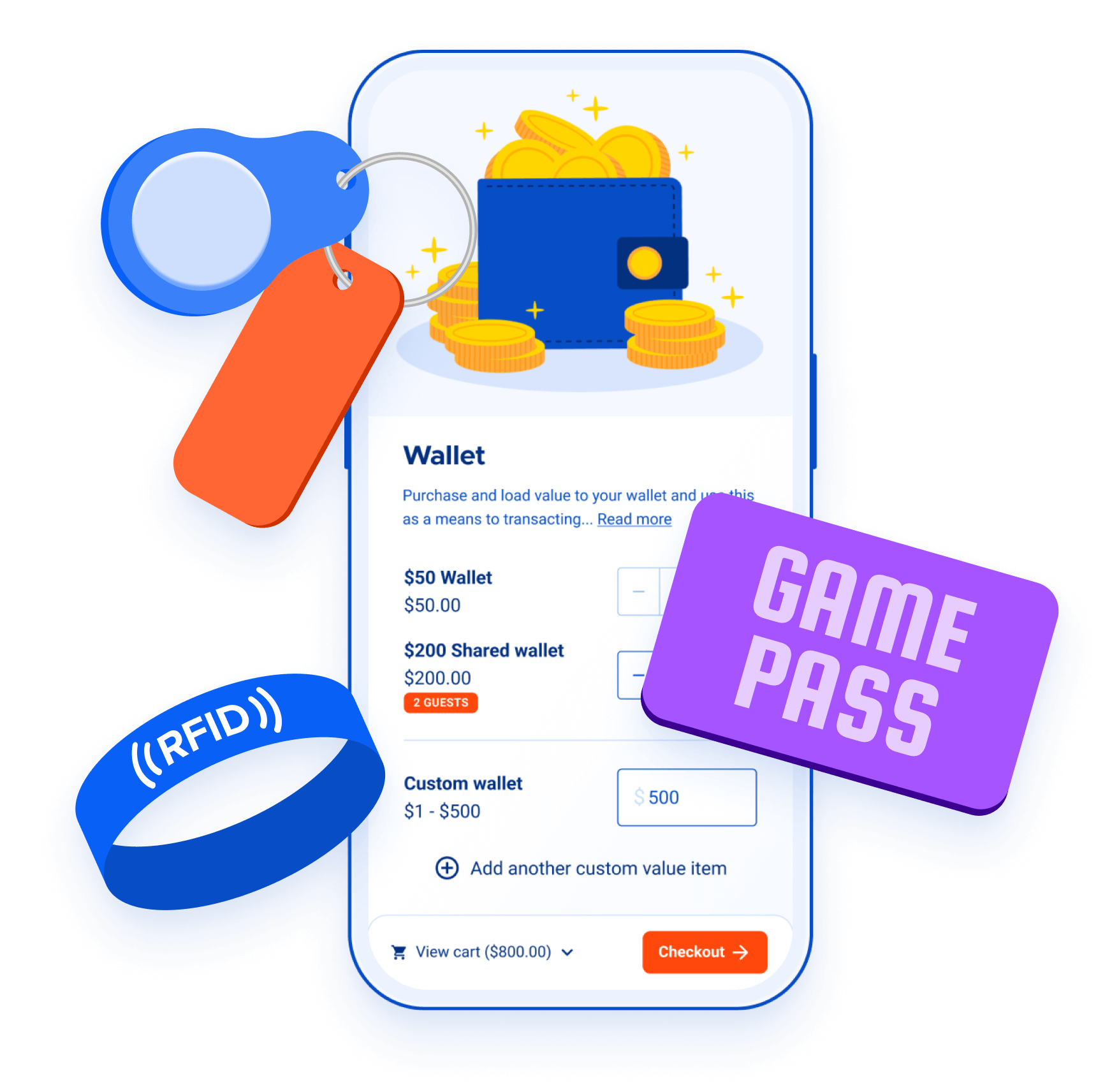
A wallet assigns a monetary value to a scannable item such as a swipe card or RFID fob. Guests can then use that balance to pay at POS. Guests can buy a wallet, load funds onto it and use the balance to buy items at your venue. They can also top up their wallet balance when needed. You can also let families or groups share one wallet balance by linking multiple scannable cards to the same wallet in ROLLER. |
|
Before you start
You can’t buy a wallet with a discount or a complimentary payment type.
If a guest buys a wallet online, assign an ID to the wallet at POS before the guest can use it.
Guests can only use wallets as a payment method at POS. They can’t use them at a self-serve kiosk, online checkouts and staff can't apply them to bookings in Venue Manager.
Create the wallet product
From Venue Manager, go to Products > Create products.
Select Wallet.
Add product details, including:
Name
Description and detailed description
Thumbnail image
Add tags to help group and manage products. You can use tags to automatically add new products to sections in online checkouts and menus at POS. Create a new tag or select an existing one from the drop-down menu.
Add wallet variations. These control how funds are stored and used, including whether the balance is individual or shared across multiple devices. For more details, see Configure wallet variations below.
Set how long the wallet stays valid:
Never expires: Unredeemed funds do not expire and remain as deferred revenue.
Expires after a specific number of days: The expiry period restarts each time the wallet is topped up.
Configure any additional options as needed.
Setting
Description
Instructions
Add important information for guests. This appears after purchase in online checkouts, order confirmation emails and booking reminder emails.
Reporting category
Assign products to the reporting categories you've created in ROLLER based on general ledger (GL) codes. You must create reporting categories first to use this option.
Tax override
The default tax rate is set to 0% to prevent double taxation since tax is applied when the wallet is redeemed for taxable items. You can override this if necessary by choosing a different tax rate you've configured in Settings > Account > Taxes & Fees.
Terms & conditions
Add specific terms and conditions for this product. These will appear after your venue terms and conditions for guests to agree to in online checkouts.
Select Save.
Configure wallet variations
Wallet variations let you create individual or shared wallets and define how guests can buy them. Shared wallets let guests link multiple scannable devices to one wallet balance. To add a wallet variation:
Under Wallet details, select Create variation.
Enter the Name (eg $25 Wallet or $100 Shared Wallet).
Enter the wallet Price.
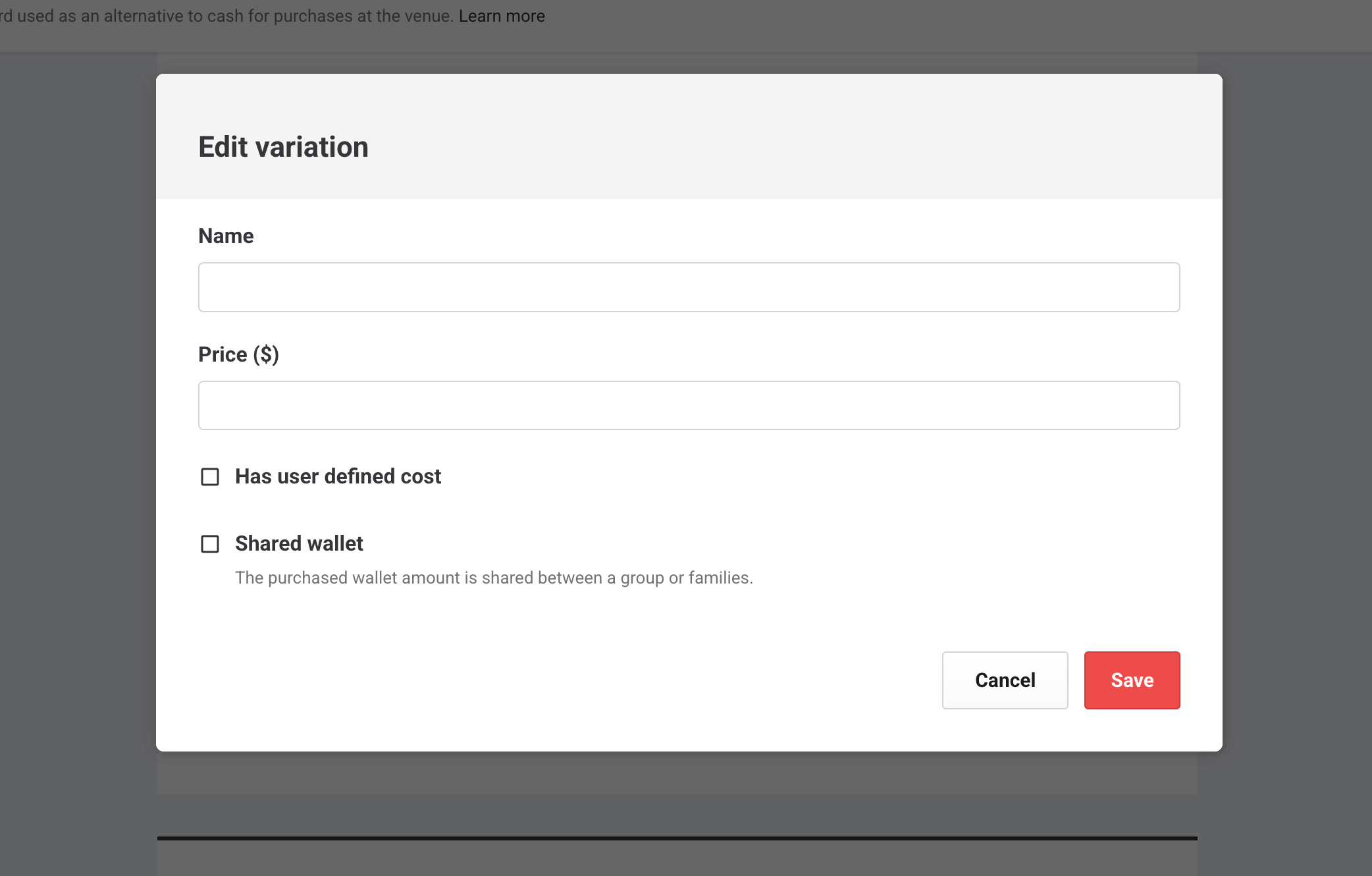
To let staff enter a custom amount when selling the wallet, select Has user defined cost. Then enter the minimum and maximum values.
To create a shared wallet, select Shared wallet. Then enter the maximum number of guests who can share it.