Cashless cards let guests preload cash amounts, tap to play and spend their balance on food, drinks or tickets without reaching for their wallet. Set up your cashless card products once in ROLLER and sell them at POS, online or over the phone, with every transaction tracked in one place.
Before you start
Before you create cashless card products, make sure you have an active account with one of the supported integration partners and the integration connected to your ROLLER account. Only one provider can be active per venue at a time. To compare providers, see the partner directory.
Sacoa — see ROLLER + Sacoa integration
Amusement Connect — see ROLLER + Amusement Connect integration
Intercard — see ROLLER + Intercard integration
HQ venues can also create cashless card products once in HQ and share them with their managed venues — keeping offerings consistent and reducing duplication across locations.
Create a cashless card product
From Venue Manager, go to Products > Create product.
Select Cashless card.
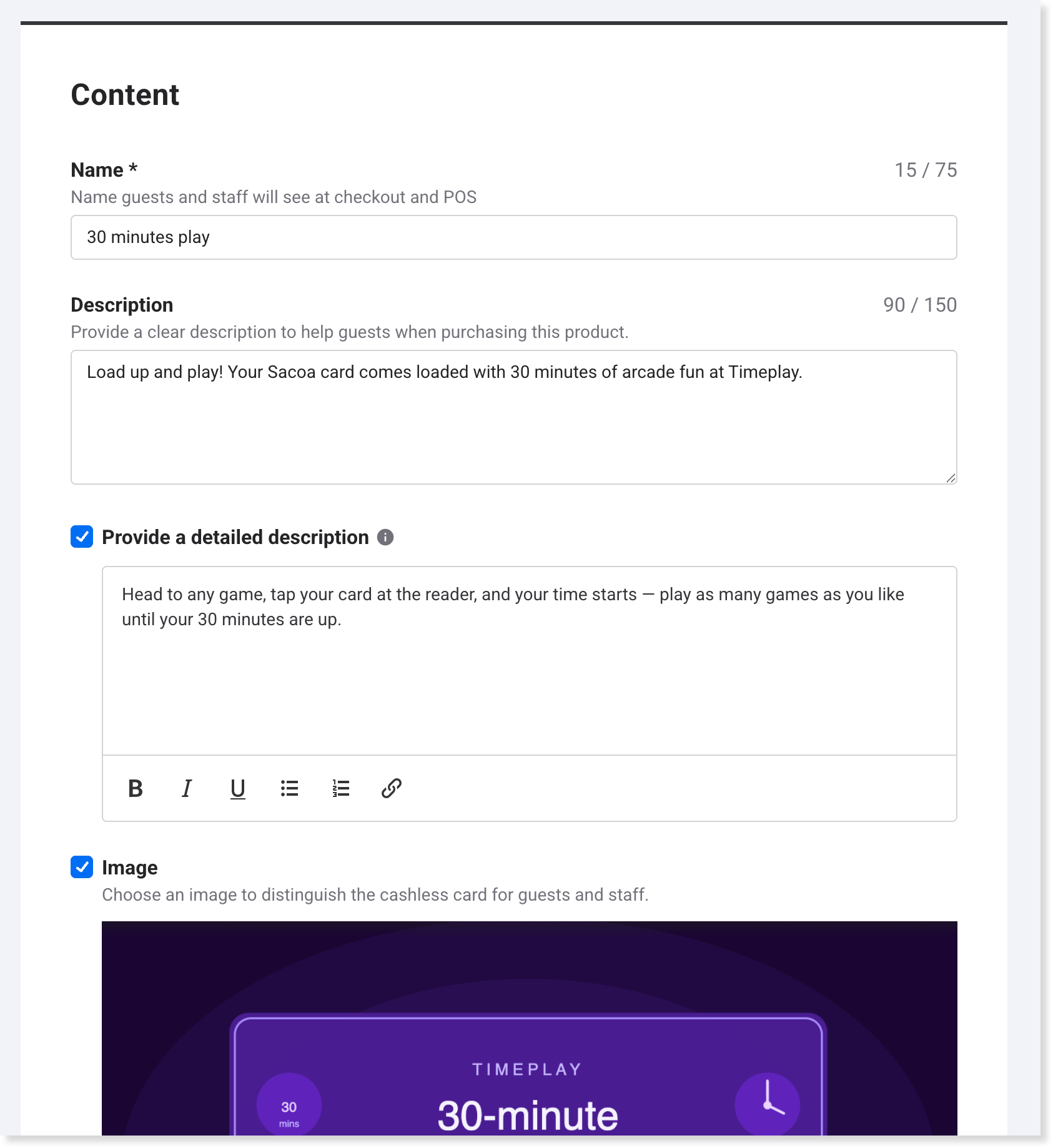
Enter a name for the product. Guests and staff will see this name at checkout and POS.
Optionally, add tags to manage and group products, or add them to online checkout sections.
Scroll to the Cashless card details section and add at least one variation — see Create a variation below.
Under Additional options, configure instructions, reporting category, tax override and product-specific terms and conditions as needed — see Additional options below.
Select Save and Publish.
Create a variation
Variations define what gets loaded onto a guest's card when they purchase the product. Each variation has a type, a name and a price.
In the Variations section, select Create variation. The Create variation flyout opens.
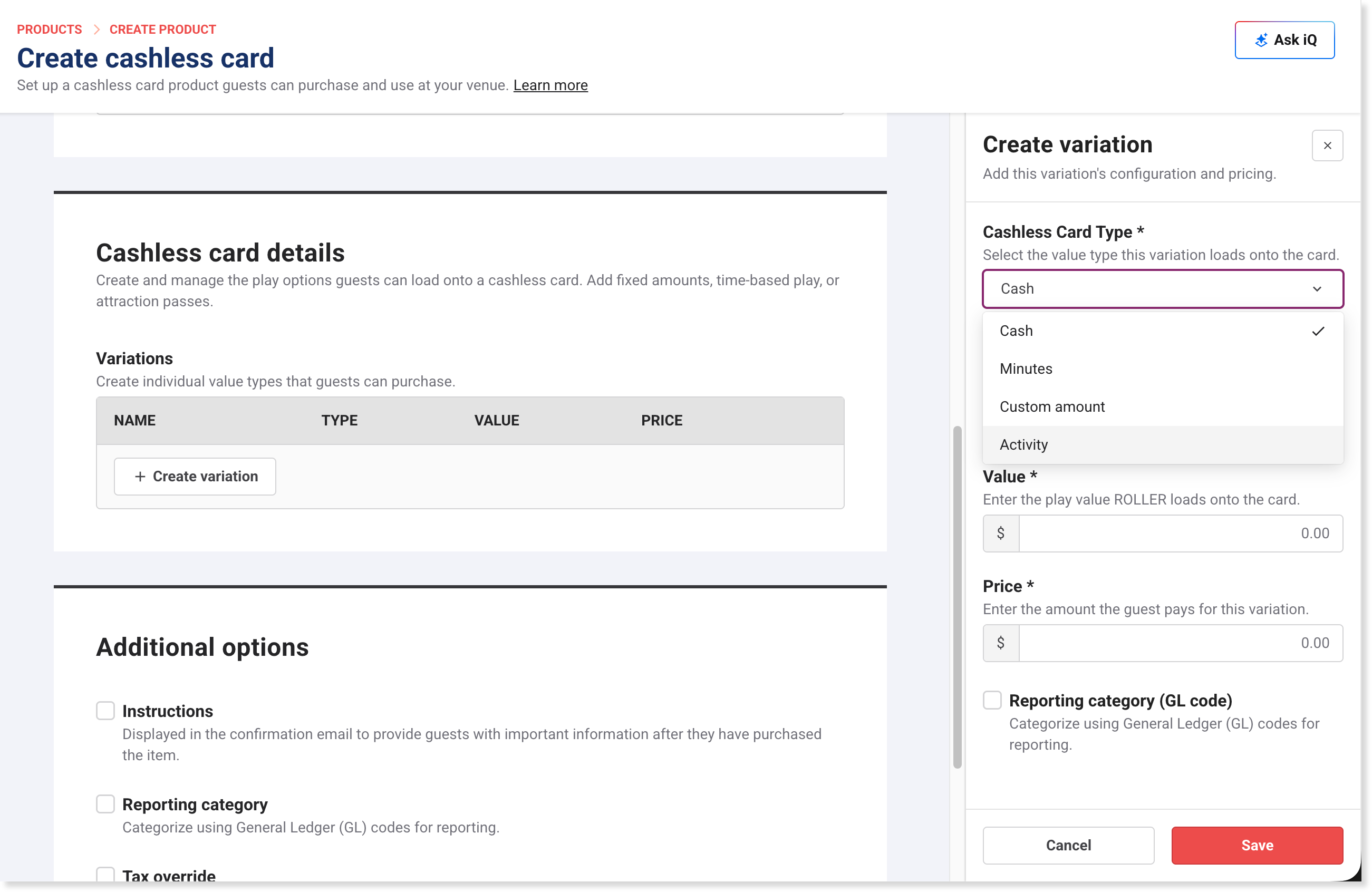
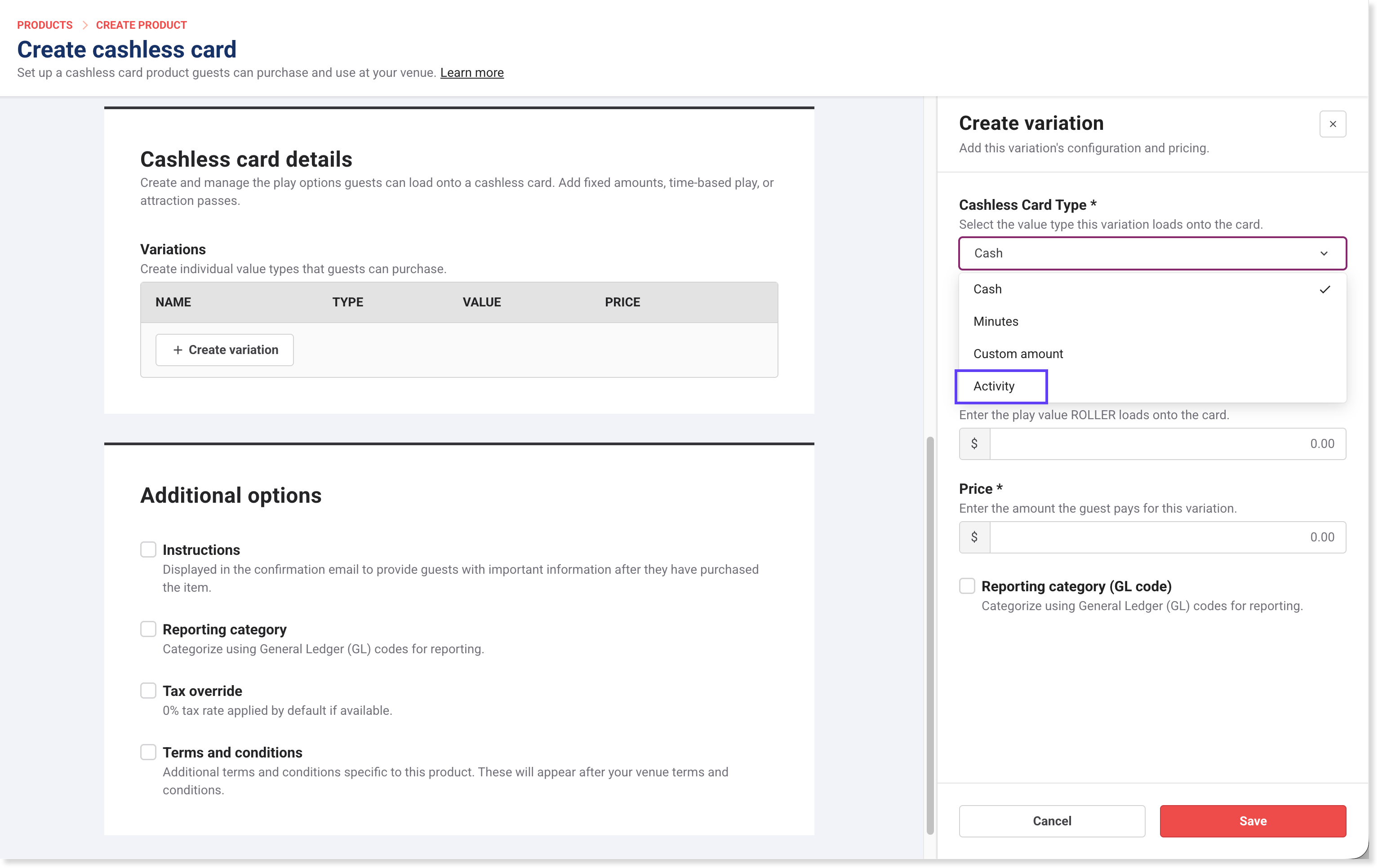
Under Cashless Card Type, select the type of variation you want to create.
Complete the fields for the selected type — see variation types below.
Select Save.
To edit an existing variation, select its row in the variations table to open the flyout.
All four variation types — cash, minutes, custom amount and activity — are supported across Sacoa, Amusement Connect and Intercard. Read on to learn more.
Cash
Loads a cash value onto the card. Guests spend this at games and attractions. How the Value and Price fields work depends on your provider:
Provider | How it works |
|---|---|
Amusement Connect | Select Cash, then enter the price the guest pays in the Price field. Amusement Connect calculates the arcade credits and bonus credits based on this amount. |
Intercard | Select Cash, then enter the redeemable arcade value in the Value field (eg $20) and the price the guest pays in the Price field (eg $8). The difference becomes bonus cash — in this example, guests receive $12 in bonus cash to spend at arcade games.
|
Sacoa | Select Cash, then enter the play value to load onto the card in the Value field (eg $20) and the price the guest pays in the Price field. |
Guests can use the cash value on their card to pay for food, beverages, tickets and merchandise at ROLLER POS. Bonus cash (Intercard) and bonus credits (Amusement Connect) cannot be used for these purchases — only the base cash value.
Minutes
Loads time onto the card. Time starts counting down when the guest first taps a reader.
Field | What to enter |
|---|---|
Cashless card type | Select Minutes. |
Name | A name for this variation (eg "20 minutes"). |
Value | The number of minutes to load onto the card. |
Price | The amount the guest pays for this variation. |
Custom amount
Lets the guest choose how much to load onto their card within a price range you define.
Field | What to enter |
|---|---|
Cashless card type | Select Custom amount. |
Name | A name for this variation (eg "Custom top-up"). |
Custom amount | Set the minimum and maximum price range available to guests (eg $0 minimum, $50 maximum). |
Activities
An activity variation loads game entitlements onto a cashless card. Instead of loading a cash value or time credit, an activity variation gives a guest a set number of plays at a specific game, attraction or session-based activity (eg 3 go-kart races or 1 axe throwing session). When a guest taps their card at a game, one play is deducted (eg a card loaded with 3 go-kart races loses one race per tap).
Each activity is linked to a product configured in Sacoa, Amusement Connect or Intercard. How you link to that activity in ROLLER depends on your provider — Sacoa and Amusement Connect populate a synced list you select from, while Intercard uses a tag you enter.
Intercard: create your activity-based cards in Intercard first, then enter the GatePass tag from your Intercard portal in the Product tag field. If you already have activity-based cards set up in Intercard, create new ones — Intercard will then populate the list. Usage is not set in ROLLER, because the number of plays is preconfigured in Intercard.
When creating a cashless card product, select Activity as the variation type. For Sacoa and Amusement Connect, you then configure it as single-use or multi-use with a set number of plays.
You can sell activities as standalone products, bundle them in packages or party packages, or add them as add-ons. You can also set expiry rules — an activity can remain valid indefinitely or expire at the end of a party package session.
Field | What to enter |
|---|---|
Cashless card type | Select Activity. |
Name | A name for this variation (eg "Axe throwing x 3") |
Price | The amount the guest pays for this variation. |
Product | Sacoa and Amusement Connect: select the activity from the drop-down — this list is populated from your cashless card provider. Intercard: enter the GatePass tag from your Intercard portal in the Product tag field. |
Usage | Select Single use (one play only) or Multi-use (enter the number of plays). Not available for Intercard — the number of plays is preconfigured in Intercard. |
Expiry | Select No expiry, or Valid for party/event booking duration — the card activates at check-in and expires when the booking ends. The card must be sold as part of a party or event package to use this option. |
If you don't see the activity type in the Cashless card type drop-down, confirm your integration is connected.
Add multiple variations to one product
A single cashless card product can have more than one variation. Select Create variation again and repeat the steps above.
For example, a party package card might include a $10 cash variation and a 5-play laser tag activity variation, both loaded onto the same physical card when assigned at POS.
Create cashless card bundles
If you want to sell multiple balance types as a single product, you can group your cashless card variations into a bundle. See Create cashless card bundles.
Additional options
Setting | Description |
|---|---|
Instructions | Add instructions to display to guests post-purchase in online checkouts, order confirmation emails and booking reminder emails. |
Reporting category | Assign the product to a reporting category based on your GL codes. You'll need to create reporting categories first to enable this option. |
Tax override | Tax is set to 0% by default (if you have a 0% tax rate set up in Settings > Account > Taxes & Fees). This prevents the card from being taxed at purchase — tax is applied later when the guest redeems the card balance for taxable items like food or tickets. Only override this if you have a specific reason to tax the card at the point of sale. |
Terms & conditions | Add product-specific terms and conditions. These appear after your venue's terms for guests to agree to in online checkouts. |
Sell online and in venue
Once your product is created and published, add it to the right sales channel for your venue:
Add the cashless card to a checkout to sell online, or a POS menu to sell in venue.
You can also add cashless cards to bookings created in Venue Manager.
Frequently asked questions
Why can't I see my Intercard activities when creating an activity variation?
Your activity-based cards must exist in Intercard before you can map them in ROLLER. Create them in Intercard first, then enter the GatePass tag in the Product tag field. If you already have activity-based cards set up in Intercard, create new ones — Intercard will then populate the list.
Where do I find the GatePass tag?
In your Intercard portal. The Product tag field in ROLLER takes the GatePass ID or tag from Intercard.
Can I set the number of plays for an Intercard activity in ROLLER?
No. Usage is preconfigured in Intercard, so the Usage option is not available for Intercard activity variations. Set the number of plays in Intercard.