Venues that move from cash-only or ticket-based systems to cashless card technology consistently see higher spend per visit. When guests preload value onto a card, they tend to spend more — the friction of handing over physical cash at every game is removed, and any unspent balance naturally encourages a return visit to use it up.
With the ROLLER + Sacoa integration, you can sell cashless cards as part of any product — a walk-in purchase at POS, an online booking, or bundled into a birthday party package. Every transaction is tracked in ROLLER, which means one system, one report, and no manual reconciliation between your booking platform and your game system.
What you can do
Once Sacoa is connected to ROLLER, your team gains these core capabilities — all without leaving the ROLLER interface.
Sell Sacoa cashless card products through ROLLER
Sell cashless card products at every touchpoint you already use — at POS, through online checkout, or bundled into a party package. When included in a package, the card entitlement loads automatically at the time of sale.
Example: A birthday party package includes a $20 cash variation and 5 axe throw plays for every guest. Both load onto the guest's physical Sacoa card when staff assign it at check-in.Assign card variations to physical RFID cards at ROLLER POS
When a guest arrives, staff scan or manually enter the card ID at POS to link it to the entitlements purchased. The guest can then tap their card at any Spark Reader-equipped game or attraction to activate it.Create cashless card bundles
Group multiple balance types — such as cash credit, minutes and activity entitlements — into a single product, so guests can purchase everything in one transaction and have all balances assigned to their card in one scan at POS.Accept cashless card payments at ROLLER POS
Guests can use the cash value on their Sacoa card to pay for games, food, beverages, merchandise, or entry tickets — keeping spend within your venue.View a guest's card details at ROLLER POS
Staff can look up any card instantly at POS to see the balance summary, game entitlements with validity dates and remaining quantity, and a full transaction history.Merge cashless card balances at ROLLER POS
If a guest has multiple cards, staff can consolidate all balances — cash, time and activities — onto a single card at POS. The destination card's history records the consolidation for a full audit trail. Available for Sacoa and Intercard.Track all card transactions in ROLLER
Every card sale, top-up, and card-based payment is recorded in ROLLER alongside your bookings, retail, and F&B data — giving you a complete picture of venue spend per visit.Capture Sacoa kiosk sales in ROLLER (beta)
Sync kiosk sales into ROLLER automatically every hour. See Capture Sacoa kiosk sales (beta) below.
How Sacoa cashless card variation types work
A single Sacoa cashless card product can carry one variation type, or a combination of all three loaded onto the same physical card.
Variation type | What it loads | Best used for |
|---|---|---|
Cash | A dollar amount (fixed or custom) the guest spends at games and attractions. | Walk-in top-ups, general arcade play, gifting |
Minutes | A time block (eg 60 minutes) that counts down. | Trampoline parks, open play sessions, timed attractions |
Activity | A set number of plays at a specific game or attraction (eg 5 laser tag sessions). | Party packages, premium attractions, go-karts, escape rooms |
Activity variations are currently configured in Sacoa's system, not in ROLLER. Before you can sell an activity variation in ROLLER, the game type and its rules must already be set up in Sacoa. You then link to the Sacoa activity when creating the cashless card in ROLLER.
How ROLLER and Sacoa stay in sync
The integration works in two directions:
When a guest buys — ROLLER records the sale and sends the entitlement data to Sacoa
When staff assign a card to a guest in ROLLER — ROLLER sends the card ID to Sacoa, which activates the entitlements on that card
When a guest taps at a game — the Spark Reader communicates with Sacoa in real time, and the transaction appears in ROLLER automatically.
Staff don't need to manage this process — once the integration is live, the sync happens in the background with every transaction.
Activity variations and party packages
Activity variations can be bundled into party packages with an expiry tied to the booking.
For example, a venue running a 2-hour birthday party can add a "2 attraction rides" Sacoa activity variation to their party package — when the package is sold, the entitlement is automatically set to expire when the party booking ends.
This prevents guests from using party-specific entitlements outside their booking.
Cashless card and transaction visibility at POS
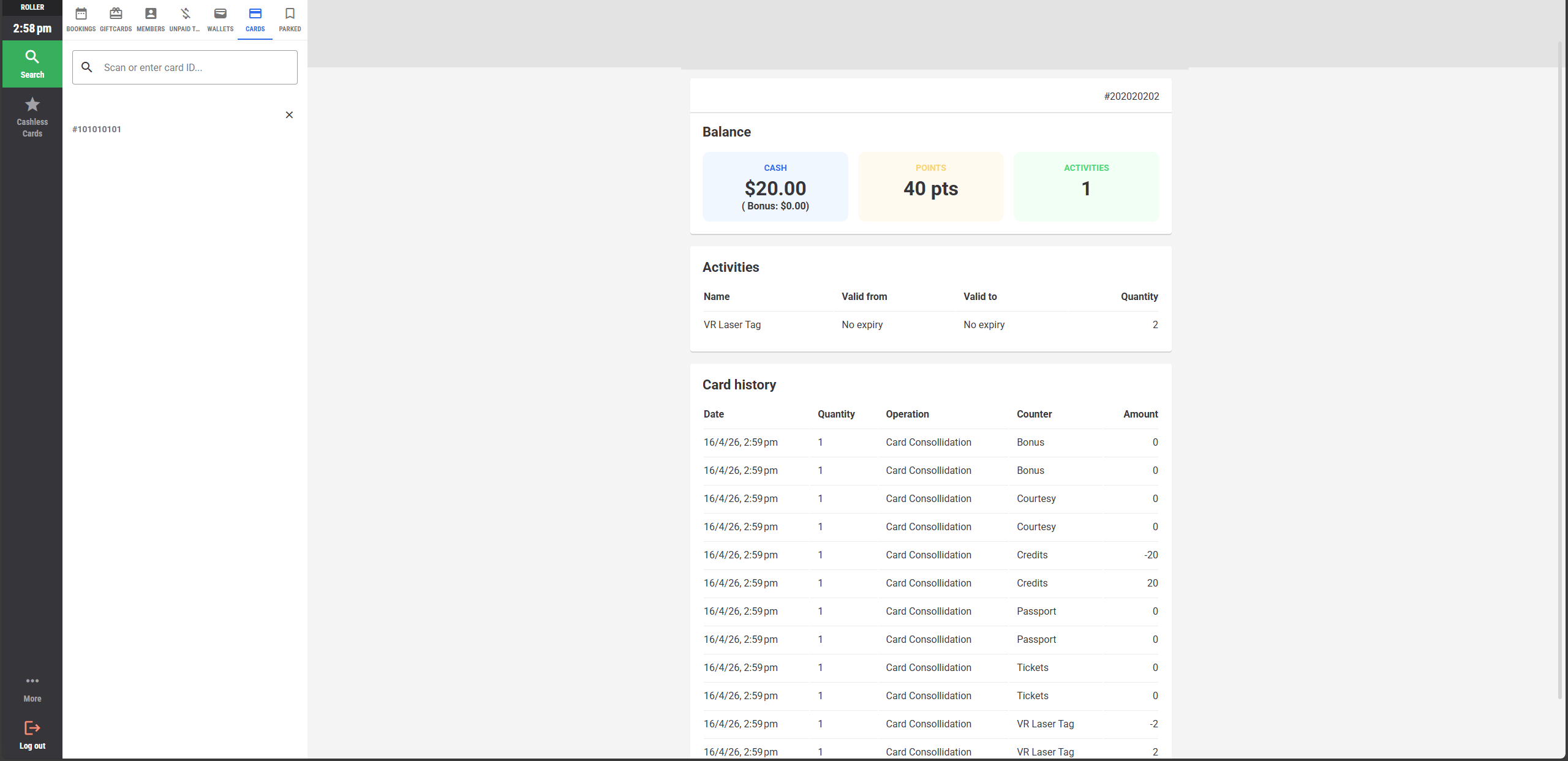
When you look up a Sacoa card number at POS, you can see:
Balance — a summary of the cash, points and activity entitlements currently loaded on the card.
Activities — all game entitlements on the card, including the name, valid from and valid to dates, and remaining quantity.
Card history — past transactions showing the date, quantity, operation, counter, and amount.
This gives your team a complete picture of the card without leaving ROLLER.
Capture Sacoa kiosk sales (beta)
View kiosk revenue alongside your other transactions in ROLLER — without manual reconciliation.
Before you start, make sure a cashless card product is set up for your venue in ROLLER. The sync uses the tax rate on that product to create bookings — if no cashless card product exists, the sync will not run.
Once enabled, sales made at Sacoa kiosks sync automatically into ROLLER every hour as bookings. Each booking is annotated with the Sacoa POS name and invoice number, and includes the external booking ID and payment records. To view kiosk revenue separately from other sales, filter by Cashless card provider in the Channel filter of your Detailed Transactions report.
To enable the sync for your venue, contact your customer success manager or the support team.
Keep in mind
Activity configuration is managed in Sacoa, not ROLLER. ROLLER links to activities already set up in Sacoa — you cannot create or edit activity settings from within ROLLER.
Top-ups are accepted at POS only. Guests can top up Cash and Minutes variations at a ROLLER POS station. Top-ups are not available through online checkout.
Sacoa kiosk sales require the sync to be enabled. See Capture Sacoa kiosk sales (beta) above.
Cashless card balances are automatically reversed when a booking is modified or cancelled in ROLLER. This is triggered when you reduce the number of cashless cards on a booking, remove a cashless card item, or cancel a booking. The card remains active after the reversal. For any other balance adjustments, manage them directly in Sacoa.
What you need to get started
There are four things to have in place before the integration can be activated:
An active paid Sacoa subscription — The integration relies on a live Sacoa account. If you don't have one yet, contact Sacoa for a demo.
Sacoa RFID cards and compatible hardware — Physical PlayCards (or wristbands/key fobs) for your guests to carry.
RFID readers at each ROLLER POS station — So staff can scan a guest's Sacoa PlayCard to look it up, assign entitlements or process a top-up.
A Sacoa Spark Reader fitted to each game — The Spark Reader mounts to the game and handles the tap-to-play validation. These are installed by Sacoa or your hardware provider.
To connect the integration, share your Sacoa system credentials with us: Sacoa URL, Sacoa username, Sacoa password. Your Sacoa representative can confirm these details if you don't have them to hand.
If you're not currently using Sacoa and would like to learn more, contact Sacoa for a demo.
Next steps
Once your Sacoa integration is connected:
Set up your Sacoa card products in Create your cashless game cards.
Learn how to sell and manage cards at POS in Sell and manage cashless cards.