If you're an existing customer using Windcave terminals, this guide shows you how to integrate these terminals with ROLLER POS and self-serve kiosks.
Supported Windcave card terminals
If you want to find out more about terminal specifications, terminal network connection options or have any general questions about how these card terminals work, see Windcave's terminal hardware page or contact Windcave support directly.
Windcave Hosted Initiated Transactions (HIT) credentials
ROLLER requires your Windcave HIT Username, Key, and a Device ID (also known as Station ID) for each terminal that you want to connect.
If you don't have these details, request these details from Windcave support directly to connect with ROLLER.
Network connection
Windcave's HIT integration is cloud-based and the devices will need an active connection to the internet in order to work with ROLLER. Learn more about the different card terminals and their connection configuration.
Windcave card terminals should come with pre-configured network settings. If there are any connectivity issues that cannot be resolved, contact Windcave's support.
Integrate your Windcave card terminals
Contact ROLLER support and share your HIT Username, Key and let our team know that you'll be using Windcave integrated card terminals with ROLLER POS and want this activated for your account.
They will let you know when once it's ready to be integrated with POS.
Integrate with POS
Before integrating, make sure your card terminals are switched on and connected to the internet. You will also need to double-check all the latest updates have been downloaded and installed.
Sign in to ROLLER POS
Go to More > Settings > Hardware
Make sure offline card payment is switched off
Enter Device ID (Also known as Station ID) of the card terminal you want to use at this POS into the Windcave terminal serial number field.
(If you don't see the Windcave serial number available please let ROLLER Support know & they will be able to resolve this).
Select Save
Test the connection by attempting a test card purchase at POS
Repeat steps above for each POS device you want to connect.
Integrate with ROLLER self-serve kiosks
From Venue Manager, go to Apps > Self Serve Kiosk > Devices
Find the device you wish to integrate, select the more options menu (3 dots) > Edit
Select Payment terminal
Enter the Device ID (Also known as Station ID) of the card terminal you want to use at this self-serve kiosk into the Windcave terminal serial number field
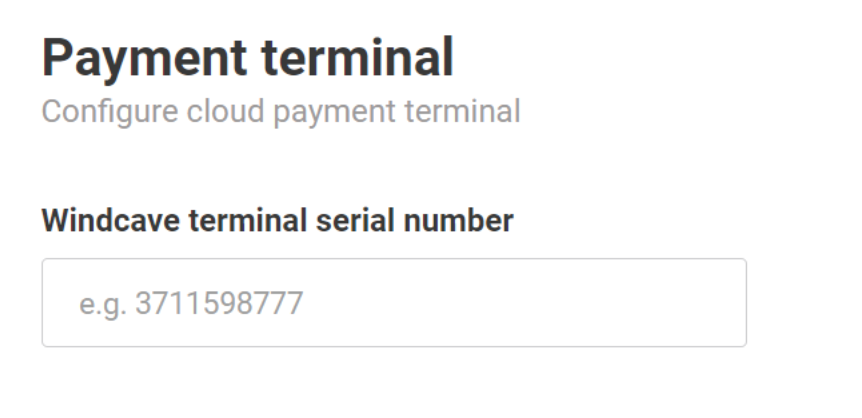
Refresh the self-serve kiosk browser and test the connection by attempting a card purchase
Repeat the steps above for each self-serve kiosk device.