If your business uses Xero for accounting, the Xero Export in ROLLER helps you easily prepare your revenue, payments received, and deferred income for upload into Xero, making reconciliation and reporting simpler and more accurate.
This guide shows you how to set up your general ledger (GL) account and tax rate mappings to reflect how each type of transaction should appear in Xero. These mappings control how data is grouped and formatted in the Xero Export report, which you'll generate once setup is complete. After exporting, you can import the file into Xero using Xero's Manual Journals feature.
Before getting started: Set up your reporting categories
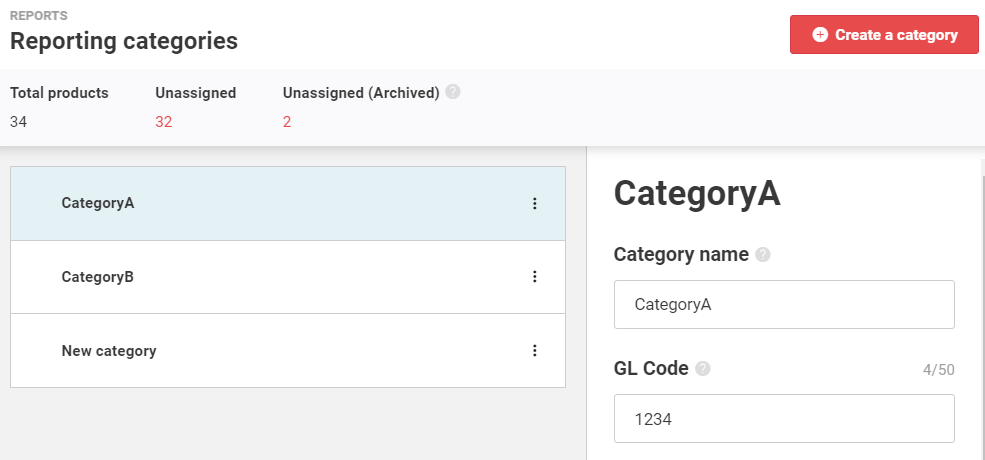
Make sure your reporting categories are set up and the correct GL codes are assigned.
These categories determine how net revenue (accrual accounting venue) or funds received (cash accounting venue) is grouped in the Xero Export. Set them up via Venue Manager > Reports > Reporting categories.
If you don't set them up , some revenue will flow into the unassigned bucket (which can have a GL code assigned to it in the Xero configuration).
Xero export types
The export type (cash or accrual) is determined by your venue's accounting setting in Venue Manager.
The cash export focuses on actual payments received (funds received), while the accrual export includes deferred revenue and accounts receivable.
Accrual accounting: Revenue is recorded when the service is delivered — for example, when a guest attends and redeems a booking. This method reflects what your business has earned, even if the payment came earlier.
Cash accounting: Revenue is recorded when payment is received — for example, when a guest pays today for a visit next week. This method reflects the actual cash flow into your business.
Quick setup checklist
Before diving into the full guide, here’s a summary of what you’ll do:
Open the Xero configuration page in Venue Manager
Map GL accounts to each transaction type
Map ROLLER tax rates to Xero tax names exactly
(Optional) Add tracking categories (eg venue name).
Confirm your date format matches your Xero account
Export and import the journal entries via Manual Journals in Xero
Step 1: Open the Xero configuration page
From Venue Manager, go to Settings > Integrations > Xero Integration.
If you can't see the Xero integration page, reach out to support to enable it for you.
Step 2: Map GL accounts
The Xero configuration page in ROLLER allows you to assign General Ledger (GL) codes and tax descriptors to various revenue and transaction types. What you enter here will determine how these entries appear in the Xero export.
If the GL code or tax name isn't assigned, the related fields will appear blank in the export file. You'll need to manually enter these values in Xero before you can post the journal entry.
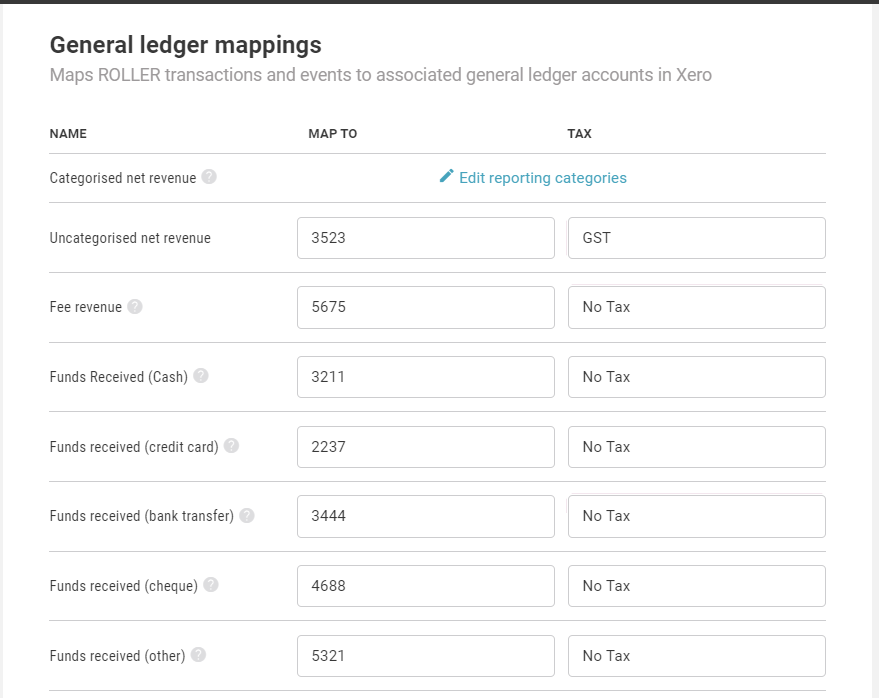
For each row in the General Ledger mapping table:
Enter the Xero GL account code (must match exactly with your Xero Chart of Accounts).
Enter the corresponding Xero tax name used for that account (must match exactly with what you have entered in Xero).
Below is a reference table describing each transaction type:
ROLLER transaction/event | Description |
|---|---|
Categorized net revenue (accrual accounting) | Recognized revenue grouped by your reporting categories (eg ticket sales, food & beverage). |
Uncategorized net revenue (accrual accounting) | Recognized revenue not assigned to any reporting category. |
Fee revenue | Funds received for service fees. |
Funds received (cash payments processed) | Cash payments received at POS. |
Funds received (credit card) | Credit card payments received, including recurring membership payments. |
Funds received (bank transfer) | Bank transfers manually marked as received in Venue Manager. |
Funds received (cheque) | Cheque payments manually marked as received in Venue Manager. |
Funds received (eftpos) | EFTPOS terminal payments received. |
Funds received (other) | Payments that don't fit other listed types (eg Google Pay, Apple Pay). |
Vouchers redeemed & third-party payments (accrual accounting) | Value of Groupon vouchers redeemed for bookings and any third-party payments from channel partners (eg Redeam, Tiqets). |
Deferred revenue (bookings) (accrual accounting) | Prepayments for future bookings under accrual accounting. Debited when redeemed. |
Deferred revenue (gift cards) (accrual accounting) | Tracks the movement of value related to gift cards under accrual accounting.
|
Deferred revenue (other) (accrual accounting) | Tracks movement of prepaid vouchers and third-party payments (eg Groupon, Redeam, Tiqets). Revenue is recognized when the guest redeems their booking (checks in at POS).
|
Gift card discounts | Discounts applied when selling gift cards. |
Accounts receivable (accrual accounting) | Tracks amounts owed for bookings where the service has been delivered (eg the guest attended or the booking expired), but payment has not yet been received.
|
Tax payable (accrual accounting) | Tax on recognized revenue. |
Gratuity payout | Tips paid to staff. |
Cash over/short | Differences between expected and counted cash during till close. |
Rounding | Used to balance minor discrepancies between debit and credit totals caused by rounding differences during calculations. |
Holding account configuration
In Xero, funds received from ROLLER (eg credit card, EFTPOS, or bank transfer) cannot be posted directly to your bank account during journal import. Instead, you need to set up one or more holding accounts as asset accounts in Xero. These act as temporary places to store incoming funds before they are deposited into your bank and reconciled.
To se up a holding account in Xero:
Create an asset account in your Xero Chart of Accounts (eg "Card Clearing Account" or "EFTPOS Holding")
In ROLLER's Xero configuration, map the appropriate funds received types to these holding accounts
Once funds are paid into your bank account from ROLLER, you'll then be able to reconcile those amounts using a holding account.
Under net settlement, payment fees are deducted before the payout is sent to your bank, while the Xero Export shows total funds received including payment fees across all payment methods. Learn more
Step 3: Map tax rates
In this step, you’ll match each tax rate in ROLLER to the exact name of the corresponding tax rate in Xero. This ensures that when your export is imported into Xero, each line item is taxed correctly based on the Tax rate column in the CSV file.
ROLLER does not include tax in the Amount column in the Xero CSV file it exports. Instead, it includes a Tax rate column, and Xero calculates the tax during import using this field. That means:
The exported CSV file won’t balance — the total debits and credits won’t match.
But once imported into Xero, the journal should balance automatically — as long as your tax names are mapped correctly to the tax names set up in Xero.
If the journal in Xero is off by more than a few cents, it's typically because:
A tax rate name in ROLLER doesn’t exactly match the one in Xero
A tax rate is missing or not configured properly in Xero
You can fix the tax rate in the draft journal in Xero, but we recommend also updating your tax mapping in ROLLER to avoid future issues. The Xero export now supports tax rates with up to three decimal places (eg 8.375). This means venues using detailed tax setups will see all their rates included correctly in the export.
Mapping tips:
Xero uses the tax name, not the percentage, to apply tax during import
The tax name must match what is set up in Xero — including spelling, capitalization and spacing.
Xero will then apply the tax rate set up in Xero for the matching tax name
ROLLER Tax Rate | Amount (%) | Map to Xero tax name |
|---|---|---|
Tax | 10 | GST on Income |
BAS Excluded | 0 | BAS Excluded |
For US venues: You may have multiple local tax rates (eg state, city, or county). The name must match exactly for Xero to apply the tax during import.
Step 4: (Optional) Add tracking categories
If you use tracking categories in Xero (eg venue, region), you can assign those here:
Category name | Option |
|---|---|
Venue | Phoenix |
Venue | Texas |
Venue | Austin |
These values appear in the export so you can filter journals in Xero.
Step 5: Confirm date format settings
Choose the date format required by your Xero region (eg DD/MM/YYYY for AU/UK, MM/DD/YYYY for US).
Step 6: Export the Xero Export, then import into Xero
To generate the export, from Venue Manager, go to Reports > All reports > Xero Export.
Select the day, date or dater range (up to a month).
Select Alert me when complete, then download the file.
In Xero, go to Accounting > Manual Journals > Import the template file.
You'll then be able to review the entries as a draft version and adjust them as needed. When ready, you can post the journal entries ot Xero.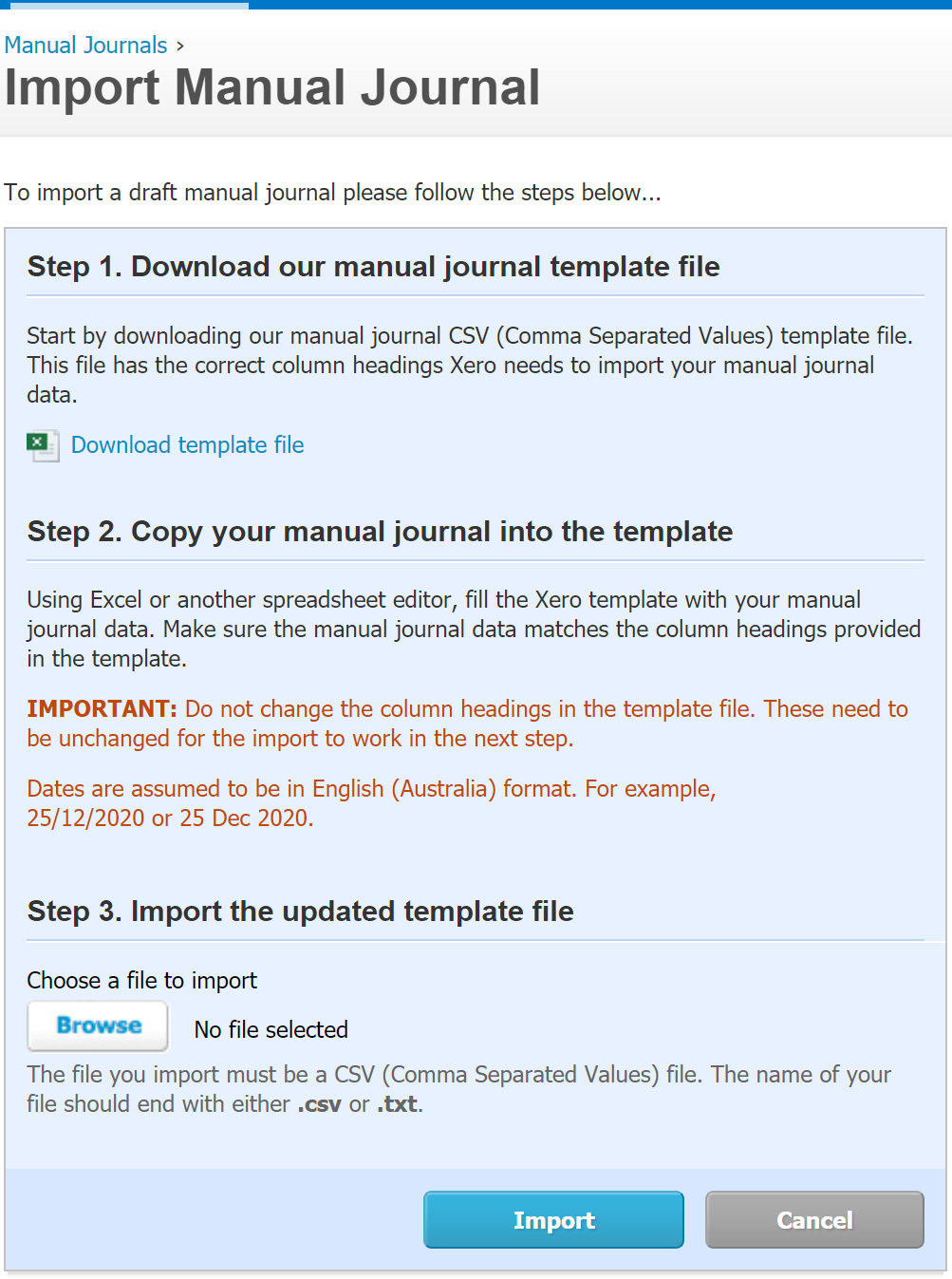
The journal may look unbalanced in Excel. Xero applies tax during import based on your tax mapping and the tax rate set up in Xero, so it will balance afterward if everything is configured correctly.
Learn more about exporting the CSV from ROLLER:
If your file is too large, break it into two parts (eg 1st–15th and 16th–end of month).
What is “rounding” in Xero exports?
Rounding in Xero exports refers to small differences that occur when transaction values (such as payments, taxes or revenue) are calculated and exported from ROLLER to Xero. These differences are typically the result of:
Decimal precision limits
Splitting values across multiple items (eg tax or discounts applied proportionally)
Currency formatting (eg rounding to the nearest cent or decimal)
When the total debits and credits in an exported journal entry don’t match exactly due to these small discrepancies, ROLLER includes a rounding line item in the export to force the journal to balance, ensuring it can be posted successfully in Xero.
Example:
If the sum of credits is $100.01 and debits total $100.00, ROLLER adds a $0.01 rounding debit entry to align the totals.
Rounding amounts are typically very small (eg $0.01 to $0.03). These are not errors, but adjustments to maintain accounting accuracy and compliance with Xero’s requirements.
FAQs
Do all Account Code values match your Xero GL codes?
Open the file in Excel and check that every Account Code value exactly matches your Xero Chart of Accounts.
Are tax rate names spelled correctly and mapped?
Make sure that each tax rate name in the journal file matches exactly with the corresponding tax name in Xero.
Does each day's entries sum to zero after tax is applied?
Review the journal to confirm that all debits and credits balance daily once Xero applies the mapped tax rates.
Missing tax?
Check that all taxable lines have a tax rate selected and that each rate is correctly mapped to a Xero tax name.
Too many rows to import?
Try exporting a shorter date range, such as two 2-week reports instead of one full month.
"Rounding" amounts too high?
Make sure "Vouchers redeemed & third party payments" and "Deferred revenue (other)" are mapped to prevent misallocation. See the mapping table above for details.
Using the cash accounting export?
Expect fewer line items in the export since deferred revenue isn’t included. This is ideal for cash-basis accounting.
Need help with mappings?
Reach out to your bookkeeper to double-check your mappings and import configuration or the ROLLER support team.