Having a member photo attached to a membership is important to ensure memberships are used correctly.
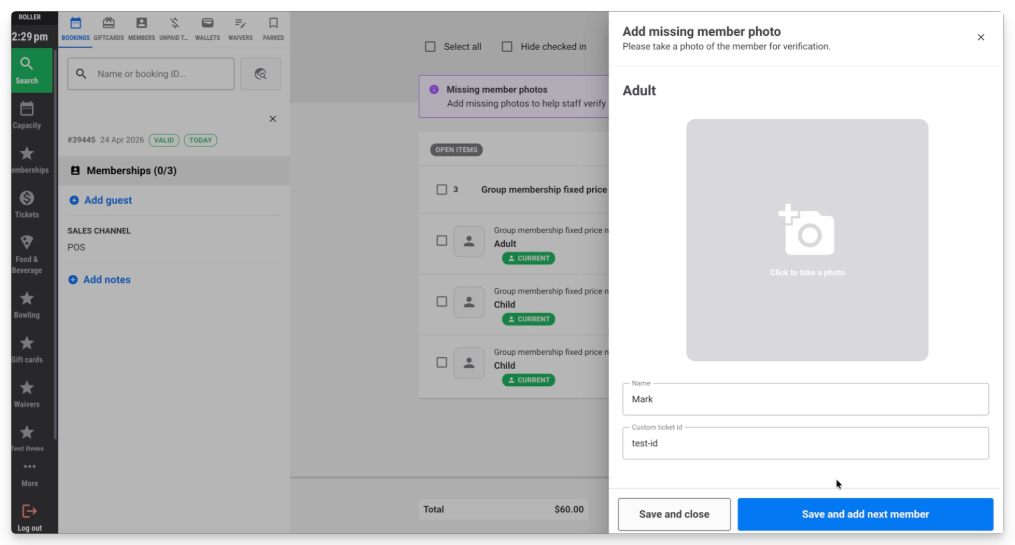
You can set membership photo capture to trigger at POS for every key point in the membership journey. This ensures that there are plenty of opportunities for venue staff to capture ID photos and reduce the chance that new members slip through without a photo.
Once enabled, ROLLER prompts for a member photo to be captured at these four points in the membership lifecycle:
When the booking is created, straight after a membership purchase.
When a membership benefit is redeemed.
After a membership upgrade is made.
When a member checks in.
The prompt can be skipped each time and redemption, purchase or check-in still proceeds whether or not a photo is taken.
Enable prompts for photo capture
Here's how to set it up:
In Venue Manager go to Apps and Point of Sale. Select Settings.
Scroll to the Guest management section. Select Show member photos as POS.
Select Require photos.
Select Save.
If you decide that prompting for photos at these points is slowing down POS staff, you can disable the prompts by deselecting Require photos. You can still add a membership photo outside of these prompts.