Uninstall the affected version of ROLLER Connect on each impacted POS device, then reinstall with the version from Hardware settings in POS. The download link in POS points to a working version, so a fresh install resolves the certificate error and restores receipt and docket printing.
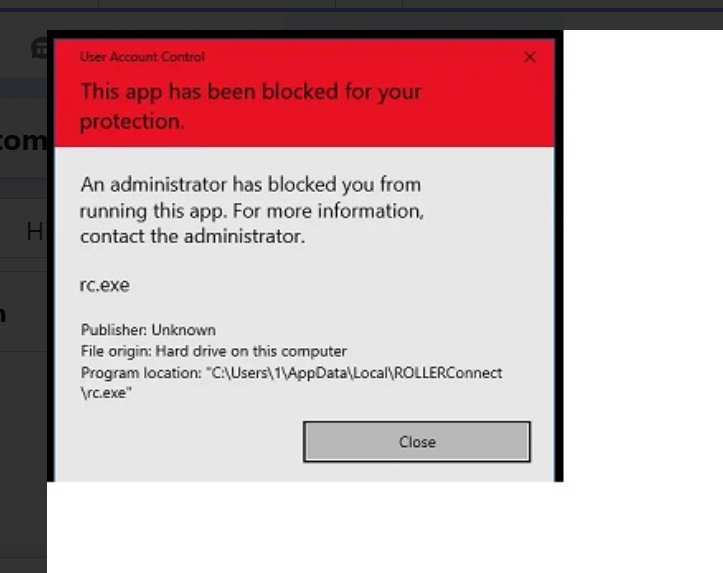
Reinstall ROLLER Connect on the affected POS device
On the affected POS device, close ROLLER POS.
From the Windows Start menu, search for Add or remove programs and open it.
Select ROLLER Connect (or ROLLER Connect Windows Service) in the list and select Uninstall. Follow the prompts to complete the uninstall.
Open ROLLER POS and sign in with a ROLLER administrator account.
Select More > Settings > Hardware.
Select the download link for your version — Download ROLLER Connect Windows Service or Download ROLLER Connect Legacy — to download the setup file.
Install ROLLER Connect Windows Service
Right-click the downloaded file and select Extract All, then click Extract.
Right-click the setup icon for ROLLER Connect Windows Service and select Run as administrator.
If prompted by Anti-Virus software such as Windows Defender, select More Info, confirm the publisher is Roller Networks Pty Ltd and select Run Anyway or similar action based on your software.
If asked for credentials, enter your Windows Administrator account details.
Click Next in the installer, leave the setting as local system admin, and wait for the process to finish. Click Close when done. RollerConnect should now be reinstalled and connected to your point of sale.
Refresh ROLLER POS. A green bar showing ROLLER Connect is connected appears at the top of the page.
Install ROLLER Connect Legacy
Right-click the setup icon for ROLLER Connect Legacy and select Run as administrator.
If prompted by Anti-Virus software such as Windows Defender, select More Info, confirm the publisher is Roller Networks Pty Ltd and select Run Anyway or similar action based on your software.
Select Yes if prompted. If asked for credentials, enter your Windows Administrator account details
Click Next in the installer, leave the setting as local system admin, and wait for the process to finish. Click Close when done. RollerConnect should now be reinstalled and connected to your point of sale.
Refresh ROLLER POS. A green bar showing ROLLER Connect is connected appears at the top of the page.
If you're still seeing the certificate error after reinstalling, or you can't complete the uninstall, contact the support team.