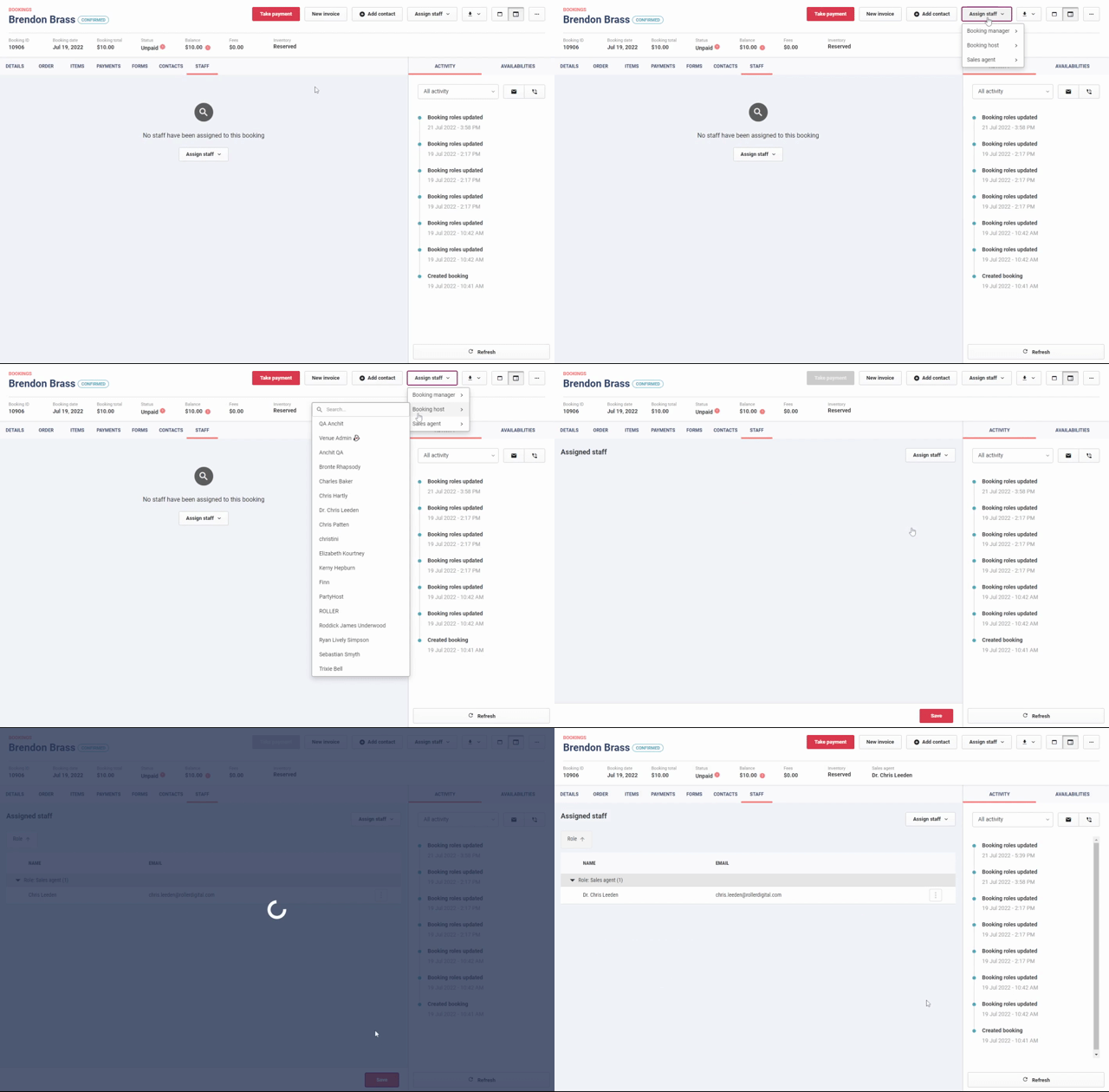
Manage and coordinate bookings, parties, events and the staff members responsible for running them effectively. This guide shows you how to assign a staff member to a booking.
When to use
Assign a staff member to a role, such as a booking host (party host) for a booking.
Assigning a party host helps you track which host is in charge of each party using printed run sheets. Learn more
You can also check and compare host performance using the GX Score Guest Insights dashboard. Learn more
Moreover, you can configure tips for party bookings to automatically go to the assigned party host. Learn more
Assign staff members to bookings
From Venue Manager, go to the booking you want to assign a staff member to.
Select Assign staff at the top right.
From the drop-down, select one of the following roles:
Booking manager
Booking host (eg party host)
Sales agent
Select the staff member's name from the list. All staff members with a ROLLER account appear in the list.
The assigned staff member's name and email are added to the booking's Staff tab.
Select Save.